1
Initializing the System Drives
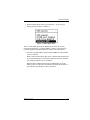
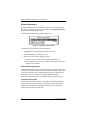
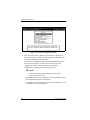
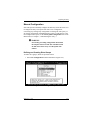
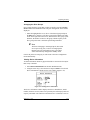
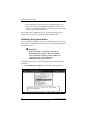
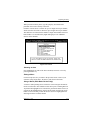
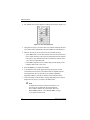
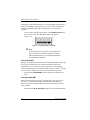
5. Select Start Initialize from the Initialize System Drive menu. A
confirmation box will appear.
☛ Note
Once the system drive initialization is started, it
should not be aborted.
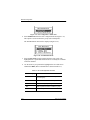
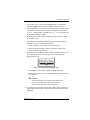
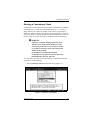
• Select YES to start the initialization of the selected system drives.
• Select NO to abort the process and return to the Initialize System
Drive screen.
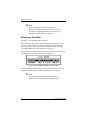
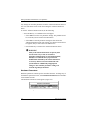
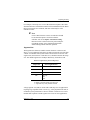
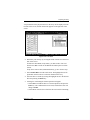
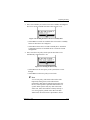
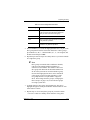
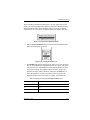
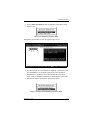
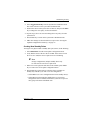
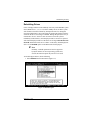
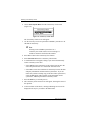
An initialization status screen will be displayed, with the initialization
progress of each drive included in the operation.
☛ Note
The initialization rate for a given system drive is
dependent upon the size of the drive and the RAID
level specified for the drive. Therefore, some system
drives will initialize more quickly than others.
m Caution
Do not interrupt the initialization process or you will
have to restart and complete a full initialization before
using the drive.
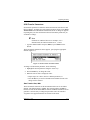
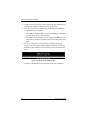
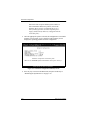
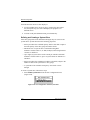
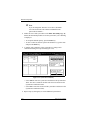
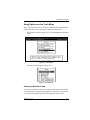
6. At the conclusion of the initialization, a completion message is
displayed. Press any key to return to the Main menu.
Preparation of the array is complete at this point. You can exit DACCF at this
time and proceed to load the operating system onto the array.
2-32
DACCF User’s Manual