1
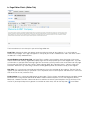
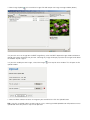
vi. Once your image has been uploaded click on the Select Image for Use link to return to the image manager
window where your image will now be ready for use.
vii. Select the image you just uploaded to view a preview then select the Use This Image link that appears
underneath the image preview. This will close the image manager window and return you to the image properties
window.
viii. Enter a description for your image in the Image Description field. This is an optional field but we recommend
that it is used. An image description helps blind people and text based web browsers understand the content of
your page and is used by search engines so can help improve your search engine ranks.
ix. If you know how you want the image to appear on your page there are several formatting options available by
selecting the Appearance and Advanced tabs. If not then your image can be manipulated afterwards.
x. Clicking the Insert button will return you to the Page Editor screen where you will see that your image has been
inserted.
TIP: You can manipulate your images by selecting and re-sizing them or by right clicking on them and changing
the image properties.
TIP: Unfortunately, in Microsoft Internet Explorer there is no way to re-size an image and easily retain its
proportions. This can result in images looking stretched. At present the easiest way to achieve this is by using the
Firefox web browser. This is free to download at getfirefox.com and works in the same way as Internet Explorer.