1
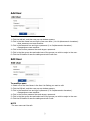
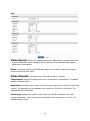
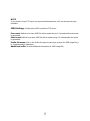
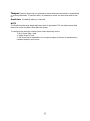
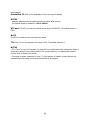
E-Mail(SMTP) Test: Enter the recipient's email address and click the Test button to
test that the mail servers are functioning and that the email address is valid. When the
setup is complete, the connection can be tested by clicking the Test button.
Receiver: Enter the recipient’s email address as the receiver to test.
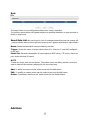
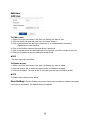
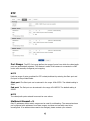
FTP
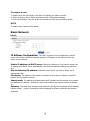
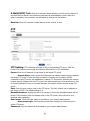
FTP Setting: FTP notification will save a file on the specified FTP server. Click the
Enable FTP checkbox and provide the following information for FTP notification.
Server: Enter the IP address or host name of the target FTP server.
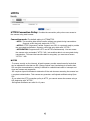
• Passive Mode: Under normal circumstances the network camera simply requests
the target FTP server to open the data connection. Checking this box issues a PASV
command to the FTP server and establishes a passive FTP connection; whereby the network
camera actively initiates both the FTP control and data connections to the target server. This
is normally desirable if there is a firewall between the network camera and the target FTP
server.
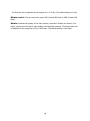
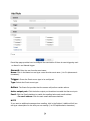
Port: Enter the port number used by the FTP server. The Port number can be adjusted in
the range 1-65535. The default setting is 21.
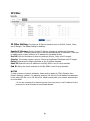
Remote directory: Specify the path to the directory where the uploaded images will be
stored. If this directory does not already exist on the FTP server, there will be an error
message when uploading.
User name: : Enter the User name as provided by your network administrator.
• Anonymous login: Click the Anonymous login checkbox to permit anyone to
access FTP server.
Password: Enter the Password as provided by your network administrator.