1
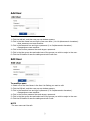
Add User
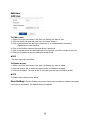
To add a new user:
1. Click the Add tab, and then new pop-up window appears.
2. Click in the User name box and type a new user name (1 to 14 alphanumeric characters).
• User names are not case sensitive.
3. Click in the Password box and type a password (1 to 8 alphanumeric characters).
• Passwords are case sensitive.
4. Click in the Confirm password box and retype a password.
5. Click in the User group box and select one of the groups you wish to assign to the user.
6. Click the OK button to save the settings and add a new user.
Edit User
To modify a user:
1. Select one of the User Name in the User List Setting you want to edit.
2. Click the Edit tab, and then new pop-up window appears.
3. Click in the Password box and type a password (1 to 8 alphanumeric characters).
• Passwords are case sensitive.
4. Click in the Confirm password box and retype a password.
5. Click in the User group box and select one of the groups you wish to assign to the user.
6. Click the OK button to save the settings and edit a user.
NOTE
The user name can’t be edit.