1
Viz Pilot User’s Guide
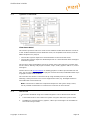
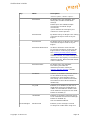
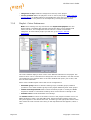
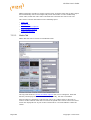
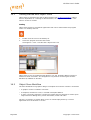
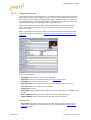
journalist working on a story. The newsroom component is an embedded application
in the NCS that connects to a database of templates. The templates can be filled
with text, images, video and maps. Vizrt’s newsroom component is known as Viz
Pilot’s newsroom client.
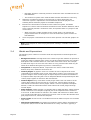
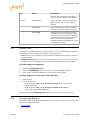
• Scene: A scene is built in Viz Artist. It can be a single scene, or one part (layer) of a
combination of scenes (transition logic).
• Template: A template is a customized interface created in Template Wizard. The
template is used in Director or Viz Pilot to create data elements that are added to a
playlist for playout. A template is based on one or several (transition logic) Viz Artist
scenes.
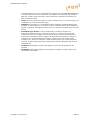
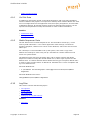
• Transition Logic Scene: A set of scenes built in Viz Artist. Consists of a
background scene and one or several front scenes. It contains one scene that
controls the state of or toggles a set of scenes (layers). The layered scenes are
used by the controlling scene to toggle in and out the layered scenes, using preconfigured or customized transitions effects, without the need to take scenes
already on-air, off-air. For example; A lower third may be on-air at the same time
as a bug, and the lower third may be taken off-air without taking the bug off-air or
reanimating it.
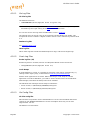
• Viz Artist: The design tool where the graphics scenes and all animations are
created.
• Viz Engine: The output engine used for playout of graphics, video, images, SDI
sound and sound effects.
Copyright © 2015 Vizrt
Page 25