1
Viz Pilot User’s Guide
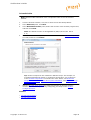
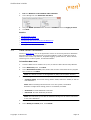
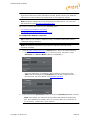
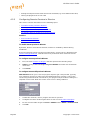
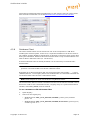
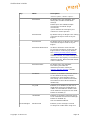
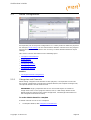
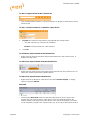
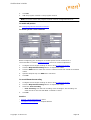
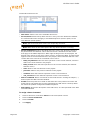
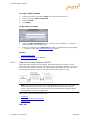
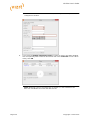
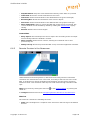
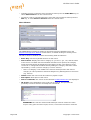
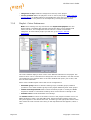
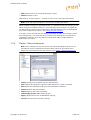
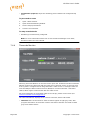
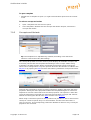
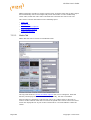
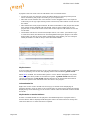
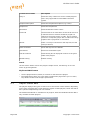
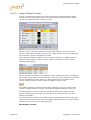
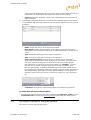
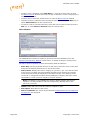
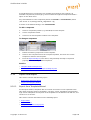
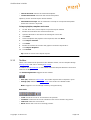
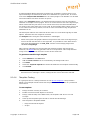
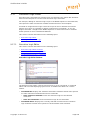
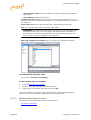
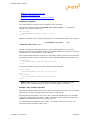
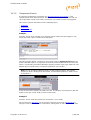
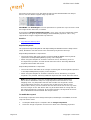
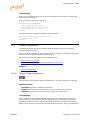
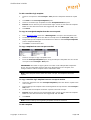
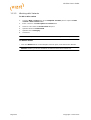
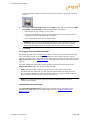
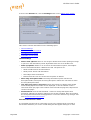
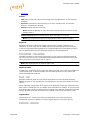
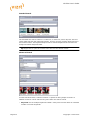
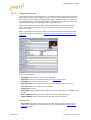
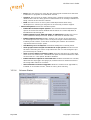
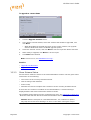
To add an output channel to the Channels list
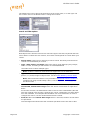
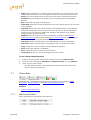
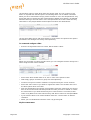
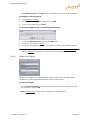
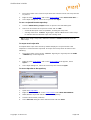
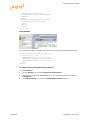
• Click the New Channel button, or drag and drop a Viz Engine or video device to the
Channels list.
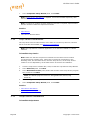
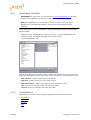
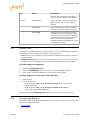
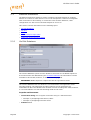
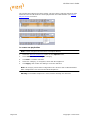
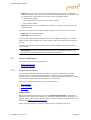
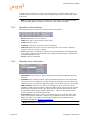
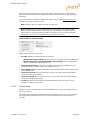
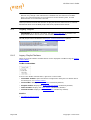
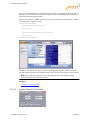
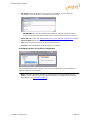
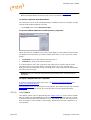
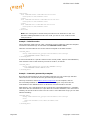
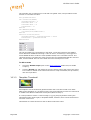
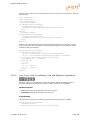
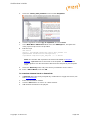
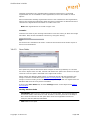
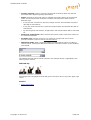
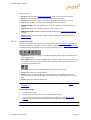
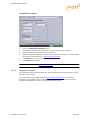
To add a concept override for a channel’s output device
1.
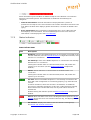
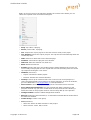
Expand the channel’s output device and append the concept name.
• This will override any concepts set elsewhere
Caution: Concept names are case sensitive.
2.
Click OK
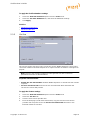
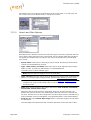
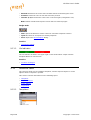
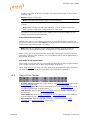
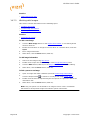
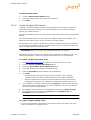
To rename an output channel in the Channels list
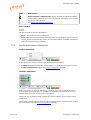
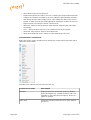
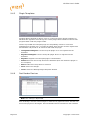
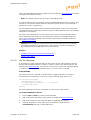
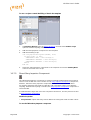
• Right-click the channel and select Edit Channel Name from the context menu, or
double-click the name.
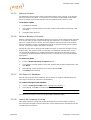
To remove an output channel from the Channels list
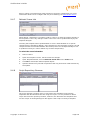
• Right-click the channel entry and select Delete channel from the context menu, or
select the channel and press the Delete button.
To remove an output from the Channels list
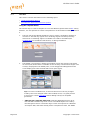
• Right-click the Viz Engine or video device and select Delete Output, or simply
select it and press Delete.
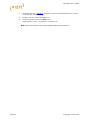
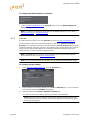
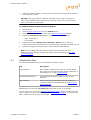
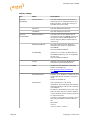
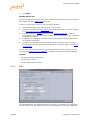
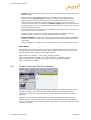
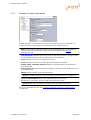
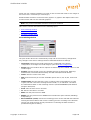
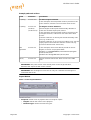
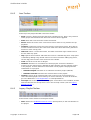
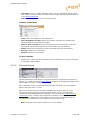
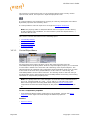
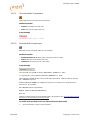
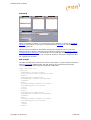
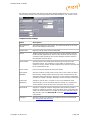
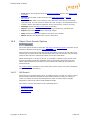
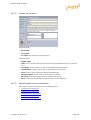
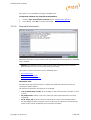
Allocated
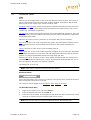
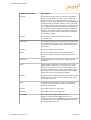
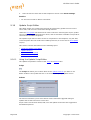
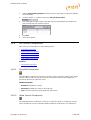
• Checking the Allocated check-box allocates video devices for the clips in the
playlist. For two channels with a video device each, the Media Sequencer will
enable transfer of all clips to all video devices. The clips in the playlist are, based
on the allocation, played out in a given order (e.g. A, B, A, B) to allow back to back
Page 92
Copyright © 2015 Vizrt