1
Viz Pilot User’s Guide
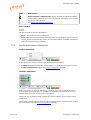
This option is only available to Support and R&D users.
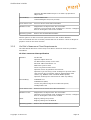
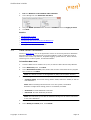
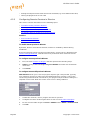
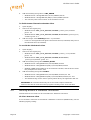
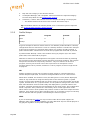
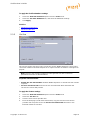
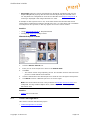
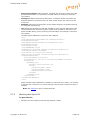
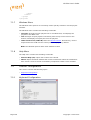
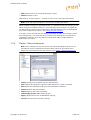
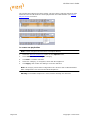
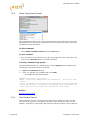
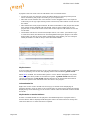
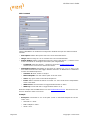
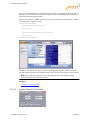
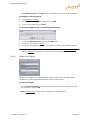
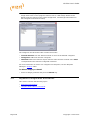
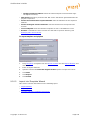
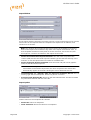
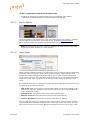
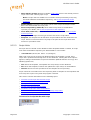
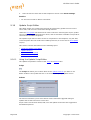
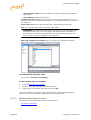
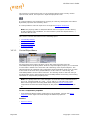
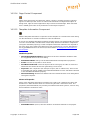
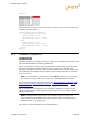
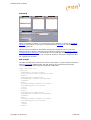
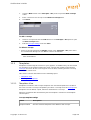
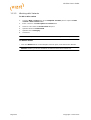
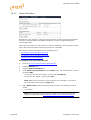
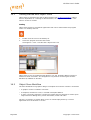
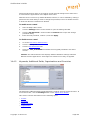
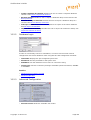
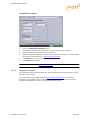
To import all schemas in a dump file to the database
15.3.9
1.
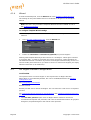
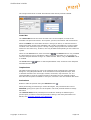
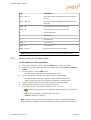
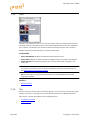
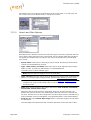
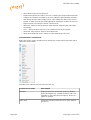
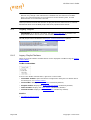
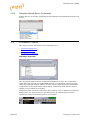
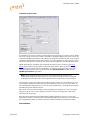
Click the Imp. All Schemas in Dump button ( Management Options ).
2.
In the dialog, click Yes to confirm the backup.
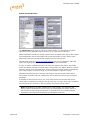
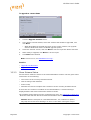
Extended Information
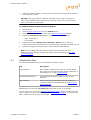
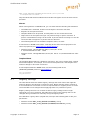
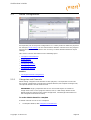
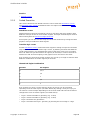
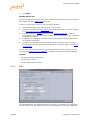
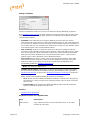
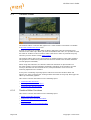
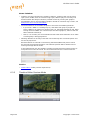
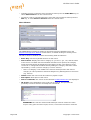
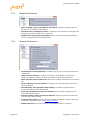
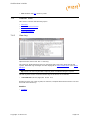
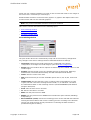
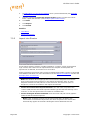
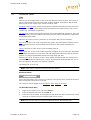
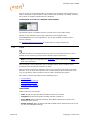
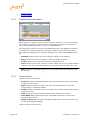
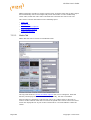
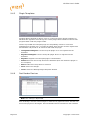
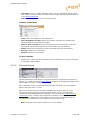
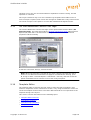
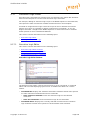
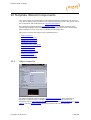
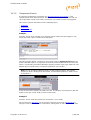
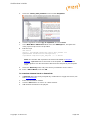
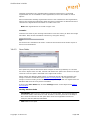
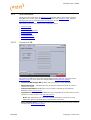
Extended information can be viewed if the option Enable advanced options in extended
info is enabled.
Caution: The different actions in these views could potentially stop the schema
from working if an error occurs while running the scripts.
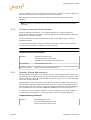
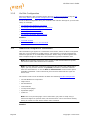
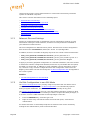
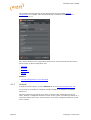
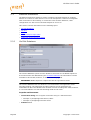
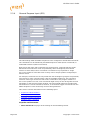
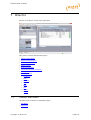
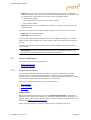
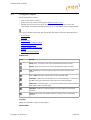
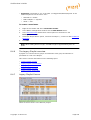
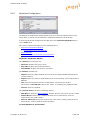
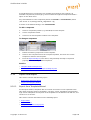
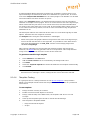
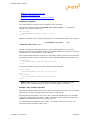
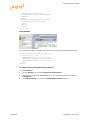
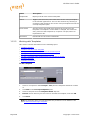
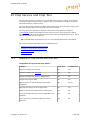
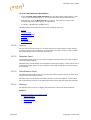
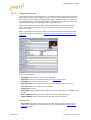
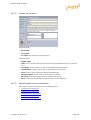
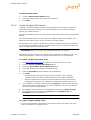
This section contains information on the following topics:
• Information Tabs
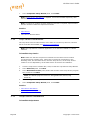
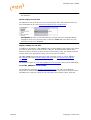
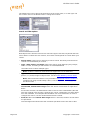
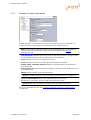
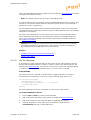
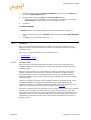
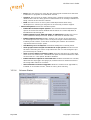
• Purge Expired Messages
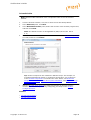
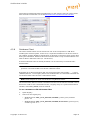
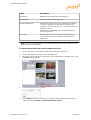
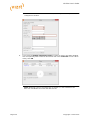
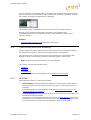
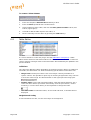
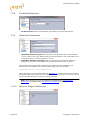
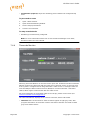
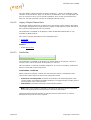
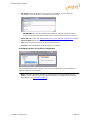
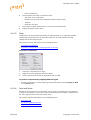
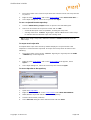
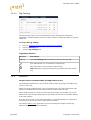
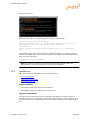
• To see extended information
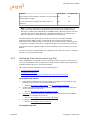
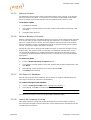
Information Tabs
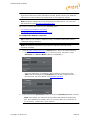
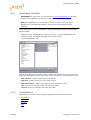
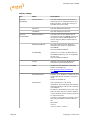
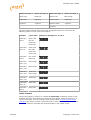
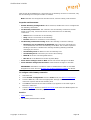
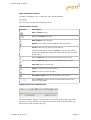
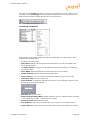
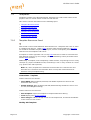
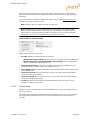
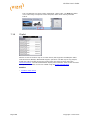
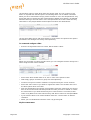
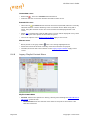
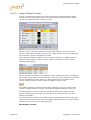
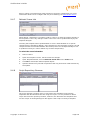
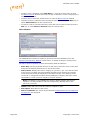
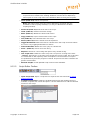
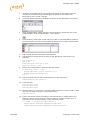
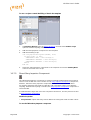
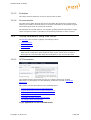
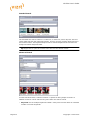
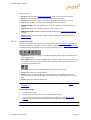
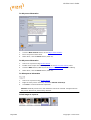
All information tabs have the option to refresh the database information result by
clicking the Refresh button.
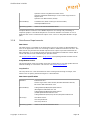
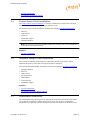
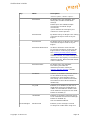
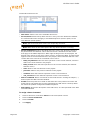
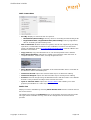
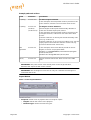
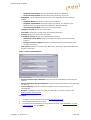
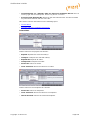
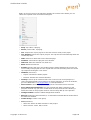
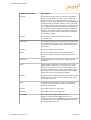
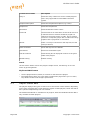
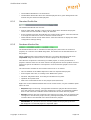
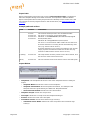
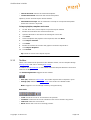
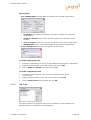
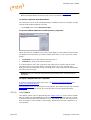
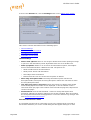
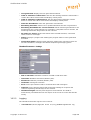
The following information and options are available:
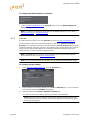
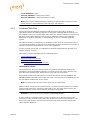
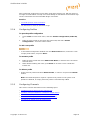
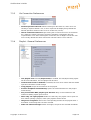
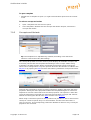
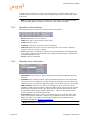
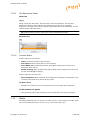
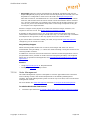
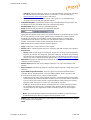
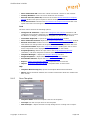
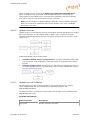
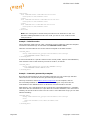
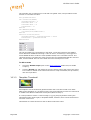
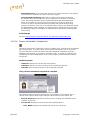
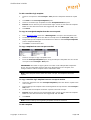
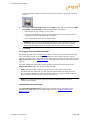
• List all tables with counts: Lists all tables in the schema and the number of rows
in each.
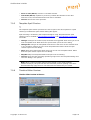
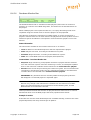
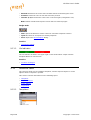
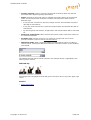
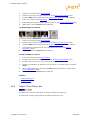
• AQ Subscribers: Shows a list of the message queue (AQ) Subscribers currently
registered.
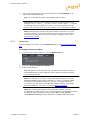
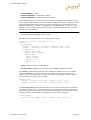
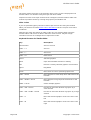
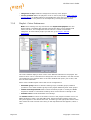
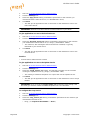
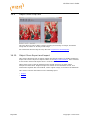
• AQ & Purge Job: Lists the status of and allows the user to activate/deactivate
the AQ Triggers and the Purge Job. This view also has an option to recreate the AQ
tables, which is done by deleting and recreating the tables.
Copyright © 2015 Vizrt
Page 395