1
24
Debugging with DDD
2.1.3 X Options
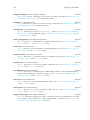
ddd also understands the following X options. Note that these options only take a single dash
‘-’.
‘-display display’
Use the X server display. By default, display is taken from the DISPLAY environment
variable.
‘-geometry geometry’
Specify the initial size and location of the debugger console.
‘-iconic’
Start ddd iconified.
‘-name name’
Give ddd the name name.
‘-selectionTimeout timeout’
Specify the timeout in milliseconds within which two communicating applications
must respond to one another for a selection request.
‘-title name’
Give the ddd window the title name.
‘-xrm resourcestring’
Specify a resource name and value to override any defaults.
2.1.4 Inferior Debugger Options
All options that ddd does not recognize are passed to the inferior debugger. This section lists
the most useful options of the different inferior debuggers supported by ddd.
2.1.4.1 GDB Options
These gdb options are useful when using ddd with gdb as inferior debugger. Single dashes
‘-’ instead of double dashes ‘--’ may also be used.
‘-b baudrate’
Set serial port baud rate used for remote debugging.
‘--cd dir’ Change current directory to dir.
‘--command file’
Execute gdb commands from file.
‘--core corefile’
Analyze the core dump corefile.
‘--directory dir’
‘-d dir’
Add directory to the path to search for source files.
‘--exec execfile’
Use execfile as the executable.