1
14
Getting to know your tablet
3. If you set an unlock pattern, enter it, then tap Erase everything. The
card will then be formatted and ready to use.
Powering Your Tablet On/Off
It’s important to fully charge the battery before turning on your tablet for the
first time to maximize its life cycle.
Turning the tablet on
Press and hold the Power/Lock Key on the right side of the tablet for a
couple of seconds until the screen turns on.
The default Lock screen
If you don’t use the tablet for a while, your tablet will enter timeout to
conserve battery power. Timeout turns off the backlight and locks the
screen. The default Lock screen is Swipe. To unlock the tablet:
1. Turn the screen on.
Press the Power/Lock Key on the right side of the tablet.
OR
Quickly double-tap the center of the screen (KnockON).
NOTE If Knock Code is set as the screen lock, double-tapping the screen when it is off will
display the Knock Code entry screen.
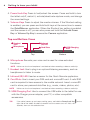
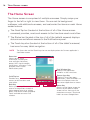
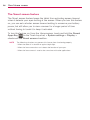
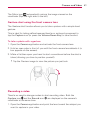
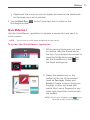
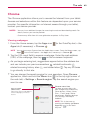
2. The Swipe Lock screen will appear. From the center
of the screen, swipe in any direction to unlock it.
To use a Swipe Lock screen shortcut, swipe the
shortcut icon (at the bottom of the screen) in any
direction. The screen will unlock and launch the
application.
NOTE
The Swipe Lock screen simply locks the screen to prevent
unintentional actions. For more security to guard against
unauthorized use, you can set an unlock requirement (such as
a Knock Code, a pattern, a PIN, a password, or use face
recognition) that will need to be entered to unlock it. Please
refer Setting a screen lock on page 23 for more information.