1
22
Your Home screen
Quick Access
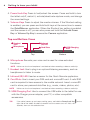
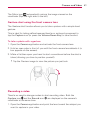
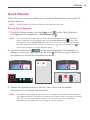
The Quick access feature allows you to open the Google Now application
or the QuickMemo+ application instantly no matter where you are in the
tablet’s software. Sliding your fingertip up from below the Touch keys bar
displays the Google Now icon
and the QuickMemo+ icon
on a
white arc. Continue dragging your finger to place it over the icon you want,
then lift your finger to launch that application.
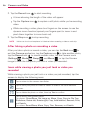
Returning to Recently-used Applications
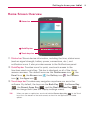
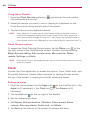
1. Tap the Recent Apps Key
(in the Touch keys bar). The screen
displays all of your open applications.
2. Tap an icon to open the application. You can also swipe an application off
of the screen to remove it from the list.
Manually Locking the screen
The Power/Lock Key (on the right side of the tablet) and the KnockON
feature allow you to turn off the screen which will also lock it.
Press the Power/Lock Key to turn off (and lock) the screen.
Quickly double-tap the Status bar, an empty spot on the Home screen, or
the Lock screen to turn off (and lock) the screen.
NOTE
The screen turns off and locks automatically when the tablet enters timeout.
The Power/Lock Key and the KnockON feature will also turn the screen
back on, which displays the Lock screen.
The KnockON feature
The KnockON feature allows you to double-tap the screen to easily turn the
screen on or off.
For the best results, keep the tablet still when using KnockON.
Quickly double-tap the center of the screen to turn the screen on.
Quickly double-tap the Status bar, an empty area on the Home screen, or
the Lock screen to turn the screen off.