1
11.2 Search by Category
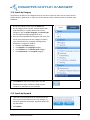
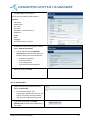
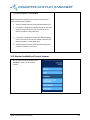
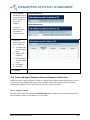
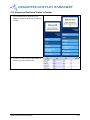
The panel on the left lists the categories that you can use to search for files. You can search the File
Cabinet by topic, grade level, or type. You can also search the File Cabinet by State or Common Core
Standards.
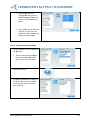
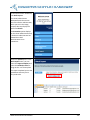
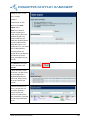
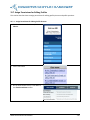
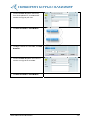
1. On the File Cabinet screen, click the Search tab.
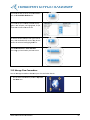
2. On the category list on the left, click the expand icon
(represented by a + symbol) beside one or more
categories, such as Grade, Language, or Content Type.
You can expand multiple categories at once.
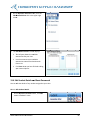
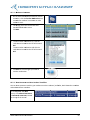
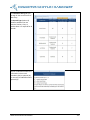
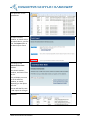
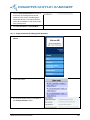
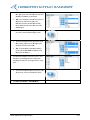
3. Once you have expanded the categories you want, click
one or more check boxes in each category to specify
your search criteria. For example, to find grammar
assessment in English for Grade 2:
Click 2 in the Grade category.
Click English in the Language category.
Click Grammar in the Content Type category.
Click Assessment in the Purpose category.
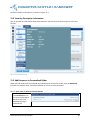
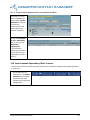
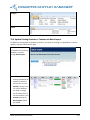
4. Click Submit to view your search results. You can
download your search results to a folder on your
computer, or add them to your Favorites.
11.3 Search by Keyword
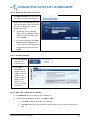
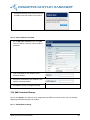
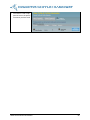
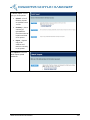
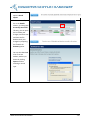
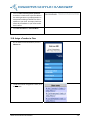
1. Type one or more keywords in the search box on the
lower left of the File Cabinet screen. For example, to
search for grammar assessment, type both words into
the search box.
2. Click Submit.
Write Source Online User Manual
77