1
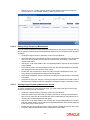
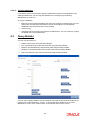
Archived Table Name The archived table name will be displayed. 2.2.2 Purge Frequency Summary screen 2.2.2.1 Retrieving Record in Purge Frequency Summary Screen You can retrieve a previously entered record in the Summary Screen, as follows: Invoke the ‘Purge Frequency Maintenance Summary’ screen by typing ‘UTSPURGS’ in the field at the top right corner of the Application tool bar and clicking on the adjoining arrow button. Specify any or all of the following details in the corresponding fields: The status of the record in the Authorized field. If you choose the ‘Blank Space’ option, then all the records are retrieved. The status of the record in the Open field. If you choose the ‘Blank Space’ option, then all records are retrieved The Purge Key The Purge Frequency The Last Purge Date Click ‘Search’ button to view the records. All the records with the specified details are retrieved and displayed in the lower portion of the screen. Note You can also retrieve the individual record detail from the detail screen by querying in the following manner: – Press F7 – Input the Purge Key. – Press F8 You can perform Edit, Delete, Amend, Authorize, Reverse, Confirm operations by selecting the operation from the Action list. You can also search a record by using a combination of % and alphanumeric value. Example You can search the record for Purge Key by using the combination of % and alphanumeric value as follows: Search by A%: System will fetch all the records whose Purge Key starts from Alphabet ‘A’. For example, AGC17, AGVO6, AGC74 etc. Search by %7: System will fetch all the records whose Purge Key ends by numeric value’ 7’. For example AGC17, GSD267, AGC77 etc. 2-3