1
Satellite Receiver
User’s Guide
Changing Entertainment. Again.
Important Information
WARNING
To reduce the risk of fire or
electric shock, do not expose
this product to rain or moisture.
CAUTION
RISK OF ELECTRIC
SHOCK. DO NOT OPEN.
Caution: To reduce the risk of electric shock, do
not remove cover (or back). No user serviceable
parts inside. Refer servicing to qualified service
personnel.
This symbol indicates
"dangerous voltage" inside
the product that presents a
risk of electric shock or
personal injury.
Cautions
Note to Cable TV Installer:
Note to Satellite Dish Installer:
This symbol indicates
important instructions
accompanying the product.
Do not stack electronic components or other objects on top of the
Digital Satellite Receiver. The slots on top of the receiver must be left
uncovered to allow proper airflow to the unit. Blocking the airflow to the unit
could impair performance or damage your receiver and other components.
Remove any sales or promotional materials attached to the product.
Do not stack the digital satellite receiver on top of a “hot component” such as
an audio power amplifier.
FCC Regulations state that unauthorized changes or modifications to this
equipment may void the user’s authority to operate it.
Your system is equipped with a RF remote control. The RF remote control
complies with Part 15 of the FCC Rules. Operation is subject to the
following two conditions: 1) The RF remote may not cause harmful
interference and; 2) The RF remote must accept any interference received,
including interference that may cause undesired operation.
This reminder is provided to call your attention to article 820-40 of the
National Electrical Code (Section 54 of the Canadian Electrical Code, Part 1
which provides guidelines for proper grounding and, in particular, specifies
that the cable ground shall be connected to the grounding system of the
building as close to the point of cable entry as practical.
This reminder is provided to call your attention to articles 810 and 820 of the
1999 National Electrical Code. Refer to article 810, in particular to 810-1 and
810-15, for required grounding of the metal structure of the Dish Antenna.
Refer also to the 810-2 which, by reference to article 820, requires that the
satellite dish coaxial cable shield be connected to the grounding system of the
building as close to the point of cable entry as practical.
IMPORTANT NOTICE:
This device incorporates an anticopy process technology that is protected by
U.S. patents and other intellectual property rights. The anticopy process is
licensed for non-commercial, home use only. Reverse engineering or
disassembly is prohibited.
Care and Cleaning:
Use a soft cloth or dusting attachment of your vacuum cleaner to dust your digital
satellite receiver. Remove dust from the ventilation holes on the top and bottom.
Plastic surfaces are easily scratched and can be marred by alcohol and various
solvents. Avoid excessive use of oil-based furniture polishes since the materials
used in the cabinet will accumulate more dust. A non-abrasive, anti-static
cleaner/polisher is recommended.
Product Registration
Please fill out the product registration card (packed separately) and return it immediately. Returning the card allows us to
contact you if needed.
Product Information
Keep your sales receipt to obtain warranty parts and service and for proof of purchase. Attach it here and record the serial
and model numbers in case you need them. These numbers are located on the product.
Model No. __________________________________________________________________________________________
Serial No. __________________________________________________________________________________________
Purchase Date: ______________________________________________________________________________________
Dealer/Address/Phone: ______________________________________________________________________________
Introduction
Key Features Overview
Your digital satellite receiver is equipped with features that will add to your viewing experience.
The following information summarizes a few of these features. Chapter 3 provides more
information about the rest of the satellite system’s features and how to use them.
On-screen Program Guides
Description: Available on-screen guides include a new Advanced Program
Guide™ which stores up to seven days of programming information and lists
five different channels of programming at a glance.
Requirements: Complete the on-screen assisted setup. You’ll find detailed
instructions how to do this in Chapter 1, Connections & Setup.
Interactive Channel Banner
Description: A transparent banner at the top of the picture allows direct access
to the key features of the digital satellite receiver including a way to display the
Main Menu, viewing suggestions, program details, on-screen Caller ID Display
capability, The Guardian™ channel locking system, on-screen message display,
the Scout™ keyword/phrase and the AlphaSort™ alphabetical search features,
and alternate audio offerings.
Requirements: Press the INFO button on the remote control. Highlight
different icons using the remote control’s arrow buttons. Select the highlighted
icon using the remote control’s OK button.
Dolby Digital Sound Capability
Description: Dolby Digital® (when available) provides six independent
soundtrack channels through the optical and coaxial output jacks. When
connected to an optional, compatible six-channel amplifier/receiver and
speakers, these connections provide Dolby Digital® Surround Sound.
Requirements: A TV with digital audio input jacks, or a digital audio receiver/
decoder.
Component Output
Pr
Pb
Y
COMPONENT VIDEO
Description: This connection provides optimum picture quality because the
video is separated into three signals. Use three video-grade cables for the
connection and connect the left and right audio cables, because the Y PB PR
jacks and cables carry only the picture signal, not the sound.
Requirements: A TV with component video input jacks, component video
cables to connect the receiver to a TV. The TV must be tuned to the component
video input channel to see the component video signal.
1
Introduction
VCR
One-button Record
Description: Records any program being watched with the touch of one
button. The receiver sends infrared commands to the VCR through a VCRcontroller cable to execute the recordings at the proper time.
Requirements: Connect the satellite receiver to the VCR and attach the infrared
cable on top of the VCR’s remote control sensor. Set up the digital satellite
receiver system using the first-time assisted setup and follow the directions on
page 22 to select the VCR type.
ON • OFF
VCR1
DVD
VCR2
TV
SAT
AUX
SKIP
MUTE
VOL
VOL
CH +
CH FETCH
GO BACK
INFO
GUIDE
OK
MENU
CLEAR
1
2
3
4
5
6
8
7
9
WHO•INPUT
ANTENNA
0
REVERSE
PLAY
RECORD
STOP
FORWARD
PAUSE
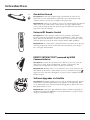
Universal RF Remote Control
Description: Provides complete satellite system operation, and primary
function control of most brands of remote-controllable TVs, VCRs, and cable
boxes. When the RF Antenna is connected to the receiver, this remote control
will work from any room in the house using its built-in UHF capabilities.
Requirements: To control other components that are not RCA, GE, or Proscan,
you must program the remote control. For more information, go to Chapter
Two, Using the remote Control.
DIRECTV INTERACTIVE™ powered by WINK
Communications®
Description: An interactive television service that lets you access up-to-theminute news, sports, financial information, weather, program trivia, and
respond to free offers and even shop– all while you watch TV.
Requirements: Establish a free, secure Interactive TV account, then press the
OK/i button on the remote control whenever you see the Interactive logo ( )
appear on-screen. For more information, see page 34 in the Satellite System
Features chapter.
Software Upgrades via Satellite
Description: The digital satellite receiver is able to modify some of its features
and functions with downloaded RSA-secure upgrades or modifications. RSAsecure downloads ensure that only authorized upgrades are delivered to your
RCA digital satellite receiver.
Requirements: Consult the Upgrade Menu to find a schedule of upgrades or
modifications planned by DIRECTV. For more information, see page 66 in the
Using On-screen Menus chapter.
2
Table of Contents
Key Features Overview ............................................................................................ 1
Setup & Connections ................................................................................................ 5
Things To Consider Before You Connect ................................................................... 6
Choose Your Connection ........................................................................................... 7
RF Remote Antenna Connection ............................................................................. 16
Advanced Audio (Digital Audio Output Connection) ............................................ 17
Cables and Jacks ....................................................................................................... 18
Satellite Receiver Back Panel ................................................................................... 19
Locating the VCR’s Infrared Remote Control Sensor ............................................. 20
Connect the VCR Controller .................................................................................... 21
Using Highlight and Select ...................................................................................... 21
Selecting a VCR Type ................................................................................................ 22
Complete the Assisted Setup ................................................................................... 22
Order Programming ................................................................................................. 22
Using the Remote Control .................................................................................... 23
Remote Control Buttons .......................................................................................... 24
Top of the Digital Satellite Receiver ........................................................................ 25
Programming the Remote Control ......................................................................... 26
Using Automatic Code Search ........................................................................... 26
Using Direct Entry .............................................................................................. 27
Operating Other Components .......................................................................... 27
Changing the RF Remote Control Code .................................................................. 28
Using the Satellite System’s Features ............................................................. 31
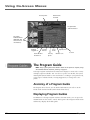
Anatomy of a Program Guide ................................................................................. 32
Displaying the Program Guides ........................................................................ 32
Using The Channel Banner ................................................................................ 33
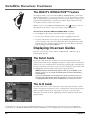
The DIRECTV INTERACTIVE™ Feature .............................................................. 34
Displaying On-screen Guides ................................................................................... 34
The Detail Guide ................................................................................................ 34
The Grid Guide ................................................................................................... 34
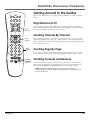
Getting Around In the Guides ................................................................................. 35
Scrolling Channel By Channel ........................................................................... 35
Scrolling Page By Page ...................................................................................... 35
Scrolling Forward and Reverse .......................................................................... 35
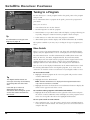
Tuning to a Program .......................................................................................... 36
More Details ................................................................................................. 36
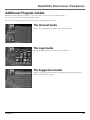
Additional Program Guides ..................................................................................... 37
The Channel Guide ............................................................................................ 37
The Logo Guide .................................................................................................. 37
The Suggestions Guide ...................................................................................... 37
Sorting the Guides ................................................................................................... 38
Viewing Suggestions ......................................................................................... 38
Active Profile’s Preferences ............................................................................... 39
Movies ................................................................................................................ 39
Sports .................................................................................................................. 39
Channel Sort ....................................................................................................... 39
AlphaSort™ ........................................................................................................ 40
Scout™ ............................................................................................................... 40
Down Arrow ....................................................................................................... 40
3
Table of Contents
Using the Menu System ......................................................................................... 41
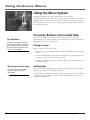
On-screen Buttons and Context Help ..................................................................... 42
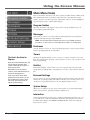
Main Menu Items ..................................................................................................... 43
The Program Guide .................................................................................................. 44
Displaying the Program Guides ........................................................................ 44
Messages ................................................................................................................... 45
Mail ..................................................................................................................... 45
Caller ID .............................................................................................................. 46
Using the Purchases Menu ....................................................................................... 48
User Profiles .............................................................................................................. 51
Creating and Editing User Profiles .................................................................... 51
Locking the System ............................................................................................ 54
Choosing Your Profile ........................................................................................ 56
Personal Settings ...................................................................................................... 56
System Setup ............................................................................................................ 58
Assisted Setup ................................................................................................. 58
System Index ...................................................................................................... 59
System Options .................................................................................................. 59
Languages .................................................................................................... 59
Set VCR Type ................................................................................................ 59
Output Channel ........................................................................................... 60
Remote Setup .............................................................................................. 60
RF Remote Setup ......................................................................................... 60
Picture Size ................................................................................................... 60
Dolby Digital ................................................................................................ 60
Dolby Digital* Setup ............................................................................... 61
Requirements ............................................................................................... 61
Connections ................................................................................................. 61
Time Zone ..................................................................................................... 62
Multi-Switch Setup ...................................................................................... 62
Dish Pointing ...................................................................................................... 62
System Test ......................................................................................................... 64
System Info ......................................................................................................... 64
Upgrades ............................................................................................................ 64
New Access Card ................................................................................................ 64
Alternate Data ................................................................................................... 64
Interactive .......................................................................................................... 64
Other Information ................................................................................................... 67
Troubleshooting ....................................................................................................... 68
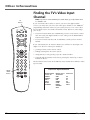
Finding the TV’s Video Input Channel .................................................................... 70
Running the System Test .......................................................................................... 71
Warranty ................................................................................................................... 72
Accessory Order Form .............................................................................................. 75
Index ......................................................................................................................... 77
4
Chapter 1
Setup & Connections
Chapter Overview:
• Things to Consider Before You Connect
• Choose Your Connection
• RF Remote Antenna Connection
• Digital Audio Output Connection
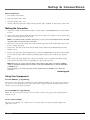
• Place Batteries in the Remote Control
• Connect the VCR Controller
• Assisted Setup
• Order Programming
Changing Entertainment. Again.
Graphics contained within this publication are for representation only
5
5
Setup & Connections
Things To Consider Before You Connect
Protect Your Components from Power Surges
• Connect all components before plugging any power cords into the wall outlet.
• Always turn off the digital satellite receiver, TV and other components before you connect or
disconnect cables.
• Make sure all antennas and cables are properly grounded. Refer to the Important Safety
Information sheet packed with your unit.
Position Cables Correctly to Avoid Audio Hum or Interference
• Insert all cable plugs firmly into their jacks.
• Place the Audio/Video (A/V) cables to the sides of the TV’s back panel instead of straight
down the middle after you connect your components.
• Try not to coil any twin-lead cables and keep them away from the A/V cables as much as
possible.
Protect Your Components from Overheating
• Do not block ventilation holes in any of the components. Arrange the components so that
air can circulate freely. Remove any sales or promotional materials attached to the
product.
• Do not stack components.
• Allow adequate ventilation when placing components in a stand.
• If you connect an audio receiver or amplifier, place it on the top shelf so the heated air from
it won’t flow around other components.
6
Chapter 1
Setup & Connections
Choose Your Connection
There are several ways to connect your digital satellite receiver depending on the components
you want to connect and the quality of the signal you want to achieve. Please use the following
chart to determine which connection is best for you. Proceed to the appropriate page and
connect your satellite receiver. For more information about the relationship between cables,
jacks, and the quality of the signal, go to pages 18-19.
Component
TV
VCR
R ec
eive
r
Signal Quality
Jacks on the satellite receiver
Cables needed*
Go to...
Excellent
COMPONENT INPUT (Y, PB, PR)
AUDIO L and R
component video,
audio left and right
page 8
Very Good
S-VIDEO, AUDIO L and R
S-video, audio/video
page 10
Good
VIDEO, AUDIO L and R
audio/video
page 12
Basic
OUT TO TV
coaxial
page 14
Very Good
VIDEO, AUDIO L and R
audio/video
page 8
Good
OUT TO TV
coaxial
page 14
Excellent
DIGITAL AUDIO
optical (SPDIF)
page 18
Very Good
DIGITAL AUDIO
coaxial
page 18
* Pictures of cables are on page 18.
Chapter 1
7
Setup & Connections
Digital Satellite Receiver
VCR
RF REMOTE
GROUND
R
PHONE
JACK
PR
SATELLITE
IN
LOW SPEED
DATA
L
OUT TO TV
IN FROM ANT
Satellite Dish
Antenna
2
1
S-VIDEO
VIDEO
AUDIO
RJ11
modular
phone jack
7
4
IN
FROM
ANT
6
IN
VIDEO
OUT
TO
TV
TV
DIGITAL
AUDIO
Cable or
Off-air
Antenna
VCR
CH3
CH4
3
PB
Y
COMPONENT VIDEO
L
R
AUDIO
OUT
5
R
PR
L
IN
FROM
ANT
AUDIO
PB
Y
Component
Video
VIDEO
S-Video
Note: Your VCR and TV back panels may not look
exactly like the ones shown.
Excellent Connection
Using A/V Cables for component video and A/V connections
for the TV and VCR
This connection provides this receiver’s best picture quality, surpassing that of S-Video. The
component video connection is recommended for use with HDTVs and multimedia monitors.
Component Video provides the best picture quality (breaking the video signal into three
separate parts). Remember to connect audio cables as well.
8
Chapter 1
Setup & Connections
What you will need:
• Eight (8) A/V cables
• Three (3) video grade (or component video) cables
• One (1) telephone line cord
• Coaxial cable lines fed from a digital satellite antenna and a standard TV antenna (or cable feed)
Making the Connection
1. Connect the satellite dish antenna feed (RG-6 coaxial cable) to the SATELLITE IN jack on the satellite receiver.
2. Connect the cable box or off-air antenna feed (RF coaxial cable) to the IN FROM ANT jack on the satellite
receiver.
3. Connect one end of the supplied telephone line cord to the PHONE JACK on the back of the satellite receiver,
and the other end to an RJ11-type modular phone jack (the most common type of phone jack).
4. Connect the ends of the supplied A/V cables to the AUDIO and VIDEO jacks on the back of the digital
satellite receiver. Connect the other ends of the A/V cables to the corresponding Audio/Video input jacks
on the back of the VCR.
Note: Make sure you connect jacks corresponding to their labels. For example, VIDEO Out on the digital
satellite receiver should be connected to VIDEO IN on the VCR, AUDIO R OUT to the VCR’s right audio input
jack, etc.
5. Connect the ends of a second set of A/V cables (not supplied) to the AUDIO and VIDEO output jacks on
the VCR. Connect the other ends of the A/V cables to the corresponding Audio/Video input jacks on the
back of the TV.
6.
Connect the ends of the component video cables (not supplied) to the COMPONENT VIDEO jacks on the
digital satellite receiver. Connect the other ends of the component video cables to the corresponding input
jacks on the back of the TV.
Note: Make sure you connect jacks corresponding to their labels. For example, Pr Out on the digital satellite
receiver should be connected to Pr IN on the TV, Pb OUT to Pb IN, etc.
7. Connect cables to the digital satellite receiver’s second AUDIO OUT jacks and the other ends to the
corresponding Audio input jacks on the TV.
Go to Page 18
Using Your Components
To watch DIRECTV® programming:
Tune the TV to its Component video input channel (if you have difficulty finding your TV’s Component input
channel, see your TV’s User’s Manual, or see page 68 in this manual for additional information). When the TV
is tuned to the component video input channel, tune the satellite receiver to the desired channel.
To record DIRECTV® programming:
Tune the satellite receiver to the desired channel. Then set your VCR to record on its video input channel.
Begin recording as usual.
To view VCR recordings:
Tune the TV to its video input channel (if you have difficulty finding your TV’s video input channel, see your
TV’s User’s Manual, or see page 68 in this manual for additional information). Begin VCR playback as usual.
Chapter 1
9
Setup & Connections
Digital Satellite Receiver
VCR
R
RF REMOTE
GROUND
PHONE
JACK
Pr
LOW SPEED
DATA
SATELLITE
IN
L
OUT TO TV
IN FROM ANT
Satellite Dish
Antenna
1
2
5
Pb
Y
COMPONENT VIDEO
4
S-VIDEO
VIDEO
AUDIO
DIGITAL
AUDIO
RJ11
modular
phone jack
Cable or
Off-air
Antenna
VCR
CH3
CH4
IN
FROM
ANT
6
OUT
TO
TV
7
3
TV
R
L
IN
FROM
ANT
AUDIO
VIDEO
S-Video
Note: Your VCR and TV back panels may not look
exactly like the ones shown.
Very Good Connection
Using S-Video and A/V jacks and cables to connect to the TV,
RF coaxial cables to connect to the VCR
This connection provides better picture quality than A/V cables and is recommended for use
with TVs that do not have component video input jacks. Remember to also connect audio cables
since S-Video carries no sound.
10
Chapter 1
Setup & Connections
What you will need:
• Two (2) RF coaxial cables
• Two (2) A/V cables
• One (1) S-Video cable
• One (1) telephone line cord
• Coaxial cable lines fed from a digital satellite antenna and a standard TV antenna (or cable feed)
Making the Connection
1. Connect the satellite dish antenna feed (RG-6 coaxial cable) to the SATELLITE IN jack on the satellite
receiver.
2. Connect one end of an RF coaxial cable to the OUT TO TV jack on the satellite receiver, and the other
end to the antenna INPUT jack on the VCR.
Note: If your VCR has Audio and Video input jacks, you can connect the satellite receiver to the
VCR using A/V cables instead of the RF coaxial cable.
3. Connect one end of an RF coaxial cable to the antenna OUTPUT jack on the VCR, and the other end
to the TV’s antenna INPUT jack.
4. Connect the cable box or off-air antenna feed (RF coaxial cable) to the IN FROM ANT jack on the
satellite receiver.
5. Connect one end of the supplied telephone line cord to the PHONE JACK on the back of the satellite
receiver, and the other end to an RJ11-type modular phone jack (the most common type of phone
jack).
6. Connect the ends of the supplied A/V cables to the satellite receiver’s AUDIO output jacks, and the
other ends to the corresponding AUDIO input jacks on the TV.
Note: Make sure you connect jacks corresponding to their labels. For example, AUDIO R output on the
digital satellite receiver should be connected to AUDIO R input on the TV.
7. Connect one end of the supplied S-Video cable to the satellite receiver, and the other end to the SVideo input jack on the TV.
Go to Page 18
Using Your Components
To watch DIRECTV® programming:
Tune the TV to its S-Video input channel (if you have difficulty finding your TV’s S-Video input
channel, see your TV’s User’s Manual or page 68 in this manual for more information). Then tune the
satellite receiver to the desired channel.
To record DIRECTV® programming:
Tune the satellite receiver to the desired channel. Then set your VCR to record on the proper input
channel (video input channel if you connected the digital satellite receiver to the VCR using A/V jacks
and cables, channel 3 or 4 if using RF coaxial cable to make the connection).
To view VCR recordings:
Tune the TV to channel 3 or 4 (whichever is set on the VCR as its output channel). Begin VCR
playback as usual.
Chapter 1
11
Setup & Connections
Digital Satellite Receiver
VCR
RF REMOTE
GROUND
R
PHONE
JACK
Pr
SATELLITE
IN
LOW SPEED
DATA
L
OUT TO TV
IN FROM ANT
Pb
Y
COMPONENT VIDEO
1
Satellite Dish
Antenna
2
VIDEO
AUDIO
DIGITAL
AUDIO
5
4
Cable or
Off-air
Antenna
VCR
CH3
CH4
S-VIDEO
RJ11
modular
phone jack
6
IN
FROM
ANT
OUT
TO
TV
3
TV
R
L
IN
FROM
ANT
AUDIO
VIDEO
Note: Your VCR and TV back panels may not look
exactly like the ones shown.
Good Connection
Using A/V jacks and cables to connect to the TV,
RF coaxial cables to connect the VCR
This connection provides better picture quality than only RF coaxial cable and is recommended
for use with TVs that do not have component video or S-Video input jacks.
12
Chapter 1
Setup & Connections
What you will need:
• Two (2) RF coaxial cables
• Three (3) Audio/Video cables
• One (1) telephone line cord
• Coaxial cable lines fed from a digital satellite antenna and a standard TV antenna (or cable feed)
Making the Connection
1. Connect the satellite dish antenna feed (RG-6 coaxial cable) to the SATELLITE IN jack on the satellite
receiver.
2. Connect one end of an RF coaxial cable to the OUT TO TV jack on the satellite receiver, and the other
end to the antenna input jack on the VCR.
Note: If your VCR has Audio and Video input jacks, you can connect the satellite receiver to the VCR
using A/V cables instead of the RF coaxial cable.
3. Connect one end of an RF coaxial cable to the antenna output jack on the VCR, and the other end to
the TV’s antenna input jack.
4. Connect the cable box or off-air antenna feed (RF coaxial cable) to the IN FROM ANT jack on the
satellite receiver.
5. Connect one end of the supplied telephone line cord to the PHONE JACK on the back of the satellite
receiver, and the other end to an RJ11-type modular phone jack (the most common type of phone
jack).
6. Connect the ends of the supplied A/V cables to the satellite receiver’s AUDIO and VIDEO output
jacks, and the other ends to the corresponding A/V input jacks on the TV.
Note: Make sure you connect jacks and cables corresponding to their labels. For example, AUDIO R
output on the digital satellite receiver should be connected to AUDIO R input on the TV, VIDEO OUT
to VIDEO IN, etc.
If your TV only has one audio input jack, use the satellite receiver’s AUDIO L jack to make the
connection.
Go to Page 18
Using Your Components
To watch DIRECTV® programming:
Tune the TV to its video input channel (if you have difficulty finding your TV’s video input channel,
see your TV’s User’s Manual or refer to the instructions on page 68 in this manual). Then tune the
satellite receiver to the desired channel.
To record DIRECTV® programming:
Follow the steps in the previous step. Set your VCR to record on its proper input channel (either
channel 3 or 4).
To view VCR recordings:
Tune the TV to channel 3 or 4 (whichever is set on the VCR as its output channel). Begin VCR
playback as usual.
Chapter 1
13
Setup & Connections
Digital Satellite Receiver
VCR
RF REMOTE
GROUND
R
PHONE
JACK
Pr
SATELLITE
IN
LOW SPEED
DATA
L
OUT TO TV
IN FROM ANT
Y
Pb
COMPONENT VIDEO
Satellite Dish
Antenna
1
2
S-VIDEO
VIDEO
AUDIO
DIGITAL
AUDIO
5
4
Cable or
Off-air
Antenna
RJ11
modular
phone jack
VCR
CH3
CH4
IN
FROM
ANT
OUT
TO
TV
TV
3
IN
FROM
ANT
Note: Your VCR and TV back panels may not look
exactly like the ones shown.
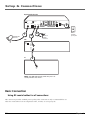
Basic Connection
Using RF coaxial cables for all connections
This connection provides standard picture quality. This connection is only recommended for use
when the connected TV has no Component Video, S-Video, or A/V input jacks.
14
Chapter 1
Setup & Connections
What you will need:
• Two (2) RF coaxial cables
• One (1) telephone line cord
• Coaxial cable lines fed from a digital satellite antenna and a standard TV antenna (or cable feed)
Making the Connection
1. Connect the satellite dish antenna feed (RG-6 coaxial cable) to the SATELLITE IN jack on the satellite
receiver.
2. Connect one end of an RF coaxial cable to the OUT TO TV jack on the satellite receiver, and the
other end to the antenna INPUT jack on the VCR.
3. Connect one end of an RF coaxial cable to the antenna OUTPUT jack on the VCR, and the other end
to the TV’s antenna INPUT jack.
4. Connect the cable box or off-air antenna feed (RF coaxial cable) to the IN FROM ANT jack on the
satellite receiver.
5. Connect one end of the supplied telephone line cord to the PHONE JACK on the back of the satellite
receiver, and the other end to an RJ11-type modular phone jack (the most common type of phone
jack).
Go to Page 18
Using Your Components
To watch DIRECTV® programming:
Tune the TV to the satellite receiver’s output channel (either channel 3 or 4).
Note: You can change the satellite receiver’s output channel by pressing the remote control’s SAT
button, then the MENU button, then select System Setup, then System Options, and finally select
Output Channel. Use the remote control’s arrow and OK buttons to highlight and select the
desired output channel. Tune the TV to that channel to see the satellite receiver’s picture.
To record DIRECTV® programming:
Follow the directions in the previous step, then set your VCR to record on its proper input channel
(channel 3 or 4 if using RF coaxial cable to make the connection, Video input channel if using A/V
cables to connect the VCR to the satellite receiver).
To view VCR recordings:
Tune the TV to channel 3 or 4 (whichever is set on the VCR as its output channel). Begin VCR
playback as usual.
Chapter 1
15
Setup & Connections
VCR
RF REMOTE
GROUND
R
PHONE
JACK
Pr
SATELLITE
IN
LOW SPEED
DATA
L
OUT TO TV
IN FROM ANT
Pb
Y
COMPONENT VIDEO
VIDEO
S-VIDEO
AUDIO
DIGITAL
AUDIO
RF Remote Antenna Connection
This connection allows your remote control to communicate with your digital satellite receiver
even when you do not have line-of-sight to the receiver’s front panel remote sensor.
What you will need:
• One RF remote antenna
Making the Connection
Connect the RF remote antenna to the RF REMOTE jack on the back of your digital satellite
receiver.
Using Your Component
As soon as the above connection is made, the RF feature of your remote is in effect. For
information about programming the remote control to operate other devices, see page 26. If you
have other RF remote controls, you may want to change the RF code to avoid conflicts. To change
the RF code, see the instructions on page 28.
16
Chapter 1
Setup & Connections
Receiver or Decoder
with Optical Input
DIGITAL
AUDIO
INPUT
OR
Digital Satellite Receiver
VCR
GROUND
R
RF REMOTE
PHONE
JACK
Pr
SATELLITE
IN
LOW SPEED
DATA
L
OUT TO TV
IN FROM ANT
Pb
Y
COMPONENT VIDEO
VIDEO
S-VIDEO
AUDIO
DIGITAL
AUDIO
Advanced Audio
(Digital Audio Output Connection)
Cables: Either Optical (SPDIF) or Coaxial Audio
Use this connection to take advantage of Dolby Digital† quality sound, when available.
Notes: your digital receiver back panel may not look exactly like the one pictured.
This satellite receiver’s optical digital output jack fully complies with the international standard
governing this type of jack (IEC958), and is designed for connection to a Dolby Digital (AC-3 or
PCM) receiver or Dolby Digital (AC-3 or PCM) decoder. Older equipment, some of which is not
fully compliant with IEC958, may not be compatible with the Dolby Digital bitstream. Such a
connection using anything other than a PCM, Dolby Digital, or Dolby Pro Logic receiver or
decoder could create a high noise level, causing damage to headphones or speakers.
Making the Connection
Connect one end of either an optical (SPDIF) cable or a coaxial digital audio cable (you do not
have to connect both) to the corresponding DIGITAL AUDIO OUTPUT jack* on the satellite
receiver, and to the corresponding digital audio input jack on a Dolby Digital receiver or decoder.
Using Your Component
After you connect your satellite receiver to a Dolby Digital receiver, you must select Dolby Digital
from the System Options menu (press the remote control’s MENU button, then select System Setup,
then System Options, then highlight Dolby Digital. Use the remote control’s arrow and OK buttons
to highlight and select Autoselect, PCM, or Dolby Digital in order for the receiver to recognize the
digital audio connection.
For more information on this feature, see the Dolby Digital entry starting on page 61.
*
Manufactured under license from Dolby Laboratories. “Dolby” and the double-D symbol are trademarks of Dolby
Laboratories. Confidential Unpublished Works. ©1992-1997 Dolby Laboratories, Inc. All rights reserved.
Chapter 1
17
Setup & Connections
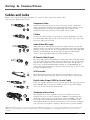
Cables and Jacks
Below is a description of the jacks and cables you can use to make connections. Not all cables
come with your digital satellite system.
Component Video
Y
Pb
Pr
Component Video provides this receiver’s best picture quality. Component
Video jacks break a standard picture signal down into three parts for superior
imaging. Remember to connect the left and right audio cables because
Component Video carries only the picture signal, not the sound.
S-Video
S-VIDEO
S-Video jacks/cables provide very good picture quality. Remember to connect
the left and right audio cables to the TV because the S-Video cable carries only
the picture signal, not the sound.
Audio/Video (RCA-type)
L
VIDEO
R
AUDIO
Audio/Video (A/V) cables provide good picture quality and stereo sound, and
should be used if your TV has no S-video or Component Video jacks. The digital
satellite receiver’s A/V jacks are color coded (yellow for video, red for right audio,
and white for left audio). If your TV has only one input for audio (mono),
connect it to the left (white) audio jack on the satellite receiver.
RF Coaxial Cable (F-type)
ANTENNA IN
VCR
RF jacks provide good picture and mono sound quality. They should be used if
A/V connections are not available on your TV. RF jacks are also used for off-air
antenna, cable, and RF remote control antenna connections. The RF jacks on
the receiver are labeled IN FROM ANT, OUT TO TV, and RF REMOTE. The
coaxial cable supplied with your system is used to connect the receiver to your
TV/VCR’s antenna input jack.
VCR Controller
The VCR Controller plugs into the VCR jack on the satellite receiver’s back
panel. Attach the other end of the cable to your VCR’s remote control sensor.
Digital Audio Output (SPDIF or Coaxial Cable)
If you own a Dolby Digital receiver that uses an optical cable-type input, use an
optical (SPDIF) cable to connect the satellite receiver to your Dolby Digital
receiver or decoder for the best sound quality.
DIGITAL
AUDIO
DIGITAL
AUDIO
Telephone Jack and Cord
PHONE
The telephone line cord is required to connect your satellite receiver to a
telephone line if you choose to subscribe to *DIRECTV® programming. The
phone line connection is used to periodically call out to DIRECTV. You will
need an RJ11-type modulator jack (the most common type of phone jack)
which might look like one of those pictured here. If you don’t have a modular
jack, call your local telephone company to find out how to get one installed.
DIRECTV programming is subject to the terms and conditions of the DIRECTV Customer Agreement; a copy is provided at DIRECTV.com and with your first bill.
DIRECTV, the Cyclone Design logo, and Advanced Program Guide are trademarks of DIRECTV, Inc., a unit of Hughes Electronics Corp., and are used with
permission.
18
Chapter 1
Setup & Connections
VCR
R
RF REMOTE
GROUND
PHONE
JACK
Pr
SATELLITE
IN
LOW SPEED
DATA
L
OUT TO TV
IN FROM ANT
Pb
Y
COMPONENT VIDEO
VIDEO
AUDIO
S-VIDEO
DIGITAL
AUDIO
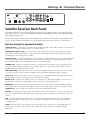
Satellite Receiver Back Panel
This diagram illustrates each of the back panel jacks found on your digital satellite receiver. When working
with cables, be sure to connect corresponding OUTPUTS and INPUTS (Video OUT to Video IN, Right Audio
OUT to Right Audio IN, etc.).
For more information on the function of the back panel jacks and many other features of your digital satellite
receiver, press the MENU button and select System Setup from the Main menu, then select System Index.
Back Panel Jacks (in alphabetical order)
AUDIO (R and L) Audio cables offer better sound quality than RF coaxial cables. Connect a second set of
audio cables to another component, such as a VCR or stereo.
COMPONENT VIDEO (Y PrPb) Provides this receiver’s best picture quality surpassing that of S-Video,
Audio/Video, and RF coaxial cables. Y PrPb jacks break a video signal down by three separate channels,
providing this receiver’s best picture quality.
DIGITAL AUDIO Connects the satellite receiver’s audio to a Dolby Digital receiver or decoder. This audio
connection provides the best sound quality. Use either the optical or the coaxial DIGITAL AUDIO output
jacks (not both) when using component, S-Video, or A/V video outputs.
IN FROM ANT Connect a standard TV antenna or cable feed to the satellite receiver using this jack. You
can then switch between the satellite receiver’s signal and the TV/cable feed using the remote control’s
ANTENNA button to toggle between the two.
LOW SPEED DATA This port allows you to connect your digital satellite receiver to future services and
accessories as they become available. A shielded cable and additional hardware may be required.
OUT TO TV Connects the satellite receiver to your TV or VCR using RF coaxial cable. This jack provides
the most basic connection, carrying average sound and video quality.
PHONE JACK Connects the satellite receiver to a telephone line. The digital satellite receiver requires a
telephone line connection to periodically communicate with your program provider.
RF REMOTE This jack connects an antenna that allows the remote control to use both infrared (IR) for
line-of-sight, and radio-frequency (RF) signals, which work through walls, to operate the satellite receiver.
SATELLITE IN Use to connect the satellite receiver to the satellite dish antenna.
S-VIDEO Provides better picture quality than VIDEO or RF coaxial cable jacks. If your TV has an S-Video
jack, use it along with the audio jacks (S-Video only carries picture information, not sound) to connect to
your TV.
VCR This jack allows the satellite receiver to control the VCR using an IR cable. The cable is attached
above the VCR’s remote control sensor. This connection is required for One-Touch Record and Timer
recording features.
VIDEO Provides better picture quality than the OUT TO TV jack. Connect the second VIDEO jack to
another device, such as a VCR. You must also connect the AUDIO cables when using the VIDEO
connection.
Chapter 1
19
Setup & Connections
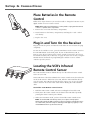
Place Batteries in the Remote
Control
Follow these steps whenever you need to install or change the batteries in your
digital satellite receiver’s remote control.
Note: When replacing old batteries, you may need to reprogram the remote
control to operate other components.
1. Remove the cover from the battery compartment.
2. Insert batteries in the battery compartment, matching the + and – end of
each battery.
3. Replace the cover.
Plug in and Turn On the Receiver
Plug the end of the power cord into the wall outlet. Be sure to insert the plug
completely.
To turn on the satellite receiver, press the SAT button on the remote control or
the ON•OFF button on the front panel. If your TV brand is RCA, GE, or
Proscan, press the TV button on the remote control to turn on the TV. If your
TV brand is not RCA, GE, or Proscan, see page 26 in the next section, Using the
Remote Control, for details on programming the satellite receiver’s remote
control to operate your TV.
Locating the VCR’s Infrared
Remote Control Sensor
The VCR Controller must be affixed directly over the infrared remote control
sensor on your VCR.
Some VCRs have a label that identifies the remote control sensor, but others do
not. If the IR sensor is labeled on your VCR, affix the VCR Controller directly
over the sensor. For VCRs that do not label the sensor, you can use the VCR’s
remote control to locate the VCR’s sensor before affixing the VCR Controller
cable.
To Find the VCR’s Remote Control Sensor:
1. Hold the VCR’s remote control so that it is touching the front of the VCR.
2. Slowly move the remote control over the front of the VCR while repeatedly
pressing the remote control’s power button.
3. When your VCR turns on/off, you have located the remote control sensor.
Note: To test the VCR controller’s position, use a piece of vinyl tape to
temporarily attach the VCR controller to the spot where you think the sensor
is located. Then, follow the steps in Selecting a VCR Type on page 22, to see
if the VCR Controller is positioned correctly.
20
Chapter 1
Setup & Connections
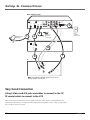
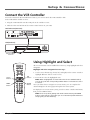
Connect the VCR Controller
To use the One-Touch Record and Timer features, you need to attach the VCR Controller cable
to the VCR and the satellite receiver.
1. Plug the VCR Controller into the VCR jack on the satellite receiver.
2. Affix the other end in front of the remote control sensor on your VCR.
Satellite Receiver (Back Panel)
VCR
RF REMOTE
GROUND
PHONE
JACK
Pr
SATELLITE
IN
LOW SPEED
DATA
OUT TO TV
IN FROM ANT
Pb
Y
COMPONENT VIDEO
VIDEO
AUDIO
S-VIDEO
DIGITAL
AUDIO
VCR (Front Panel)
Remonte Control
IR Sensor
Using Highlight and Select
ON • OFF
VCR1
DVD
VCR2
TV
All on-screen menus can be handled the same way, using highlight and select
navigation.
SAT
AUX
SKIP
MUTE
Highlight and select navigation has two steps:
VOL
VOL
CH +
1. Use the arrow buttons (up, down, left, and right) on the remote control to
highlight different choices on the screen.
CH FETCH
GO BACK
INFO
GUIDE
Arrow
buttons
OK
MENU
MENU
button
OK
button
CLEAR
1
2
3
4
5
6
7
8
9
WHO•INPUT
CLEAR
button
2. Press OK to select the highlighted item.
Note: When a highlighted on-screen menu choice has a number beside it,
you can also press the corresponding number button on the remote control
to select it.
Once you know how to navigate on-screen menus, you can complete the
Assisted Setup (see the next page) and explore the menu system.
ANTENNA
0
REVERSE
PLAY
RECORD
STOP
FORWARD
PAUSE
To display the on-screen menu system, press the remote control’s SAT button,
then press the MENU button.
Note: Don’t worry about getting stuck inside a menu. Pressing the CLEAR
button on the remote control takes you out of the menu system and back to
the program you were watching.
Chapter 1
21
Setup & Connections
Selecting a VCR Type
In order to use the One-Touch Record and Timer features, you need to tell the
satellite receiver which VCR brand you are using.
1. Tune the TV to its satellite receiver viewing channel (either 03, 04, or the
TV’s appropriate input channel depending on your connections).
2. Press MENU on the remote control to display the satellite receiver’s Main menu.
2. Highlight and select number 7, System Setup.
3. Highlight and select number 3, System Options.
4. Highlight and select number 2, Set VCR Type.
5. Highlight and select the name of your VCR manufacturer.
Note: If you do not see your VCR manufacturer’s name, select Other (at the
bottom of the list) and enter the appropriate code from the VCR Remote
Control code list on page 30.
6. Follow the on-screen instructions to ensure that you are using the correct
code (if you need more assistance while in a menu, press the remote
control’s INFO button for details).
Note: Some VCR brands may not be capable of being controlled by the
receiver.
Complete the Assisted Setup
If you installed your satellite dish antenna yourself, you may have already used
the Assisted Setup to find dish-pointing coordinates, acquire and fine-tune the
signal, and run a system test.
If you need to run the setup again, select System Setup from the Main menu,
then select Assisted Setup.
To check your dish-pointing coordinates or run the signal strength meter,
display the Main menu, then select System Setup, and finally Dish Pointing.
Order Programming
Tip
When you order programming, you
need to know your access card number.
To get the number, select System Setup
from the Main menu, then System Test.
Wait for the system to run all of its
tests. The access card number is
displayed at the end of the system test.
Write the access card number in the
space below for easy reference:
22
After you have installed your DIRECTV System, you should contact DIRECTV to
order DIRECTV® programming.
With this receiver and the proper satellite dish antenna, you may be able to
subscribe to local channels from DIRECTV in certain areas. Additional
equipment may be required in some markets. Check with your retailer or visit
DIRECTV.com for information on availability of local channels from DIRECTV in
your area.
Activation of programming may be subject to credit approval and requires valid
service address, social security number and/or major credit card. Programming
subject to change. You must be physically located in the U.S. to receive DIRECTV
service. DIRECTV services not available outside the U.S. DIRECTV® programming
is sold separately and independently of DIRECTV System hardware. A valid
programming subscription is required to operate DIRECTV System hardware.
Activate your DIRECTV® programming today at 1-800-DIRECTV (1-800-347-3288).
Chapter 1
Chapter 2
Using the Remote
Control
Chapter Overview:
• Remote Control Buttons
• Buttons on Top of the Digital Satellite Receiver
• Programming the Remote Control
• Using the Remote Control to Operate
Another Component
• Modes of Operation
• Controlling a Second Satellite Receiver
• Changing the RF Remote Control Code
• Remote Control Codes
Changing Entertainment. Again.
Graphics contained within this publication are for representation only
23
Using the Remote Control
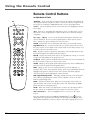
Remote Control Buttons
in Alphabetical Order
LED
ON • OFF
VCR1
DVD
VCR2
TV
SAT
AUX
SKIP
MUTE
ANTENNA In TV mode, lets you toggle between the satellite and standard TV/
cable signals when the satellite receiver is connected to the TV using the OUT
TO TV jack. In VCR mode, ANTENNA functions as a TV/VCR input button.
Arrows Use the navigation arrows to move the on-screen highlight up, down,
left, or right.
AUX Turns on a compatible RCA amplifier/receiver or audio/video receiver.
This button can be programmed to control an RCA, GE, or Proscan auxiliary
component.
VOL
VOL
CH +
CH FETCH
GO BACK
GUIDE
INFO
OK
MENU
CLEAR
1
2
3
4
5
6
7
8
9
WHO•INPUT
ANTENNA
0
REVERSE
PLAY
RECORD
STOP
FORWARD
PAUSE
CH + (up) /- (down) Use to scan up and down through the channels in the
current channel list. If you are in the program guide or menu system, use the
CH +/- buttons to page up and down a screen at a time.
CLEAR Removes the on-screen displays and returns you to normal viewing.
Digit Buttons (0 - 9) Used to tune directly to a specific channel. If you are in
the menu system, use the digits to select menu items. In the menu system, use 0
to return to the previous menu screen.
DVD Tells the remote to operate the DVD player. Note that this button is only
functional with RCA, GE, and Proscan DVD players.
FETCH Displays the Fetch menu with up to eight different actions, or executes
a single task- depending on the preferences set.
GO BACK Moves you back and forth between the last two selected channels. In
the menu system, returns you to the previous screen.
GUIDE Brings up the program guide. Subsequent presses of the GUIDE button
switch between the Detail and Grid guide formats.
INFO Brings up the on-screen channel banner, password challenge, or
purchase offer screen. In the program guides, press to get information about the
highlighted program or channel. In the menu system, this button displays
context-sensitive help for highlighted control elements.
LED (Light-Emitting Diode) This light is illuminated with each valid button
press. When programming the remote control, it flashes or turns on or off to
indicate programming status.
MENU Displays the Main menu. When you are using the remote control to
operate an RCA, GE, or Proscan VCR (the remote is in VCR mode), the MENU
button functions as a Program button.
MUTE When the remote is programmed to control a TV, this button reduces
the TV’s volume to its minimum level. Press again to restore the volume.
OK/i (interactive) Selects a highlighted choice if you are in the menu
system.
Press the OK button when the DIRECTV INTERACTIVE™ icon ( ) appears
during interactive programs and commercials. Pressing OK will display more
information and offer the chance to interact with what is displayed on screen.
24
Chapter 2
Using the Remote Control
ON•OFF Turns the component you are controlling on or off. When pressed twice within two
seconds, all components that are on will be turned off (this feature only works with most RCA,
GE, and Proscan products). You can also use the ON•OFF button on the top (front panel) of the
digital satellite receiver to turn the receiver on or off.
SAT Tells the remote to control the digital satellite receiver.
SKIP Used to activate the commercial skip mode which activates an on-screen timer. This
feature allows you to change channels (during a commercial break, for example), then be
returned to the original channel that was active when skip was first pressed when the timer
reaches zero. Each press of the SKIP button increases the timer by 30 seconds.
Transport Buttons (REVERSE, PLAY, FORWARD, RECORD, STOP, PAUSE) When in on-screen
guides, PLAY advances the display two hours, FORWARD advances the display 12 hours and
REVERSE moves time backward 12 hours. When the remote control is programmed, these buttons
are also used to control an auxiliary component, such as a VCR or laserdisc player. Note that if
your VCR Controller is connected, the RECORD button can be used to schedule a timer recording
when using the Program Guide or to begin recording while watching a program (in VCR mode).
TV When programmed, tells the remote to control the TV.
VCR1 When programmed, tells the remote to control the VCR.
VCR2 When programmed, tells the remote to control a second VCR.
VOL down and up When programmed, adjusts the audio volume of your TV.
WHO•INPUT In TV mode, press WHO•INPUT to toggle through the available Video Input
channels. In SAT mode, press WHO•INPUT to select available channel lists.
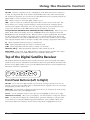
Top of the Digital Satellite Receiver
This diagram illustrates the buttons on the top (also referred to as the front panel) of the digital
satellite receiver. For more information on the function of the front panel buttons and many other
features of your digital satellite receiver, press the MENU button and select System Setup from the
Main menu, then select System Index.
CHANNEL
ON •
OFF
MENU
OK
INFO
Front Panel Buttons (Left to Right)
ON•OFF Use to turn your digital satellite receiver on for viewing or off when you are not
viewing it. Your receiver will still be able to download software upgrades and receive messages
from program providers when it is off.
MENU•OK Use this button to display the Main menu. If you are already in the menu system,
pressing this button selects the highlighted item.
Arrows Use the navigation arrows to move the on-screen highlight up, down, left, or right.
Channel Down and Up When you’re watching TV, use these buttons to change the channel.
INFO Use this button to display the channel banner, password challenge, or purchase offer
screen. Press twice to display additional program information, when available. While in the
menu system INFO also summons context sensitive help about a highlighted menu item.
Chapter 2
25
Using the Remote Control
Programming the Remote Control
The digital satellite receiver’s remote can be programmed to control most brands of remote
controllable components. The remote is already programmed to control most RCA, GE and
Proscan components; it may need to be programmed to control other manufacturers’ brands.
Testing the Remote Control
To determine whether the universal remote control needs to be programmed, turn a component
on, such as a VCR, point the remote at the VCR, and press the VCR button. Then press ON•OFF
or CH + or CH - to see if the VCR responds to the remote commands. If not, the remote needs to
be programmed.
There are two ways to program the remote control: Automatic Code Search or Direct Entry.
Using Automatic Code Search
LED
ON • OFF
VCR1
Component
buttons and
ON•OFF button
DVD
VCR2
TV
SAT
AUX
SKIP
MUTE
VOL
VOL
CH +
CH FETCH
GO BACK
GUIDE
INFO
MENU
CLEAR
1
2
3
4
5
6
7
8
9
ANTENNA
0
REVERSE
PLAY
RECORD
STOP
Note: The remote control may not be able to operate all models of all
brands.
1. Turn on the component you want to control (VCR, TV, etc.)
2. Press and hold the button you want to program. While holding the
component button, press and hold ON•OFF until the LED on the
remote control turns on, then release both buttons.
• Note that the AUX button can only be programmed using direct code
entry. See “Using Direct Entry,” later in this section, for details.
OK
WHO•INPUT
The following instructions can be used to program the remote to control
many of the components connected to your TV. If you want to exit the
automatic code search without programming any of your components,
press the CLEAR button until the LED (light) turns off.
3. Point the remote at the component, press and release PLAY, then wait
five seconds or until the LED stops flashing.
At this point the remote control is searching for the correct code to
program. If, after five seconds, the component you want to control
does not turn off, press and release PLAY again to tell the remote to
search the next set of codes.
FORWARD
PAUSE
Continue pressing and releasing PLAY until the component turns off
or you have searched through all of the codes. There are 20 total sets
of codes. If the component does not turn off after pressing PLAY 20
times, then the remote cannot control that particular component.
If the component you want to control does turn off:
1. Press and release REVERSE, then wait two seconds. Repeat this
step until the component turns back on.
2. To finish, press and hold STOP until the LED on the remote control
turns off.
26
Chapter 2
Using the Remote Control
Using Direct Entry
1. Turn on the component to be programmed.
2. Look up the brand and code number(s) for the component on the code list at the end of this
section.
3. On your remote control, press and hold the component button you want to program.
4. While pressing the component button, enter a code from the code list.
5. Release the component button, and then press ON•OFF to see if the component responds to
the remote control commands. If it doesn’t, try pressing the component button and then
ON•OFF again.
6. If you get no response, repeat these steps using the next code listed for your brand, until the
component responds to the remote control commands.
Operating Other Components
Once the remote has been programmed successfully, you are ready to
use it to operate your components.
One Button Recording
To Operate the Component:
If your remote is programmed to
operate a VCR, you only need to press
the RECORD button to begin recording
from video.
1. Press the component button (TV, VCR1, SAT, VCR2, or AUX) to set
the remote to control the component.
2. Press ON•OFF to turn the component on or off.
3. Use the remote control buttons that apply to that component.
Modes of Operation
Because this universal remote can control several different components
(DVD player, VCR, cable box, etc.) it uses operational modes triggered
by the component buttons. For example, if you want the remote control
to operate the TV, press the TV button to put the remote into TV mode.
If you want to play a videotape, press VCR1 then PLAY (pointing the
remote at the VCR).
Controlling a Second Satellite Receiver
The remote can control two satellite receivers. From the Main menu,
select System Setup, then System Options, then Remote Setup. Then follow
the on-screen instructions and enter the appropriate code from the
Satellite Receiver list at the end of this section. By default, the SAT button
is used to control the first satellite receiver and the AUX button is used to
control the second satellite receiver.
If your second receiver is an RCA, GE, or Proscan and you want to
control it using the AUX button, use code 5001. Code 5000 is used by the
SAT button.
Chapter 2
27
Using the Remote Control
Changing the RF Remote
Control Code
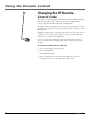
Your remote control is equipped with Radio Frequency (RF) functionality.
This means that the remote control can operate the digital satellite
receiver using both IR (infrared) signals and RF signals.
IR signals require line-of-sight to the receiver’s front panel remote sensor.
RF signals can operate the receiver from other parts of your house—even
through walls.
Installing your RF remote control antenna will increase the range of your
satellite receiver’s remote control signal. See page 16 in the Setup and
Connections section for more information.
If you are experiencing interference from other RF remote controls or
devices, you may need to change the RF remote control code to avoid
conflicts.
To change the Satellite Receiver’s RF Code:
1. Select System Setup in the Main menu.
2. Select System Options.
3. Select RF Remote Setup.
4. Choose a number between 000 and 255. Follow the on-screen
instructions to enter it as your RF remote control code.
28
Chapter 2
Code List
Remote Control Codes
TV
Abex ............................................................................ 1172
Admiral .................................................... 1001, 1173, 1211
Adventura .................................................................... 1174
Aiko ............................................................................. 1016
Akai .............................................................................. 1002
Alleron ......................................................................... 1046
Amtron ......................................................................... 1038
Anam National .................... 1003, 1038, 1192, 1193, 1194
AOC ................. 1004, 1005, 1006, 1007, 1175, 1176, 1195
Audiovox ..................................................................... 1038
Belcor .......................................................................... 1004
Bell & Howell ......................................... 1001, 1083, 1162
Bradford ...................................................................... 1038
Brokwood ................................................................... 1004
Candle ........................................... 1004, 1006, 1008, 1174
Celebrity ...................................................................... 1002
Centurion ..................................................................... 1009
Citizen ....................... 1004, 1006, 1008, 1016, 1038, 1105,
1171, 1174, 1177
Colortyme ................................................ 1004, 1006, 1010
Concerto ............................................................ 1004, 1006
Contec/Cony ................................. 1012, 1013, 1014, 1038
Craig ............................................................................ 1038
Crown ................................................................ 1038, 1171
Curtis Mathes ...................... 1000, 1004, 1006, 1015, 1105,
1162, 1171, 1212
CXC .............................................................................. 1038
Daewoo .................... 1004, 1005, 1006, 1016, 1017, 1018,
1127, 1171, 1196
Daytron .................................................... 1004, 1006, 1171
Dimensia ..................................................................... 1000
Dumont ............................................................. 1004, 1151
Dynatech ..................................................................... 1178
Electroband ................................................................. 1002
Electrohome .............. 1003, 1004, 1006, 1019, 1020, 1022
Emerson .................... 1004, 1006, 1012, 1023, 1024, 1025,
1026, 1027, 1028, 1029, 1030, 1031, 1032,
1033, 1034, 1035, 1036, 1037, 1038, 1039,
1041, 1042, 1043, 1044, 1046, 1047, 1123,
1124, 1162, 1171, 1177, 1179, 1191, 1208
Envision ............................................................. 1004, 1006
Fisher ................................... 1048, 1049, 1051, 1162, 1180
Fujitso .......................................................................... 1046
Funai .................................................................. 1038, 1046
Futuretec ...................................................................... 1038
GE ......... 1000, 1003, 1004, 1006, 1022, 1052, 1054, 1055,
1087, 1164, 1165, 1166, 1167, 1168, 1181, 1213
Gibralter ............................................................ 1004, 1151
Goldstar .................... 1004, 1005, 1006, 1012, 1019, 1056,
1057, 1058, 1155, 1156, 1171, 1172
Grundy .................................................... 1038, 1046, 1171
Hallmark ............................................................ 1004, 1006
Harvard ........................................................................ 1038
Hitachi ............ 1004, 1006, 1012, 1013, 1014, 1059, 1060,
1061, 1135, 1136, 1137, 1138, 1139, 1140,
1141, 1142, 1143, 1144, 1145, 1146, 1148,
1150, 1179, 1198, 1199
IMA .............................................................................. 1038
Infinity ......................................................................... 1062
JCPenney ........ 1000, 1004, 1005, 1006, 1008, 1022, 1052,
1054, 1058, 1063, 1064, 1072, 1087, 1105,
1128, 1171, 1172, 1181, 1201
Janeil ............................................................................ 1174
JBL ............................................................................... 1062
JCB ............................................................................... 1002
Jensen ................................................................ 1004, 1006
JVC .................. 1012, 1013, 1014, 1054, 1060, 1065, 1066,
1067, 1157, 1158, 1159, 1182
Kawasho .................................................. 1002, 1004, 1006
Kaypani ....................................................................... 1175
Kenwood ................................................. 1004, 1006, 1019
Kloss Novabeam ........................... 1068, 1069, 1174, 1183
KTV ................................................ 1038, 1070, 1171, 1177
Chapter 2
Loewe .......................................................................... 1062
Logik ............................................................................ 1083
Luxman .............................................................. 1004, 1006
LXI .................. 1000, 1006, 1049, 1062, 1071, 1072, 1073,
1162, 1181, 1207
Magnavox ................. 1004, 1006, 1008, 1019, 1062, 1068,
1069, 1075, 1076, 1077, 1088, 1130,
1131, 1132, 1133, 1134, 1183, 1219, 1235
Majestic ........................................................................ 1083
Marants ........................................................................ 1062
Marantz .......................................... 1004, 1006, 1062, 1078
Megatron ........................................................... 1006, 1059
MEI .............................................................................. 1176
Memorex ............................. 1001, 1006, 1082, 1083, 1162
MGA ................ 1004, 1005, 1006, 1019, 1022, 1051, 1079,
1080, 1082
Midland ................................ 1054, 1151, 1171, 1172, 1181
Minutz .......................................................................... 1052
Mitsubishi ................. 1004, 1005, 1006, 1019, 1022, 1051,
1079, 1080, 1081, 1082, 1125
Montgomery Ward ...................................................... 1083
Motorola ............................................................ 1003, 1173
MTC ............................................... 1004, 1005, 1006, 1105
Multitech ...................................................................... 1038
Multivision ................................................................... 1084
NAD ............................................... 1006, 1071, 1072, 1185
NEC ...................................... 1003, 1004, 1005, 1006, 1200
Nikko ................................................................. 1006, 1016
NTC .............................................................................. 1016
Onwa ........................................................................... 1038
Optimus ....................................................................... 1185
Optonica ............................................................ 1095, 1173
Orion ................................................................. 1035, 1191
Panasonic ............................ 1003, 1054, 1062, 1170, 1214
Philco .... 1003, 1004, 1005, 1006, 1008, 1012, 1019, 1062,
1068, 1069, 1075, 1077, 1183
Philips ............. 1003, 1004, 1008, 1012, 1019, 1062, 1068,
1069, 1075, 1076, 1086, 1087, 1088, 1089
Pilot .................................................................... 1004, 1171
Pioneer ............ 1004, 1006, 1090, 1091, 1092, 1179, 1185
Portland ............................... 1004, 1005, 1006, 1016, 1171
Price Club .................................................................... 1105
Prism ............................................................................ 1054
Proscan .............................................................. 1000, 1181
Proton ............................................ 1004, 1006, 1012, 1093
Pulsar ................................................................. 1004, 1151
Quasar ........................................... 1003, 1054, 1070, 1094
Radio Shack/Realistic ......... 1000, 1004, 1006, 1012, 1038,
1049, 1095, 1162, 1171, 1172
RCA ....... 1000, 1003, 1004, 1005, 1006, 1007, 1019, 1096,
1098, 1099, 1100, 1101, 1102, 1103, 1129, 1179,
1181, 1187, 1188, 1190, 1202, 1203, 1215, 1233
Runco .......................................................................... 1151
Sampo ............................................ 1004, 1006, 1171, 1172
Samsung ................... 1004, 1005, 1006, 1012, 1015, 1019,
1104, 1105, 1106, 1171, 1172, 1204
Samsux ........................................................................ 1171
Sansui .......................................................................... 1191
Sanyo ........................ 1004, 1048, 1049, 1080, 1107, 1108,
1162, 1169, 1180
Scotch .......................................................................... 1006
Scott ................. 1004, 1006, 1012, 1024, 1035, 1038, 1046
Sears ............... 1000, 1004, 1006, 1013, 1014, 1019, 1046,
1048, 1049, 1051, 1066, 1071, 1072, 1109,
1110, 1162, 1180, 1181, 1189
Sharp ......................... 1004, 1006, 1012, 1029, 1095, 1111,
1112, 1113, 1122, 1171, 1173
Shogun ........................................................................ 1004
Signature .................................................. 1001, 1083, 1115
Simpson ....................................................................... 1008
Sony ............................................... 1002, 1205, 1216, 1218
Soundesign .......................... 1004, 1006, 1008, 1038, 1046
Squareview .................................................................. 1189
SSS ..................................................................... 1004, 1038
Starlite .......................................................................... 1038
Supre-Macy .................................................................. 1174
Supreme ...................................................................... 1002
Sylvania .......... 1004, 1006, 1008, 1019, 1062, 1068, 1069,
1075, 1076, 1077, 1088, 1116, 1161, 1183
Symphonic ............................................... 1033, 1038, 1189
Tandy ........................................................................... 1173
Tatung .......................................................................... 1003
Technics ....................................................................... 1054
Techwood ................................................ 1004, 1006, 1054
Teknika ..................... 1004, 1005, 1006, 1008, 1012, 1013,
1014, 1016, 1038, 1046, 1076, 1082,
1083, 1105, 1170, 1171
Telecaption .................................................................. 1117
TMK ................................................................... 1004, 1006
Toshiba ..................... 1049, 1071, 1072, 1089, 1105, 1109,
1117, 1118, 1160, 1162
Totevision .................................................................... 1171
Universal ............................................................ 1052, 1087
Victor ................................................................. 1066, 1182
Vidtech .................................................... 1004, 1005, 1006
Viking .......................................................................... 1174
Wards .............. 1000, 1001, 1004, 1005, 1006, 1019, 1024,
1033, 1046, 1052, 1062, 1068, 1069, 1075,
1076, 1083, 1087, 1088, 1095, 1119, 1120
Yamaha .......................................... 1004, 1005, 1006, 1019
Zenith ....................... 1004, 1083, 1151, 1152, 1153, 1154,
1210, 1217
VCR
Admiral ........................................................................ 2132
Zaiko ............................................................................ 2027
Aiwa ............................................................................. 2026
Akai .......... 2003, 2004, 2005, 2007, 2008, 2111,2112, 2113
American High ............................................................ 2021
Asha ............................................................................. 2013
Audio Dynamics ................................................ 2009, 2010
Audiovox ..................................................................... 2014
Bell & Howell ............................................................. 2011
Beaumark .................................................................... 2013
Broksonic .......................................................... 2012, 2025
Calix ............................................................................. 2014
Candle ............. 2013, 2014, 2015, 2016, 2017, 2018, 2019
Canon ...................................................... 2021, 2022, 2114
Capehart ............................................................ 2020, 2110
Carver .......................................................................... 2062
CCE .................................................................... 2027, 2061
Citizen ...... 2013, 2014, 2015, 2016, 2017, 2018,2019,2027
Colortyme .................................................................... 2009
Colt .............................................................................. 2061
Craig .............................................. 2013, 2014, 2023, 2061
Curtis-Mathes ...................... 2000, 2009, 2013, 2016, 2018,
2021, 2022, 2024, 2115, 2131
Cybernex ..................................................................... 2013
Daewoo ... 2015, 2017, 2019,2025, 2026, 2027, 2028, 2110
Daytron ........................................................................ 2110
DBX ................................................................... 2009, 2010
Dimensia ........................................................... 2000, 2131
Dynatech ..................................................................... 2026
Electrohome ...................................................... 2014, 2029
Electrophonic .............................................................. 2014
Emerson .......... 2012, 2014, 2015, 2021, 2024, 2025, 2026,
2029, 2030, 2031, 2032, 2033, 2034, 2035,
2036, 2037, 2038, 2039, 2040, 2041, 2042, 2044,
2045, 2046, 2047, 2065, 2113, 2116, 2117, 2130
Fisher ....... 2011, 2023, 2048, 2049, 2050, 2051, 2052,2118
Fuji ..................................................................... 2021, 2119
Funai ............................................................................ 2026
Garrard ........................................................................ 2026
GE ............................. 2000, 2001, 2013, 2021, 2022, 2053,
2115, 2120, 2131
Goldstar ......................................... 2009, 2014, 2018, 2054
Gradiente ..................................................................... 2026
Harley Davidson ......................................................... 2026
Harman Kardon .......................................................... 2009
Harwood ..................................................................... 2061
Headquarter ................................................................ 2011
29
Code List
Remote Control Codes (Cont.)
VCR (Cont’)
Hitachi ............. 2055, 2056, 2057, 2107, 2111, 2120, 2122
HI-Q ............................................................................. 2023
Instant Replay ............................................................. 2021
JCL ............................................................................... 2021
JC Penney ....... 2009, 2010, 2011, 2013, 2014, 2021, 2022,
2055, 2056, 2058, 2059, 2060, 2107, 2118
Jensen ...................................................... 2055, 2056, 2111
JVC ............................. 2009, 2010, 2011, 2018, 2111, 2123
Kenwood .................. 2009, 2010, 2011, 2016, 2018, 2058,
2111, 2123
KLH .............................................................................. 2061
Kodak ................................................................ 2014, 2021
Lloyd ............................................................................ 2026
Logik ............................................................................ 2061
LXI ............................................................................... 2014
Magnavox ................. 2021, 2022, 2062, 2063, 2104, 2105,
2108, 2124
Magnin ......................................................................... 2013
Marantz .. 2009, 2010, 2011, 2016, 2018, 2021, 2062, 2064
Marta ............................................................................ 2014
Masushita ..................................................................... 2021
MEI .............................................................................. 2021
Memorex ......... 2011, 2013, 2014, 2021, 2023, 2026, 2132
MGA ......................................................... 2029, 2065, 2113
MGN Technology ........................................................ 2013
Midland ........................................................................ 2053
Minolta ..................................................... 2055, 2056, 2107
Mitsubishi ................. 2029, 2055, 2056, 2065, 2066, 2067,
2068, 2069, 2070, 2071, 2072, 2073,
2074, 2106, 2113, 2123
Montgomery Ward ............................................ 2075, 2132
Motorola ........................................................... 2021, 2132
MTC ................................................................... 2013, 2126
Multitech .............................. 2013, 2016, 2026, 2053, 2061
NEC ................. 2009, 2010, 2011, 2016, 2018, 2064, 2076,
2078, 2079, 2111, 2123
Nikko ........................................................................... 2014
Noblex ......................................................................... 2013
Olympus ...................................................................... 2021
Optimus ............................................................. 2014, 2132
Optonica ...................................................................... 2096
Panasonic .................. 2021, 2022, 2109, 2125, 2126, 2127
Pentax .................................. 2016, 2055, 2056, 2107, 2120
Pentex Research .......................................................... 2018
Philco ............................................. 2021, 2022, 2062, 2063
Philips ............................................ 2021, 2062, 2096, 2124
Pilot .............................................................................. 2014
Pioneer ................................ 2010, 2055, 2080, 2081, 2123
Portland ......................................... 2016, 2017, 2019, 2110
Proscan .................................................... 2000, 2001, 2131
Protec ........................................................................... 2061
Pulsar ........................................................................... 2104
Quarter ........................................................................ 2011
Quartz .......................................................................... 2011
Quasar ..................................................... 2021, 2022, 2125
RCA ................. 2000, 2001, 2003, 2013, 2021, 2055, 2056,
2082, 2083, 2084,2085, 2086,2087, 2088, 2089,
2090, 2091, 2107, 2115, 2120, 2125, 2131, 2132
Radioshack/Realistic .......... 2011, 2013, 2014, 2021, 2022,
2023, 2026, 2029, 2049, 2050,
2096, 2132
Radix ............................................................................ 2014
Randex ......................................................................... 2014
Ricoh ............................................................................ 2128
Runco .......................................................................... 2104
Samsung .................... 2005, 2013, 2015, 2033, 2053, 2112
Sanky ................................................................. 2104, 2132
Sansui ............................................ 2010, 2092, 2111, 2123
Sanyo ....................................................... 2011, 2013, 2023
Scott ....... 2012, 2015, 2025, 2032, 2038, 2065, 2093, 2116
Sears ............... 2011, 2014, 2021, 2023, 2048, 2049, 2050,
2051, 2055, 2056, 2107, 2118
Sharp ................ 2017, 2029, 2094, 2095, 2096, 2097, 2131
Shintom ......................................... 2004, 2056, 2061, 2098
Shogun ........................................................................ 2013
Signature ..................................................................... 2131
Singer ....................................................... 2021, 2061, 2128
Sony ............................................... 2004, 2098, 2099, 2119
30
STS ..................................................................... 2021, 2107
Sylvania ........... 2021, 2022, 2026, 2062, 2063, 2065, 2124
Symphonic ................................................................... 2026
Tandy ........................................................................... 2011
Tashiko ........................................................................ 2014
Tatung .......................................................................... 2111
TEAC ........................................................ 2026, 2085, 2111
Technics ............................................................. 2021, 2109
Teknika ................................ 2014, 2021, 2026, 2100, 2129
TMK ......................................................... 2013, 2024, 2047
Toshiba ............ 2015, 2049, 2051, 2055, 2065, 2093, 2116
ToteVision ......................................................... 2013, 2014
Unitech ........................................................................ 2013
Vector Research ............................. 2009, 2010, 2015, 2016
Victor ........................................................................... 2010
Video Concepts ................... 2009, 2010, 2015, 2016, 2113
Videosonic ................................................................... 2013
Wards .............. 2013, 2014, 2015, 2021, 2023, 2026, 2029,
2055, 2056, 2061, 2096, 2101, 2102, 2103,
2107, 2116, 2132
XR-1000 ................................................... 2021, 2026, 2061
Yamaha ................................ 2009, 2010, 2011, 2018, 2111
Zenith .................................. 2004, 2098, 2104, 2119, 2128
Satellite Receivers
(Programmable for the SAT•CABLE and AUX buttons)
Alphastar ..................................................................... 5079
Chapparal .......................................................... 5056, 5057
Dishnet ........................................................................ 5078
Drake ................................................................. 5056, 5059
Echostar ....................................................................... 5089
GE ...................................................................... 5000, 5001
General Instruments ............................... 5060, 5061, 5062
Panasonic .................................................................... 5075
Primestar ...................................................................... 5076
Proscan .............................................................. 5000, 5001
RCA .............................................................................. 5001
Realistic ........................................................................ 5063
Sony ............................................................................. 5072
STS1 ............................................................................. 5064
STS2 ............................................................................. 5065
STS3 ............................................................................. 5066
STS4 ............................................................................. 5067
Toshiba .............................................................. 5068, 5073
Uniden ............................................................... 5069, 5086
Cable Boxes
(Programmable for the SAT•CABLE and AUX buttons)
ABC ............................ 5002, 5003, 5004, 5005, 5006, 5053
Antronix ............................................................. 5008, 5009
Archer ...................................................... 5008, 5009, 5010
Cabletenna .................................................................. 5008
Cableview .................................................................... 5008
Colour Voice ...................................................... 5012, 5013
Comtronics .................................................................. 5014
Contec ......................................................................... 5016
Eastern ......................................................................... 5017
Garrard ........................................................................ 5011
GE ...................................................................... 5000, 5001
GC Electronics ............................................................. 5009
Gemini ............................................................... 5018, 5019
General Instrument ..................................................... 5003
Hamlin ....................... 5020, 5021, 5022, 5028, 5035, 5045
Hitachi ......................................................................... 5003
Jerrold ........................ 5003, 5018, 5023, 5024, 5046, 5053
Magnavox .................................................................... 5025
Memorex ..................................................................... 5026
Movie Time ................................................................. 5027
NEC .............................................................................. 5005
NSC .............................................................................. 5027
Oak .................................................................... 5016, 5029
Panasonic .......................................................... 5048, 5052
Philips .... 5011, 5012, 5013, 5019, 5025, 5030, 5031, 5032
Pioneer .............................................................. 5033, 5034
Proscan .............................................................. 5000, 5001
RCA ............................ 5000, 5001, 5007, 5047, 5049, 5052
Realistic ........................................................................ 5009
Regal .................................................................. 5022, 5035
Regency ....................................................................... 5017
Rembrandt ................................................................... 5003
Samsung ...................................................................... 5034
Scientific Atlanta ............................ 5006, 5036, 5037, 5038
Signal ........................................................................... 5018
Signature ...................................................................... 5003
Sprucer ........................................................................ 5052
Standard Components ...................................... 5039, 5044
Starcom .............................................................. 5018, 5053
Stargate ........................................................................ 5018
Starquest ...................................................................... 5018
Tandy ........................................................................... 5040
Teleview ...................................................................... 5014
Tocom ................................................................ 5004, 5023
Tusa ............................................................................. 5018
TV86 ............................................................................ 5027
Unika ................................................................. 5008, 5009
United Cable ............................................................... 5053
Universal .................................................. 5008, 5009, 5010
Viewstar ................................................... 5025, 5027, 5040
Zenith ................................................................ 5050, 5051
DVD Codes
(Programmable for the DVD and AUX buttons)
Aiwa ............................................................................. 3009
Hitachi ......................................................................... 3008
JVC ..................................................................... 3002, 3010
Konka ................................................................ 3011, 3012
Magnavox .................................................................... 3003
Mitsubishi .................................................................... 3004
Panasonic .................................................................... 3013
Phillips ........................................... 3003, 3019, 3021, 3022
Pioneer ........................................................................ 3005
RCA .................................................................... 3000, 3001
Sanyo ........................................................................... 3014
Shinco .......................................................................... 3001
Sony ......................................................... 3006, 3015, 3016
Toshiba .................................................... 3007, 3017, 3020
Zenith .......................................................................... 3018
Audio Codes
(Programmable for the AUX button only)
RCA and Dimensia
AM/FM ............................................................... 4003, 4270
AUX ............................................................................. 4004
Phono .......................................................................... 4005
Tape ............................................................................. 4006
CD ............................................................ 4007, 4190, 4211
Receivers
Aiwa ....... 4261, 4262, 4263, 4264, 4265, 4266, 4267, 4277
Denon .......................................................................... 4283
Harman Kardon .......................................................... 4276
JVC ............................................................................... 4268
JVL ............................................................................... 4276
Kenwood ..................................................................... 4269
Onkyo .......................................................................... 4278
Optimus ....................................................................... 4284
Panasonic .......................................................... 4279, 4280
Pioneer ........................................................................ 4275
RCA .............................................................................. 4270
Sherwood .................................................................... 4282
Sony ......................................................... 4271, 4272, 4281
Technics ............................................................. 4279, 4280
Wards ........................................................................... 4275
Yamaha .............................................................. 4274, 4275
Chapter 2
Chapter 3
Using the Satellite
Receiver’s Features
Chapter Overview:
• What is a Program Guide?
• The DIRECTV INTERACTIVE™ feature
• The Channel Banner and other on-screen displays
• How to use the on-screen programming schedule
Changing Entertainment. Again.
Graphics contained within this publication are for representation only
31
Satellite Receiver Features
Active profile
Current time and date
Program titles
and information
Selectable
Advertisements
(highlight and
select for more
information).
Viewing
Suggestions
Sorts by
Movies
Active Profile’s
Preferences
Scroll
down
Sorts by
Sports
AlphaSort™
Scout™
Channel sort
Anatomy of a Program Guide
The following diagram shows you the kind of information you will see in the program guides.
Displaying the Program Guides
To access the program guides, press MENU on the remote control and select
Program Guides, then the guide of your choice (Default, Channel, or Logo).
You can quickly access the receiver’s Default Guide by pressing the GUIDE
button on the remote.
To change the current user, press the remote control’s WHO•INPUT button
while viewing programming, then use the remote control’s arrow and OK
buttons to select the desired profile. You can also press the remote control’s
MENU button, then select Program Guides, and then Select User to display the
list of profiles from which to choose.
32
Chapter 3
Satellite Receiver Features
Active Profile
Program titles
and information
Interactive content
indicator
Viewing
Alternate audio
Main menu
AlphaSort™
Mailbox
Dolby Digital
suggestions
and alternate
System lock/unlock
Scout™
Caller ID
Program details
audio indicators
Using The Channel Banner
The channel banner appears whenever you do one of the following:
• Tune to a channel.
• Press the remote control’s INFO, SAT, or GO BACK buttons while watching programming.
• Press UP, DOWN, or INFO on the satellite receiver’s front panel.
• Exit the on-screen menu system.
On-screen icons represent frequently-used menu items. Some icons also change appearance to show the
item’s status. Use the arrow buttons to highlight an on-screen item, and the OK button to select it. Some of the
items you select in the channel banner can also be selected in the program guides.
Buttons of the Channel Banner
Main Menu icon
Takes you to the Main menu.
Locked icon The system is locked. Spending, viewing and other limits cannot be accessed or changed.
Selecting this icon displays a password menu. Enter the correct system password to override settings.
Unlock icon The system is unlocked. Spending, viewing and other limits can be accessed or changed.
Selecting this icon in the channel banner displays the Lock System control panel.
Video Unlock icon A password has been entered to temporarily override the limits. The system will
remain unlocked until the satellite receiver is turned off or re-locked.
Program Unlock icon A password has been entered to override limits for a single program. After the
program ends, or when the channel is changed, limits are restored.
AlphaSort™ icon
Scout™ icon
Enables you to sort titles alphabetically.
Allows you to search for programs using key words.
Mail icon Displays the Mail screen. The icon will be white if you have an unread mail.
Telephone icon Displays the Caller ID list screen. The icon will be white if you have received a new call
but have not accessed the Caller ID List screen. It will be gray if you have accessed the Caller ID List screen.
Viewing Suggestions icon Displays the Viewing Suggestions menu.
Program Details Displays a description of the current program (if available).
Alternate Audio icon
Chapter 3
Cycles through the alternate audio choices.
33
Satellite Receiver Features
The DIRECTV INTERACTIVE™ Feature
Your digital satellite receiver includes DIRECTV INTERACTIVE™, powered by
Wink Communications®, a free service that gives you the opportunity to interact
with TV programming and advertising. You can use your remote control to get
program-related information, respond to free offers during commercials and
even make purchases while you watch TV.
Whenever you see the DIRECTV INTERACTIVE™ icon ( ) appear, press the
OK/i button on the remote control to open the interactive window.
To learn more about the DIRECTV INTERACTIVE™ service:
1. Press MENU on the remote control (the Main menu appears).
2. Use the arrow buttons on the remote control to highlight Interactive.
3. Press the OK/i button to tune directly to the DIRECTV INTERACTIVE™
Center (channel 499) to get more information about the following: Getting
Started, Interactive Channels, Shopping Sign Up, Order History, Messages,
Help & Settings, and About DIRECTV.
Displaying On-screen Guides
Each time you press the remote control’s GUIDE button, a different type of
program guide appears:
The Detail Guide
The Detail Guide shows five channels in a time-and-channel format, with
program information for the highlighted program. A small window showing the
program you were watching before entering the program guides is displayed in
the upper left hand corner (you can preview other channels in the Detail Guide
by highlighting channel numbers instead of the program titles).
Notes: By default, the Detail Guide appears when you press GUIDE on the
remote control. You can change the default guide from the Detail Guide to
the Grid Guide.
Select Personal Settings from the Main menu, then select the profile to be
changed, then select Default Guide. Use the remote control’s arrow buttons
to highlight Grid Guide, then press the OK button to activate your choice.
The Grid Guide
The Grid Guide shows seven channels in a time-and-channel format. A small
window showing the program you were watching before entering the program
guides is displayed in the upper left hand corner (you can preview other
channels in the Detail Guide by highlighting channel numbers instead of the
program titles).
© 2001 Wink Communications. All rights reserved.Wink and the Wink logo are registered trademarks of Wink Communications, Inc. DIRECTV, the
Cyclone Design logo, and DIRECTV INTERACTIVE are trademarks of DIRECTV, Inc., a unit of Hughes Electronics Corp. and are used with permission.
34
Chapter 3
Satellite Receiver Features
DVD
Getting Around In the Guides
ON • OFF
VCR1
VCR2
TV
This section describes how to change channels and move around a program
guide.
SAT
AUX
SKIP
MUTE
Digit Buttons (0–9)
VOL
VOL
CH +
CH +/Buttons
CH FETCH
GO BACK
GUIDE
INFO
You can point quickly to any channel in the program guide by entering the
channel number with the digit buttons (0–9). For example, to point to channel
228, press the digits 2-2-8, on the remote control.
Scrolling Channel By Channel
OK
Arrow
Buttons
MENU
CLEAR
1
2
3
4
5
6
7
8
9
WHO•INPUT
Digit
Buttons
PLAY
RECORD
STOP
Scrolling Page By Page
If you want to scroll up or down through the program guide faster, press the
CH +/- buttons on the remote control. The highlight scrolls a page at a time.
ANTENNA
0
REVERSE
The programs that you see on the TV screen make up one section—or page—
of the total program guide. You can scroll one line at a time using the arrows:
point to other times with the left and right arrows; point to other channels with
the up and down arrows.
FORWARD
PAUSE
REVERSE/
FORWARD
Buttons
Scrolling Forward and Reverse
To scroll forward in two-hour increments, press the remote control’s PLAY
button while in SAT mode. To go forward or reverse by a 12-hour block of
time, use the FORWARD and REVERSE buttons on the remote control.
Note: Your digital satellite receiver can store up to seven days of
programming information. Getting all this information can take up to 12
hours to download.
Chapter 3
35
Satellite Receiver Features
Tuning to a Program
To tune directly to a current program listed in the guide, point to the program
and press OK.
To see information about a program in the guide, point to the program and
press INFO.
Then, you can select:
• View Channel to tune to that channel
• Record Program to record the program
• Remind Me to set up a Watch Timer. This will display a prompt allowing you
to quickly change the channel when the program is about to begin.
Tip
• Other Times to see what other times the program is available.
For information on tuning to a PPV
program, see pages 50.
• More Details opens another display with detailed information (if available).
The options available to you may vary according to the type of program you
select.
More Details
There’s a variety of program information sent along with standard broadcast
signals, and your digital satellite receiver can display much of it (if available).
The More Details menu can offer information (if available) about Actors and
Roles, the Director, the Writer, Original Materials, the Production Studio,
Awards, Keywords associated with the program, and the original release Date
and Run Length. Just use the remote control’s arrow and OK buttons to
highlight and select the desired button, and to display more information.
You can even use the displayed information in the More Details menu to look
for matching information in the stored guide programs, or to create search
criteria for use with the Scout™ search feature of your digital satellite receiver.
To Access More Details:
Tip
Your digital satellite receiver can
store up to seven days of information,
so retrieving data can take a little
time.
It can take up to 12 hours to
download all seven days of
information when turning the system
on after the Guide information has
been erased.
1. Highlight a desired program in the on-screen guide and press the remote
control’s INFO button.
2. Highlight and select More Details.
Note: The More Details button is displayed in the Program Details menu
only if more information is available.
3. Highlight and select the desired on-screen information button to display the
details on the opposite side of the screen.
To search for other programs with similar information:
4. Highlight the desired information on the right side of the menu and press
the remote control’s OK button. This will display any other program stored
in the on-screen guides that shares the highlighted information.
To save your search as Scout Criteria:
5. After completing step 4, use the remote control’s arrow and OK buttons to
select the Save as Scout button. You will be given on-screen instructions to
complete this task.
36
Chapter 3
Satellite Receiver Features
Additional Program Guides
Besides the Detail and Grid Guides, there are a few more to choose from: the Channel Guide,
the Logo Guide, and the Viewing Suggestions Guide.
You can access these guides from the Main menu by selecting Program Guides.
The Channel Guide
Displays the programming schedule for the selected channel.
The Logo Guide
Displays channel logos for the current user’s channel list.
The Suggestions Guide
Displays a list of programs based on programming that has been previously
watched under that user profile.
Chapter 3
37
Satellite Receiver Features
Sorting the Guides
Sorting the guide is a way of organizing the information to show only the types
of programs that interest you. There are several on-screen icons that sort the
guide in different ways. You can list programs by sports or movie themes, for
example. You can customize the themes to meet your tastes, and each profile
can have its own default program sorting.
To get to the sorting icons, use the down arrow button to move the highlight to
the icons at the bottom of the screen. Then, use the left and right arrow buttons
to highlight the desired icon.
Viewing Suggestions
When you select the Viewing Suggestions icon, a list of recommended program
events appears. The recommendations are based on your previous viewing
habits in terms of the amount of time spent watching programs that match a
topic and theme category. The suggestions are ordered by best match.
Viewing suggestions are created for each active user profile. The suggestions
being shown are always for the current user profile.
You can view and change your suggestions, or turn off the learning behavior of
the digital satellite receiver altogether from the Viewing Suggestions menu.
To Access the Viewing Suggestions Menu:
TIP: Accessing Viewing
Suggestions
You can select Viewing Suggestions
by selecting Suggestions in the Main
menu, or by pressing the icon
displayed in the channel banner or
on-screen guides.
1. Press the remote control’s MENU button to display the Main menu.
2. Press 1 to select Program Guides.
3. Press the 4 button to choose Suggestions.
4. Access desired viewing suggestions using the remote control’s arrow and
OK buttons to select.
Note: You can also access this menu by selecting the Viewing Suggestions
icon in the Channel Banner or at the bottom of the on-screen guides.
Customizing Viewing Suggestions
You can edit the themes that will appear in the Viewing Suggestions menu by
applying different “weights” to the topics. Increasing a topic’s weight increases
the chance that programs with such themes will appear in the Viewing
Suggestions menu. Decreasing a theme’s weight will lessen the chance that such
themes will appear.
To Change the Weight of Themes and/or Topics:
1. Follow steps 1-3 above to display the Viewing Suggestions menu.
2. Press the 2 button to select Edit Topics.
3. Select the numbered Topic to edit, then use the remote control’s arrow and
OK buttons to select and adjust weight percentages.
38
Chapter 3
Satellite Receiver Features
Active Profile’s Preferences
Each individual can edit preferences so customized themes and topics appear
when a sorting icon is pressed. The active profile’s preferences can be quickly
accessed by selecting this icon at the bottom of all on-screen guides.
To Change the Active Profile’s Preferences:
1. Press the GUIDE button on the remote control to display the default guide.
2. Use the remote control’s arrow and OK buttons to select the Active Profile’s
Preferences icon at the bottom of the guide.
3. Press the 2 button to select Edit Preferences. This will display a menu where
you can customize the themes to appear when the Active Profile’s
Preferences icon is selected.
4. In the customizing menu, use the remote control’s arrow and OK buttons to
highlight and select/deselect theme choices.
Note: The themes and topics can be customized for any profile.
Once finished customizing the themes, only topics that match your choices
should appear when you select the Active Profile’s Preferences icon in the
on-screen guides.
Movies
Select the Movies icon to sort and list only movies. After selecting Movies, the
Movies Themes menu is displayed. Here you can sort movies by various themes.
By default, All Movies is highlighted first.
Select the Movies Themes icon to sort the guide to list specific types of movies,
such as comedies or musicals. This icon may change from Movies to a different
topic in the future, but it will continue to function in the same way.
Sports
Select the Sports icon to list sporting events only. After selecting Sports, the
Sports icon changes to a Sports Themes icon.
Select the Sports Themes icon to sort the guide to list specific types of sports, such
as basketball or soccer. This icon may change from Sports to a different topic in the
future, but it will continue to function in the same way.
Channel Sort
Sort the on-screen guides to display channels in either numeric or alphabetical
order. When the guide is sorted alphabetically, the 1-2-3 icon is displayed (select
the icon to change the display to numeric). When the guide is sorted
numerically, an A-B-C icon is displayed (select it to display the guide
alphabetically).
Chapter 3
39
Satellite Receiver Features
AlphaSort™
The AlphaSort feature lists all the program titles stored in the current guide in
alphabetical order. Select the AlphaSort icon to search for specific program titles
that are in the stored program guide information in alphabetical order. Use the
arrow buttons on the remote control to highlight a character, then press OK.
For example, to search for the program Auto Racing, point to and select “A.”
(Words like “The,” “A,” and “An” appear at the end of a title.) All titles that
begin with “A” appear in the AlphaSort list. Next, enter the letter “U.” All titles
beginning with “AU” appear in the list.
Continue to enter the specific title until it appears in the AlphaSort list. If you
enter the wrong character, select either Backspace or Clear All.
Use the arrow buttons on the remote control to highlight the title you are
looking for. Press the OK button to select it (if the program is airing), or the
INFO button to see more information (if the program is not airing, OK will act
like the INFO button). The AlphaSort feature looks for titles from all stored
programming.
Note: When the digital satellite receiver is first plugged in or turned on after
an extended power outage, there will only be a few hours of Guide
information for search features to work with. It can take several hours for all
three days worth of Guide data to be completely downloaded to your receiver.
Scout™
The Scout system icon lets you assign “Scouts” to search the guide for specific
program information, such as actors’ names or program descriptions.
Select the Scout icon from a program guide to view the available Scout menu
items. Then, select New Scout from the Scout menu (this button only appears if
there is an empty Scout menu available).
Tip
On-screen icons represent the status
of the Scout feature:
This icon (displayed in
the Scout menu)
indicates that the
information you
specified has been
found.
The Scout icon in the
Channel Banner and the
on-screen guides will
have a white outline
when a Scout search
returns information.
Select Enter Text to set up the information the Scout feature will look for in the
program guide. Use the on-screen keyboard to enter the desired search
parameters. You can also use the Select Fields menu button to specify the type
of information you are looking for.
For example, if you are interested in how to prepare food, enter a common
term you think would occur in program information, like “cooking.” When you
have finished entering your topic select Run Scout.
If “cooking” appears within a program title or program description, the program
will be included in the Scout Results program list.
Once you have set up a Scout menu item, you can check its status by
highlighting it. A highlighted binoculars icon means that a Scout menu item has
found results.
Scout continually searches for requested information whether the box is on or
off. You can also select Run Scout to do an immediate search after setting up a
scout.
Check a Scout menu item’s results by selecting that Scout menu item. When you
highlight that Scout, the results are displayed on the right side.
Down Arrow
The down arrow icon allows you to scroll down through other channels in the
guide. Point to the down arrow icon and then press OK to scroll down through
the program guide.
40
Chapter 3
Chapter 4
Using the
Menu System
Chapter Overview:
•
Using the Menu System
•
Program Guides
•
Messages
•
Using the Purchases Menu
•
Recording with Timers
•
User Profiles
•
Personal Settings
•
System Setup
Changing Entertainment. Again.
Graphics contained within this publication are for representation only
41
Using On-Screen Menus
Using the Menu System
To display the Main menu, press MENU on the remote control.
To use the menu system, you need to use the remote control’s arrow buttons to
highlight your on-screen choice, then use the OK button to select it. In menus
that use numbered choices, you can use the remote control’s number buttons to
select an item quickly.
On-screen Buttons and Context Help
Tip: No Menus?
If the Main menu doesn’t appear
when you press MENU, the remote
control might not be in SAT mode.
Try pressing the SAT button on the
remote, and then MENU.
The on-screen menu system offers you more than one way to get more
information or to navigate within the system using the on-screen Go Back and
Help buttons at the top of most menus.
Exiting a Screen
There are three ways to exit a menu:
• Select the on-screen Go Back button and press the OK button on the remote
control.
• Press the CLEAR button on the remote control. The on-screen display clears
from the screen and you return to TV viewing.
• Press the GO BACK button on the remote control. This returns the TV to its
preceding display.
42
Tip: Using On-screen Help
Getting Help
Press the remote control’s INFO
button at any time for more
information.
For an overview of a displayed menu, use the remote control’s arrow and OK
buttons to select the on-screen Help button (?).
For details about a highlighted menu item (in what context an on-screen button
is used, for example), press the remote control’s INFO button and a popup
window will tell you more.
Chapter 4
Using On-Screen Menus
Main Menu Items
This section briefly describes each of the options available from the Main menu.
More information about each menu and its features is included later in this
chapter, and you can always get more information when an item is highlighted
by pressing the remote control’s INFO button.
Program Guides
Selecting this button will display a menu with a variety of different ways to
view program guide information.
Messages
This button is used to access the Caller ID information from your telephone
company and mail messages from DIRECTV.
Note: You must subscribe to Caller ID service from your telephone service
provider in or der for the on-screen Caller ID information to be displayed.
Purchases
Use this button to review or cancel upcoming purchases, review past purchases,
and set spending limits for saved profiles.
Timers
Tip: Don’t Be Afraid to
Explore
Schedule the digital satellite receiver to tune to a specific channel at a specific
time. If a VCR has been properly connected to the receiver, you can also record
future programming.
Once you’ve learned the basics, feel
free to poke around the menu
system– exploring this system is a
great way to learn!
Profiles
Remember to use you remote
control’s arrow and OK buttons to
maneuver through menus.
And, so you don’t worry about
getting lost in the menus, you can
press CLEAR at any time to leave
the menu system and return to
regular system viewing.
This button displays a menu where you can set system and user passwords,
ratings limits, spending limits, viewing hours, as well as create favorite channel
lists.
Personal Settings
Do you want to set up an individual profile’s personal settings or alter the look
and feel of an existing profile? This button will take you to a menu where you
can alter or set personal preferences of your digital satellite receiver.
System Setup
Allows you to adjust to the way your system works, to get more information
about system features, get dish pointing coordinates, etc.
Interactive
Television broadcasts typically carry a wealth of information and now you can
access and interact with it starting with this button. Selecting Interactive from
the Main menu displays the DIRECTV INTERACTIVE™ Center for setting up
interactive TV service.
Chapter 4
43
Using On-Screen Menus
Active profile
Current time
and date
Program titles
and information
Selectable
Advertisements
(highlight and
select for more
information).
Viewing
Suggestions
Sorts by
Movies
Scroll
down
AlphaSort™
Scout™
Active Profile’s
Preferences
Sorts by
Sports
Channel sort
The Program Guide
Note: The program guide is described in detail in the previous chapter, Using
the Satellite Receiver Features, starting on page 31.
Selecting Program Guides from the Main menu displays a menu with a variety
of display options available. You can select a specific User Profile, the system
default guide (Detail Guide or the Grid Guide- according to your preferences),
or the Logo or Channel Guide, Viewing Suggestions, or change the active
profile.
Anatomy of a Program Guide
The diagram above shows you the kind of information you will see in the
Detail Guide and Grid Guide (Grid Guide shown here).
Displaying Program Guides
In addition to selecting Program Guides in the Main menu, you can press the
GUIDE button on the remote control. This bypasses the Program Guides menu
and directly displays the default guide.
44
Chapter 4
Using On-Screen Menus
Messages
The Messages menu lets you access messages or phone calls. If you select Mail,
it shows you messages that are sent from DIRECTV. For example, you may
receive a message calling your attention to a new service. If you select Caller
ID, this menu shows you Caller ID information from your telephone provider (if
you subscribe to Caller ID service).
Mail
To tell if you have mail, you need to check the channel banner available when
you press the remote control’s INFO button. In the channel banner, the
messages icon will be highlighted if you have an unread message waiting.
Checking Your Mail
Select Messages from the Main menu, then Mail from the next menu. Or select
the mailbox icon on the channel banner to view your mail.
1. Point to a message and press OK. The message is opened for you to read.
2. Press OK again to close the message.
If you want to erase a message, point to Erase Message and press OK. When
you exit Messages, messages that aren’t erased are saved in memory.
Note: The quickest way to check for messages is to press the INFO button on
the remote control. This will display the channel banner. With the channel
banner displayed, use the remote control’s arrow buttons to highlight the
mail icon, then press the remote control’s OK button to access the Mail
menu.
Chapter 4
45
Using On-Screen Menus
Caller ID
Your digital satellite receiver is capable of displaying and storing Caller ID information provided
by your local telephone company. To use this feature, you must have your receiver directly
plugged into a telephone outlet (or a RC930 wireless modem) and you must subscribe to
Caller ID or similar caller identification services from your telephone company.
Your Caller ID enables you to:
• Identify callers before you answer the phone.
• View the time and date of each incoming call.
• Record the Caller ID information of up to 20 incoming calls sequentially.
Note: Only the last ten calls will be retained after a power outage.
• See who called while you were away.
There are two ways to access the Caller ID menus: by selecting Messages from the Main menu,
or by pressing INFO on the remote control and selecting the telephone icon in the Channel
Banner. The icon will be white if you have received a new call but have not accessed the Caller
ID List screen. It will be gray if you have accessed the Caller ID List screen.
Setting Up Caller ID
To set up your Caller ID, go to the Main menu and select Messages, then select
Caller ID Setup. Use the up and down arrow and OK buttons to select your
preferences.
Caller ID Light Setting Caller ID Light to On causes the front panel light to
flash if you receive new calls while the digital satellite receiver is off. The light
will flash until you turn the receiver on.
Caller ID Message Setting Caller ID Message to On displays the on-screen
Caller ID banner when a call is received. You may want to turn this feature off
when you are recording manually and do not want the on-screen messages to
appear on your recordings. Your calls will be stored in the Caller ID List screen
even when Caller ID is turned off.
Caller ID Message Time-out Set the amount of time (from 1–30 seconds) that
the Caller ID banner will display when you have an incoming call. For this
feature to work, make sure Caller ID Message is set to On.
Note: If you have a timer set to either watch or record, the Caller ID banner
will be temporarily overridden for the duration of that timer. When the
timer event is over, the Caller ID banner will display as selected under Caller
ID Message.
When viewing or recording manually (not using a timer) the Caller ID banner
will display (and be recorded if recording) as selected under Caller ID
Message.
At all times Caller ID messages will be stored in the Caller ID List screen
(unless a call arrives when you are on the telephone and you do not have a
Type II box or Type II service).
46
Chapter 4
Using On-Screen Menus
Receiving Calls
When your phone rings twice and Caller ID Message is set to On, a banner
appears at the bottom of the screen.
The banner may include the phone number, date, and time; or the name, phone
number, date, and time. The banner information depends on the type of service
your telephone company provides.
The Caller ID banner will override closed captioning at the bottom of the screen
and will appear for the amount of time selected in the Caller ID Setup screen.
The Caller ID banner will not be displayed if you are in the menu system or a
timer is active when you receive a call.
Note: If using your telephone and another call arrives, the new call’s
information won’t appear in the banner or be recorded in the Caller ID List
screen unless you have type II service and a type II Caller ID box in your house.
If you have a timer set to either watch or record, the Caller ID banner will be
temporarily overriden for the duration of that timer. When the timer event is
over, the Caller ID banner will display as selected under Caller ID Message.
Tip: When you have unread
Caller ID calls:
The front panel light will flash (when
the digital satellite receiver is off).
The telephone icon in the channel
banner will be highlighted white.
When viewing or recording manually (not using a timer) the Caller ID banner
will display (and be recorded if recording) as selected under Caller ID
Message.
At all times Caller ID messages will be stored in the Caller ID List screen (unless
a call arrives when you are on the telephone and you do not have a Type II
box or Type II service).
Message Indicators
The following is text that may appear in the incoming Caller ID banner and call
list.
Out of Area The name and/or phone number of the incoming call is coming
from outside the local area.
Tip
If you’d like more information to
appear in your Caller ID banner
and call list, or if you’d like to
subscribe to Caller ID, check with
your local phone company about
the availability of different types
of Caller ID service.
Private Name The name of the incoming call is sent as “Blocked” from the
phone company.
Private Number The phone number of the incoming call is sent as “Blocked”
from the phone company.
Unknown Name The name of the incoming call is not provided by the
telephone company or the information is unreadable.
Unknown Number The number of the incoming call is not provided by the
telephone company or the information is unreadable.
Note: To clear the Caller ID banner from the screen, press CLEAR on the
remote control.
Chapter 4
47
Using On-Screen Menus
The Caller ID List Screen
The digital satellite receiver can store up to 20 call entries in the Caller ID List
screen. When the memory is full, a new call automatically replaces the oldest
call in memory. The list also tells you if you have received multiple calls from
the same number.
To access the call list:
• Select Caller ID List from the Messages menu, or
• Press the INFO button on the remote control and select the
phone icon.
Deleting Calls
Tip: Don’t Forget About the
CLEAR Button
From the Caller ID List screen, you can delete entries:
Press the CLEAR button on the remote
control to remove the on-screen
menus and return to normal viewing.
2. A crumpled paper icon appears to indicate that you wish to delete the call.
1. Highlight the call you wish to delete and press OK.
3. To permanently delete the call, exit the screen. If you change your mind
before exiting the screen, highlight the call then press OK to restore it. The
crumpled paper icon should disappear.
Using the Purchases Menu
The Purchases menu allows you to review upcoming and past purchases and
set spending limits.
The list of purchases may be longer than one screen; use the up and down
arrow buttons to see more items. The display also shows the title, channel,
date, time, and cost of each program.
Note: The Past Purchases list is updated as soon as a purchased program is
viewed.
Reviewing and Canceling
Upcoming Purchases
Highlight and select an upcoming purchase from the Future Purchases screen.
You can review the program description, as well as cancel an upcoming
purchase.
48
Chapter 4
Using On-Screen Menus
Spending Limits
Use the Spending Limit option to indicate a per-event, and/or a monthly
spending limit for Pay Per View programs.
1. Select Spending Limit.
2. Select the user profile you’d like to set a spending limit for, then use the
digits or the arrow buttons on the remote control to enter program
spending-limit information.
After a spending limit is set and the system is locked, you must enter a
password to purchase a Pay Per View program that costs more than your
spending limit allows.
Note: Spending limits are in effect only when the system is locked. See
“Locking the System,” later in this section, for details.
Pay Per View Programs
Pay Per View (PPV) programs are DIRECTV® programs that you can purchase—
like a movie ticket—if you subscribe to DIRECTV® programming and have your
digital satellite receiver connected to a telephone line (see the instructions
starting on page 5 for connection details).
Previewing and Purchasing
You can preview and purchase DIRECTV® Pay Per View movies and events if
you subscribe to DIRECTV® programming and have your digital satellite
receiver connected to a telephone line.
To purchase a movie or event, you can take one of two actions:
• Tune to a PPV channel using the remote control’s CH +/- buttons. When
you find one, press the INFO button to find more information and details
about how to purchase the program.
Tip: Ordering PPV
If you want to order PPV programs
using the on-screen menus, you need
to connect your digital satellite
receiver to a telephone line.
• Highlight a PPV program in a program guide and press INFO. The Program
Details screen will appear and give you more information about the program.
From this screen you can also purchase the program.
You can select:
• View Channel to view that channel
• Buy Program to purchase the program
• Buy and Record to purchase the program and set a timer to record it
Tip: PPV Passwords
• Remind Me to be prompted just before the show is scheduled to start.
You may need to enter your four-digit
password to order a PPV program if it
costs more than the spending limit
you set up in the Profiles or Purchases
menu.
• Other Times to see when the program will air again.
Chapter 4
• More Details to go to a menu that will display additional information about
the program (if available).
Note: The options available to you may vary according to the type of
program you select.
49
Using On-Screen Menus
Timer Recordings
The Timers feature allows you to preset your digital satellite receiver to
automatically tune to a particular channel at a predetermined time.
To use the Timers feature, select Timers from the Main menu. Select a Timer
(1–16) and then use the arrow buttons to complete the on-screen details. When
the information is complete, select Continue.
Key
On-screen icons are a quick way to
understand the timers:
Indicates that the timer is set.
Indicates that the timer is set
for a PPV program.
Indicates a timer conflict.
Note: If you subscribe to Caller ID service, note that the Caller ID banner will
neither be displayed or recorded during a timer (watch or record). However,
all calls will be logged. The banner will display as selected when the timer
recording is over.
Setting Up Timer Recordings
The Timers feature allows you to set up timer recordings if you have connected
the VCR Controller to your digital satellite receiver and told the receiver what
type of VCR you are using. See page 16 in the Setup and Connections section
for details on connecting a VCR Controller.
Indicates Interactive content.
Editing or Canceling a Timer
From the Timers screen, select the Timer you want to edit or cancel, and then
do the following:
• Use the arrows buttons to edit the Timer, then select Continue.
• Select Clear Timer to cancel the timer.
• To watch the program daily or weekly, edit that program’s Timer.
Recording with a Timer
If you choose Record instead of Watch when setting a Timer (and have set up
your VCR as previously discussed), the Timer will turn on your VCR, then start
and stop recording a program.
To record with timers:
• Your VCR must be tuned to channel 3 or 4 (if the VCR is connected with just
coaxial cables), or to the video input channel (if the VCR is connected with
audio/video cables).
• You must turn your VCR off prior to the scheduled recording time.
• You must have a recordable tape in the VCR.
50
Chapter 4
Using On-Screen Menus
Schedule a Timer with the RECORD
Button
You can schedule a recording directly from the guide.
1. With a program highlighted, press the RECORD button on the remote
control. The Program Details screen appears.
2. To schedule a timer to record, select:
• Record Program to set a timer to record the program, or
• Buy and Record to purchase the program and set up a timer to record the
program.
Note: Programs bought to be recorded may have a different purchase price
than those bought for viewing only.
User Profiles
Profiles allows you to set up different channel lists and limits for the different
members of your family. A main profile (the Family Profile) and up to four
separate profiles can be created. Individual settings that can be changed in the
Profile Menu include the profile name, viewable channel lists, ratings limits for
TV and movies, viewing hours, spending limits, and profile locking.
Creating and Editing User Profiles
When you select Profiles from the Main menu, the first screen you see presents
a menu listing all user profiles (the Family Profile and up to four individual
profiles). You can create a new profile (if a blank profile exists), or edit an
exiting one.
To personalize an individual User Profile:
1. Press the remote control’s MENU button to display the Main menu.
2. Press the 5 button to select Profiles.
3. Highlight the desired User Profile.
Note: The highlighted User Profile’s settings are displayed in the panel on
the right side of the screen.
4. Press the remote control’s OK button to select that profile and enter profile
editing mode.
Chapter 4
51
Using On-Screen Menus
Setting the Profile Name
The first step when creating a new profile is to set a name. This will be the
name that appears when repeatedly pressing the WHO•INPUT button.
To set the profile name:
1. In the Profiles menu, press the 1 button to select Name.
2. Use the remote controls arrow and OK buttons to highlight and select the
different letters of the profile name.
Copying Profile Settings
To make creating or editing a profile easier, your digital satellite receiver gives
you the ability to use the settings of a previously set profile.
To copy the settings of an existing profile:
1. In the Profiles menu, press the 2 button to select Copy Settings.
2. Use the remote control’s arrow buttons to select the proper profile to copy
settings from.
3. Press the remote control’s OK button to select the desired profile.
4. Use the remote control’s arrow and OK buttons to highlight and select the
COPY button at the bottom of the screen.
Creating a Profile Channel List
1. Select Edit Channels.
2. Use the arrow buttons to highlight a channel, and press OK to remove (or
replace) the check mark. Checkmarked items appear in the channel list.
Add or Delete All Channels
You might be able to save time when creating a channel list by using the Add
All Channels option or the Delete All Channels option before removing or
adding individual channels.
Also, program providers may make additional channels available. To prevent
new channels from appearing in a profile channel list, choose Delete All
Channels and checkmark only the channels you want to appear in the list.
Subscriptions
Selecting the Subscriptions button will allow you to uncheck and remove from
the channel list all channels that you do not subscribe to. Use the remote
control’s arrow and OK buttons to select the desired on-screen menu buttons.
Note: This step may take several minutes to complete.
52
Chapter 4
Using On-Screen Menus
Setting the Rating Limit
The Rating Limit menu enables you to set a maximum rating viewing limit for
rated movies (based on the MPAA rating system) and TV programs. Unrated
movies and TV programs can also be restricted from individual profiles.
1. In the Profiles menu, select Rating Limits.
2. Highlight the desired rating feature to set (Movie Ratings, TV ratings, or Not
Rated Events).
3. Press the remote control’s OK button.
4. Use the up and down arrow buttons to move the rating selector to the
highest desired rating to be viewed by all profiles.
Important
You need to lock the system in order
for rating limits, channel limits,
viewing hours, and spending limits to
go into effect.
After you lock the system, you need to
enter the system password to edit the
limits. See “Locking the System,” later
in this section, for details.
Notes: In the TV Ratings menu, you can customize aspects of certain ratings.
For example, the TV-14 rating has four check boxes beside it. Each of these
boxes can be checked or unchecked for greater customizing.
The boxes beside certain TV ratings boxes stand for Fantasy Violence (FV),
Dialogue/Adult Situations (D), Language (L), Sex (S), and Violence (V).
After the Rating Limit is set and the system is locked, you must enter the system
password to watch programs with a rating higher than your limit.
Viewing Hours
Use the Viewing Hours option to limit the total amount of time, as well as the
time of day, that a user can watch programming.
1. In the Profiles menu, select Viewing Hours.
2. Use the digits on the remote control or point to the + or – buttons and press
OK to complete the on-screen sentence. Choose the days to view, how
many hours can be viewed each day (0–24 hours) and when programming
can be viewed. Be sure to lock the system for these limits to take effect.
Setting Up Spending Limits
Select the Spending Limit option to indicate a per-event and/or a monthly
spending limit for Pay Per View programs.
1. Point to Spending Limit, and press OK.
2. Use the number buttons on the remote control to enter a single-program
spending limit and a monthly spending limit (if desired).
3. When all fields are set up correctly, the satellite receiver returns to the
previous display.
Note: After Spending Limits are set and the system is locked, the system
password will be required to purchase a Pay Per View program that costs
more than the set Spending Limits allow.
Chapter 4
53
Using On-Screen Menus
Locking a User’s Profile
Users can be assigned a personal password to lock their profile. When a
password is assigned, users must enter the password before they can view
programs using that profile. Profile passwords do not allow access to, or editing
of, the profile limits (you must enter the system password to edit profile limits).
Note: Each profile that can be easily accessed using the WHO•INPUT button
on the remote control.
To lock an individual profile:
1. In the specific profile edit mode, select Lock User.
2. Use the arrow or digit buttons to select each digit of the password.
Locking the System
Locking the system puts the ratings, spending, viewing, and channel limits you
have set up for each profile into effect. When you lock the system, no one can
modify any of these settings without first entering the four-digit system
password.
1. In the Profiles menu, select Lock System.
2. Use the arrows or the digit buttons to enter a four-digit
system password.
3. Enter the password a second time to confirm it. The lock icon should be
displayed in the channel banner.
Notes: After the system has been locked, you must enter the correct
password in order to access the Edit Profiles control panel.
If you forget a USER password, you need to unlock the system and then
assign a new user password. If you forget the SYSTEM password, contact the
DIRECTV authorization center.
• Lock icon: All limits are in effect. No limits can be accessed or changed
without first entering password system. A password is required to override
limits or access the system.
54
Chapter 4
Using On-Screen Menus
Unlocking the System
When the system is unlocked, the channel, spending, viewing, and ratings limits that you set are
no longer in effect. To unlock:
1. Highlight and select Unlock System in the Profiles menu.
2. Highlight and select Yes to confirm that you want to unlock the system. The unlock icon
should be displayed in the channel banner.
When you attempt to access a channel that is blocked by one or more limits (and the system is
locked), you will be asked to override limits by entering the four-digit system password.
If you enter the password to override a limit, all limits are unlocked until you turn off the digital
satellite receiver. When you turn on the receiver again, the system will be locked, and the
Family profile channel list will be selected. If you want to re-lock the system without turning off
the receiver, you can select the lock icon in the channel banner.
Program/Video Unlock
If the system is locked and you want to access a blocked program without
unlocking all settings, press the remote control’s INFO button and highlight the
Lock icon in the channel banner. Make sure to check the box beside Unlock this
program only, and enter the system password. This program is no longer
blocked, but all other settings remain in effect. The unlock icon with a P should
be displayed in the channel banner.
• Use the Lock and Unlock icons in the Channel Banner to lock or unlock the
system. To access the Lock/Unlock Menu, press the INFO button on the
remote control and use the arrow buttons to select the Lock icon. Use the
remote control’s number buttons to enter the proper password and follow
on-screen instructions.
• Unlock icon: The system is unlocked. No limits are in effect. Spending,
viewing and other limits can be accessed and changed.
• Unlock (with a P) icon: The system is locked, but no limits are in effect for
the duration of the current program because a password has been entered
to override the current program’s limits. No limits can be accessed or
changed. After the program ends, the system will return to Lock status.
• Unlock (with a T) icon: The system is temporarily unlocked with no limits in
effect until the receiver is placed in standby mode. A password has been
entered to override the system limits. No limits can be accessed or changed
without entering the system password. When the system is turned off, the it
will return to Lock status.
Chapter 4
55
Using On-Screen Menus
Choosing Your Profile
Each time you turn on the digital satellite receiver, the Family profile is selected
by default, so this should be the profile with the most restrictive limits you want
enforced across all profiles.
To select another profile:
1. Press the WHO•INPUT button to display a list of profiles.
2. Use the remote control’s arrow and OK buttons to select the desired profile.
Then enter the four-digit password to activate the profile.
Note: If the profile is not password protected, you can just press OK to
activate it.
The channels, spending, rating and viewing limits associated with the chosen
profile will be active only when the system is locked.
The active profile also affects what you see in the program guides. Selecting the
User Preferences icon sorts the guide to show only programs meeting the
current user profile criteria and which personal settings are used.
To change the current profile, press the WHO•INPUT button.
Personal Settings
The Personal Settings menu, accessed by pressing the 6 button in the Main
menu, lets you customize the look and feel of the active profile. Each of the
satellite system’s profiles can have individualized personal settings.
Note: If a personal profile is password protected, then that password must
be entered before changing any of the profile’s settings.
Once you have accessed the personal settings menu, select the desired profile.
You will use the remote control’s arrow and OK buttons to make your
selections.
The following sections explain your options when changing your personal
preferences. Follow the on-screen instructions to make changes to the system.
Name
Used to change the profile display name. This name will be displayed in the
Profiles menus as well as when the remote control’s WHO•INPUT button is
pressed.
Note: A profile’s name can be changed either by selecting the Personal
Settings in the Main menu, and then selecting Name, or in the Profiles edit
menu.
Default Guide
Lets you choose which guide appears first when you press the GUIDE button
on the remote control. The choices are Grid Guide or Detail Guide.
56
Chapter 4
Using On-Screen Menus
Guide Sorting
Lets you choose whether the default guide is sorted numerically by channel numbers or
alphabetically by channel names.
Color Scheme
Lets you pick which colors appear in the guide and menu systems.
Translucency
Lets you choose how see-through the channel banner, the Fetch menu, and the Main menu are
when displayed. Use the remote control’s arrow buttons to access and slide the indicator bar to
make the screens more or less opaque.
Animation
Lets you select which graphics are displayed when you tune to an audio-only channel and also
lets you select the animation time-out.
Edit Fetch
Lets you choose a single function for the FETCH button on the remote control,
or to bring up a custom menu of up to 8 different features to choose from.
To create a custom Fetch menu:
1. Press MENU to bring up the Main menu.
2. Select Personal Settings,
3. Select the desired profile (each profile can have a different Fetch Menu).
4. Select Edit Fetch.
5. Select Fetch Control.
4. Select Show Fetch Menu.
6. Select Fetch List from the Edit Fetch menu.
7. Choose up to eight menu items to include in your customized menu by
checkmarking them with the OK button.
8. Press the left arrow button to confirm your selections and return to the
menu.
When you would like to access your customized menu, press the FETCH button
on the remote control.
Chapter 4
57
Using On-Screen Menus
To assign one function to the FETCH button:
1. Press MENU to bring up the Main menu.
2. Select Personal Settings,
3. Select the desired profile (each profile can have a different Fetch Menu).
4. Select Edit Fetch.
5. Select Fetch Control.
4. Select Assign One Function.
5. Select Fetch List from the Edit Fetch menu.
6. Choose which menu item you would like to assign to the FETCH button by pointing and
selecting.
7. Press the left arrow button to confirm your selection and return to the menu.
You may press the FETCH button on the remote control and execute the assigned function at
any time while viewing DIRECTV® programming.
INFO Help
A text block saying Press INFO to learn more pops ups by default whenever
there is a brief period of inactivity in a menu. This INFO Help menu allows you
to turn this feature on or off.
Reset
This button allows you to reset all personal settings back to the factory defaults.
System Setup
The System Setup menu allows you to get details about your system and is used
to configure system options that are not profile specific. Setup items that are
global to the digital satellite receiver include system options and dish pointing.
Assisted Setup
This feature walks you through a series of questions and is designed to quickly
get the system detecting a signal.
Follow the on-screen instructions to set the system language, get instructions on
menu navigation, select the type of satellite dish antenna used, find your dishpointing coordinates, and run a system test that initiates diagnostic procedures
on the satellite receiver system. You have the option to skip any of the steps.
58
Chapter 4
Using On-Screen Menus
System Index
The System Index feature allows you to get detailed information about your digital satellite
receiver.
Details that can be viewed from within the System Index menu include program guide
information, details about the menu system, explanations of the remote control, front panel, and
back panel of the receiver, and even a glossary of words common when discussing digital
satellite receivers.
System Options
The System Options feature allows you to set a default on-screen display language, identify the
type of VCR to be controlled by the receiver, choose a receiver output channel (the channel that
the TV views satellite broadcasting), set up the remote control and RF remote, select a default
picture size, select a Dolby Digital option, and set the time zone.
Use the remote control’s arrow and OK buttons to navigate through these menus, or you can
use the digit buttons on the remote control to select a numbered on-screen item.
Languages
This menu allows you to select menu and audio languages. You can choose
between English and Spanish for the menu language.
You can choose from a variety of audio languages to be heard if a program is
simulcast in that language. If that language is not available for that broadcast,
the programming will be heard in its default language.
Set VCR Type
Use the arrow, OK, and number buttons of the remote control to follow the
menu options displayed when you select the Set VCR Type menu button. These
screens will allow the digital satellite receiver to control a properly attached
VCR.
Selecting this button transfers you to a Set VCR Type menu with a scrollable list
of manufacturers displayed in alphabetical order. Scroll to the proper
manufacturer, and a list of codes appears. Use the remote control’s arrow and
OK or the corresponding number button to select one of the options.
Notes: If you select Code Search from the list of codes, the satellite system
will automatically try every code in the list until the proper one is used.
If you do not see your VCR manufacturer’s name, select Other (at the bottom
of the list) and enter the appropriate code from the “Using the Remote”
section.
Follow the on-screen instructions until the Set VCR Type feature is properly set.
Chapter 4
59
Using On-Screen Menus
Output Channel
This feature allows you to change the channel to which the satellite receiver
broadcasts its signal. The default setting is channel 3.
Note: If you used A/V cables to connect your digital satellite receiver to your
TV, then you must use the TV’s video line input to see the satellite broadcast.
Remote Setup
This allows you to choose which remote control button will control the digital
satellite receiver. You can choose between SAT and AUX buttons. The default is
SAT.
Use the remote control’s arrow and OK buttons to make your choice.
RF Remote Setup
This feature allows you to configure the RF remote control’s privacy code. This
is the best way to avoid interference between your satellite receiver’s remote
control and other Thomson RF remote controls. This is helpful if you are using
two satellite receivers, each with RF remote controls.
Use the remote control’s arrow and OK buttons to make your choice. Follow
the on-screen instructions for details.
Picture Size
Selecting Picture Size allows you to select the type of TV connected to the
receiver. You can choose between Normal (4X3) or Cinema (16X9). The default
is Normal.
Dolby Digital
This menu feature allows the system’s audio output to use Dolby-Digital quality
sound. You must have the digital satellite system attached to a Dolby-Digital
enabled receiver or decoder via the DIGITAL AUDIO output jacks on back of
the satellite receiver in order for this feature to work.
60
Chapter 4
Using On-Screen Menus
Dolby Digital* Setup
Dolby Digital (when available) provides six independent soundtrack channels through a digital audio output
jack. Your digital satellite receiver has SPDIF [IEC-958] digital PCM or Dolby Digital-encoded as well as
coaxial digital audio output jacks. These can be connected to an external Digital Audio Receiver/Decoder
equipped with a compatible digital audio input (see page 17 in the Setup and Connections section for more
information). With such additional equipment, you can enjoy more dynamic and realistic sound.
Digital Satellite Receiver
DIGITAL
AUDIO
OUTPUT
OPTICAL (SPDIF)
DIGITAL AUDIO
CABLE
OR
COAXIAL
DIGITAL AUDIO
CABLE
Digital A/V Receiver
DIGITAL
AUDIO
INPUT
CENTER
R
FRONT
FRONT
SPEAKER
(LEFT)
SUB
WOOFER
REAR
SPEAKER
(RIGHT)
REAR
SPEAKER
(LEFT)
Requirements
• Digital Audio Receiver/Decoder with digital optical or coaxial input jack.
• Programming with a digital soundtrack.
• Optical (SPDIF) cable or coaxial audio cable.
• Six speakers: left front, left rear (surround), right front, right rear (surround), center and sub-woofer.
Connections
This diagram illustrates the equipment connections and home theatre speaker arrangements. Check your
equipment’s user manuals for more detailed connection information. (Note: older digital equipment may not be
compatible with the Dolby Digital bitstream and could cause damage to ears, headphones, or speakers. Please
read the note at left for more information.)
Note: This digital satellite receiver’s digital audio output jacks fully comply with the international standard
governing these types of jacks (IEC958, and coaxial digital audio), and are designed for connection to a Dolby
Digital (AC-3 or PCM) receiver or Dolby Digital (AC-3 or PCM) decoder. Older equipment, some of which is not
fully compliant with IEC958, may not be compatible with the Dolby Digital bitstream. Such a connection using
anything other than a PCM, Dolby Digital, or Dolby Pro Logic receiver or decoder could create a high noise
level, causing damage to headphones or speakers.
Chapter 4
61
Using On-Screen Menus
Time Zone
Using this feature allows you to set the local time zone and to enact a DaylightSaving time option. Accurate time is necessary for Timer Recordings and Watch
and Remind features, but setting the time zone is normally automatic, and
generally does not require you to do anything.
Setting the time zone should only be done in rare circumstances, such as if the
program times are wrong after the system card has been activated.
Note: You must select an entry in the Choose your time zone field before all
menu items are displayed.
Multi-Switch Setup
This feature allows the satellite system to know if you have a multi-switch
connected to the system and to determine what type of multi-switch is used.
This feature should only be used in rare circumstances, such as when instructed
to do so by DIRECTV.
Dish Pointing
The Dish Pointing menu helps you set up your digital satellite receiver and
optimize your reception of the satellite signal.
Selecting Dish Antenna
It is important to complete each of the following steps required for your satellite
dish antenna. If you do not, you will not receive proper dish pointing
coordinates and will not be able to take full advantage of your digital satellite
receiver.
Specify the type of dish you are using:
1. Press MENU on the remote control to bring up the Main menu.
Tip
It is important to select the correct
dish type. If you do not, you will not
receive the proper dish pointing
coordinates and you will not be able
to take full advantage of your
DIRECTV System.
62
2. Select System Setup, then Dish Pointing, then press OK to access the dish
pointing screen.
3. Select Dish is highlighted by default. Press the OK or right arrow button to
access the information on the right-side panel.
4. Specify the type of dish you are using: a round satellite dish or an oval
satellite dish with two or three LNBs (Low Noise Block-converter). When the
proper dish is highlighted, press OK.
Note: Changing the dish type will delete all stored Guide information while
the digital satellite receiver gets the updated Guide data. While updating
Guide information, advanced search features such as the Scout™ and
AlphaSort™ will only have a few hours of data from which to work.
Chapter 4
Using On-Screen Menus
Enter Zip Code
LNBs
This feature allows you to find dish-pointing coordinates from your local zip
code.
1. In the Dish Pointing menu, use the remote control’s arrow buttons to select
Enter Zip Code.
2. Use the numeric buttons on the remote control to enter in the proper zip
code.
3. After entering the final digit, the receiver displays the dish-pointing
coordinates. For convenience, record the numbers in the spaces below.
An oval satellite dish with two LNBs
(not provided with all systems).
Note: If you have a round satellite antenna, you will not see numbers for
Tilt. Tilt applies only for satellite antennas with more than one LNB.
Tip
Azimuth is the side- to-side
direction that the satellite dish
antenna is pointed.
Dish-pointing Coordinates
Elevation ____________
Azimuth ____________
Tilt (oval satellite dish only) _____________________
Elevation is the up/down angle that
the satellite dish antenna is
pointed. Tilt is the circular rotation
of the dish itself, like the motion of
a steering wheel.
Select by City
Allows you to choose major cities from selected states to find dish-pointing
coordinates.
Enter Lat/Long
Allows you to find dish-pointing coordinates from latitude and longitude
entries. Latitudes between 20 and 55 can be entered, and longitudes between
65 and 125 can be entered.
Signal Meter
This feature allows you to determine the strength of all available signals, one at
a time. There is a separate test for each satellite from which your antenna
receives information.
Chapter 4
63
Using On-Screen Menus
Tip
If your system fails a test, run the
system test several times before
concluding that there is a problem.
Occasional fluctuations in the phone
line or satellite signal can give
temporary false readings.
System Test
This function allows you to perform a system-level diagnostic test on the
satellite receiver. There are four sub-tests within this system test. Each one will
display results after the testing for that area is complete. The receiver’s access
card number is also displayed in this menu.
Note: While the system is testing the signal, the video will temporarily blank
out. When the tests are complete, a summary display appears.
System Info
This function displays the model and serial numbers of the receiver. It will also
display the brand name and display a features list.
Upgrades
The “RSA Secure” logo ensures that only
authorized upgrades or modifications are
delivered to your digital satellite receiver.
Your digital satellite receiver is able to receive upgrades or modifications to
some of its features and functions. These modifications will occur automatically,
usually at times when your receiver would likely be turned off. If your receiver
is on when an upgrade or modification is sent, you may experience a
disruption in reception for a minute or two. Your reception should return to
normal after the modification is complete.
Note: Your receiver must be plugged in to receive any updates. Do not
unplug your receiver while an update is in progress. Please consult the
Upgrades Menu to find a schedule of upgrades or modifications planned by
DIRECTV.
New Access Card
Selecting the New Access Card function allows you to update the digital satellite
receiver with a new access card. This is necessary on occasion when DIRECTV
sends out a new card.
Alternate Data
Selects from among the available data channels.
Interactive
This function allows you to learn more about DIRECTV INTERACTIVE™. It also
allows you to setup an account for the free service, review transactions and
messages, and to change settings.
*RSATM Secure and the RSATM Secure logo are trademarks of RSA Data Security, Inc.
64
Chapter 4
Chapter 5
Other
Information
Chapter Overview:
• Troubleshooting
• Finding the TV’s Video Input Channel
• Running the System Test
• Limited Warranty
• Accessory Order Form
• Index
Changing Entertainment. Again.
Graphics contained within this publication are for representation only
65
Other Information
Troubleshooting
Many problems can be corrected by performing a simple reset of the digital satellite receiver. If
you experience the following:
• Image freezes
• Blank screen
• Audio freezes
• Won’t respond to front panel or remote
try this: press and hold the INFO and right arrow buttons for at least three seconds. If the
problems persist, try unplugging the digital satellite receiver for 15 seconds to 2 minutes and
then plug it in again.
Running the System Test (later in this section) can also help you diagnose and solve many
common problems.
Digital Satellite Receiver Problems
Wrong picture
The digital satellite receiver and most VCRs let you toggle between signals. If you don’t see the
signal you think you should be seeing, try using these buttons to toggle between the signals:
• Press the TV/VCR button on the VCR remote or on the VCR’s front panel.
• Press the ANTENNA button on the remote control.
Taking either of the above actions lets you switch the source of the video signal from satellite
signals to the off-air antenna or cable signal, and vice versa.
• You may not have installed your satellite dish antenna properly.
Refer to the dish pointing instructions in the Menu section of this book and the installation
guide that came with your satellite dish antenna.
Problems with Caller ID
• Most wireless phone jacks will function properly with Caller ID. However, to verify proper
Caller ID operation, directly connect the phone line to a standard wall-mount phone jack.
Light flashes on front panel
• You have unread Caller ID messages. Highlight and select Messages from the Main menu,
and then select Caller ID List to see a list of sequential Caller ID information. Once you
access your messages, the L.E.D. flashing will stop.
Receiver will not turn on
• Check to make sure it is plugged in.
• Check the wall receptacle (or extension cord) to make sure it is “live” by plugging in
something else.
• Maybe batteries in remote control are “dead.”
• Maybe remote control is not aimed at remote sensor.
• Unplug the receiver. Wait five minutes. Plug it in again.
Turns off while playing
• Electronic protection circuit may have been activated because of a power surge. Wait 30
seconds and then turn on again. If this happens frequently, the voltage in your house may
be abnormally high or low.
66
Chapter 5
Other Information
Satellite receiver turns on or changes channels unexpectedly
• Scheduled Watch or Record timer has been activated.
• Another Thomson RF remote control within 150 feet may be operating on the same
frequency. See page 28 for details about changing your RF remote control’s frequency.
Blank screen
• Your satellite receiver may be hooked incorrectly to the TV. Change channels using the
satellite receiver’s front panel buttons to see if the channel banner appears. If it does not,
check the Setup and Connections section for instructions about connecting your satellite
receiver.
Partial programming loss
• Your multiple LNB satellite antenna may be incorrectly configured. Change the dish type set in
your receiver’s preferences. Press the MENU button on the remote control, then select System
Setup. In the next menus, select Dish Pointing, and then Select Dish. From the Select Dish
display, make sure the proper antenna is selected (round, or oval with 2 LNBs, or oval with 3
LNBs.
Remote Control Problems
Problems with the remote control
• Maybe something is between the remote control and the remote sensor.
• Maybe the remote control is not in SAT mode. Press the SAT (or, if your remote is older,
SAT1 or DIRECTV) button so the remote will control the digital satellite receiver.
• Remember to press the OK button after entering a channel number that is less than four
digits long.
• Maybe batteries in the remote control are weak, dead or installed incorrectly. Try replacing
batteries. (Note that when you replace the batteries you may have to reprogram your remote
to control other devices.)
• Remove batteries; press and hold the 1 button for at least 60 seconds to drain the
microprocessor inside the remote control. Release number 1, replace the batteries, and (if
necessary) reprogram the remote.
• If you are trying to operate a device other than the digital satellite receiver that you have
programmed the remote to control, make sure you press the corresponding device button
(DVD, VCR2, etc.) first.
TV or VCR Problems
Blank screen
• Maybe the component connected to the input jacks is not turned on.
• Try another channel.
TV turns on or changes channels unexpectedly
• A scheduled Watch or Record Timer has been activated.
VCR turns on or off unexpectedly
• A timer may be set to record. The timer will automatically turn the VCR on and off.
Chapter 5
67
Other Information
Finding the TV’s Video Input
Channel
Note: If your TV is connected with just coaxial cables, you only need to tune
to channel 3 or 4.
TV
Button
ON • OFF
VCR1
DVD
VCR2
If you used audio/video cables to connect your TV to the digital satellite
receiver, you must tune your TV to the video input channel to view DIRECTV®
programming and menus. There are just as many ways to access a TV’s video
input channel as there are brands and models of TVs. Below are some things
you can try.
TV
SAT
AUX
SKIP
MUTE
VOL
VOL
CH +
CH FETCH
GO BACK
GUIDE
INFO
• If your TV brand is RCA, GE, or PROSCAN, press TV on the remote control
that came with your digital satellite receiver. Then press the WHO•INPUT
button on the remote.
• If your TV brand is not RCA, GE, or PROSCAN, consult your TV Owner’s
Manual.
If you cannot find your TV Owner’s Manual, you will have to investigate. You
might access the TV’s video input channel by:
• pressing a button on the remote control
• finding it through the TV’s menu system
OK
• tuning directly to it by pressing a specific channel number
MENU
CLEAR
1
2
3
4
5
6
7
8
9
WHO•INPUT
The box below lists of some of the different ways manufacturers label the video
input channel.
ANTENNA
0
WHO•
INPUT
Button
68
• going through all channels in the list by pressing the channel up or down
buttons on the TV.
Video Line Input Variations
REVERSE
PLAY
RECORD
STOP
FORWARD
PAUSE
Button/switch
on the TV
Button on the
TV Remote
Channel #
VIDEO
SIGNAL
VID 1
VID 2
S-VID
S-VIDEO
VID 1
LINE
VID
VIDEO
S-VID
INPUT
SOURCE
AUX
00
90
91
92
VID 1
VID 2
Chapter 5
Other Information
Running the System Test
The System Test allows you to run a basic diagnostics check on your digital satellite receiver. If
you are experiencing any trouble with your receiver, run the system test. It will also allow you to
get your access card number or to initiate diagnostic procedures on your digital satellite receiver.
First make sure that:
• all connections—jacks, cables, etc.—are correctly in place. See Chapter One, Setup and
Connections, for more information.
• There are batteries in the remote control, and they are working correctly.
• The access card is installed in the digital satellite receiver.
Follow these steps to run the diagnostics system test on your digital satellite receiver.
1. Turn on your TV and the digital satellite receiver.
2. Press the SAT button to put the remote control in satellite receiver-controlling mode, then press
MENU to bring up the Main menu.
3. Select System Setup.
5. Select System Test.
6. If your system does not pass the system test, check any of these potential trouble areas:
cabling, pointing the satellite dish, phone connection, and access card.
7. If you continue to have problems, call RCA Customer Service at 1-800-679-4776.
You should run a system test several times before concluding that there is a problem. Occasional
fluctuations in the phone line or satellite signal can give temporary false readings.
Fine-Tuning the Signal
If you self-installed your satellite dish antenna, you may have already used the Assisted Setup to
find the dish-pointing coordinates, acquire and fine-tune the signal, and run a system test.
If you need to run the Assisted Setup again, select System Setup from the Main menu, then select
Assisted Setup.
If you just want to check your dish-pointing coordinates or run the signal strength meter, select
System Setup from the Main menu, then select Dish Pointing.
Chapter 5
69
Other Information
Limited Warranty
What your warranty covers:
• Defects in materials or workmanship.
For how long after your purchase:
• 90 days from date of purchase - Unit exchange, which includes parts and labor.
• 91 days to 1 year from date of purchase - Unit exchange, which includes parts only; you pay the labor.
• The warranty for rental units begins with the first rental or 45 days from date of shipment to the rental firm, whichever
comes first.
What we will do:
•
During the initial 90 days:
Exchange the defective receiver with a new or, at our option, refurbished unit.
• After the 90 days and within one year:
Exchange the defective receiver with a new or, at our option, refurbished unit. We will charge you a flat exchange cost
to replace a defective receiver. This charge covers the labor cost for its repair.
How you get service:
• Call 1-800-679-4776 and have your unit’s date of purchase and model/serial number ready. The model/serial number
information is on the back of your receiver.
• A representative will troubleshoot your problem over the phone.
• If the representative determines that you should receive a replacement receiver you will be provided with a Service
Request (SR) number and the location of a nearby exchange point if one exists. No returns will be accepted without the
SR number.
• Proof of purchase in the form of a bill of sale or receipted invoice which is evidence that the product is within the
warranty period must be presented to obtain warranty service. For rental firms, proof of first rental is also required.
Option I:
1. Provide your Discover, MasterCard or Visa account number and expiration date to your phone representative. This is for
security purposes only and your account will not be charged at this time.
2. We will send you a replacement unit.
3. If you return the unit to us within 14 days from the date you were provided a SR number, only items not covered by
warranty will be charged to your account. If your unit is not received within 14 days, the suggested retail value of the
receiver will be charged to your credit card. This amount will be credited, less a $10 handling fee, if the unit is
subsequently received.
4. Ship your defective unit back to us using the replacement unit’s carton. Shipping instructions will be included on the
carton along with your SR number which will allow you to easily ship the unit back to us. Make sure you insure your
shipment in case of damage or loss. Include with the shipment:
• Evidence of purchase date such as a bill of sale.
• A brief note describing your receiver problem.
• Your name, address and phone number.
Option II:
1. For a fee of $10.00, we will send a replacement unit to our exchange point.
2. The exchange location will notify you of its arrival.
3. Take your unit and evidence of purchase date, such as a bill of sale, to the exchange location and you will be provided
the new or refurbished unit. Please retain all accessories such as the remote control hand unit and access card.
4. If the repairs are covered by your warranty, you will not be billed.
Thomson assumes no responsibility for warranty shipments from the customer to the factory if not shipped in
the manner prescribed by Thomson.
70
Chapter 5
Other Information
To receive a replacement receiver after we have received your unit:
• Write the SR number on the outside of the carton used to return the unit. Make sure you insure your shipment in case
of damage or loss.
• Carefully pack the unit using the original box and packing material if possible. Please retain all accessories that were
included with your unit such as the remote control hand unit and access card.
• Include with the shipment:
1. Evidence of purchase date such as a bill of sale.
2. A brief note describing your receiver problem.
3. Your name, address and phone number.
• The representative will advise the address to mail a cashier’s check or money order for payment if there are any out of
warranty labor or parts charges, and you elect not to use your credit card.
• After we receive your product, a new or refurbished unit will be shipped to you.
What your warranty does not cover:
• Customer instruction. (Your Owner’s Manual describes how to install, adjust, and operate your unit. Any additional
information should be obtained from your dealer.)
• Acts of nature, such as but not limited to lightning damage.
• Adjustment of customer controls.
• Damage from misuse or neglect.
• A unit that has been modified or incorporated into other products or is used for institutional or other commercial
purposes.
• Batteries.
• Units purchased, serviced or operated outside the continental U.S.A. and Alaska.
• Loss of programming.
• Installation.
• Shipping damage if the unit was not packed and shipped in the manner prescribed by Thomson.
• Storage fees may be charged by the exchange point if you fail to pick up the replacement unit in a timely manner.
Product Registration:
• Please complete and mail the Product Registration Card packed with your unit. It will make it easier to contact you
should it ever be necessary. The return of the card is not required for warranty coverage.
Limitation of Warranty:
• THE WARRANTY STATED ABOVE IS THE ONLY WARRANTY APPLICABLE TO THIS PRODUCT. ALL OTHER
WARRANTIES, EXPRESS OR IMPLIED (INCLUDING ALL IMPLIED WARRANTIES OF MERCHANTABILITY OR FITNESS
FOR A PARTICULAR PURPOSE) ARE HEREBY DISCLAIMED. NO VERBAL OR WRITTEN INFORMATION GIVEN BY
THOMSON MULTIMEDIA INC., ITS AGENTS OR EMPLOYEES SHALL CREATE A GUARANTY OR IN ANY WAY
INCREASE THE SCOPE OF THIS WARRANTY.
• REPAIR OR REPLACEMENT AS PROVIDED UNDER THIS WARRANTY IS THE EXCLUSIVE REMEDY OF THE
CONSUMER. THOMSON MULTIMEDIA INC. SHALL NOT BE LIABLE FOR INCIDENTAL OR CONSEQUENTIAL
DAMAGES RESULTING FROM THE USE OF THIS PRODUCT OR ARISING OUT OF ANY BREACH OF ANY EXPRESS
OR IMPLIED WARRANTY ON THIS PRODUCT. THIS DISCLAIMER OF WARRANTIES AND LIMITED WARRANTY ARE
GOVERNED BY THE LAWS OF THE STATE OF INDIANA. EXCEPT TO THE EXTENT PROHIBITED BY APPLICABLE
LAW, ANY IMPLIED WARRANTY OF MERCHANTABILITY OR FITNESS FOR A PARTICULAR PURPOSE ON THIS
PRODUCT IS LIMITED TO THE APPLICABLE WARRANTY PERIOD SET FORTH ABOVE.
How state law relates to warranty:
• Some states do not allow the exclusion nor limitation of incidental or consequential damages, or limitations on how long
an implied warranty lasts, so the above limitations or exclusions may not apply to you.
• This warranty gives you specific legal rights, and you also may have other rights that vary from state to state.
If you purchased your product outside the United States:
• This warranty does not apply. See your dealer for warranty information.
Chapter 5
71
Other Information
FCC Registration Information
Your digital satellite receiver is registered with the Federal Communications Commission and is in compliance with
parts 15B and 68, FCC Rules and Regulations.
1. Notification to the Local Telephone Company.
On the back of this equipment is a label indicating among other information, the FCC Registration number and
Ringer Equivalence Number (REN) for the equipment. You must, upon request, provide this information to your
telephone company.
The REN is useful to determine the number of devices you may connect to your telephone line and still have all
these devices ring when your telephone number is called. In most (but not all) areas, the sum of the RENs of all
devices connected to one line should not exceed 5. To be certain of the number of devices you may connect to
your line as determined by the REN, you should contact your local telephone company.
Note: This equipment may not be used on coin service provided by the telephone company. Party lines are
subject to state tariffs, and therefore you may not be able to use your own telephone equipment if you are on a
party line. Check with your local telephone company. Notice must be given to the telephone company upon
permanent disconnection of your equipment from your line.
2. Rights of the Telephone Company.
Should your equipment cause trouble on your line which may harm the telephone network, the telephone
company shall, where practicable, notify you that temporary discontinuance of service may be required. Where
prior notice is not practicable and the circumstances warrant such action, the telephone company may
temporarily discontinue service immediately. In case of such temporary discontinuance, the telephone company
must: (1) promptly notify you of such temporary discontinuance (2) afford you the opportunity to correct the
situation and (3) inform you of your right to bring a complaint to the Commission pursuant to procedures set
forth in Subpart E of Part 68, FCC Rules and Regulations.
The telephone company may make changes in its communications facilities, equipment, operations of procedures
where such action is required in the operation of its business and not inconsistent with FCC Rules and
Regulations. If these changes are expected to affect the use or performance of your telephone equipment, the
telephone company must give you adequate notice, in writing, to allow you to maintain uninterrupted service.
Radio Interference
This equipment has been type tested and found to comply with the limits for a Class B Digital Device in
accordance with the specifications in Part 15 of FCC Rules. These rules are designed to provide reasonable
protection against radio and television interference in a residential installation. This equipment generates, uses
and can radiate radio frequency energy and, if not installed and used in accordance with the instructions, may
cause harmful interference to radio communications. However, there is no guarantee that interference will not
occur in a particular installation.
If this equipment does cause interference to radio or television reception (which you can determine by turning the
equipment off and on), try to correct the interference by one or more of the following measures.
• Reorient or relocate the receiving antenna (that is, the antenna for radio or television that is “receiving” the
interference).
• Change the position of the satellite receiver with respect to the radio or television equipment that is receiving
interference.
• Move the satellite receiver away from equipment receiving interference.
• Plug the satellite receiver into a different wall outlet so the receiver and equipment receiving interference are
on different branch circuits.
If these measures do not eliminate interference, please consult your dealer or an experienced radio/television
technician for additional suggestions. Also, the Federal Communications Commission has prepared a helpful
booklet, “How To Identify and Resolve Radio/TV Interference Problems”. This booklet is available from the U.S.
Government Printing Office, Washington, D.C. 20402. Please specify stock number 004-000-00345-4 when
ordering copies.
72
Chapter 5
Other Information
Accessory Order Form
Description
Part No.
Price
Qty Total
RG-6 Coaxial Cable
RG-6 Coaxial Burial
Cable with
weatherproof “F”
connectors comes in a
variety of lengths.
S-Video Cable comes in
12 foot lengths.
12 feet
DT12C
$14.95
25 feet
DT25C
$24.95
50 feet
DT50C
$39.95
S-Video Cable 12 feet
DT12S
$19.95
Weatherproof “F” Connector (2)
D905
$5.95
Optical/SPDIF Cable (3-ft)
DV3
$15.95
Optical/SPDIF Cable (6-ft)
DV6
$19.95
TVRO Bullet Amplifier
D903
$22.95
Self-Installer’s Kit
DKIT96
$69.95
Remote Control CRK76SH3
251934
$33.10
Surge Protector
SCTV1650
$49.95
Wireless Modem Jack
RC930
$99.95
Self-Installer’s Kit
contains all the cable
and hardware needed
to install the dish and
connect the system.
ON • OFF
VCR
DVD
VCR2
TV
AUX DIRECTV
SKIP
MUTE
VOL
VOL
CH +
CH FETCH
GO BACK
GUIDE
INFO
OK
MENU
CLEAR
3
2
1
4
5
6
7
8
9
WHO•INPUT
ANTENNA
0
REVERSE
PLAY
RECORD
STOP
FORWARD
Remote Control
replaces a lost remote.
Or, order a second
remote for convenience.
Total Merchandise ............................................................
$
Sales Tax ............................................................................
$
We are required by law to collect the appropriate
PAUSE
sales tax for each individual state, country, and
locality to which the merchandise is being sent.
RESET
Chapter 5
$
Total Amount Enclosed ....................................................
$
5.00
Use VISA, MasterCard, or Discover preferably.
Money order or check must be in U.S. currency only.
No COD or CASH.
Detach Here
OFF
Eight outlet surge
protection for cable TV,
satellite systems and
other electronics.
Comes with a $50,000
equipment guarantee.
Shipping, Handling, and Insurance .................................
All accessories are subject to availability.
Prices are subject to change without notice.
Please complete other side also
73
Other Information
Charge your order on your VISA,
MasterCard, or Discover Card
by filling in below
Placing an Order
To place your order by phone, have your Visa, MasterCard or
Discover Card ready and call the toll-free number listed
below. Use this number only to place on order for accessory
items listed on this order form.
USE YOUR CREDIT CARD
®
IMPORTANT: Copy complete account number
from your VISA card
1-800-338-0376
My card expires:
IMPORTANT: Copy complete account number
from your MasterCard
Copy Number
above your
name on
MasterCard
s r
r
TM
My card
expires:
To place your order by mail, detach and mail the completed
order form with credit card information, money order or
check in US currency (made payable to Thomson multimedia,
Inc.) to the following address:
Video Accessories
PO Box 8419
Ronks, PA 17573
IMPORTANT: Copy complete account number
from your Discover Card
My card expires:
AUTHORIZED SIGNATURE
(Credit card order will not be processed without signature)
Prices are subject to change without notice.
Print or type your name and
address clearly.
A complete and correct
order will save you days
of waiting.
Name:
Street:
Apt:
City:
State:
Zip:
Daytime Phone Number:
Please make sure that both sides of this form
have been filled out completely.
• Allow 4 weeks for delivery.
• All accessories are subject to availability.
• Prices are subject to change.
74
Chapter 5
Index
Index
A
E
P
Access card
number 22
Accessories 75
Accessory Order Form 75
AlphaSort button 33, 40
Arrows on remote 24
Assisted setup 22, 71
Attractions Guide 37
AUX button 24
Exiting
menus 42, 48
Problems, solving 68
Product Registration i 2
Profiles
channel lists 52
menu 43, 51
rating limit 53
spending limits 53
viewing hours 53
Program guides
anatomy 44
anatomy of 32
Attractions Guide 37
Channel Guide 37
Detail Guide 34
Grid Guide 34
Logo Guide 37
scrolling 35, 40
sorting 38
tuning to a program 36
Programming
remote control 29
Purchases
cancelling 48
menu 43, 48
previewing 49
reviewing 48
spending limits 49
B
F
Fetch 57
FETCH button 24
Front panel light 47
G
Batteries 20
Buttons 24
GO BACK button 24
Grid Guide 34
GUIDE button 24, 34
C
I
Cable Box
code list 30
Caller ID
banner 47
list 48
receiving calls 47
Cancelling purchases 48
Cautions i 2
Channel Banner 1
Channel banner 33
Channel Guide 37
Channel lists 52
add channels 52
delete channels 52
CLEAR button 24
Code list
Cable Box 30
Satellite Receiver 30
VCR 30
Codes
remote control 29
Component Output 1
Connections 19, 25
I icon. See DIRECTV
INTERACTIVE
Icons 32, 33, 39, 50
INFO button 24
D
Deleting calls 48
Deleting purchases 48
Detail Guide 34
DIRECTV button 24, 42
DIRECTV INTERACTIVE™
2, 34
Dish Pointing 62
Dolby Digital 17
Dolby Digital Sound 1
DVD button 24
Chapter 5
K
Key Features 1
L
LED light 24
Locking
a profile 54
the system 53, 54
Logo Guide 37
Look and feel 56
M
Mail
checking 45
deleting 45
icon 33
MENU button 24
Menu system 42
icons 50
Menus
Messages 44
Profiles 51
Program Guide 44
Timers 50
Messages 45
Caller ID 48
Movies icon 39
MUTE button 24
R
Rating limit 53
RECORD button 27, 51
Recording 9, 11, 13, 15
with timers 50
Remote control
buttons 24
codes 29
modes 27
RF 16, 28
Reviewing purchases 48
RF remote jack 16
S
Satellite Receiver
code list 30
Scout 40
Scrolling 35, 40
Set VCR type 22
SKIP button 25
Software Upgrades 2
Sorting by
AlphaSort icon 40
Movies icon 39
Scout icon 40
Sports icon 39
Spending limits 49, 53
Sports icon 39
System
lock 54
options 58
test 58, 71
unlock 55
T
Telephone icon 33
Timers 50
Troubleshooting 68
Tuning to a program 36
TV button 25
U
Universal Remote Control 2
Unlocking
the system 55
User Preferences 38
V
VCR
button on remote 25
code list 30
Controller 18
recording 25, 27, 50
set type 22
Video input channel
9, 11, 13
Viewing hours limit 53
W
WHO•INPUT button 25
Wink. See DIRECTV
INTERACTIVE
WINK Communications 2
75
This page left intentionally blank
This page left intentionally blank
If your digital satellite receiver needs service, please contact
your dealer or the nearest Service Center from the Yellow
Pages. Please do not send any products to the Indianapolis
address listed in this manual or on the carton. This will only
add delays in service for your product.
The software used to display images in this
product is based in part on the work of the
Independent JPEG Group.
Thomson multimedia Inc.
10330 North Meridian Street
Indianapolis, IN 46290
©2001 Thomson multimedia Inc.
Trademark(s)® Registered
Marca(s) Registrada(s)
DIRECTV and the Cyclone Design logo are trademarks of
DIRECTV, Inc., a unit of Hughes Electronics Corp., and is
used with permission.
Printed in the USA
TOCOM 15660920
THOMSON