1
uniFLOW Capture V5.3 SR6
o Identity Type ID: google
o Identity Type Name: Google
6. Ensure that the newly created Identity is selected and click Next.
7. Leave the identity warnings and click Next.
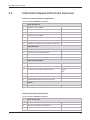
8. If the company wants to receive email notification in case of an error (TABLE 3: 7.1
- Send an Email on Error), set Send an Email on Error to Yes before you click Next.
9. Leave the Scan Job Input Configuration and click Next.
10. Leave the settings for Scan Conversion Configuration and click Next.
11. For Workflow Name, enter a name, then click Finish.
4.9.9
Scan to OneDrive
Time to complete tasks: 5 minutes
1. From the Quick Start screen, select Scan Configuration.
2. Click on the New icon on the top right hand side of the screen.
3. Select Scanning and click Next.
4. From the list of wizards, select Scan to OneDrive and click Next.
5. Click Add Identity Type and configure the following Identity Type:
o Identity Category: Email Address
o Identity Type ID: onedrive
o Identity Type Name: OneDrive
6. Ensure that the newly created Identity is selected and click Next.
7. Leave the identity warnings and click Next.
8. If the company wants to receive email notification in case of an error (TABLE 3: 8.1
- Send an Email on Error), set Send an Email on Error to Yes before you click Next.
9. Leave the Scan Job Input Configuration and click Next.
10. Leave the settings for Scan Conversion Configuration and click Next.
11. For Workflow Name, enter a name, then click Finish.
4.9.10
Scan to SharePoint
Time to complete tasks: 5 minutes
1. From the Quick Start screen, select Scan Configuration.
2. Click on the New icon on the top right hand side of the screen.
3. Select Scanning and click Next.
4. From the list of wizards, select Scan to SharePoint and click Next.
5. Enter the SharePoint Server Configuration as provided via the customer IT
department (TABLE 3: 9.1 SharePoint Server Address, 9.2 Protocol and 9.3 Allow
self-signed SSL certificates). Afterwards click Next.
33