1
ASIO & Core Audio Guide
7. Configure your Merging Ravenna ASIO Settings
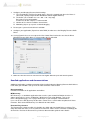
A. The Local Adapter (will list all network ports): Chose the network port where the Horus is
connected (Laptop example below: Broadcom Netlink Gigabit Ethernet)
B. The buffer sizes available are: 512 - 256 - 128 – 64 [smpl]
Based @ 1FS (44.1kHz/48kHz)
A buffer size of 256 samples is recommended
C. Number of I/O channel available: 64 maximum
D. Monitoring: Opens up a panel used for debugging
8. Restart your system after the driver installation
9. Configure your application (Pyramix or other DAW) in order to use the Merging Ravenna ASIO
Driver
10. If using Pyramix the users must open the VS3 Control Panel and make sure that the Driver
Merging Ravenna ASIO driver is selected under the I/O Selection
11. Make sure that the Horus is connected to the Gigabit Ethernet port and launch Pyramix
Bundled applications and documentations
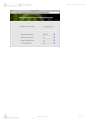
Additional applications and documentation will be installed along the Merging Ravenna ASIO drivers.
Look under your windows start up menu in order to find the entries below.
Documentations:
Find documentation on all applications and utilities
MTDiscovery:
MT Discovery is a standalone application that searches your network for Bonjour Services. It
allows quick and easy access to Merging’s Web Services based on Bonjour, such as the
Horus configuration page. These pages will be open in your computer’s default browser.
Users can also use MT Discovery for the Horus remote access and in order to update their Horus
Firmware. Refer to the MTDiscovery User Manual for more details.
Ravenna Easy Connect:
The Ravenna Easy Connect utility is included in the ASIO and Core Audio Drivers package. This
utility will enable the Horus users to connect the Ravenna visible streams and route accordingly the
desired I/Os. Refer to the Ravenna Easy Connect documentation guide for more details.
www.merging.com
15
Page 7 -