1
OPENING YOUR COLLECTION AS AN EVIA PROJECT FILE
These are large files and could take up to several minutes to load completely, especially
the video components. Attempts to "fix" this by clicking on processes multiple times
will probably lock up your machine, so please be patient while the application is loading.
FOR NEW CONTRIBUTORS
Before you arrive at the Summer Institute, we will create an EVIA project file (.awx) for
you, based on the tape sequence you indicated in your tape data entry form. If the
collection sequence is incorrect or if you do not see a project file for your collection,
please ask a member of the EVIA staff for help.
FINDING VIDEO FILES
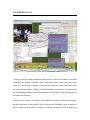
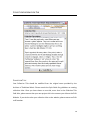
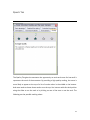
The AWB will automatically try to find the appropriate movie files when you open a
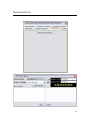
project file. If it can’t find the files, a dialogue box will appear asking you to navigate to
the location of that file. (In most cases, we will have copied your video files onto the
hard drive of your workstation).
Once the AWB finds at least one of your video files, it will automatically look in the same
location for the rest of the necessary files. It is also designed to remember this location
for future work sessions. Therefore, if you continue to work at the same workstation,
you should only need to do this once, unless you move your files.
CONNECTING TO THE CONTROLLED V OCABULARY DATABASE
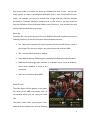
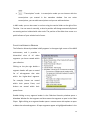
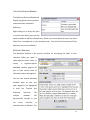
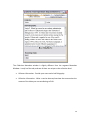
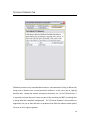
After you open a project file in the AWB, you will need to make sure you have a
connection to the Controlled Vocabulary database. This should be configured for you
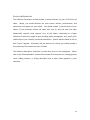
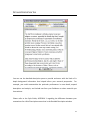
already, but if not, you might see a message in the CV Window that reads "Failed to
automatically connect to the database."
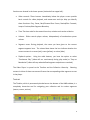
To connect to the database:
•
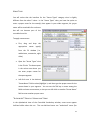
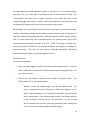
Click the "Connect to Database" button in the Controlled Vocabulary window.
5