1
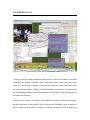
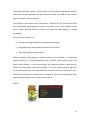
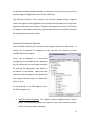
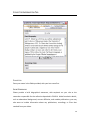
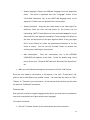
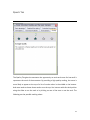
functions are located in the lower quarter (clockwise from upper left):
•
Video controls: These buttons immediately below the player screen provide
basic controls for video playback, and mouse-over tool tips help you identify
these functions: Play; Pause; Back/Forward One Frame; Rewind/Fast Forward;
Jump to Previous/Next Segment Boundary.
•
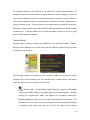
Time: The time code for the material on view, relative to the entire collection.
•
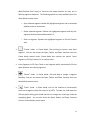
Volume: Slider controls player volume, independently of workstation system
volume.
•
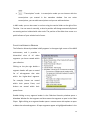
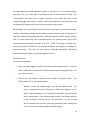
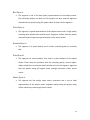
Segment name: During playback, the name you have given to the current
segment appears here. The colored dots above the box indicate whether the
current content is an event (red), scene (yellow), or action (blue).
•
Playback options:
Using the radio buttons, you have the option to select
"Continuous Play" (video will run continuously during play mode) or "Stop at
Boundaries" (video will stop when defined segment endpoints are reached).
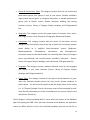
The Video Player is synced to the Timeline and the Collection Hierarchy. Selecting
content in either of these two areas will cause the corresponding video segment to start
in the player.
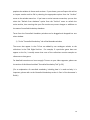
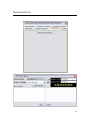
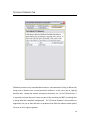
TIMELINE
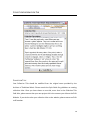
The Timeline, which is permanently docked across the bottom of the AWB window, is a
completely interactive tool for navigating your collection and its various segments
(events, scenes, actions).
9