1
and script will be in synch, and playback will work as expected.
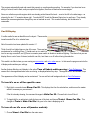
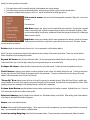
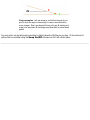
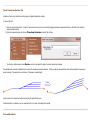
But there is another detail. This is not a rewind. The train which jumps is the current train, with its current consist of
cars. If you have done some coupling or uncoupling since the script ran past that statement, then jumping back to it
may not restore the original arrangement.
Rewind Points
In the context of TrainPlayer, "rewind" means "set up the trains in preparation for an operating session." Normally
when you open a layout file it is already in this situation -- everything is in the right place to start, so you can just hit
Play. Now suppose you play the script partway through, lose interest, and decide to do a bit of track repair. You
move some track around, then save your changes.
Oops.
At this point the trains are in random positions. If you overwrote the original file, you lost data about where they
were, and you no longer know where the rewind should go. The script will no longer work.
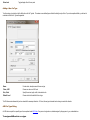
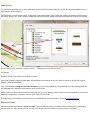
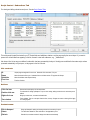
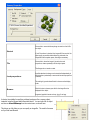
To deal with this, TrainPlayer has the concept of a "rewind point." This is a snapshot of the positions of all movable
objects: trains, switches, and turntables. You can save a rewind point to a file, play with the trains a while, then
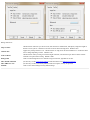
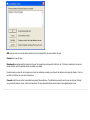
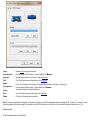
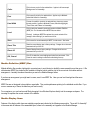
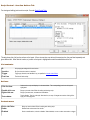
retrieve the file to put everything back the way it was. These actions are done with the Save and Load buttons in
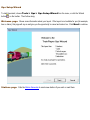
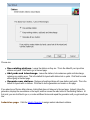
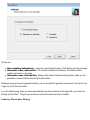
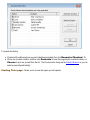
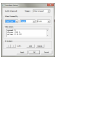
the Advanced Scripting dialog.
A rewind point is saved automatically the first time you play or record a script. It is carried around with the layout,
and saved in the layout file. This means you can save the layout with trains in random positions, and you will still be
able to rewind to the initial point.
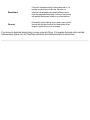
If you change your mind about the starting locations and want to move them around a little, use the Reset button in
the Advanced Scripting dialog. Reset erases the current saved rewind position, so the next time you begin to play
or record, a new one is created. Caution! If you carelessly erase a rewind point and don't know where the trains
need to go, you could render the script useless.
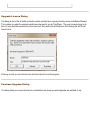
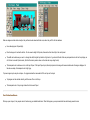
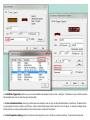
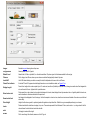
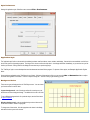
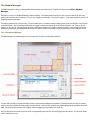
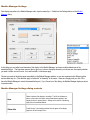
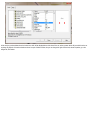
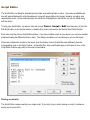
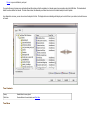
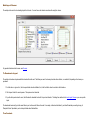
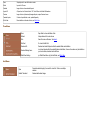
Advanced Scripting Dialog
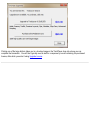
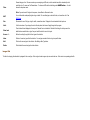
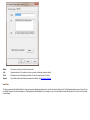
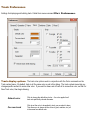
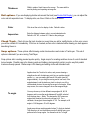
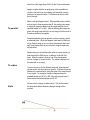
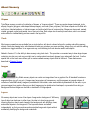
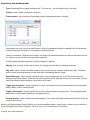
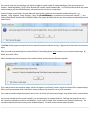
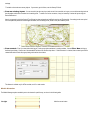
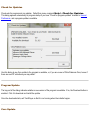
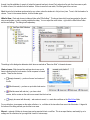
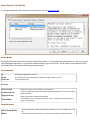
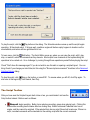
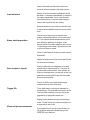
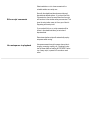
Clicking the Advanced button in the Script Editor brings up a dialog of useful buttons and options for script authors.