1
•
•
•
•
•
•
•
•
•
•
•
•
•
•
•
•
•
•
•
•
•
•
•
•
•
•
•
••
•
•
•
•
•
KEYSTROKES & PROCEDURES
Exit
<Alt + FlO>
One of the most important keystrokes -- the one which gets you out of the database! In
fact this key combination has the more basic meaning [cancel].
If you think of Oracle Forms as running a series of nested programs - starting with the menu
program, then the Forms program, followed by the Query program - then it makes sense that
each <.AIt + FlO> cancels the program running at that time. If in query mode, you will be
left in the fonn; a second "cancel" will take you back to the rrenu program; the next "cancel"
stops that program, and returns you to the system prompt.
Jfyou get into trouble while in Fonns Mode, you can [cancel]. <AIt + FlO>. You will usually
be asked whether you want to connnit any changes you have made -- the safe answer is "No". You
will exit to the rrenu, and must start again, but at least you have not incorrectly modified the database.
Cursor control
The nonna! keys for cursor movement are:
Move to right in field:
Go to end of field:
Move to [next field]:
Move to [next block]:
<-+ >
<Esc + g>
<Enter>
<Home>
Move to left in field:
<+->
Go to start of field:
<Esc + i>
Move to [previous field]: <Ctrl + h>
Move to [previous block]: <End>
In the Forms INlTENI'RY and PALENI'RY, <Enter> is prograrrnred to allow the cursor to move
forward through the whole view, but the reverse has not been implemented -- <Ctrl + h> will
only work within the one block.
Moving between records
Either as a result of retrieving several records with a Query, or following entry of successive
records without closing a Fonn, it is possible to examine individual records:
Move forward 1 record:
< 1>
Move back 1 record:
< 1>
Moving between Forms
From appropriate places in several Fonns, it is possible to move to a linked Form, which
may be a full version of a table abbreviated in the first Fonn, or a lookup table. From a specific
field or block in the initial Form, <Alt + F3> [next primary key] will place the cursor in a designated
field within the linked fonn.
With appropriate programming, a linked Fonn will query the database so as to display data
from the initial fonn. From this point, a whole series of records (for that table) can be entered
using the "Duplication" facility (see p. 47). Return to the initial Fonn with <Alt + FlO>.
When you enter a lookup table you are immediately placed in Query Mode (see below).
This fact will be advised in the rressage line at the bottom of the screen. It is then possible to establish
appropriate data, such as the Species Number for a taxon. If the data are already in the database,
they will be displayed and Query Mode cancelled. If not, and you have to establish a new entry,
first cancel Query Mode with <AIt + FlO>, then enter the data, and commit it with <FlO>. You
can then take data (such as the computer-generated Species Number) back to the initial Fonn with
<Alt + F3> [next primary key]. Alternatively, return without the data with <Alt + FlO>.
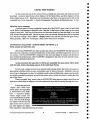
Extensive help messages are provided where there is room on the screen.
© Australian Geological Survey Organisation 1995
43
PALEODATABASE -
USER'SMANUAL