1
Rational Imaging Installation Manual
XVII.RIS Connectivity Installation
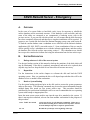
Rilink and Rideliverd are background processes used in the RIS connectivity package. Rilink
receives HL7 messages from RIS systems, and writes each message into a specified directory on
disk. Rideliverd reads each message, and determines how to handle it based on the type of
message. An ORU message is a report message containing a verified report, and rideliverd will
try to associate the report with a matching exam. A ORM message, or general order message, is
used to provide worklist (scheduling) information and also alter patient demographics. If
everything works correctly, Rilink will receive and deposit the messages. Rideliverd will read
each message, provide the functionality required, and then delete each successfully handled
message. Thus the hl7msg directory should only provide temporary storage for messages being
processed.
Rideliver is a third application in the RIS connectivity package which allows manual
reconciliation of mis-matched reports.
A.
LICENSING
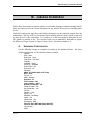
The following licenses are provided when the “RIS Connectivity Package” is ordered:
rilink
rideliverd
rideliver
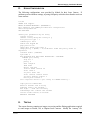
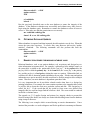
The following sections describe the installation and testing of each of these applications.
B.
RILINK CONFIGURATION
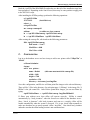
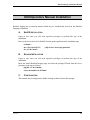
Make sure that all 3 applications are version 5.1.0n or greater:
get_version /opt/ISTri/bin/rilink
get_version /opt/ISTri/bin/rideliverd
get_version /opt/ISTri/bin/rideliver
Create directory for temporary storage of messages:
mkdir /img/hl7msg
chmod 777 /img/hl7msg
Rilink is a background process run out of the inittab. Edit the /etc/inittab and enter the following
line:
r7:34:respawn:su – imaging –c “exec rilink –d /img/hl7msg –i 5000 –n”
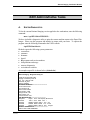
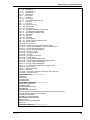
The following options are specified by default:
05.08.2001
58