1
Monitoring the System
Changing a Widget's Filtering Properties
Depending on how the creator of a Widget Desktop layout configured a widget,
you might be able to change its filtering properties to make it display only
specific types of data and/or only data matching specific text.
For information on which widgets have filtering properties you might be able to
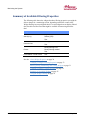
change, see Summary of Available Filtering Properties on page 34.
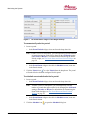
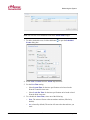
To change a widget's filtering properties:
1. Click the properties button
its Properties dialog box.
in the upper left corner of the widget to open
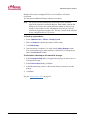
Note: If the properties button does not appear on a widget, you cannot
change its properties.
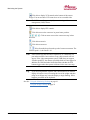
2. For any filter that is available for the widget, use the right-arrow button to
move the criteria you want from the Available list to the Selected list.
3. In the Filter box, enter any text you want to further narrow down the data.
4. Click OK.
For the current monitoring session, the widget will display data only
information matching the criteria and/or text you specified.
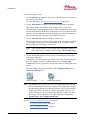
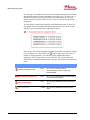
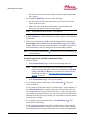
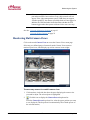
If you specified a text filter, the text you entered will appear in the Filter box
on the widget's title bar, as shown below.
You can apply a different text filter by entering new text, and you can clear
the text filter by clicking the Clear Filter icon .
See also: Moving, Sizing, Minimizing, and Closing Widgets on page 31
Changing a Widget's Unique Properties on page 32
Summary of Available Widgets on page 25
Using the Widget Desktop on page 22
Using the Monitoring Desktop on page 19
233192 AX4 Linear LLC
33
May 2014