1
PCoIP® Remote Workstation Card
Quick Start Guide
Models:
TERA2220 Dual Display Teradici PCoIP Remote Workstation Card
TERA2240 Quad Display Teradici PCoIP Remote Workstation Card
This guide provides installation
instructions for setting up
the Teradici PCoIP® Remote
Workstation Card and Teradici
PCoIP® Zero Client.
PACKAGE CONTENTS
SYSTEM REQUIREMENTS
The package contents may include:
• PCI Express x1 compatible card slot Full Height,
Half Length (FHHL) for TERA2240, Low Profile for
• TERA2220 Dual Display Teradici PCoIP Remote
Workstation Card or TERA2240 Quad Display
Teradici PCoIP Remote Workstation Card
TERA2220
• Host PC with 1 or 2 graphics cards
• Teradici PCoIP Remote Workstation Card power
button cable
• For 2560x1600 resolution, graphics card (GPU)
must contain DisplayPort ports
• Mini DisplayPort to DisplayPort cables
• PCoIP-compatible client end point (zero client
recommended)
• Mini DisplayPort to single-link DVI cables
• Ethernet cable
• “Teradici PCoIP® Remote Workstation Card
Quick Start Guide”
1
• Windows XP installations must use the Realtek
High Definition Audio Codecs software from
www.realtek.com (Downloads). Linux installations
must use the alsa-driver package from
www.alsa-project .org (Downloads).
For more information, see KB 15134-1289 on
the Teradici Support Center.
Front Panel
Switch
A
INSTALLATION STEPS
C
Setting up the Teradici PCoIP Remote Workstation Card
NOTE: The workstation card’s MAC address is located on a sticker on
the card. It is important to write down this address before installing the
card in the host PC. You will need it to connect to the card using SLP host
discovery.
Host Card
B
Host PC Motherboard
1. Ensure the host PC is turned off and unplug the power cables.
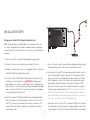
a.Connect the white end of the workstation card power button cable to
the power button cable connector on the workstation card.
2.Remove the chassis cover and locate an available PCIe slot.
3.Remove the expansion slot cover of the appropriate PCIe slot for the
b.Locate where the host PC front-panel power button cable connects
to the motherboard. Disconnect the host PC’s front-panel On/Off
switch cable from the motherboard’s header, and locate the Power
On/Off signal pins. Connect the red wire on the workstation card
power button cable to the positive terminal of the Power On/Off
pin. Connect the black wire to the negative terminal. The negative
terminal is typically a ground pin. NOTE: The location of the Power
On/Off switch pins is different from one motherboard to another. See
your motherboard user manual for details. If you have the connector
inversely connected, the host PC will not power up.
Teradici PCoIP Remote Workstation Card.
4.Insert the Teradici PCoIP Remote Workstation Card into the PCIe
slot and secure the metal bracket.
WARNING: Always power
down and disconnect devices from AC power before handling them.
Failure to do this can result in personal injury or equipment damage.
Some circuitry on the host PC can continue to operate even though
the front panel power switch is off.
5.Install the Teradici PCoIP Remote Workstation Card power button
cable. This optional connection allows a remote user to reset the
host PC (e.g., when the operating system is non-responsive). The
illustration below shows an example of a workstation card and
remote power cable.
c. If possible, connect the host PC’s front-panel On/Off switch cable to
the 2-pin header on the workstation card power button cable. If this
is not possible, the host PC’s front-panel On/Off Switch is disabled.
2
6. Connect the workstation card to your network using the Ethernet port.
8.
Replace the chassis cover and reconnect power cables.
7. Using the appropriate cables, connect the GPU to the workstation card. To get a desired resolution, all the components of your system (workstation card, GPU, zero client, and monitors) must support this resolution. In addition, the cables must be connected according to the following rules:
9.
Start up the host PC.
• Always start with the lowest number GPU port of that type (DisplayPort or DVI) and work up sequentially from there.
Depending on the model, a Teradici PCoIP zero client may have
DisplayPort ports or DVI ports. To achieve the highest resolution supported
by your system, it is important to connect the ports on the zero client
correctly. The following instructions explain how to connect 2560x1600
resolution monitors to zero clients.
10. Ensure the workstation card is installed correctly by checking that
the heartbeat LED at the back of the card is continuously flashing red.
Setting up the Teradici PCoIP Zero Client
• IMPORTANT! For 2560x1600 resolution, you must use DisplayPort ports on the workstation’s GPU when connecting to the workstation card.
Teradici PCoIP zero clients with DisplayPort ports:
• If you use DVI ports on the GPU, the maximum resolution supported is 1920x1200, and the DVI-mDP cable shipped with the workstation card supports single-link data rates only. This means that if you connect the first dual-link DVI port on the GPU to a port on the workstation card, you will still only get a single-link data rate (i.e., resolutions up to 1920x1200).
1. Check the GPU-to-workstation card connections to see which ports on
the workstation card are used.
2. Connect port 1 on the zero client to the primary monitor using a
DisplayPort cable.
3. To connect the secondary monitor, use a second DisplayPort cable to
connect the port on the zero client that matches the port number used
for the second GPU-to-workstation card connection.
3
Teradici PCoIP zero clients with DVI ports:
The example below illustrates the correct way to connect the DVI
Y-cables for 2560x1600 resolution on both monitors.
NOTE: The two single-link male DVI connectors on the DVI-Y cable are
labeled as 1 and 2. It is important to connect them in the order explained
below; otherwise, a black screen will result.
Supported DVI teamings to obtain
2560x1600 @60Hz resolutions
1. Connect the primary monitor:
TERA2140
a. Connect the #1 single-link male DVI connector on a DVI Y-cable to port 1 on the zero client.
Monitor 1
2560x1600
1 3
b. Connect the #2 single-link male DVI connector to port 3 on the zero client.
2
1
c. Connect the other end of the DVI Y-cable to the primary monitor.
2 4
2
2. Connect the secondary monitor:
1
a. Connect the #1 single-link male DVI connector on a DVI Y-cable to port 2 on the zero client.
Monitor 2
2560x1600
You can now connect the keyboard and mouse to the zero client’s USB
ports. Use the rear ports if they are available. NOTE: Teradici PCoIP
Software Client is also available for connection on-the-go from your
Mac or PC. Please see more details at www.teradici.com/workstation
b. Connect the #2 single-link male DVI connector to port 4 on the zero client.
c. Connect the other end of the DVI Y-cable to the secondary monitor.
4
ESTABLISHING A PCOIP CONNECTION
Making the Connection - SLP
Some Teradici PCoIP zero clients are pre-configured to connect directly
to a Teradici PCoIP workstation card. They can also be configured to use a
third-party connection broker such as VMware View to connect to virtual
desktops or PCoIP workstation cards. This section is a brief overview of
the direct-to-host connect procedure.
The steps below show how to use Service Location Protocol (SLP) to
connect a Teradici PCoIP Remote Workstation Card to a Teradici PCoIP
zero client.
Connect an Ethernet cable using one of the following methods:
Device Management
• Zero client connected directly to the workstation card.
In order to make a configuration change on a Teradici PCoIP device, either
of the following management tools can be used:
• Zero client and workstation card connected to network devices that
are on the same subnet.
• On Screen Display (OSD) – Only available in pre-session when a
monitor is connected to a zero client and powered on. To display the
OSD, connect a monitor, mouse, and keyboard to a zero client, and then
power on the units.
1. Power on the zero client, monitors, and host PC.
2.Click Connect.
The SLP discovery process starts, and the message “Discovering hosts, please wait…” displays. When discovery completes, the IP and MAC addresses of any discovered workstation cards are listed on • Administrative Web Interface (AWI) – Accessible through a supported
browser using the IP address of the Teradici PCoIP Remote Workstation
Card or zero client. The AWI can be accessed either while the workstation
card is deployed or before it is deployed by physically connecting a
laptop to the workstation card using an Ethernet cable. By default, the
workstation card and zero client will accept a DHCP address. If DHCP is
the screen.
3. Locate your new card by its MAC address and then select it.
4.Click Connect.
unavailable, default IP addresses for the devices are as follows:
•
•
Once connected, the display shows the host PC screen. The
zero client’s session LED on the front panel turns green, indicating
a successful PCoIP connection.
Workstation card: https://192.168.1.100
Zero client: https://192.168.1.50
5
5. If SLP discovery does not begin, ensure the session connection type is configured correctly:
Making the Connection – Direct to Host
If the Teradici PCoIP Remote Workstation Card IP address is known or its
default IP address is used, you can choose Direct to Host as the session
connection type to ensure the Teradici PCoIP zero client connects directly
to the specified workstation card.
a. From the zero client’s OSD, click Options > Configuration > Session.
b.Click Unlock, enter the required credentials, and then click OK.
c. Change the connection type to Direct to Host + SLP Host Discovery.
1. From the zero client OSD, click Options > Configuration > Session.
d.Click OK.
e.Click Reset.
2.Click Unlock, enter the requested credentials, and then click OK.
f. When the Connect button appears, click Connect.
3. Change the connection type to Direct to Host.
g. Go to step 4 above.
4. Enter the workstation card’s IP address in the DNS Name
or IP Address field.
5.Click OK.
6.Click Reset.
7. When the Connect button appears, click Connect.
6
ENDPOINT SELECTION
Troubleshooting and More Connection Methods
For troubleshooting tips and instructions on using other methods
of connecting a Teradici PCoIP client end point to a Teradici
PCoIP Remote Workstation Card, please refer to the appropriate
documentation listed in the RESOURCES section of this guide.
Workstation Card
PCoIP Clients
TERA2240 Quad
• TERA2140 PCoIP Zero Client
• Teradici PCoIP Software Client
(Windows and Mac)
TERA2220 Dual
• TERA2321 or TERA2140 PCoIP Zero Client
• Teradici PCoIP Software Client
(Windows and Mac)
The Teradici PCoIP® Zero Client is recommended for full
functionality.
7
RESOURCES
ADDITIONAL SOFTWARE TOOLS
• Workstation card specifications (see Workstation solutions >
Specifications on www.teradici.com)
Teradici PCoIP Host Software Driver (recommended). Required if
workstation cards are brokered by VMware View™.
Provides features such as:
• Teradici Support Center (www.techsupport.teradici.com)
• No mouse pointer lag on higher latency networks (over 50 ms)
Doc Center:
• “PCoIP Zero Client and Host Administrator Guide”
• “Using PCoIP Host Cards with VMware View”
• In-session key sequence support to disconnect without using zero
client button
• “PCoIP Protocol Virtual Desktop Network Design Checklist”
(also applies to host cards)
Teradici PCoIP Management Console
• Manage configuration and firmware updates for large deployments Knowledge Base:
• KB 15134-1438 (“What are the jumpers on the Tera2 host card
• User experience controls, connection information, and statistics
of Teradici PCoIP Remote Workation Cards and Zero Clients.
SNMP Monitor
used for?”)
• Teradici PCoIP Remote Workstation Cards and Zero Clients support • KB 15134-1607 (“Dual-link DVI, Single-link DVI, DisplayPort and 2560x1600 resolutions with PCoIP products.”)
8
the SNMP protocol. You can use an SNMP tool to capture important read-only information such as bitrates, frame rates, and Mpps.
© 2004-2014 Teradici Corporation. All rights reserved. Teradici, PCoIP and PC-over-IP are trademarks
of Teradici Corporation and may be registered in the United States and/or other countries. All other
trademarks are property of their respective owners. Specifications subject to change without notice.
Covered under US patents. Visit www.teradici.com/patents.
TER1207006-2