1
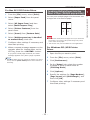
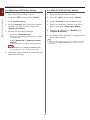
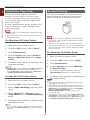
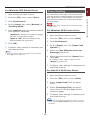
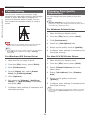
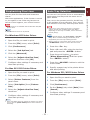
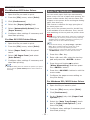
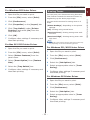
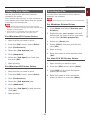
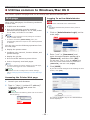
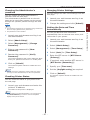
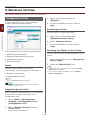
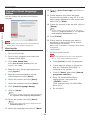
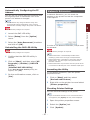
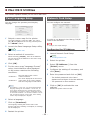
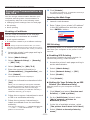
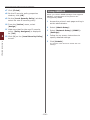
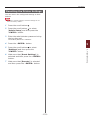
Utilities common to Windows/Mac OS X Utilities common to Windows/Mac OS X This section explains web pages that can be used by both Windows and Mac OS X. Web page Logging In as the Administrator When using web pages, the following conditions must be met. 3 Note ●● You must be authorized as the administrator. Memo ●● TCP/IP must be enabled. ●● The default administrator password of the printer is “aaaaaa”. 3. Using Utility Software ●● One of the following must be installed: Microsoft Internet Explorer 6.0 or later, Safari 3.0 or later, or Firefox 3.0 or later. 1 Click on [Administrator Login] on the main page. Memo ●● Either set your web page security settings to a medium level, or enable cookies. ●● In order to access the [Admin Setup] menu, the administrator password is required. The default password is “aaaaaa”. You can carry out the following operations from the web page. ●● Display the printer status. ●● Configure tray, network, function default, and printer settings. 2 Enter “root” in [Username] and enter the administrator password in [Password], and then click [OK]. ●● Display the job list. ●● Print out a PDF without a printer driver. For Mac OS X, type in “root” for [Name] and enter the printer administrator’s password in [Password], and then click [Login]. ●● Link to frequently used web pages. Memo ●● In order to change the printer settings on the web page, you need to be logged in as the administrator. 3 Click [SKIP]. If you have made changes to the settings on this screen, click [OK]. Reference ●● For details on how to configure the network settings, refer to “Changing Network Settings From the Web Page” P.119. Accessing the Printer Web page 1 Launch your web browser. 2 Type in “http:// (printer’s IP address)” in the address bar and press the <ENTER> button. Reference ●● For the printer's IP address, please refer to the User's Manual (Setup). The menus available only for the administrator will be displayed. - 86 -