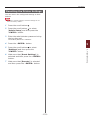
1
Printing with Various Functions
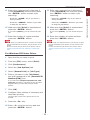
10 Open the file you want to print on the
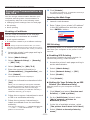
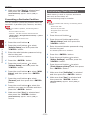
Printing on Labels
computer.
11 Configure the paper size and tray with
Set the paper size and type for MP Tray on
the operator panel. Then, make print settings
including paper size and paper tray with the
printer driver.
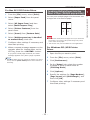
For Windows PCL/XPS Printer
Driver
the printer driver.
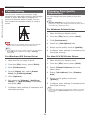
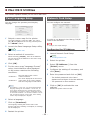
1 From the [File] menu, select [Print].
Memo
●● Do not select duplex printing for labels.
2 Click [Preferences].
Reference
3 On the [Setup] tab, select the paper
●● For available labels, refer to the User’s Manual (Setup).
size of a label from [Size].
●● Manual printing is also available for printing on labels.
For details on manual printing, refer to "Manual Printing"
P.22.
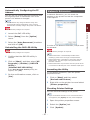
4 Select [Multipurpose Tray] from
[Source].
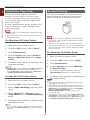
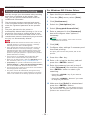
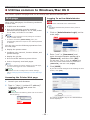
1 Load paper on the MP Tray.
5 Configure other settings if necessary and
Reference
then start printing.
●● Refer to “Loading Paper” in the User’s Manual
(Setup).
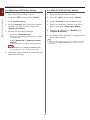
For Windows PS Printer Driver
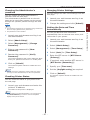
2 Open the faceup stacker at the rear of
the printer.
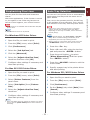
1 From the [File] menu, select [Print].
Memo
●● If always printing on labels from the MP Tray, register
the paper on the operator panel.
2 Click [Preferences].
●● If printing once, proceed to the printing procedures
through the printer driver.
3 Select [Paper/Quality] tab.
●● When the printer is in the power saving mode, press
the <POWER SAVE> button to restore from the
mode.
4 Select [Multi-Purpose Tray] from
[Paper Source].
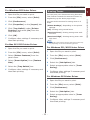
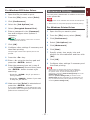
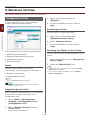
3 Press the <Fn> key.
5 Click [Advanced].
4 Enter <9> and <0> using the ten-key
6 Click [Paper Size] and then select the
paper size of a label from the drop-down
list.
pad and press the <ENTER> button.
5 Press the scroll button
to select the
paper size of a label and then press the
<ENTER> button.
7 Click [OK].
8 Configure other settings if necessary and
then start printing.
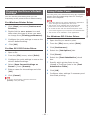
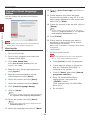
6 Press the <BACK> button and make
sure that [MPTray Config] is displayed.
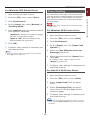
For Mac OS X PS Printer Driver
7 Press the scroll button
to select
[Media Type] and then press the
<ENTER> button.
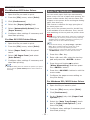
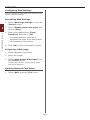
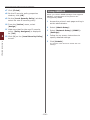
1 From the [File] menu, select [Page
Setup].
8 Press the scroll button
to select the
[Labels] and then press the <ENTER>
button.
2 Select the paper size of a label from
[Paper Size] and click [OK].
9 Press the <ON LINE> button to exit the
menu mode.
3 Select [Print] from the [File] menu.
4 Select [Paper Feed] from the panel
menu.
- 15 -
1. Convenient Print Functions
You can print on labels by changing the media
type setting and using the MP Tray and the face
up stacker.
1