1
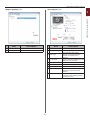
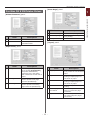
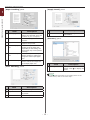
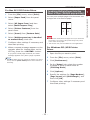
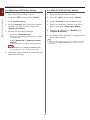
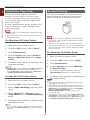
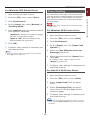
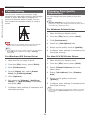
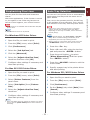
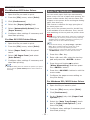
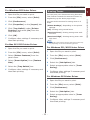
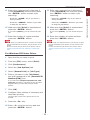
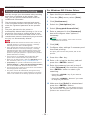
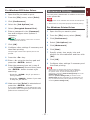
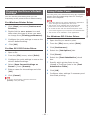
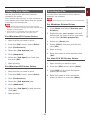
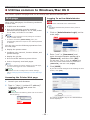
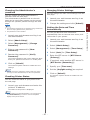
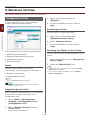
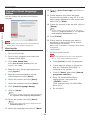
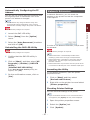
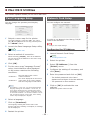
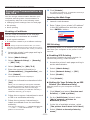
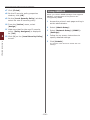
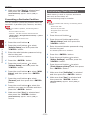
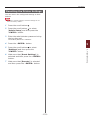
Windows Utilities Windows Utilities This section explains utilities you can use in Windows. Configuration Tool 3 Select the printer and click on [Register]. In the Configuration Tool, you can manage multiple units and change settings. 4 On the confirmation screen, click on [Yes]. 3 Removing a Printer 3. Using Utility Software You can remove a registered printer. 1 Right-click on the printer from [Registered device Table]. 2 Select [Remove device]. 3 On the confirmation screen, click on [Yes]. Checking the Status of the Printer The Configuration Tool functions are as follows. You can check the status and information of the printer. ●● Display device information ●● Registering and deleting form data 1 Select the printer from the [Registered ●● Managing stored jobs Device Table]. ●● Network settings 2 Select the [Device Info] tab. Setup Memo Plugins can be installed if necessary. ●● When the printer is connected to the network, [Device Status] will be displayed. The following 2 types of plugin are available. ●● If you want to update information, click on [Update Device Information]. ●● Network Setting Plugin ●● Storage Manager Plugin Memo ●● You can install additional plugins later. Reference ●● For how to install Configuration Tool, please refer to “Installing Utilities” P.85. Registering the Printer When using the Configuration Tool or introducing a new printer, register the printer in the Configuration Tool. 1 Select [Start], [All Programs]> [Okidata]>[Configuration Tool]> [Configuration Tool]. 2 Select [Register Device] from the [Tools] menu. Search results are displayed. - 90 -