1
M U LT E N E T
P O C K E T P A D M U LT I D R O P E T H E R N E T
e
MULT NET PocketPAD MultiDrop Ethernet
Low Cost RS232 Serial to 10/100 Base-T Ethernet Device
Quickstart Guide
English
Version 1.0
March 2005
[email protected]
NET
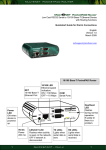
10/100 Base-T
Ethernet Ports
10/100 Base-T PocketPAD
COM
Serial Port
MultiDrop Ethernet
Power
LED
ON when
device is
powered
up.
Heartbeat
LED
Flashes
during normal
operation.
If solidly lit
there is a
problem.
5V DC
Power
200 mA
LNK/ACT LED
Flashes when activity
is seen on the network.
OFF if network is
disconnected.
1
10/100 LED
Ethernet speed
indication:
ON = 100 Mbps
OFF = 10 Mbps
Q U I C K S TA R T
TX LED
Lights
when
serial data
is sent.
RX LED
Lights when
serial data
is received.
1
M U LT E N E T
1.
2.
3.
4.
P O C K E T P A D M U LT I D R O P E T H E R N E T
Connect the Serial, Ethernet and Power cables.
Configure the IP Address and Subnet Mask using EtherPAD Explorer.
Configure the Serial Port parameters.
Test communications using two terminal sessions.
1. Connect the Serial, Ethernet and Power cables.
Serial Line Connection
Check the type of serial device you wish to connect to your PocketPAD.
RS232 only
For DCE devices (e.g. modems) you require
a straight serial cable, while for DTE devices
(e.g. computers) you require a crossed serial
cable. Standard off-the-shelf cables can be
used (check the user manual for detailed pin
outs).
Connect your serial device to the PocketPAD. You may want
to test the configuration by connecting the serial line to your
PC and checking data transmission via two terminal sessions
(e.g. HyperTerminal). This is briefly described at the end of this
guide.
Pin
1
2
3
4
5
6
7
8
9
RS232
CD
RX
TX
DTR
GND
DSR
RTS
CTS
RI
Ethernet Network Connection
Connect your Ethernet cable to the PocketPAD. The LNK LED
will light up if the connection is good. The 10/100 LED will light if
100 Base-TX is available.
You can use a crossed or a straight Ethernet cable as the
PocketPAD MultiDrop Ethernet will automatically configure
its Ethernet interfaces for the specific cable type and also the
connection type (10 Base-T or 100 Base-TX).
RJ45 Connector
Power Supply Connection
PocketPAD
A 5Vdc (2W) PSU can be connected to
the PocketPAD. A light weight Torpedo
style power supply unit is available.
If you have connected your PC COM port to the PocketPAD
COM1 port you will be able to log into the unit via a terminal
session (i.e. HyperTerminal) to configure it (check the user manual
for more details) while the TX/RX LEDs are flashing. Default
password is “user”.
2
Q U I C K S TA R T
1
TX-
2
TX+
3
RX+
4, 5
na
6
RX-
7, 8
na
Ethernet Cable
2
M U LT E N E T
P O C K E T P A D M U LT I D R O P E T H E R N E T
2. Configure the IP Address and Subnet Mask using EtherPAD Explorer.
Launch EtherPAD Explorer to quickly find all Multenet units on the local segment. EtherPAD
Explorer can be run from the CD, or installed onto your PC.
Configure the PocketPAD’s IP Address and Subnet Mask by highlighting the new device and
clicking ‘Set IP Address’. After setting the IP Address and Network Mask, you can configure
the PocketPAD by clicking ‘Web Configuration’.
The ‘Set IP Address’ window will appear while the unit is rebooting or if your network
parameters are incorrect.
EtherPAD Explorer Network Configuration
Web Configuration
Should your web browser launch but fail to download a web page, there may be a problem
related to your browser proxy configuration. Disable the proxy and restart the browser.
Another common problem is that of duplicate IP Addresses. The IP Address you inserted may
belong to another host. The user manual has more info on faultfinding these issues.
The following login screen
should appear if the network
parameters are good.
To get your PocketPAD configured for basic serial to ethernet communications you need to
configure the PocketPAD’s IP Address and Network Mask (for other networked devices to
contact it). If you have already “Set IP address” via EtherPAD Explorer, you can skip to the
next figure if you have do not wish to insert a Gateway IP Address.
3
Q U I C K S TA R T
3
M U LT E N E T
P O C K E T P A D M U LT I D R O P E T H E R N E T
Web Network Configuration
3. Configure the Serial Port parameters.
Next, configure the Serial Port and a Network Application. Check your serial device
parameters. The parameters below sets your PocketPAD to accept TCP/IP connections on
port 5000, with serial data communication configured for 19200:8:N:1:N. These are default
values.
Should you want the PocketPAD to connect to your server on startup, consult the user manual
for more info.
Save and Reboot the PocketPAD, saving your new settings.
Web Serial Application Configuration
4
Q U I C K S TA R T
4
M U LT E N E T
P O C K E T P A D M U LT I D R O P E T H E R N E T
4. Test communications using two terminal sessions.
Launch two terminal sessions to your PocketPAD. One session connects to the Serial
interface (COM1 port) and the other to the TCP port via the network (port 5000). Characters
typed in one session should be seen in the other (and vice versa).
NOTE:
5
If you see garbage, check your Serial port session parameters. They should match
the settings of your PocketPAD.
Q U I C K S TA R T
5