1
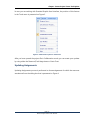
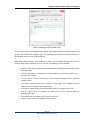
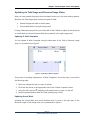
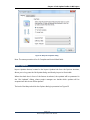
Chapter : Seavus Project Viewer Task Update With Seavus Project Viewer Task Update your project plan is flexible enough, so you don’t have to worry about missing a day out of work or forgetting to send updates. You cannot report % Complete and Work complete smaller than 0% or bigger than 100%. You can report time or progress for incoming days or for days in the past, out of the task’s time range. You cannot create updates out of project’s time range. Your updates must be within the start and end date of the project. You can insert comments regarding the updates Updating via Gantt Chart Views After you have opened the project from the shared location you can start making updates. Gantt Chart views contain only one category of fields: General task fields in the left panel If using collaborative project file you will be able to edit % Complete, % Work complete and Actual Work in the left working panel i.e. in the Gantt Chart table. Updating % Complete You can update % Complete using the table sheet in the Gantt Chart view, as it is presented on Figure 5. Page | 9 Seavus Project Viewer User Manual