1
T
Getting started
DR
AF
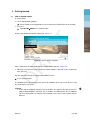
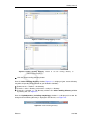
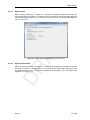
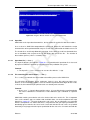
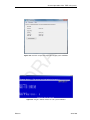
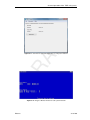
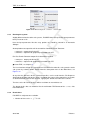
Figure 3.4: Select working directory window
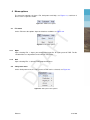
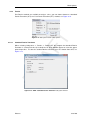
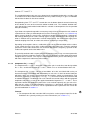
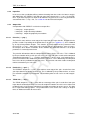
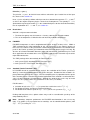
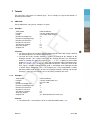
Figure 3.5: Select working directory window to set the working directory to
<tide\analysis\example_1>
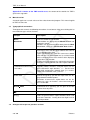
Click the Select working directory button.
Next the Select working directory window, Figure 3.4, is displayed (your current directory
may differ, depending on the location of your Delft3D installation).
Browse to the <Tutorial> sub-directory.
Enter the <tide> directory, and next the <analysis> directory.
Enter the <example_1> sub-directory and close the Select working directory window
by clicking OK, see Figure 3.5.
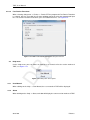
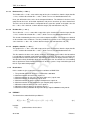
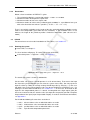
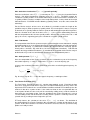
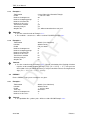
Next the Hydrodynamics (including morphology) window is re-displayed, but now the
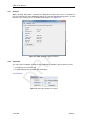
changed current working directory is displayed in the title bar, see Figure 3.6.
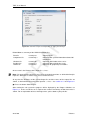
Figure 3.6: Current working directory
Deltares
9 of 100