1
D-S ETTLEMENT, User Manual
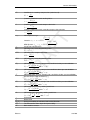
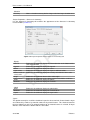
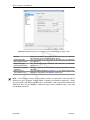
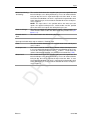
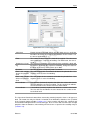
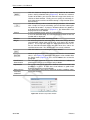
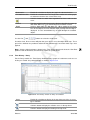
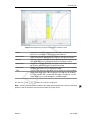
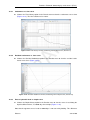
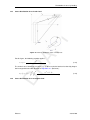
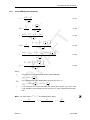
Measure the distance and slope between two points
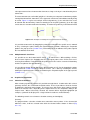
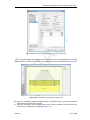
Click this button, then click the first point on the View Input window and place the
cross on the second point. The distance and the slope between the two points
can be read beside the second point. To turn this option off, click the escape key.
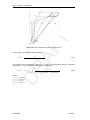
Undo zoom
Click this button to undo the zoom. If necessary, click several times to retrace
each consecutive zoom-in step that was made.
Zoom limits
Click this button to display the complete drawing.
Same scale for X and Y axis
Click this button to use the same scale for the horizontal and vertical directions.
DR
AF
T
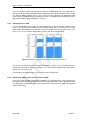
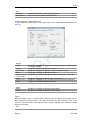
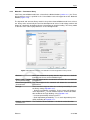
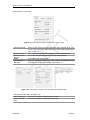
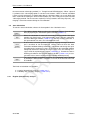
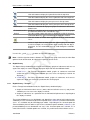
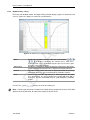
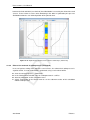
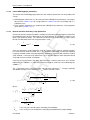
Automatic regeneration of geometry on/off
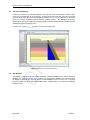
When selected, the program will automatically try to generate a new valid geometry whenever geometry modifications require this. During generation, (poly)lines
(solid blue) are converted to boundaries (solid black), with interjacent layers. New
layers receive a default material type. Existing layers keep the materials that were
assigned to them. Invalid geometry parts are converted to construction elements.
Automatic regeneration may slow down progress during input of complex geometry, because validity will be checked continuously.
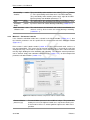
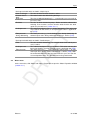
Redo
Click this button to redo the previous Undo action
Undo
Click this button to undo the last change(s) made to the geometry
Delete
Click this button to delete a selected element.
NOTE: This button is only available when an element is selected.
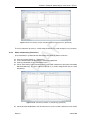
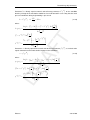
Previous stage
Click this button to view the previous stage in the sequence of loading.
Next stage
Click this button to view the next stage in the sequence of loading.
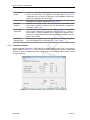
2.2.4
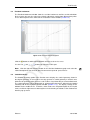
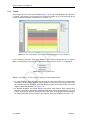
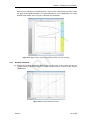
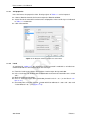
Title panel
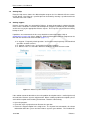
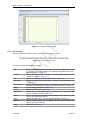
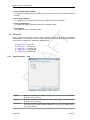
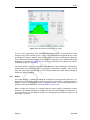
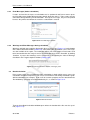
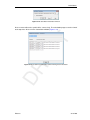
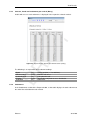
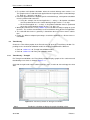
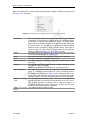
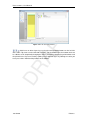
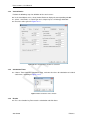
This panel situated at the bottom of the View Input window displays the project titles, as
entered on the Identification tab in the Project Properties window (section 4.1.3).
2.2.5
Status bar
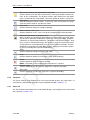
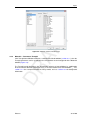
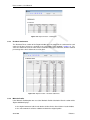
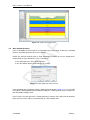
This bar situated at the bottom of the main window displays a description of the selected icon
of the icon bar (section 2.2.2).
18 of 290
Deltares