1
NOTE: This is more easily accomplished if you group the files by type. Select Details
from the View menu of Explorer. Then press the Type button in the bar of buttons at the
top of the file list. The file types are now listed alphabetically, so you can easily scroll to
the .stls files.
3
Select the .stls file that you want to delete and press the DELETE key on your keyboard.
Capturing What You Write
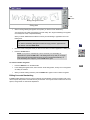
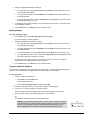
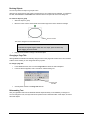
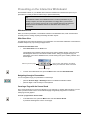
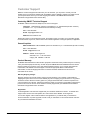
Whenever you write over a projected application that is not Aware, the Save/Print toolbar appears,
enabling you to capture your annotations.
Captures current screen
(including annotations)
Sends current screen (including
annotations) to default printer
Captures a selected area of the current
screen (including annotations)
NOTE: If the Floating Tools are active, the Save/Print toolbar appears in the bottom
row of the Floating Tools palette.
The Save/Print toolbar captures your annotations to Notebook software without actually switching to the
application. If you don’t have Notebook software open, it launches automatically. Refer to page 53 for
instructions on using the Save/Print toolbar.
Erasing What You’ve Written
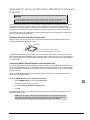
To erase what you’ve written, brush the pen tray eraser against the interactive whiteboard. For more
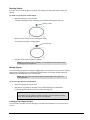
precise control, resize the eraser to the size of your fingertip (10 pixels). You can also inscribe a circle on
the screen with the eraser and then tap once inside that circle to erase all the annotations within.
If you’d prefer to remove all the annotations whenever you want, you can configure one of the pen tray
buttons to clear all the annotations when pressed. Alternatively, you can press the Clear Annotations
button on the Floating Tools palette.
To erase freehand annotations
1
Pick up the eraser from the pen tray.
2
Drag the eraser, your finger or any other object over the annotations you want to remove.
NOTE: You can’t remove typed text or shapes with the pen tray eraser. To remove these
types of objects, use the DELETE key.
To resize the eraser to fingertip size
1
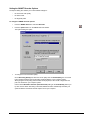
Press the SMART Board icon and select Control Panel.
The SMART Board Control Panel opens.
2
Press the Pen Tray tab.
3
Press the Eraser button.
4
Press the Specify Size option.
5
In the Specify Size box, type or select 10.
6
Press OK.
7
Pick up the eraser and erase a small area of the screen with your finger.
To use the “circle and tap” erasing method
Encircle the area that you want to erase with the edge of the pen tray eraser. Then tap once inside that
circle to erase all the annotations within it.
NOTE: This method of erasing doesn’t work on typed text or shapes. To remove
these types of objects, use the DELETE key.
24
SMART Board User’s Guide