1
Importing and Exporting Information in Notebook Software
Notebook software allows you to import files, page templates, pictures and text into the current Notebook
file. A variety of import methods are available, so your choice of method largely depends on the kind of
information you want to bring into the Notebook file.
This section explains how to:
•
attach files, shortcuts to files and links to Web addresses (URLs)
•
insert page templates and pictures from a Gallery collection
•
import pictures from a file or scanner directly into a Notebook file (without using a Gallery
collection)
•
capture entire screens, windows or screen regions using the Screen Capture tool
•
print files or selected pages from another application into a Notebook file using the Print Capture
function
•
cut or copy content from other applications, and paste it into a Notebook file
•
drag and drop content into a Notebook file
•
export a Notebook file as a PDF document, HTML file or series of image files
Attaching Files, Shortcuts and Web Addresses
With attachments, you have ready access to related information without increasing the size of your
Notebook file. You can attach files, shortcuts to files and links to Web addresses.
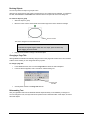
To attach a copy of a file
1
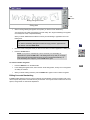
Select Attachments from the View menu.
The Attachments view appears.
2
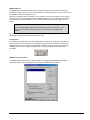
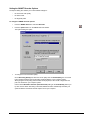
Select Insert from the Copy of File menu.
The Insert Copy of File dialog box opens.
3
Select the file that you want and click the Open button.
To attach a file shortcut
1
Select Attachments from the View menu.
The Attachments view appears.
2
Select Shortcut to File from the Insert menu.
The Insert File Shortcut dialog box opens.
3
Select the File name that you want and click the Open button.
NOTE: File shortcuts are not included in any of the export formats available for
Notebook software. If you want to include file attachments in an export format, you must
attach the file as a copy and not as a shortcut.
To attach a link to a Web address (URL)
1
Select Attachments from the View menu.
The Attachments view appears.
2
Select Hyperlink from the Insert menu.
The Insert Hyperlink dialog box opens.
50
SMART Board User’s Guide