1
Menu operations
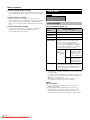
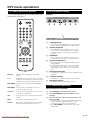
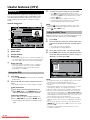
To set a Child Lock for individual programmes
Child lock
1
Important:
• Please refer to page 31 for “IMPORTANT NOTE ON
DISENGAGING ADVANCED CHILD LOCK (TV)”.
The Child lock function blocks the viewing of any
channels and prevents access to “Programmes”,
“First instalation”, and “Reset TV setting” screens.
To use this function, you need to define your PIN
(Personal Identification Number) first.
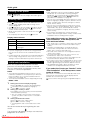
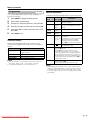
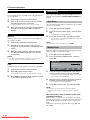
[1] Defining a PIN
1
2
3
Press MENU to display the Menu screen.
4
Input the desired four-digit PIN (e.g. 1234) with
0–9.
Press ◀/▶ to select “Features”.
1
2
3
4
NOTE
• Be sure to make a note of your PIN before pressing
OK.
• The PIN will not be set if MENU or END is pressed
before the fourth digit has been input.
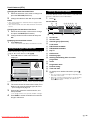
To set a Child Lock for all programmes
2
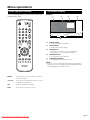
Perform steps 1 to 3 in [1] Defining a PIN to
display the PIN input screen.
Input your four-digit PIN (e.g. 1234) with 0–9.
3
?
?
?
• When the PIN is correctly input, the “Child lock”
screen is displayed.
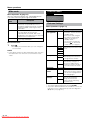
Press ▲/▼ to select “For all programmes”, and
press OK.
For all programmes
For individual prog.
Change PIN
Cancel PIN
only
4
Press ▲/▼ to select “Yes”, and press OK.
5
Press END to exit.
• The lock remains effective until “No” is selected.
Downloaded From TV-Manual.com Manuals
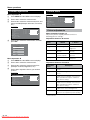
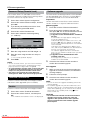
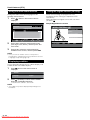
Press ▲/▼/◀/▶ to select the desired programme.
Press OK to lock the programme.
• The locked programme is displayed in red.
5
• To unlock the programme, select the locked
programme, and press OK.
• The Child lock remains effective until it is
cancelled.
Press END to exit.
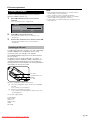
[3] Changing/Cancelling a PIN
To change a PIN
1
2
Perform steps 1 and 2 in [2] Setting a Child
Lock to display the “Child lock” screen.
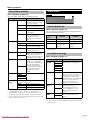
Press ▲/▼ to select “Change PIN”, and press
OK.
For all programmes
For individual prog.
Change PIN
Cancel PIN
3
4
only
Input the new four-digit PIN (e.g. 5678) with 0–9,
and press OK.
Press END to exit.
To cancel a PIN
1
2
In step 2 above, press ▲/▼ to select “Cancel
PIN”, and press OK.
Press ▲/▼ to select “Yes”, and press OK.
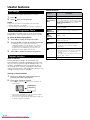
[4] Temporarily cancelling the Child Lock setting
Please input your PIN
?
only
NOTE
Press END to exit.
• There are two different ways of activating a Child
lock:
1. General child lock for all programmes
2. Programme-position-related child lock
1
3
4
Press OK to accept the input PIN.
[2] Setting a Child Lock
Press ▲/▼ to select “For individual prog. only”,
and press OK.
For all programmes
For individual prog.
Change PIN
Cancel PIN
Press ▲/▼ to select “Child lock”, and press OK to
display the PIN input screen.
Please define your PIN
5
6
2
Perform steps 1 and 2 in [2] Setting a Child
Lock to display the “Child lock” screen.
You can view a programme for which a Child lock
has been set by temporarily cancelling the Child
lock setting. Perform the procedure below to input
your PIN and cancel the Child lock if you are
prompted to do so.
When the PIN input screen is displayed, input
your PIN with 0–9.
• The normal screen appears when the PIN is correctly
input.
Please input your PIN
?
?
?
?
GB -15