1
Oxygen XML Author plugin | Obtaining and Registering a License Key | 31
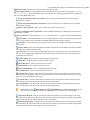
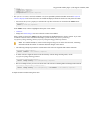
The zip archive can be used for running the license server on any platform where a Java virtual machine can run
(Windows, Mac OS X, Linux / Unix, etc).
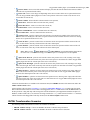
3. Start the server using the startup script.
The startup script is called licenseServer.bat for Windows and licenseServer.sh for Mac OS X and
Unix / Linux. It has 2 parameters:
•
•
licenseDir - the path of the directory where the license files will be placed. Default value: license.
port - the TCP port number used to communicate with Oxygen XML Author plugin instances. Default value:
12346.
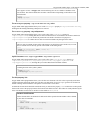
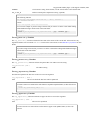
The following is an example command line for starting the license server on Unix/Linux and Mac OS X:
sh licenseServer.sh myLicenseDir 54321
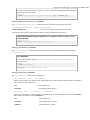
The following is an example command line for starting the license server on Windows:
licenseServer.bat myLicenseDir 54321
The license folder must contain a text file called license.txt which must contain a single floating license key
corresponding to the set of purchased floating licenses. If you have more than one floating license key for the same
Oxygen XML Author plugin version obtained from different purchases or you want to split a set of license keys between
2 different servers please contact us at [email protected] to merge / split your license keys.
Install the License Server as a Windows Service
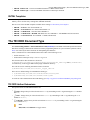
1. Download the Windows installer of the license server from the URL provided in the registration email message
containing your floating license key.
2. Run the downloaded installer.
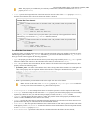
3. Enable the Windows service on the machine that hosts the license server, either during installation or at a later time
with the service management batch scripts (installWindowsService.bat).
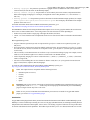
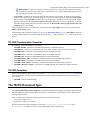
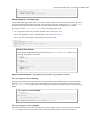
If you want to install, start, stop and uninstall manually the server as a Windows service you must run the following
scripts from command line. On Windows Vista and Windows 7 you have to run the commands as Administrator.
•
•
•
•
installWindowsService.bat [serviceName] - install the server as a Windows service with the
name serviceName. The parameters for the license key folder and the server port can be set in the
oXygenLicenseServer.vmoptions file.
startWindowsService.bat [serviceName] - start the Windows service.
stopWindowsService.bat [serviceName] - stop the Windows service.
uninstallWindowsService.bat [serviceName] - uninstall the Windows service.
Note: If you do not provide the serviceName argument, the default name, oXygenLicenseServer, is used.
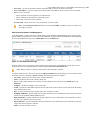
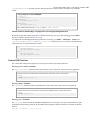
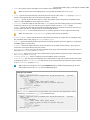
When the license server is used as a Windows service the output and error messages are redirected automatically to the
following log files created in the install folder:
•
•
outLicenseServer.log - server's standard output stream;
errLicenseServer.log - server's standard error stream.
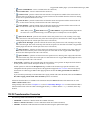
Note: Before starting the server, the JAVA_HOME variable must point to the home folder of a Java runtime
environment installed on your Windows system.
Note: On Windows Vista and Windows 7 if you want to start or stop the Windows service with the Start menu
shortcut called Start Windows service / Stop Windows service you have to run the shortcut as Administrator.
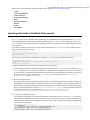
Common Problems
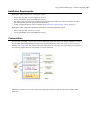
Here are the common problems that may appear when setting up a floating license server running as a standalone process.