1
•
•
•
•
Oxygen XML Author plugin | Preferences | 543
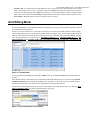
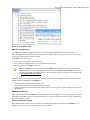
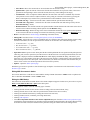
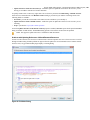
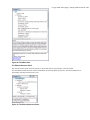
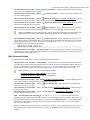
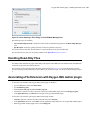
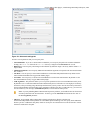
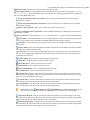
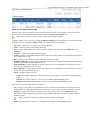
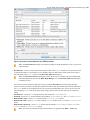
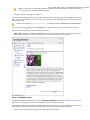
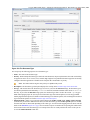
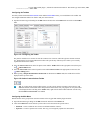
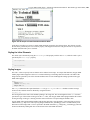
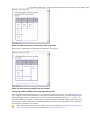
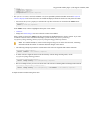
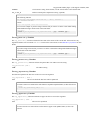
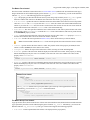
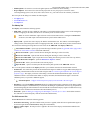
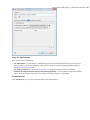
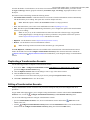
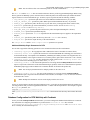
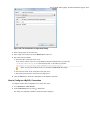
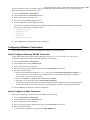
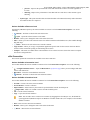
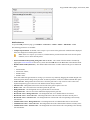
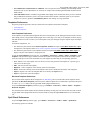
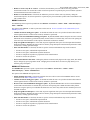
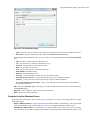
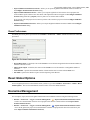
No Tags - no tags are displayed. This representation is as close as possible to the document published content;
Tags background color - allows you to configure the Author tags background color;
Tags foreground color - allows you to configure the Author tags foreground color;
Whitespaces
•
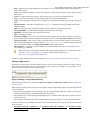
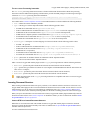
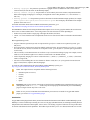
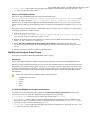
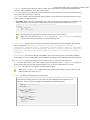
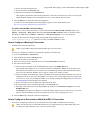
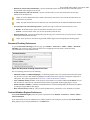
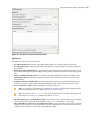
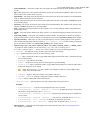
Foreground color - specifies the foreground color of the whitespaces rendered in the Author mode. To enable
this option, also select the Show whitespaces characters option from Window > Preferences > Text Editors.
Caret Navigation Preferences
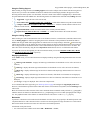
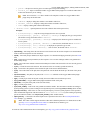
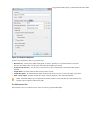
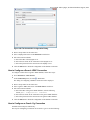
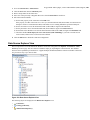
To open the Caret Navigation preferences page, go to Options > Preferences > Author > Caret Navigation. The
following options are available:
•
•
•
•
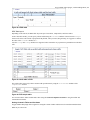
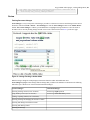
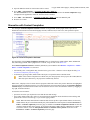
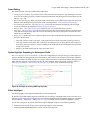
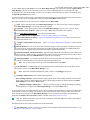
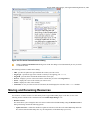
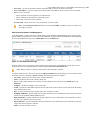
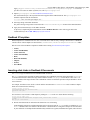
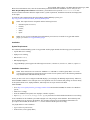
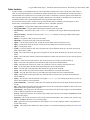
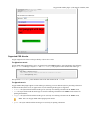
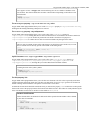
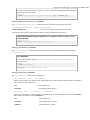
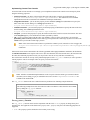
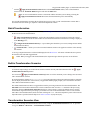
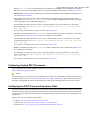
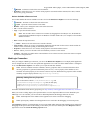
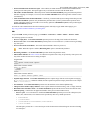
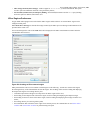
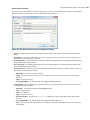
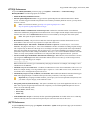
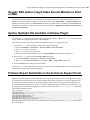
Highlight elements near caret - defines the background color of the element or elements at caret position;
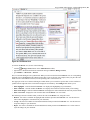
Show caret position tooltip - if enabled, the caret position information tooltip is displayed. More information about
the position information tooltip can be found in the section Position information tooltip. The documentation tooltip
can be disabled from the Annotations preferences p;
Quick up/down navigation - speeds up navigation when using up / down keys. The cursor jumps from line to line,
without stopping at intermediate positions between element tags;
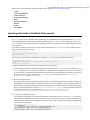
Arrow keys move the caret in the writing direction - controls the caret movement in the bidirectional (BIDI) text
for documents opened in the Author mode. Pressing the right arrow key increases the offset of the caret in the
document. The left one decreases the offset. This means pressing the right arrow key advances the caret in the text
in the reading direction. If the option is not selected, pressing the right arrow will simply move the caret to the right,
regardless of the text direction.
Schema Aware Preferences
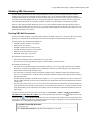
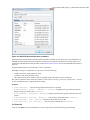
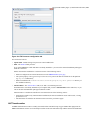
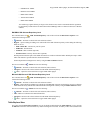
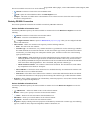
To open the Schema Aware preferences page, go to Window > Preferences > Author > Editor > Edit modes >
Author > Schema aware.
•
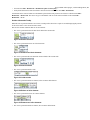
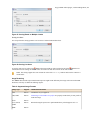
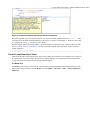
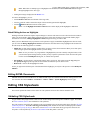
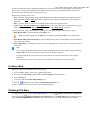
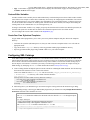
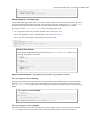
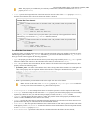
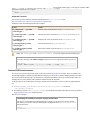
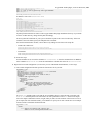
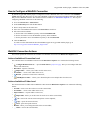
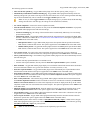
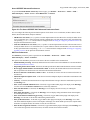
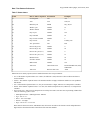
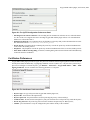
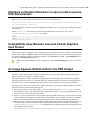
Schema aware normalization, format, and indent
When opening a document in Author, white spaces can be normalized or removed in order to obtain a more compact
display. The reverse process takes place when saving the document in the Author. By default this algorithm is
controlled by the CSS display property.
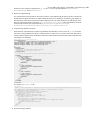
If this option is checked, then this process will be schema aware so the algorithm will take into account if the element
is declared as element-only or mixed. It will also take into account options Preserve space elements, Default space
elements, Mixed content elements from option page Window > Preferences > Author > Editor > Format > XML
•
Indent blocks-only content
If checked, even if an element is declared in the schema as being mixed but it has a blocks-only content (as specified
by the CSS property display of its children), it will be treated as being element-only.
•
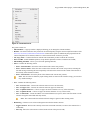
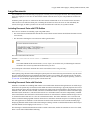
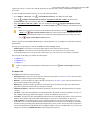
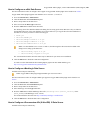
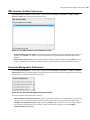
Schema Aware Editing
Editing in Author is schema driven.
•
•
•
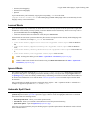
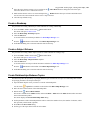
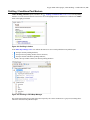
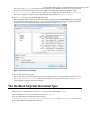
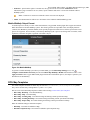
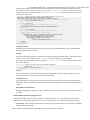
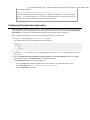
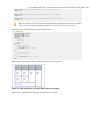
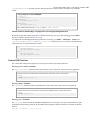
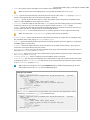
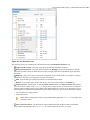
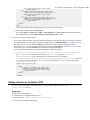
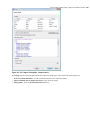
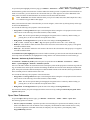
On - Enables all schema aware editing options.
Off - Disables all schema aware editing options.
Custom •
Delete element tags with backspace and delete
Controls the behavior for deleting element tags using delete or backspace keys. Available options:
•
Smart delete
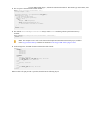
If the result of the delete action is invalid, different strategies will be applied in order to keep the document
valid. If backspace / delete is pressed at the beginning / end of an element the action that should take place
is unwrap (the element will be deleted and its content will be put in its place). If its content is not accepted
by the schema in that position, you can keep a valid document by applying different strategies like: