1
Foxit PhantomPDF
User Manual
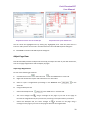
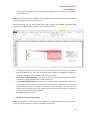
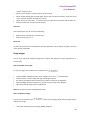
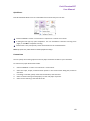
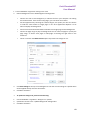
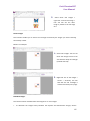
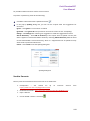
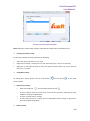
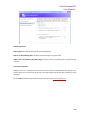
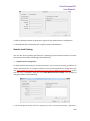
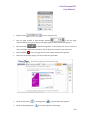
To close the navigation pane, use keyboard shortcut F4, or click the button for the currently
open panel in the navigation pane.
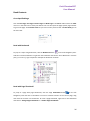
Tip: To show or hide the navigation pane, you can also click on the
right corner of the navigation pane.
/
button at the top
Adjust the navigation pane
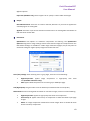
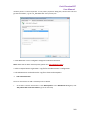
Like the toolbars, the navigation panels can be docked in the navigation pane or float anywhere
in the workspace. You can choose to hide or close the panels that you don't need and open the
ones you do. What’s more, you can also adjust the width of the navigation pane easily.
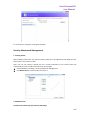
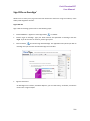
1. Viewing a panel in the navigation pane
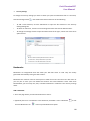
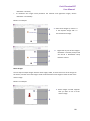
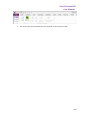
By default, all the panels dock in the navigation pane with a set of panel buttons appearing
on the left side of the work area. Do the following:
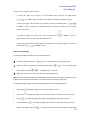
Select the button for the panel on the left side of the navigation pane.
2. Changing the display area for navigation pane
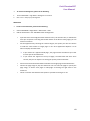
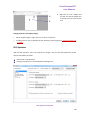
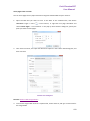
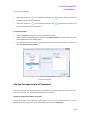
To change the view area of the navigation pane, drag its right border to adjust the width.
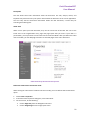
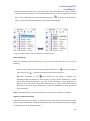
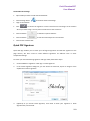
To minimize or maximize the navigation pane, click on the button
corner of the navigation pane.
/
at the top right
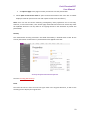
3. Docking or floating a navigation panel
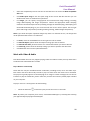
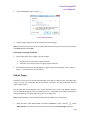
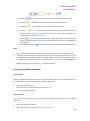
To float a navigation panel, drag the panel button into the document pane.
To move a panel, drag it by its panel button to another location.
To dock a floating panel, double-click its title bar.
Working with Layers
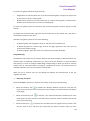
A layer or as it is more formally known Optional Content Groups (OCG) is a dictionary
representing a collection of graphics that can be made visible or invisible dynamically by users of
viewer applications. In a PDF file, each layer may hold any portion of the document's objects, and
layers may be made visible or invisible, showing or hiding their contained objects, in any
combination.
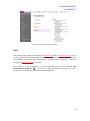
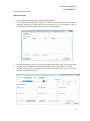
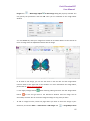
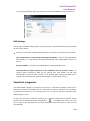
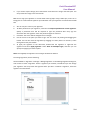
With Foxit PhantomPDF, you can control the display of PDF layers with the Layer panel. For
example, you may divide background imagery, main content areas, and advertisements amongst
their own top-level layers, and easily hide the layers that you don't want others to view.
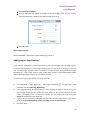
Show or hide PDF layers
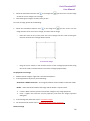
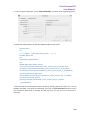
In a PDF, information can be stored on different layers. To show or hide related content stored in
a variable number of separate layers, you can simply refer to the Layer panel on the left side of
19