1
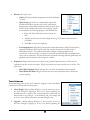
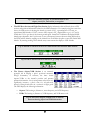
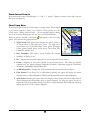
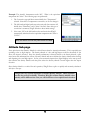
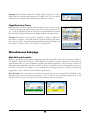
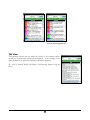
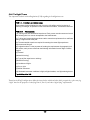
column. To view TC, tap on the column header “MH”. Similarly, tap on the column header to view WCA,
TH, and then back to MH.
Tap on the heading column header to cycle through TC, WCA, TH, and MH.
Column Selection
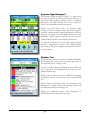
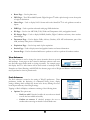
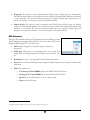
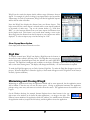
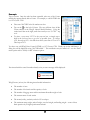
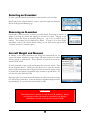
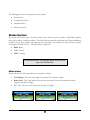
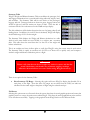
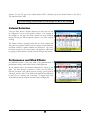
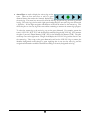
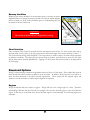
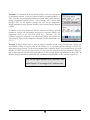
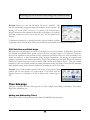
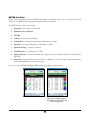
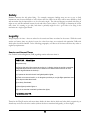
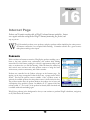
Using the Prefs, Route, Columns submenu, the route list view can
be configured to show or hide specific columns. For example, in
the example on the right, the Name column has been deselected
thereby allowing the Ground Speed column to be visible without
scrolling.
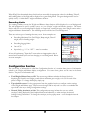
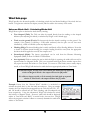
The Name column is generally wider that the other columns and
since pilot are generally familiar with the airport/navaid identifiers,
the Name column is a prime candidate for deselection. Of course,
the Name column (or any other column) can quickly be added back
by tapping on Prefs, Route, Columns from the WingX main menu.
Performance and Wind Effects
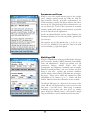
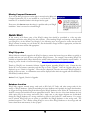
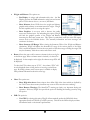
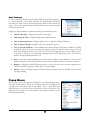
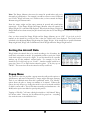
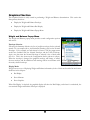
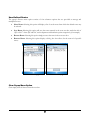
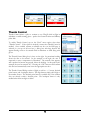
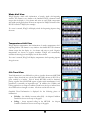
An additional feature of the route table is the summarization of
performance and any wind effects on the overall flight time.
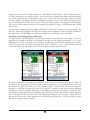
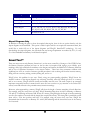
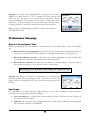
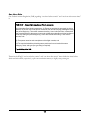
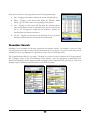
In our example above, the summary information is shown to the
right. The total distance is shown as 72.6nm, the total ETE is
00:39:54, fuel burn is 8.0 gallons per hour, average ground speed is
109 knots, and the effect of the wind has lengthened the flight time
by 00:03:34; i.e. 3 minutes and 34 seconds. A negative time value
would indicate that the wind has shortened the total flight time.
55