1
The Function Bar
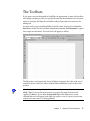
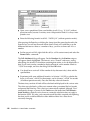
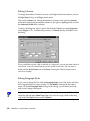
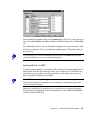
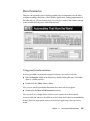
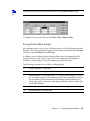
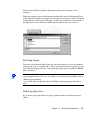
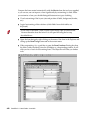
The toolbar beneath the Menu bar is the Function bar. This bar contains icons for some
important commands and functions that can be called up in StarOffice.
At the left of the Function bar, the URL field indicates the document you are currently
working on. In this space, you can also select or enter other URL addresses in order to
open those respective documents. (URL stands for Uniform Resource Locator and
refers to a general address for a document or folder, either in your file system or the
worldwide Internet.)
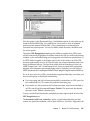
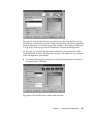
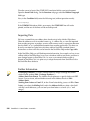
Under Tools - Options - General... - View you can choose to display large or normal
icons in the Toolbars, and can show these raised (3D) or flat.
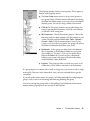
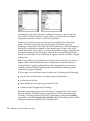
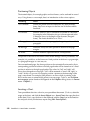
Some other toolbars are the Object bar, the Main toolbar and the Option bar. These
bars will appear depending on the document type you are working with in StarOffice:
■
A toolbar containing specific graphics and drawing tools will be available when
you're working on a StarOffice Draw document.
■
When editing a text document, the text Object bar contains functions for bold or
italic font attributes, etc.
■
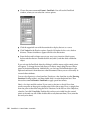
If your cursor is positioned within a frame in a text document, a special frame
Object bar is displayed that you can use to modify the frame properties.
The environment in StarOffice (menu commands, context menus, toolbars, status bars,
etc.) will always adapt to the object you're currently working on.
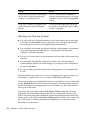
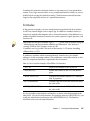
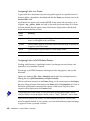
Some icons have a small green triangle, which means that you can open these icons by
holding the mouse button down a few seconds longer than usual. Some icons have a
context menu that you can open by right-clicking the mouse.
The Desktop
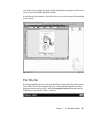
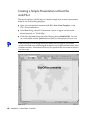
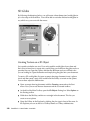
After starting StarOffice, the first thing you will see is the StarOffice Desktop
displayed in the work area. If you open a document or open a folder in the Explorer
(via double-click), the work area displays a window with the contents of the document
or folder. The Desktop is then either completely or partially covered, but it is still
always there in the background. Use the Desktop button in the Task bar to switch to
the Desktop whenever you want. If no document is open, you will only see the
Desktop. You can assign the desktop a color and/or background picture, either via the
Chapter 3
The StarOffice Desktop
27