1
Chapter 30
Publishing Your Site
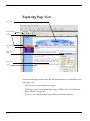
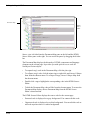
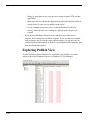
Publish view presents a representation of the file structure that will be created when
you publish your site. It does not represent the existing structure for your site on
your hard disk or server. Therefore, changing the directory structure in Publish
view does not affect the page relationships in Site view and, likewise, changing the
page relationships in Site view does not affect the representation in Publish view.
Changes that you make to the directory structure in Publish view only affect your
site’s current directory structure when you publish your site.
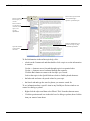
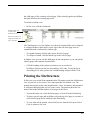
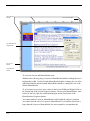
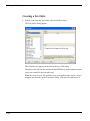
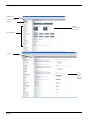
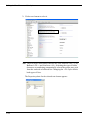
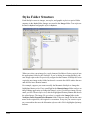
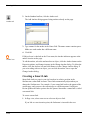
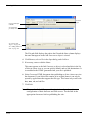
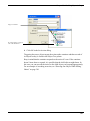
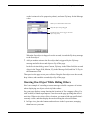
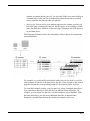
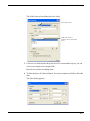
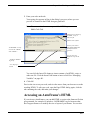
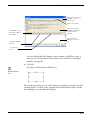
The Contents of location pane on the left displays the directory structure of your
site as it will be published on your server. You can delete, rearrange, or rename the
directories shown in the pane, and you can create new subdirectories at any level
below the root. Locked components and their related assets, signified by a black
lock image on their icons, cannot be renamed or rearranged.
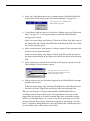
The Contents of directory pane on the right displays the contents of the directory
currently selected in the left pane. For each directory, page, or asset, the pane
displays its name, type, attributes, and the date and time of the last local and remote
publish. You can sort the content files and folders by clicking a column heading,
and you can resize the columns by dragging the column heading border. The
iconsassociated with different file types are set in the Windows File Types
Registry.
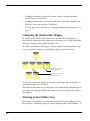
Click a directory’s plus sign to expand the display to show the subdirectories
beneath it. Click a directory’s minus sign to collapse the display and hide the
subdirectories beneath it. Resize the panes by dragging the divider bar in either
direction.
Publishing Locally
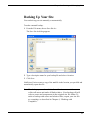
While developing a site, you should publish it at least once to your local hard disk
to check that the site works as intended. After the site is published to your hard
disk, NetObjects Fusion launches your browser so you can view the site and see
how it will appear to site visitors on the Web.
If, after publishing the site to your hard disk, you make changes to the site in
NetObjects Fusion, republish the site. Depending on the complexity of the site, you
may publish several times to get the site working as desired. Then, when the site
works perfectly, publish it to your Web server or ISP server so everyone in the
world can appreciate your handiwork.
487