1
Enlarging and Reducing Docked Windows
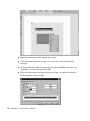
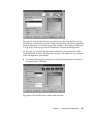
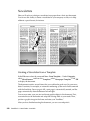
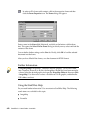
The size of any docked window can be modified by dragging the window border at
which the window is docked.
Move the mouse cursor to the window border closest to the center of your screen.
As soon as the cursor changes shape, press the mouse button and hold it
down. Now drag the window to the desired size.
If you have docked two or more windows on the same edge, you can shift the dividing
line between the two windows in the same way.
Changeable Toolbars
Toolbars adapt to every work environment; with the exception of the Function bar,
which always offers the same useful functions. When you open a text document, you
can see an optimal selection of icons in the Object bar (under the Function bar) and in
the Main toolbar (at the left-hand border of the screen), however, when you open a
spreadsheet other icons will appear that are suitable in that context.
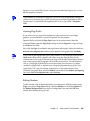
The context-dependent and variable icons change even within the same document. For
example, set the mouse cursor in your document in one of the existing tables and you
will see Insert Column and Delete Column icons. If the cursor is in a bullet or
numbering list, you will see icons for changing the numbering order or hierarchy. In
these cases, you can also switch to the normal text Object bars, by clicking the last icon
on the right. StarOffice notes which bar you last used and in which context, and offers
this bar as default accordingly.
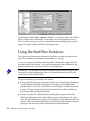
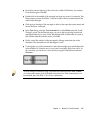
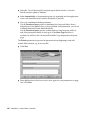
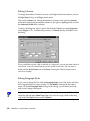
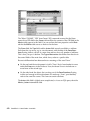
You can modify the position of most of the icons on the toolbars. In the context menu
(press the right button of your mouse) of your toolbars, you will find the Customize
command. With this command you can customize your icons as desired. You can also
drag the icons while holding the Alt key and position them where you like. You can
find an exact description in the StarOffice Help.
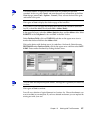
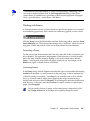
Sometimes there isn't enough room to place all icons on the Object bar. Although there
is a special symbol at the end of the bar to switch to other icons, this is often not very
practical. Fortunately, StarOffice offers you the option to configure invisible buttons.
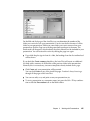
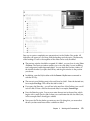
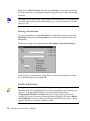
These can be toggled on and off in the context menu. The Quick Configuration option
allows you to select the visible buttons without having to delete or redefine them.
50
StarOffice 5.2 User's Guide • June 2000