1
Fund Rebalancer
Appendix C
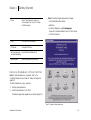
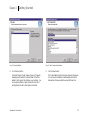
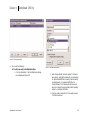
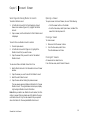
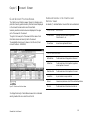
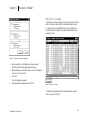
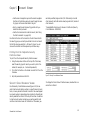
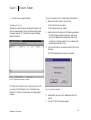
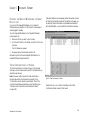
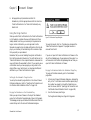
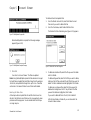
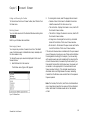
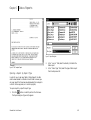
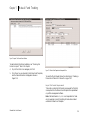
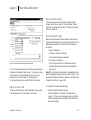
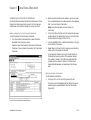
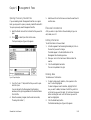
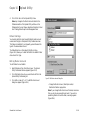
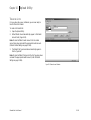
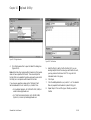
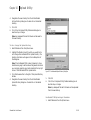
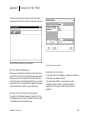
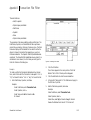
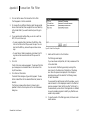
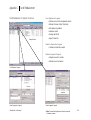
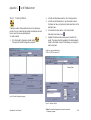
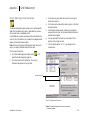
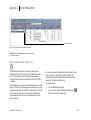
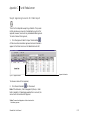
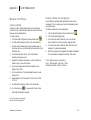
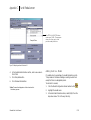
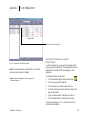
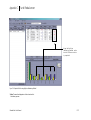
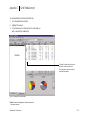
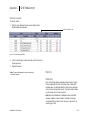
To print a listing of all orders,
1.
4.
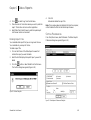
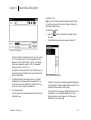
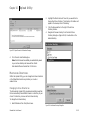
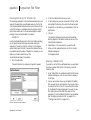
Type in numeric values in both the From Number and To
Number.
5.
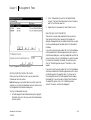
In the Order Selection area, select Show all Trade orders.
6.
Click the Print button.
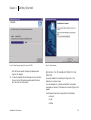
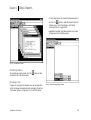
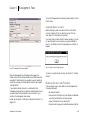
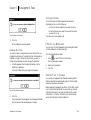
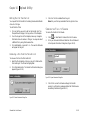
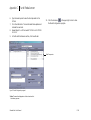
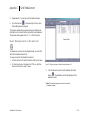
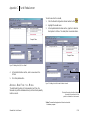
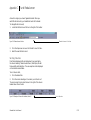
On the Fund Rebalancer toolbar, click the Printer toolbar
button
.
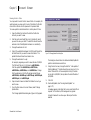
2.
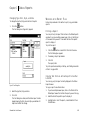
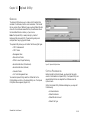
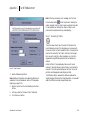
Select Trade Orders By Account.
3.
In the Account Selection area, select All Accounts.
4.
In the Order Selection area, select Show all Trade orders.
5.
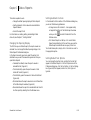
Click the Print button.
Note: If you used custom account numbers that are alphanumeric,
they will not show using the account range option. You must use
All Accounts.
Exported Orders for the Current Session
All Orders within an Account Range
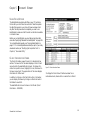
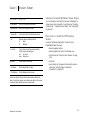
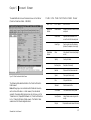
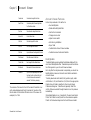
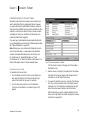
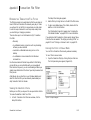
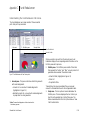
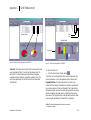
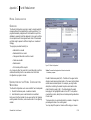
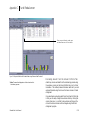
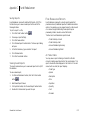
You may view a report containing all orders for a Master
Account including exported orders within the current session for
an account range. This report includes all orders displayed on the
Order List. For each account with an order, the report displays:
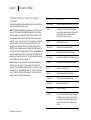
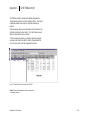
You may view a report containing all session orders for a Master
Account including exported orders for an account range. For
each account with an order, the report displays:
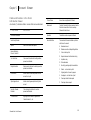
• Trade Type
• Symbol
• Trade Type
• Description
• Symbol
• Price
• Description
• Operation
• Price
• Quantity
• Operation
• Cost
• Quantity
• Proceeds
• Cost
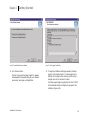
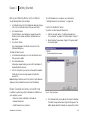
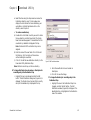
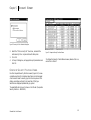
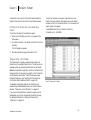
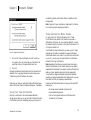
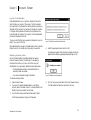
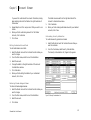
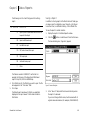
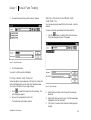
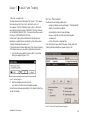
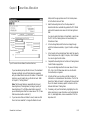
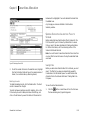
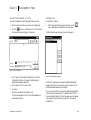
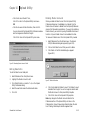
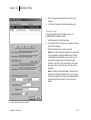
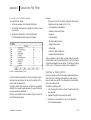
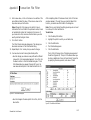
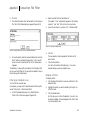
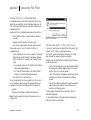
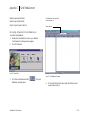
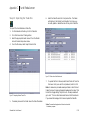
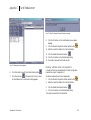
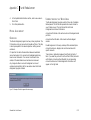
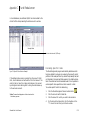
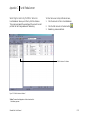
To print a listing of exported orders,
• Proceeds
1.
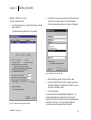
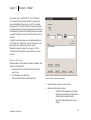
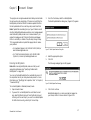
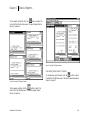
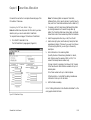
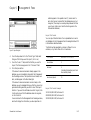
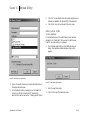
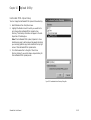
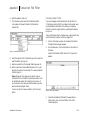
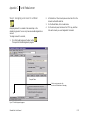
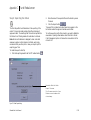
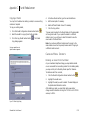
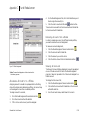
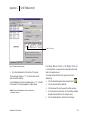
To print all orders all orders within an account range,
1.
On the Fund Rebalancer toolbar, click the Printer toolbar
button
.
2.
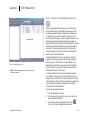
Select Trade Orders By Account.
3.
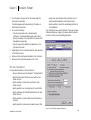
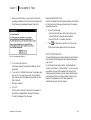
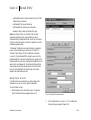
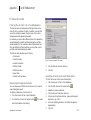
In the Account Selection area, select Account Range.
SchwabLink User Manual
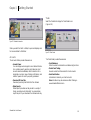
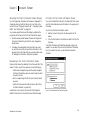
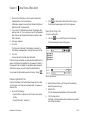
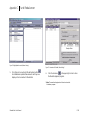
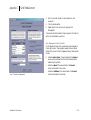
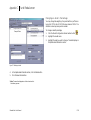
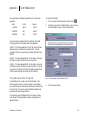
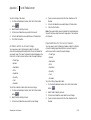
On the Fund Rebalancer toolbar, click the Printer toolbar
button
.
2.
Select Trade Orders By Account.
3.
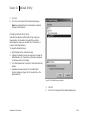
In the Account Selection area, select Account Range.
4.
Type in numeric values in both the From Number and To
Number.
C.228