1
Monitoring SLA and Pipeline Alerts
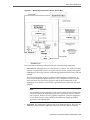
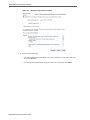
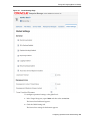
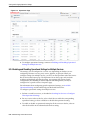
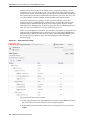
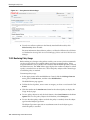
To view the alert rule configuration on the Alert History page:
1. In the Target Navigator, expand SOA and select service-bus.
The Service Bus Dashboard page appears.
2. Click the Alert History tab.
3. Perform a search for the alert you want to view, as described in Filtering SLA and
Pipeline Alerts.
4. In the Alert History table, click the icon in the Action column in the row of the alert
you want to view.
The Alert Rule dialog appears.
5. When you are done viewing the information, click Close.
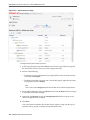
4.7.6 Deleting an SLA or Pipeline Alert
Once you display alerts on the Service Bus Alert History page, you can delete those
alerts individually.
To delete an alert:
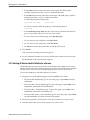
1. In the Target Navigator, expand SOA and select service-bus.
The Service Bus Dashboard page appears.
2. Click the Alert History tab.
3. Perform a search for the alert you want to delete, as described in Filtering SLA and
Pipeline Alerts.
4. When the alert you want to delete appears in the Alert History table, select the alert
and click Delete.
Use the Ctrl key to select multiple alerts to delete.
4.7.7 Purging SLA or Pipeline Alerts
Once you display alerts on the Service Bus Alert History page, you can purge all of the
selected type of alerts (SLA or pipeline) or just those triggered within a specific time
frame.
Note:
This action cannot be undone.
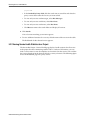
1. In the Target Navigator, expand SOA and select service-bus.
The Service Bus Dashboard page appears.
2. Click the Alert History tab.
3. Perform a search for alerts, as described in Filtering SLA and Pipeline Alerts.
4. When the alerts appear in the Alert History table, click Purge.
Monitoring Oracle Service Bus Alerts 4-17