1
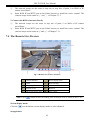
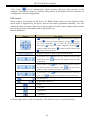
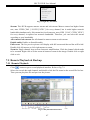
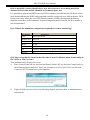
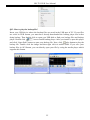
HD-TVI DVR User Manual Click “Snap” icon to automatically capture pictures and save those pictures in the computer. You can set up the save path for those picture in the Remote Preview interface Configuration Local configuration. PTZ control Please connect speed dome to the device via RS485 firstly, make sure the protocol of the speed dome is supported by the device and set the relative parameters manually. User can control the dome up, down, right, left or stop rotating on Control Center, adjust rotation speed, Iris and zoom, focus on the dome, and set the presets, etc. Buttons definition: Buttons Description to rotate the dome upwards. up-left. to rotate the dome diagonally to rotate the dome diagonally up-right the dome downwards. down-right to rotate to rotate the dome diagonally to rotate the dome diagonally down-left rotate the dome towards left. to to rotate the dome towards right to stop rotating the dome. Drag the scroll bar to adjust rotating speed of the dome. 'Iris' button. Click button near 'Iris' button to increase light of the dome. Click button near 'Iris' button to decrease light of the dome. 'Zoom' button. Click button near 'Zoom' button to zoom in the locale picture of this camera. Click button near 'Zoom' button to zoom out the locale picture of this camera. 'Focus' button. Click focus. Click button near 'Focus' button to have long button near 'Focus' button to have short focus. Go to the Preset Select and do auto cruise Track Auto scan Wiper button Light button Click the right mouse on the live interface. This will take you to a pull-down menu. 46