1
R&S FSH
Operating the R&S FSH
Taking Screenshots
1.6 Taking Screenshots
You can take and store a screenshot of the current screen anytime with the
► Press the
key.
key.
The R&S FSH takes a screenshot.
If available, the R&S FSH stores the screenshot on an external storage device (USB
memory stick or SD card). If both are connected, the R&S FSH uses the SD card.
If no external device is available, the R&S FSH stores the screenshot in its internal
memory (if there is enough left). In that case you can transfer the pictures with the
R&S FSH4View software to your computer.
Saving screenshot and dataset at the same time
Depending on the "Capture" settings available in the "User Preference" menu, using
the
key also saves a dataset in addition to the screenshot.
For more information see "Managing Datasets" on page 29.
Screenshot file name
All screenshots get a default file name "Screenshot####". The files also get numbers
(####) in ascending order, beginning with 0000. You can select a default file name and
start number in the "User Preference" menu.
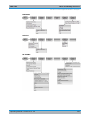
► Press the SETUP key.
► Press the "User Preference" softkey.
► Select the "Default Filename" and "File Name Counter Starts At" items and assign
a file name and number as you wish.
Screenshot file format
The file format of screenshots is either *.png or *.jpg, depending on your configuration
in the "User Preference" menu.
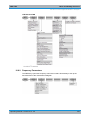
► Press the SETUP key.
► Press the "User Preference" softkey.
► Select the "Capture Screen Format" item to select the screenshot file format.
Previewing screenshots
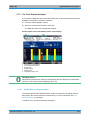
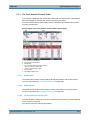
If you want to make sure if a screenshot you took contains the wanted information, you
can preview screenshots on the R&S FSH.
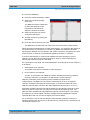
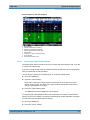
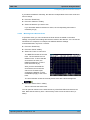
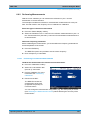
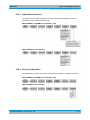
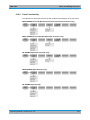
► Press the SAVE/RECALL key.
► Press the "Recall Screenshot" softkey.
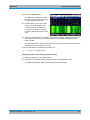
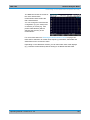
The R&S FSH opens a dialog box to select a screenshot for the preview.
Operating Manual 1173.6275.12 - 26
20