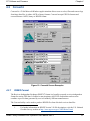
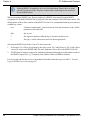
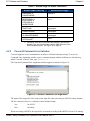
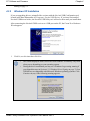
1
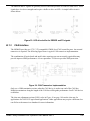
OEM6™ Family
Installation and Operation
User Manual
OM-20000128 Rev 4
Proprietary Notice
OEM6 Family - Installation and Operation User Manual
Publication Number:
Revision Level:
Revision Date:
OM-20000128
4
2011/14/07
Proprietary Notice
Information in this document is subject to change without notice and does not represent a commitment
on the part of NovAtel Inc. The software described in this document is furnished under a licence
agreement or non-disclosure agreement. The software may be used or copied only in accordance with
the terms of the agreement. It is against the law to copy the software on any medium except as
specifically allowed in the license or non-disclosure agreement.
No part of this manual may be reproduced or transmitted in any form or by any means, electronic or
mechanical, including photocopying and recording, for any purpose without the express written
permission of a duly authorized representative of NovAtel Inc.
The information contained within this manual is believed to be true and correct at the time of
publication.
ALIGN, GL1DE, NovAtel and RT-20 are registered trademarks of NovAtel Inc.
OEM6, FlexPak6, OEMV-2, RT-2 and SPAN are trademarks of NovAtel Inc.
All other brand names are trademarks of their respective holders.
Manufactured and protected under U.S. patents:
#5,101,416
#5,390,207
#5,414,729
#5,495,499
#5,736,961
#5,809,064
#6,184,822 B1
#6,243,409 B1
#6,445,354 B1
#6,608,998 B1
#6,664,923 B1
#7,738,536
© Copyright 2011 NovAtel Inc. All rights reserved. Unpublished rights reserved
under International copyright laws. Printed in Canada on recycled paper.
Recyclable.
2
OEM6 Family Installation and Operation User Manual Rev 4
Table of Contents
Notices
Terms and Conditions
Software License
Warranty
Foreword
Customer Support
Firmware Updates and Model Upgrades
1 Introduction
9
13
16
18
19
20
21
22
1.1 Overview of the OEM6 Family .............................................................................. 22
1.2 OEM615 Receiver................................................................................................. 22
1.3 OEM628 Receiver................................................................................................. 23
1.4 OEM6 Receiver System Overview........................................................................ 23
1.4.1 OEM6 Family Card ...................................................................................... 24
1.4.2 Enclosure and Wiring Harness .................................................................... 24
1.4.3 GNSS Antenna ............................................................................................ 25
1.4.4 Power Supply .............................................................................................. 25
1.4.5 Optional External Frequency Reference ..................................................... 25
1.4.6 Data Communications Equipment ............................................................... 25
1.5 OEM6 Enclosures ................................................................................................. 25
1.5.1 FlexPak6...................................................................................................... 25
2 Installation and Setup
27
2.1 Opening the Shipping Box .................................................................................... 27
2.2 Installing OEM6 PC Utilities .................................................................................. 27
2.3 Additional Equipment Required ............................................................................ 28
2.3.1 Selecting a GNSS Antenna ......................................................................... 28
2.3.2 Choosing a Coaxial Cable ........................................................................... 30
2.3.3 Power Supply Requirements ....................................................................... 31
2.4 Installation Overview............................................................................................. 31
2.4.1 Installing an OEM6 Family Card with Wiring Harness and Enclosure......... 32
2.4.2 Mounting the GNSS Antenna ...................................................................... 36
2.4.3 Connecting the Antenna to the Receiver..................................................... 36
2.4.4 Applying Power to the Receiver .................................................................. 37
2.4.5 Connecting Data Communications Equipment............................................ 37
2.5 Additional Features and Information ..................................................................... 41
2.5.1 Strobes ........................................................................................................ 41
2.5.2 Universal Serial Bus (USB) ......................................................................... 41
2.5.3 CAN Bus...................................................................................................... 43
2.5.4 Status Indicator............................................................................................ 43
2.5.5 External Oscillator ....................................................................................... 44
2.5.6 Antenna LNA Power .................................................................................... 44
OEM6 Family Installation and Operation User Manual Rev 4
3
Table of Contents
2.5.7 Ethernet ...................................................................................................... 45
3 Operation
46
3.1 Communications with the Receiver ...................................................................... 47
3.1.1 Serial Port Default Settings......................................................................... 47
3.1.2 Communicating with a Remote Terminal .................................................... 47
3.1.3 Communicating with a Computer................................................................ 48
3.2 Getting Started ..................................................................................................... 48
3.2.1 Starting the Receiver .................................................................................. 48
3.2.2 Communicating with the Receiver Using CDU ........................................... 48
3.3 Transmitting and Receiving Corrections............................................................... 49
3.3.1 Base Station Configuration ......................................................................... 51
3.3.2 Rover Station Configuration........................................................................ 53
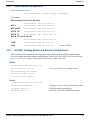
3.3.3 ALIGN® Heading Master and Remote Configurations .............................. 53
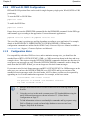
3.3.4 PDP and GL1DE® Configurations .............................................................. 54
3.3.5 Configuration Notes .................................................................................... 54
3.4 Enabling SBAS Positioning .................................................................................. 55
3.5 Enabling L-band ................................................................................................... 55
3.6 Pass-Through Logging ......................................................................................... 57
3.7 Transferring Time Between Receivers ................................................................. 57
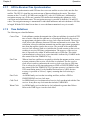
3.7.1 GPS to Receiver Time Synchronization...................................................... 58
3.7.2 Time Definitions .......................................................................................... 58
3.7.3 Procedures to Transfer Time ...................................................................... 59
4 PC Software and Firmware
62
4.1 CDU...................................................................................................................... 62
4.2 Convert4 ............................................................................................................... 67
4.2.1 RINEX Format............................................................................................. 67
4.2.2 Convert4 Command Line Switches............................................................. 69
4.3 USB Drivers Installation ....................................................................................... 70
4.3.1 Windows Driver Signing.............................................................................. 70
4.3.2 Windows XP Installation ............................................................................. 71
4.3.3 Windows 2000 Installation .......................................................................... 73
4.4 Firmware Updates and Model Upgrades.............................................................. 75
4.4.1 Updating or Upgrading Using the WinLoad Utility....................................... 75
4.4.2 Updating using SoftLoad Commands ......................................................... 80
4.4.3 Upgrading Using the AUTH Command....................................................... 81
5 Built-In Status Tests
82
5.1 Overview .............................................................................................................. 82
5.2 Receiver Status Word .......................................................................................... 82
5.3 Error Strobe Signal ............................................................................................... 83
5.4 RXSTATUSEVENT Log ....................................................................................... 83
5.5 RXSTATUS Log ................................................................................................... 83
5.5.1 Overview ..................................................................................................... 83
5.5.2 Error Word .................................................................................................. 84
5.5.3 Status Code Arrays..................................................................................... 85
5.5.4 Receiver Status Code ................................................................................. 85
5.5.5 Auxiliary Status Codes................................................................................ 85
5.5.6 Set and Clear Mask for all Status Code Arrays .......................................... 86
4
OEM6 Family Installation and Operation User Manual Rev 4
Table of Contents
5.6 Status LED............................................................................................................ 86
6 Troubleshooting
88
6.1 Examining the RXSTATUS Log ............................................................................ 90
6.2 Examining the AUX1 Status Word ........................................................................ 93
A Electrostatic Discharge Control (ESD) Practices
94
Overview .................................................................................................................... 94
Handling ESD-Sensitive Devices ............................................................................... 94
Prime Static Accumulators ......................................................................................... 95
Handling Printed Circuit Boards ................................................................................. 96
B OEM628 Technical Specifications
97
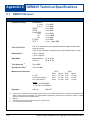
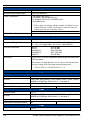
OEM628 Receiver ...................................................................................................... 97
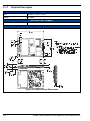
Physical Description ............................................................................................ 98
CMOS Level I/O ................................................................................................ 108
CAN Interface .................................................................................................... 109
USB Interface .................................................................................................... 110
Ethernet Port ..................................................................................................... 111
FlexPak6 .................................................................................................................. 115
Port Pin-Outs ..................................................................................................... 117
Cables ............................................................................................................... 119
C OEM615 Technical Specifications
125
OEM615 Receiver .................................................................................................... 125
Physical Description .......................................................................................... 126
CMOS Level I/O ................................................................................................ 133
CAN Interface .................................................................................................... 134
USB Interface .................................................................................................... 135
D Accessories and Replacement Parts
137
FlexPak6 .................................................................................................................. 137
Accessories .............................................................................................................. 137
Manufacturers’ Part Numbers .................................................................................. 138
Index
OEM6 Family Installation and Operation User Manual Rev 4
139
5
Figures
1
2
3
4
5
6
7
8
9
10
11
12
13
14
15
16
17
18
19
20
21
22
23
24
25
26
27
28
29
30
31
32
33
34
35
36
37
38
39
40
41
42
43
44
45
46
47
6
Primary and Secondary Lightning Protection ................................................................... 12
OEM615 Receiver Board ................................................................................................. 22
OEM628 Receiver Board ................................................................................................. 23
OEM6 Receiver System ................................................................................................... 24
FlexPak6 .......................................................................................................................... 26
OEM628 Connector and Indicator Locations ................................................................... 35
OEM615 Connector and Indicator Locations ................................................................... 36
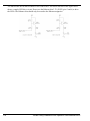
COM3 and USB multiplexed ............................................................................................ 40
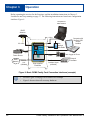
Basic OEM6 Family Card Connection Interfaces (example) ............................................ 46
Basic Differential Setup .................................................................................................... 50
Transfer COARSE time from fine clock to cold clock receiver ......................................... 59
Transfer FINE time from fine clock to cold clock receiver ................................................ 60
Transfer FINE Time from Fine Clock to Warm Clock Receiver ........................................ 61
1PPS Alignment ............................................................................................................... 61
Convert4 Screen Examples ............................................................................................. 67
Convert4 Command Line Arguments ............................................................................... 69
WinLoad’s Open Dialog ................................................................................................... 78
Open File in WinLoad ....................................................................................................... 78
COM Port Setup ............................................................................................................... 78
Searching for Card ........................................................................................................... 79
Authorization Code Dialog ............................................................................................... 79
Upgrade Process Complete ............................................................................................. 79
Location of Receiver Status Word .................................................................................... 83
Reading the Bits in the Receiver Status Word ................................................................. 84
Location of Receiver Error Word ...................................................................................... 84
Reading the Bits in the Receiver Error Word ................................................................... 85
Status LED Flash Sequence Example ............................................................................. 86
OEM628 Board Dimensions ............................................................................................. 98
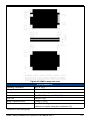
OEM628 Keep-Out Zone ................................................................................................. 99
Top-view, P1500 Main Connector 24-Pin Header .......................................................... 105
Top-view, P1502 Expansion 16-Pin Header .................................................................. 107
ESD protection for EVENT and PPS strobes ................................................................. 108
LED drive buffer for ERROR and PV signals ................................................................. 109
CAN Transceiver Implementation .................................................................................. 109
USB Implementation ...................................................................................................... 111
Ethernet reference schematic ........................................................................................ 112
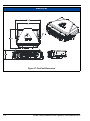
FlexPak6 Dimensions .................................................................................................... 116
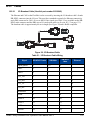
I/O Breakout Cable ......................................................................................................... 119
I/O DB-HD15 Strobe Port Cable .................................................................................... 121
FlexPak6 Straight Through Serial Cable ........................................................................ 122
FlexPak6 Null Modem Cable .......................................................................................... 123
Power Accessory Cable ................................................................................................. 124
OEM615 Board Dimensions ........................................................................................... 126
OEM615 Keep-Out Zone ............................................................................................... 127
Top-view, P1101 Main Connector 20-Pin Header .......................................................... 132
ESD protection for EVENT and PPS strobes ................................................................. 133
PV LED drive buffer ....................................................................................................... 134
OEM6 Family Installation and Operation User Manual Rev 4
48
49
CAN Transceiver Implementation .................................................................................. 134
USB Implementation ...................................................................................................... 135
OEM6 Family Installation and Operation User Manual Rev 4
7
Tables
1
2
3
4
5
6
7
8
9
10
11
12
13
14
15
16
17
18
19
20
21
22
23
24
25
26
27
28
FlexPak6 Features ..................................................................................................... 26
NovAtel GNSS Antenna Models ................................................................................ 28
Voltage Input Requirement for OEM6 Family Cards.................................................. 31
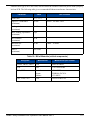
Default Serial Port Configurations.............................................................................. 37
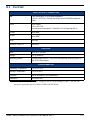
Available USB Signals on Receivers ......................................................................... 41
FlexPak6 Status Indicators ........................................................................................ 44
NovAtel Logs for RINEX Conversion ......................................................................... 69
Troubleshooting Based on Symptoms ....................................................................... 88
Resolving a Receiver Error Word............................................................................... 90
Resolving an Error in the Receiver Status Word........................................................ 91
Resolving an Error in the AUX1 Status Word ............................................................ 93
Static-Accumulating Materials.................................................................................... 95
OEM628 Strobes...................................................................................................... 102
OEM628 Strobe Electrical Specifications................................................................. 104
Bill of Materials (critical components)....................................................................... 108
Bill of Materials (critical components)....................................................................... 110
Bill of Materials (critical components)....................................................................... 110
Bill of Materials (critical components)....................................................................... 113
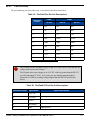
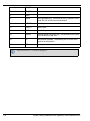
FlexPak6 Port Pin-Out Descriptions ........................................................................ 117
FlexPak6 I/O Port Pin-Out Descriptions................................................................... 117
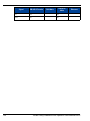
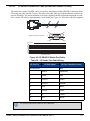
I/O Breakout Cable Wiring ....................................................................................... 119
I/O Strobe Port Cable Wiring.................................................................................... 121
Null Modem Cable Wiring ........................................................................................ 123
OEM615 Strobes...................................................................................................... 130
OEM615 Strobe Electrical Specifications................................................................. 131
Bill of Materials (critical components)....................................................................... 134
Bill of Materials (critical components)....................................................................... 135
Bill of Materials......................................................................................................... 136
OEM6 Family Installation and Operation User Manual Rev 4
8
Notices
Notices
The following notices apply, as appropriate, to the OEM6 family products including the OEM615,
OEM628 and the FlexPak6.
Changes or modifications to this equipment not expressly approved by NovAtel Inc.
could result in violation of FCC, Industry Canada and CE Marking rules and void
the user’s authority to operate this equipment.
FCC Notices
This device complies with part 15 of the FCC Rules. Operation is subject to the following two
conditions: (1) this device may not cause harmful interference, and (2) this device must accept any
interference received, including interference that may cause undesired operation.
The FlexPak6 has been tested and found to comply with the radiated and conducted emission limits
for a Class B digital device. The Class B limits are designed to provide reasonable protection against
harmful interference in a residential installation.
The equipment listed generates, uses, and can radiate radio frequency energy and, if not installed and
used in accordance with the instructions, may cause harmful interference to radio communications.
However, there is no guarantee that interference will not occur in a particular installation. If this
equipment does cause harmful interference to radio or television reception, which can be determined
by turning the equipment off and on, the user is encouraged to try to correct the interference by one or
more of the following measures:
•
Re-orient or relocate the receiving antenna
•
Increase the separation between the equipment and the receiver
•
Connect the equipment to an outlet on a circuit different from that to which the receiver is
connected
•
Consult the dealer or an experienced radio/TV technician for help
To maintain compliance with the limits of a Class B digital device, you must use
properly shielded interface cables (such as Belden #9539 or equivalent) when using
the serial data ports, and double-shielded cables (such as Belden #9945 or
equivalent) when using the I/O strobe port.
Industry Canada
FlexPak6 Class B digital apparatus comply with Canadian ICES-003.
FlexPak6 appareil numérique de la classe B est conforme à la norme NMB-003 du Canada.
9
OEM6 Family Installation and Operation User Manual Rev 4
Notices
CE Marking
The FlexPak6 carries the CE mark.
Emissions
OEM6 family products have been designed and tested to meet regulatory emission limits. Emission
levels may be higher for OEM6 family card-level operation than for integrated enclosure-level
products, like the FlexPak6, using an OEM6 family card.
WEEE
If you purchased your OEM6 family product in Europe, please return it to your dealer or supplier at
the end of its life. The objectives of the European Community's environment policy are, in particular,
to preserve, protect and improve the quality of the environment, protect human health and utilise
natural resources prudently and rationally. Sustainable development advocates the reduction of
wasteful consumption of natural resources and the prevention of pollution. Waste Electrical and
Electronic Equipment (WEEE) is a regulated area. Where the generation of waste cannot be avoided,
it should be reused or recovered for its material or energy. WEEE products may be recognized by their
wheeled bin label (
). 1
RoHS
The OEM6 family and FlexPak6 are compliant with the European Union (EU) Restriction of
Hazardous Substances (RoHS) Directive 2002/95/EC.
REACH
NovAtel strives to comply with the EU Directive EC 1907/2006 on chemicals and their safe use as per
the Registration, Evaluation, Authorization and Restriction of Chemical substances (REACH) for its
products, including the OEM6 family products. Since REACH SVHC lists are updated occasionally,
please contact NovAtel Customer Support if you require further information.
Ethernet Port
1.
10
The Ethernet ports are safety extra-low voltage (SELV) circuits only. and are
suitable for connection within a building only. Do not connect them to telephonenetwork voltage (TNV) circuits.
See www.novatel.com | Products | WEEE and RoHS for more information.
OEM6 Family Installation and Operation User Manual Rev 4
Notices
Lightning Protection Notice
What is the hazard?
A lightning strike into the ground causes an increase in the earth's potential which results in a high
voltage potential between the centre conductor and shield of the coax cable. This high voltage
develops because the voltage surge induced onto the center conductor lags in time behind the voltage
surge induced onto the shield.
Hazard Impact
A lightning strike causes the ground potential in the area to rise to dangerous levels resulting in harm
to personnel or destruction of electronic equipment in an unprotected environment. It also conducts a
portion of the strike energy down the inner conductor of the coax cable to the connected equipment.
Only qualified personnel (electricians as mandated by the governing body in the
country of installation) may install lightning protection devices.
Actions to Mitigate Lightning Hazards
1.
Do not install the external antenna lines extra-building during a lightning storm.
2.
It is not possible to avoid over-voltages caused by lightning, but a lightning protection device
may be used to shunt a large portion of the transient energy to the building ground reducing the
over-voltage condition as quickly as possible.
3.
Primary lightning protection must be provided by the operator/customer according to local
building codes as part of the extra-building installation.
4.
To ensure compliance with clause 7 "Connection to Cable Distribution Systems" of EN 60950-1,
Safety for Information Technology Equipment, a secondary lightning protection device must be
used for in-building equipment installations with external antennas. The following device has
been approved by NovAtel Inc.:
Polyphaser - Surge Arrestor DGXZ+24NFNF-A
If this device is not chosen as the primary lightning protection device, the device chosen must
meet the following requirements:
• UL listed, or equivalent, in country of installation (for example, TUV, VDE and so
on) for lightning surge protection
• The primary device must be capable of limiting an incoming surge to 10kV
5.
The shield of the coaxial cable entering the building should be connected at a grounding plate at
the building's entrance. The lightning protection devices should have their chassis grounded to
the same ground near to the building's entrance.
6.
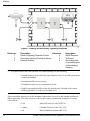
The primary and secondary lightning protections should be as close to the building's entrance as
possible. Where feasible they should be mounted onto the grounding plate itself. See also Figure
1, Primary and Secondary Lightning Protection on the following page.
OEM6 Family Installation and Operation User Manual Rev 4
11
Notices
Figure 1: Primary and Secondary Lightning Protection
Reference
1
2
3
Description
Reference
Primary Lightning Protection Device
4
Secondary Lightning Protection Device
5
External Antenna
6
Description
GNSS Receiver
To Ground
Grounding plate
or grounding point
at the building’s
entrance
Acceptable choices for Earth Grounds, for central buildings, are the following:
• Grounded interior metal cold water pipe within five feet (1.5 m) of the point where
it enters the building
• Grounded metallic service raceway
• Grounded electrical service equipment enclosure
• Eight-foot grounding rod driven into the ground (only if bonded to the central
building ground by #6, or heavier, bonding wire)
These installation instructions are the minimum requirements for receiver and antenna installations.
Where applicable, follow the electrical codes for the country of installation. Examples of country
codes include:
12
• USA
National Electrical Code (NFPA 70)
• Canada
Canadian Electrical Code (CSA C22)
• UK
British Standards Institute (BSI 7671)
OEM6 Family Installation and Operation User Manual Rev 4
Terms and Conditions
Terms and Conditions
Standard Terms and Conditions of Sales
1. PRICES: All prices are Firm Fixed Price, FCA 1120 - 68th Avenue N.E., Calgary, Alberta. All
prices include standard commercial packing for domestic shipment. All transportation,
insurance, special packing costs and expenses, and all Federal, provincial and local excise,
duties, sales, and other similar taxes are the responsibility of the Purchaser.
2. PAYMENT: Terms are prepayment unless otherwise agreed in writing. Interest shall be
charged on overdue accounts at the rate of 18% per annum (1.5% per month) from due date.
To expedite payment by wire transfer to NovAtel Inc.: Bank - HSBC Bank of Canada
Bank:
HSBC Bank of Canada
US Account number
788889-002
407 - 8 Avenue S.W.
CDN Account number
788889-001
Calgary, AB, Canada T2P 1E5
EURO Account number
788889-270
Transit number
10029-016
Swift
HKBCCATTCAL
3. DELIVERY: Purchaser shall supply shipping instructions with each order. (Ship to and bill to
address, NovAtel Quotation number, Preferred carrier and account number, Custom broker/
freight forwarder including name and contact number) In the absence of specific instructions,
NovAtel may select a carrier and insure Products in transit and charge Purchaser accordingly.
NovAtel shall not be responsible for any failure to perform due to unforeseen circumstances or
causes beyond its ability to reasonably control. Risk of loss, damage or destruction shall pass
to Purchaser upon delivery to carrier. Goods are provided solely for incorporation into the
Purchaser’s end product and shall not be onward delivered except as incorporated in the
Purchaser’s end product.
4. COPYRIGHT AND CONFIDENTIALITY: Copyright in any specification, drawing, computer
software, technical description and other document supplied by NovAtel under or in connection
with the Order and all intellectual property rights in the design of any part of the Equipment or
provision of services, whether such design be registered or not, shall vest in NovAtel
absolutely. The Buyer shall keep confidential any information expressed or confirmed by
NovAtel in writing to be confidential and shall not disclose it without NovAtel's prior consent in
OEM6 Family Installation and Operation User Manual Rev 4
13
Terms and Conditions
writing to any third party or use it other than for the operation and maintenance of any
Equipment provided.
5. GENERAL PROVISIONS: All Purchase Orders are subject to approval and acceptance by
NovAtel. Any Purchase Order or other form from the Purchaser, which purports to expand, alter
or amend these terms and conditions, is expressly rejected and is and shall not become a part
of any agreement between NovAtel and the Purchaser. This agreement shall be interpreted
under the laws of the Province of Alberta.
6. LIMITED WARRANTY AND LIABILITY: Warranty Period: Products - 1 year; Accessories 90 days (in each case from the date of invoice). NovAtel warrants that during the Warranty
Period that (a) the Product will be free from defects in material and workmanship and conform
to NovAtel specifications; (b) the software will be free from errors which materially affect
performance; and (c) if applicable as defined in the User’s Manual, be eligible for access to post
contract support and software updates when available. THESE WARRANTIES ARE
EXPRESSLY IN LIEU OF ALL OTHER WARRANTIES, EXPRESS OR IMPLIED,
INCLUDING, WITHOUT LIMITATION, ALL IMPLIED WARRANTIES OF
MERCHANTABILITY AND FITNESS FOR A PARTICULAR PURPOSE. NOVATEL SHALL IN
NO EVENT BE LIABLE FOR SPECIAL, INDIRECT, INCIDENTAL, OR CONSEQUENTIAL
DAMAGES OF ANY KIND OR NATURE DUE TO ANY CAUSE.
Purchaser’s exclusive remedy for a claim under this warranty shall be limited to the repair or
replacement at NovAtel’s option and at NovAtel’s facility, of defective or nonconforming
materials, parts or components or in the case of software, provision of a software revision for
implementation by the Buyer. All material returned under warranty shall be returned to
NovAtel prepaid by the Buyer and returned to the Buyer, prepaid by NovAtel. The foregoing
warranties do not extend to (i) nonconformities, defects or errors in the Products due to
accident, abuse, misuse or negligent use of the Products or use in other than a normal and
customary manner, environmental conditions not conforming to NovAtel’s specifications, or
failure to follow prescribed installation, operating and maintenance procedures, (ii) defects,
errors or nonconformities in the Products due to modifications, alterations, additions or
changes not made in accordance with NovAtel’s specifications or authorized by NovAtel, (iii)
normal wear and tear, (iv) damage caused by force of nature or act of any third person, (v)
shipping damage, (vi) service or repair of Product by the Purchaser without prior written
consent from NovAtel, (vii) Products designated by NovAtel as beta site test samples,
experimental, developmental, preproduction, sample, incomplete or out of specification
Products, (viii) returned Products if the original identification marks have been removed or
altered or (ix) Services or research activities.
14
OEM6 Family Installation and Operation User Manual Rev 4
Terms and Conditions
7. EXCLUSION OF LIABILITY: If a Party would, but for this paragraph (7), have concurrent
claims in contract and tort (including negligence) such claims in tort (including negligence)
shall to the extent permitted by law be wholly barred, unenforceable and excluded.
NovAtel shall not be liable to the Buyer by way of indemnity or by reason of any breach of the
Order or of statutory duty or by reason of tort (including but not limited to negligence) for any
loss of profit, loss of use, loss of production, loss of contracts or for any financing costs or for
any indirect or consequential damage whatsoever that may be suffered by the Buyer.
In the event and to the extent that NovAtel shall have any liability to Buyer pursuant to the
terms of the Order, NovAtel shall be liable to Buyer only for those damages which have been
foreseen or might have reasonably been foreseen on the date of effectivity of the Order and
which are solely an immediate and direct result of any act or omission of NovAtel in performing
the work or any portion thereof under the Order and which are not in the aggregate in excess
of ten (10%) percent of the total Order price.
OEM6 Family Installation and Operation User Manual Rev 4
15
Software License
Software License
BY INSTALLING, COPYING, OR OTHERWISE USING THE SOFTWARE PRODUCT, YOU AGREE
TO BE BOUND BY THE TERMS OF THIS AGREEMENT. IF YOU DO NOT AGREE WITH THESE
TERMS OF USE, DO NOT INSTALL, COPY OR USE THIS ELECTRONIC PRODUCT (SOFTWARE,
FIRMWARE, SCRIPT FILES, OR OTHER ELECTRONIC PRODUCT WHETHER EMBEDDED IN THE
HARDWARE, ON A CD OR AVAILABLE ON THE COMPANY website) (hereinafter referred to as
"Software").
1. License: NovAtel Inc. ("NovAtel") grants you a non-exclusive, non-transferable license (not a sale)
to, where the Software will be used on NovAtel supplied hardware or in conjunction with other NovAtel
supplied software, use the Software with the product(s) as supplied by NovAtel. You agree not to use
the Software for any purpose other than the due exercise of the rights and licences hereby agreed to
be granted to you.
2. Copyright: NovAtel owns, or has the right to sublicense, all copyright, trade secret, patent and other
proprietary rights in the Software and the Software is protected by national copyright laws, international
treaty provisions and all other applicable national laws. You must treat the Software like any other copyrighted material except that you may make one copy of the Software solely for backup or archival purposes (one copy may be made for each piece of NovAtel hardware on which it is installed or where
used in conjunction with other NovAtel supplied software), the media of said copy shall bear labels
showing all trademark and copyright notices that appear on the original copy. You may not copy the
product manual or written materials accompanying the Software. No right is conveyed by this Agreement for the use, directly, indirectly, by implication or otherwise by Licensee of the name of NovAtel, or
of any trade names or nomenclature used by NovAtel, or any other words or combinations of words
proprietary to NovAtel, in connection with this Agreement, without the prior written consent of NovAtel.
3. Patent Infringement: NovAtel shall not be liable to indemnify the Licensee against any loss sustained by it as the result of any claim made or action brought by any third party for infringement of any
letters patent, registered design or like instrument of privilege by reason of the use or application of the
Software by the Licensee or any other information supplied or to be supplied to the Licensee pursuant
to the terms of this Agreement. NovAtel shall not be bound to take legal proceedings against any third
party in respect of any infringement of letters patent, registered design or like instrument of privilege
which may now or at any future time be owned by it. However, should NovAtel elect to take such legal
proceedings, at NovAtel's request, Licensee shall co-operate reasonably with NovAtel in all legal
actions concerning this license of the Software under this Agreement taken against any third party by
NovAtel to protect its rights in the Software. NovAtel shall bear all reasonable costs and expenses
incurred by Licensee in the course of co-operating with NovAtel in such legal action.
4. Restrictions: You may not:
(a)
copy (other than as provided for in paragraph 2), distribute, transfer, rent, lease, lend, sell or
sublicense all or any portion of the Software except in the case of sale of the hardware to a
third party;
(b)
modify or prepare derivative works of the Software;
(c)
use the Software in connection with computer-based services business or publicly display
visual output of the Software;
(d)
transmit the Software over a network, by telephone or electronically using any means (except
when downloading a purchased up[grade from the NovAtel website); or
(e)
reverse engineer, decompile or disassemble the Software.
You agree to keep confidential and use your best efforts to prevent and protect the contents of the Soft-
16
OEM6 Family Installation and Operation User Manual Rev 4
Software License
ware from unauthorized disclosure or use.
5. Term and Termination: This Agreement and the rights and licences hereby granted shall continue
in force in perpetuity unless terminated by NovAtel or Licensee in accordance herewith. In the event
that the Licensee shall at any time during the term of this Agreement: i) be in breach of its obligations
hereunder where such breach is irremediable or if capable of remedy is not remedied within 30 days of
notice from NovAtel requiring its remedy; then and in any event NovAtel may forthwith by notice in writing terminate this Agreement together with the rights and licences hereby granted by NovAtel.
Licensee may terminate this Agreement by providing written notice to NovAtel. Upon termination, for
any reasons, the Licensee shall promptly, on NovAtel's request, return to NovAtel or at the election of
NovAtel destroy all copies of any documents and extracts comprising or containing the Software. The
Licensee shall also erase any copies of the Software residing on Licensee's computer equipment. Termination shall be without prejudice to the accrued rights of either party, including payments due to
NovAtel. This provision shall survive termination of this Agreement howsoever arising.
6. Warranty: NovAtel does not warrant the contents of the Software or that it will be error free. The
Software is furnished "AS IS" and without warranty as to the performance or results you may obtain by
using the Software. The entire risk as to the results and performance of the Software is assumed by
you. See product enclosure, if any for any additional warranty.
7. Indemnification: NovAtel shall be under no obligation or liability of any kind (in contract, tort or otherwise and whether directly or indirectly or by way of indemnity contribution or otherwise howsoever) to
the Licensee and the Licensee will indemnify and hold NovAtel harmless against all or any loss, damage, actions, costs, claims, demands and other liabilities or any kind whatsoever (direct, consequential,
special or otherwise) arising directly or indirectly out of or by reason of the use by the Licensee of the
Software whether the same shall arise in consequence of any such infringement, deficiency, inaccuracy, error or other defect therein and whether or not involving negligence on the part of any person.
8. Disclaimer and Limitation of Liability:
(a)
THE WARRANTIES IN THIS AGREEMENT REPLACE ALL OTHER WARRANTIES,
EXPRESS OR IMPLIED, INCLUDING ANY WARRANTIES OF MERCHANTABILITY OR
FITNESS FOR A PARTICULAR PURPOSE. NovAtel DISCLAIMS AND EXCLUDES ALL
OTHER WARRANTIES. IN NO EVENT WILL NovAtel's LIABILITY OF ANY KIND
INCLUDE ANY SPECIAL, INCIDENTAL OR CONSEQUENTIAL DAMAGES, INCLUDING
LOST PROFITS, EVEN IF NovAtel HAS KNOWLEDGE OF THE POTENTIAL LOSS OR
DAMAGE.
(b)
NovAtel will not be liable for any loss or damage caused by delay in furnishing the Software or
any other performance under this Agreement.
(c)
NovAtel's entire liability and your exclusive remedies for our liability of any kind (including liability for negligence) for the Software covered by this Agreement and all other performance or
non-performance by NovAtel under or related to this Agreement are to the remedies specified
by this Agreement.
9. Governing Law: This Agreement is governed by the laws of the Province of Alberta, Canada. Each
of the parties hereto irrevocably attorns to the jurisdiction of the courts of the Province of Alberta.
10. Customer Support: For Software UPDATES and UPGRADES, and regular customer support,
contact the NovAtel GPS Hotline at 1-800-NOVATEL (U.S. or Canada only), or +1-403-295-4900, Fax
+1-403-295-4901, e-mail to [email protected],
website: http://www.novatel.com or write to:
NovAtel Inc.
Customer Service Department
1120 - 68 Avenue NE,
Calgary, Alberta, Canada T2E 8S5
OEM6 Family Installation and Operation User Manual Rev 4
17
Warranty
Warranty
NovAtel Inc. warrants that its products are free from defects in materials and workmanship, subject to
the conditions set forth below, for the following periods of time, from the date of sale:
OEM6™ Card Receivers
One (1) Year
FlexPak6™
GPS Antenna Series
One (1) Year
One (1) Year
Cables and Accessories
Computer Discs
Software Warranty
Ninety (90) Days
Ninety (90) Days
One (1) Year
Date of sale shall mean the date of the invoice to the original customer for the product. NovAtel’s
responsibility respecting this warranty is solely to product replacement or product repair at an
authorized NovAtel location, or in the case of software, provision of a software revision for
implementation by the customer. Determination of replacement or repair will be made by NovAtel personnel
or by technical personnel expressly authorized by NovAtel for this purpose.
THE FOREGOING WARRANTIES DO NOT EXTEND TO (I) NONCONFORMITIES, DEFECTS OR ERRORS
IN THE PRODUCTS DUE TO ACCIDENT, ABUSE, MISUSE OR NEGLIGENT USE OF THE PRODUCTS OR
USE IN OTHER THAN A NORMAL AND CUSTOMARY MANNER, ENVIRONMENTAL CONDITIONS NOT
CONFORMING TO NOVATEL’S SPECIFICATIONS, OR FAILURE TO FOLLOW PRESCRIBED INSTALLATION, OPERATING AND MAINTENANCE PROCEDURES, (II) DEFECTS, ERRORS OR NONCONFORMITIES IN THE PRODUCTS DUE TO MODIFICATIONS, ALTERATIONS, ADDITIONS OR CHANGES NOT
MADE IN ACCORDANCE WITH NOVATEL’S SPECIFICATIONS OR AUTHORIZED BY NOVATEL, (III) NORMAL WEAR AND TEAR, (IV) DAMAGE CAUSED BY FORCE OF NATURE OR ACT OF ANY THIRD PERSON, (V) SHIPPING DAMAGE; OR (VI) SERVICE OR REPAIR OF PRODUCT BY THE DEALER WITHOUT
PRIOR WRITTEN CONSENT FROM NOVATEL. IN ADDITION, THE FOREGOING WARRANTIES SHALL
NOT APPLY TO PRODUCTS DESIGNATED BY NOVATEL AS BETA SITE TEST SAMPLES, EXPERIMENTAL,
DEVELOPMENTAL, PREPRODUCTION, SAMPLE, INCOMPLETE OR OUT OF SPECIFICATION PRODUCTS OR TO RETURNED PRODUCTS IF THE ORIGINAL IDENTIFICATION MARKS HAVE BEEN
REMOVED OR ALTERED. THE WARRANTIES AND REMEDIES ARE EXCLUSIVE AND ALL OTHER WARRANTIES, EXPRESS OR IMPLIED, WRITTEN OR ORAL, INCLUDING THE IMPLIED WARRANTIES OF
MERCHANTABILITY OR FITNESS FOR ANY PARTICULAR PURPOSE ARE EXCLUDED. NOVATEL SHALL
NOT BE LIABLE FOR ANY LOSS, DAMAGE, EXPENSE, OR INJURY ARISING DIRECTLY OR INDIRECTLY
OUT OF THE PURCHASE, INSTALLATION, OPERATION, USE OR LICENSING OR PRODUCTS OR SERVICES. IN NO EVENT SHALL NOVATEL BE LIABLE FOR SPECIAL, INDIRECT, INCIDENTAL OR CONSEQUENTIAL DAMAGES OF ANY KIND OR NATURE DUE TO ANY CAUSE.
There are no user serviceable parts in the NovAtel receiver and no maintenance is required. When the
status code indicates that a unit is faulty, replace with another unit and return the faulty unit to
NovAtel Inc.
Before shipping any material to NovAtel or Dealer, please contact Customer Support. You can
e-mail [email protected] or visit our website at www.novatel.com and log in through Support | Helpdesk & Solutions | E-Service.
When Customer Support confirms the faulty equipment needs to be returned, you will be referred to
the repair group where you will be given an RMA number and be advised of proper shipping
procedures to return any defective product..
18
OEM6 Family Installation and Operation User Manual Rev 4
Foreword
Foreword
About this Manual
Thank you for purchasing a NovAtel OEM6 family receiver card. Whether the receiver is stand-alone
or installed in an enclosure, this manual provides the information you need to integrate and operate the
hardware.
Related Documents and Information
After the OEM6 hardware is operational, the OEM6 Family Firmware and Reference Manual
becomes your primary source for command and log information. Each receiver has a specific set of
features, such as L-band or GLONASS support, so some commands and logs may not be supported by
your model. Refer also to the Support page on our website at www.novatel.com for new documents
and documentation updates.
This manual does not cover OEM6 service and repair. Contact your local NovAtel dealer for any
customer-service related inquiries, as outlined in Customer Support on page 20.
Conventions
The following conventions are used in this manual:
Information that supplements or clarifies text.
A caution that actions, operation or configuration may lead to incorrect or improper
use of the hardware.
A warning that actions, operation or configuration may result in regulatory
noncompliance, safety issues or equipment damage.
OEM6 Family Installation and Operation User Manual Rev 4
19
Customer Support
Customer Support
NovAtel Knowledge Base
If you have a technical issue, visit the NovAtel support website at www.novatel.com | Support |
Helpdesk and Solutions | Knowledge and Forums. Through this page, you can search for general
information about GNSS and other technologies, information about NovAtel hardware, software,
installation and operation issues.
Before Contacting Customer Support
Before you contact NovAtel Customer Support about a software problem perform the following steps:
1.
Log the following data to a file on your computer for 15 minutes:
RXSTATUSB once
RAWEPHEMB onchanged
RANGEB ontime 1
BESTPOSB ontime 1
RXCONFIGA once
VERSIONB once
2.
Send the data file to NovAtel Customer Support, using either the NovAtel FTP site at
www.novatel.com | Support | Firmware/Software and Manuals | Access FTP Site or through the
[email protected] e-mail address.
3.
You can also issue a FRESET command to the receiver to clear any unknown settings.
The FRESET command will erase all user settings and perform a fac tory reset. You should know
your configuration and be able to reconfigure the receiver before you send the FRESET command.
If you are having a hardware problem, send a list of the troubleshooting steps taken and the results.
Contact Information
Use one of the following methods to contact NovAtel Customer Support:
Call the NovAtel Hotline at 1-800-NOVATEL (U.S. and Canada)
or +1-403-295-4900 (international)
Fax: +1-403-295-4901
E-mail: [email protected]
website: http://www.novatel.com
Write: NovAtel Inc.
Customer Support Department
1120 - 68 Avenue NE
Calgary, AB
Canada, T2E 8S5
OEM6 Family Installation and Operation User Manual Rev 4
20
Firmware Updates and Model Upgrades
Firmware Updates and Model Upgrades
Firmware updates are firmware releases that include fixes and enhancements to the receiver
functionality. Firmware updates are released on the website as they become available. Model upgrades
enable features such as RTK and ALIGN® on the receiver and may be purchased through NovAtel
authorized dealers.
Contact your local NovAtel dealer for more information. To locate a dealer in your area, visit
www.novatel.com | Where to Buy | Dealers or contact NovAtel Customer Support directly.
See Firmware Updates and Model Upgrades on page 75 for instructions on using the WinLoad
program to upgrade your OEM6 receiver.
21
OEM6 Family Installation and Operation User Manual Rev 4
Chapter 1
1.1
Introduction
Overview of the OEM6 Family
The OEM6 family offers triple-frequency GNSS receivers and integrated L-band capability. The
OEM6 family supports existing and planned GPS, GLONASS, Galileo and Compass frequencies, and
is capable of full code and real-time kinematic (RTK) positioning. OEM6 boards are designed for
flexibility of integration and configuration.
For further information about OEM6 receiver boards, refer to the product brochures at
www.novatel.com | Products | Receivers | OEM Receiver Boards.
1.2
OEM615 Receiver
The OEM615 has the same form and fit as NovAtel’s OEMV-1™ receivers, with the following
additional features:
•
Dual frequency
•
Galileo channel support
•
Full-speed USB 2.0
•
Dual CAN bus ports
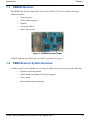
Figure 2: OEM615 Receiver Board
OEM615 technical specifications are provided in Appendix C on page 125.
OEM6 Family Installation and Operation User Manual Rev 4
22
Introduction
1.3
Chapter 1
OEM628 Receiver
The OEM628 has the same form and fit as NovAtel’s OEMV-2™ receivers, with the following
additional features:
•
Triple frequency
•
Galileo channel support
•
Ethernet
•
Full-speed USB 2.0
•
Dual CAN bus ports
Figure 3: OEM628 Receiver Board
OEM628 technical specifications are provided in Appendix B on page 97.
1.4
OEM6 Receiver System Overview
In addition to the NovAtel OEM6 receiver board, an OEM6 receiver system requires the following:
•
Enclosure and wiring harness
•
GNSS antenna (and optional LNA power supply)
•
Power supply
•
Data communications equipment
OEM6 Family Installation and Operation User Manual Rev 4
23
Chapter 1
Introduction
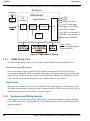
The overall OEM6 receiver system is illustrated in Figure 4 and described in the sections that follow.
Enclosure
Antenna
OEM6 Board
LNA
RF
Section
RF
COM1
COM2
COM3 (see note)
Digital Section
MINOS6
ASIC
Processor
I/O
Input Timing Signal
Output Timing Signal
USB Full Speed
Clock
CAN Communication 1
CAN Communication 2
Ethernet (OEM628)
Note: COM3 is
multiplexed with external
Event and GPIO
Figure 4: OEM6 Receiver System
1.4.1
OEM6 Family Card
NovAtel’s OEM6 family cards consist of a radio frequency (RF) section and a digital section.
Radio Frequency (RF) Section
The receiver obtains filtered, amplified GNSS signals from the antenna. The RF section downconverts the incoming RF signals to intermediate frequency (IF) signals which are processed by the
digital section. The RF section also supplies power to the active antenna LNA through the coaxial
cable. The RF section has been designed to reject common sources of interference.
Digital Section
The heart of the digital section is NovAtel’s MINOS6 ASIC (application-specific integrated circuit).
The digital section digitizes and processes the IF signals to obtain a GNSS solution (position, velocity
and time). It also processes the system I/O, shown in Figure 4.
1.4.2
Enclosure and Wiring Harness
An enclosure is necessary to protect the OEM6 family card from environmental extremes and high
levels of RF interference. A wiring harness is required to provide the interface to the antenna, power
supply and data I/O.
24
OEM6 Family Installation and Operation User Manual Rev 4
Introduction
1.4.3
Chapter 1
GNSS Antenna
The antenna converts electromagnetic signals transmitted by GNSS satellites into electrical signals
that can be used by the receiver. An active GNSS antenna is normally required for optimal receiver
performance. NovAtel’s active GNSS antennas shown in Table 2 on page 28 provide precise phase
centres and robust enclosures.
Optional LNA Power Supply
The receiver can supply power for the antenna LNA. If the antenna is not compatible with the OEM6
power supply, you may need an external LNA supply. See Antenna LNA Power on page 44 for more
information.
1.4.4
Power Supply
A power supply capable of delivering the minimum receiver operating voltage and power is required.
See Table 3, Voltage Input Requirement for OEM6 Family Cards on page 31 and Appendix B,
OEM628 Technical Specifications on page 97 for details.
1.4.5
Optional External Frequency Reference
Some applications may require greater precision than that provided by the OEM628 internal clock. In
that case, you must connect the OEM628 to an external high-stability oscillator. See External
Oscillator on page 44 for more information. The OEM615 does not offer external oscillator
capabilities.
1.4.6
Data Communications Equipment
A computer or other data communications device is necessary to communicate with the receiver, and
to receive and store the data that the receiver provides.
1.5
OEM6 Enclosures
The OEM6 can be housed in an enclosure to provide a complete receiver solution.
Enclosures offer protection against environmental conditions and RF interference. In addition, they
provides an easy-to-use interface to the card’s data, power, and status signals.
1.5.1
FlexPak6
NovAtel's FlexPak6 is a housing for the OEM628 receiver that delivers centimetre-level positioning
in a compact, lightweight enclosure. The FlexPak6 provides scalable high-precision positioning with
Ethernet, serial, USB and CAN bus interfaces as well as an API option for supporting custom
applications. The FlexPak6 receiver is capable of tracking all present and upcoming GNSS
constellations and satellite signals including GPS L1/L2/L2C/L5, GLONASS L1/L2, Galileo E1/E5a/
E5b/Alt-BOC and Compass signals. Table 1 lists the features available on the FlexPak6.
OEM6 Family Installation and Operation User Manual Rev 4
25
Chapter 1
Introduction
The Flexpak6 is not compatible with the OEM615 receiver.
Table 1: FlexPak6 Features
Feature
FlexPak6
OEM card supported
OEM628
Serial ports
2 DB9 connectors
USB 1.1
Yes
Ethernet
Yes
Strobe port
DB-HD15 connector
Input (DC) voltage
+6 to +36 V
L-band differential corrections
a
Yes
GPS+GLONASS positioning
Yes
GL1DE
Yes
ALIGN
Yes
AdVance RTK
Yes
RAIM
Yes
NTRIP
Yes
a. A subscription to an augmentation service, like
OmniSTAR, is required. Refer to the GNSS Reference
Book, available from our website at www.novatel.com, for
more details.
The following accessories are included with the FlexPak6:
• null modem serial cable
• USB cable
• 12V power adapter
• I/O Cable
• A CD containing NovAtel’s PC utilities and product documentation
For technical specifications on the FlexPak6, see Appendix B.2 on page 115.
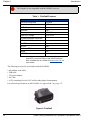
Figure 5: FlexPak6
26
OEM6 Family Installation and Operation User Manual Rev 4
Chapter 2
Installation and Setup
This chapter provides instructions and guidelines for checking the contents of the shipping box,
installing the OEM6 PC utilities on your computer, and for integrating your NovAtel receiver into a
GNSS receiver system similar to that described in Section 1.4 OEM6 Receiver System Overview on
page 23.
2.1
Opening the Shipping Box
The following items are provided:
2.2
•
OEM6 family receiver card
•
OEM6 Family Receivers Quick Start Guide
•
ESD wrist strap
•
NovAtel CD
•
Postcard for requesting printed manuals
Installing OEM6 PC Utilities
The CD accompanying this receiver contains OEM6 PC utilities, in particular:
•
CDU [Control and Display Unit] (Windows application)
•
Convert4 (Windows application)
•
Sample source code, to aid the development of software for interfacing with the
receiver
•
Product documentation
The applications use a database, so the necessary components of the Borland Database Engine (BDE)
are installed as well as the necessary database tables and an alias for the database. We recommend that
you close all applications before installing CDU and Convert4. You must close any applications that
may be using the BDE before installing. The install set-up modifies the BDE configuration so that it
can recognize the new CDU and Convert4.
1.
Start Microsoft Windows.
2.
Put the NovAtel CD in your CD-ROM drive. If the setup utility does not automatically run, follow these steps:
a.
b.
c.
3.
Select Run from the Start menu.
Browse to Setup.exe on the CD and click Open.
Click OK to run the setup utility.
Follow the setup utility instructions.
The latest CDU software can be downloaded from
www.novatel.com | Support | Firmware/Software and Manuals | Product Updates.
27
OEM6 Family Installation and Operation User Manual Rev 4
Chapter 2
2.3
Installation and Setup
Additional Equipment Required
For the receiver to perform optimally, the following additional equipment is required:
•
Interface for power, communications, and other signals
•
Enclosure to protect against the environment
•
GNSS antenna (for a list of NovAtel GNSS antennas, see Table 2 on page 28)
•
Coaxial cable (and interconnect adapter cable, as necessary)
•
Data communication equipment capable of serial, USB or Ethernet communication
•
Serial, USB or Ethernet data cable (if one is not included with the receiver)
•
Power supply
•
Power cable (if one is not included with the receiver)
2.3.1
When the OEM6 family receiver is installed in a permanent location, it should be
protected by a lightning protection device according to local building codes.
Selecting a GNSS Antenna
An active antenna with a low-noise amplifier (LNA) is required to boost the power of the incoming
signal to compensate for the line loss between the antenna and the receiver.
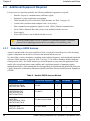
NovAtel offers a variety of antennas, including single and dual-frequency, triple-band and wide-band
reference GNSS antennas, as shown in Table 2 on page 28. All of these antennas include band-pass
filtering and an LNA. The GNSS antenna you choose depends on your particular application. Each
model offers exceptional phase-center stability and a significant measure of immunity against
multipath interference. Each antenna has an environmentally sealed radome and all meet the European
Union’s Restriction of Hazardous Substances (RoHS) and Waste Electrical and Electronic Equipment
(WEEE).
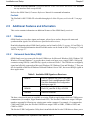
Table 2: NovAtel GNSS Antenna Models
Models
28
Frequencies Supported
GPS
ANT-35C1GA-TW-N
ANT-26C1GA-TBW-N
L1 only
ANT-35C2GA-TW
ANT-A72GA-TW-N
ANT-C2GA-TW-N
L1 and L2
GPS-702L
ANT-A72GLA4-TW-N
ANT-A72GLA-TW-N
L1 and L2 plus L-band
GPS-701-GGL
ANT-A71-GLA4-TW
L1 plus L-band
GLONASS
Galileo
OEM6 Family Installation and Operation User Manual Rev 4
Installation and Setup
Models
Chapter 2
Frequencies Supported
GPS
GLONASS
GPS-701-GG
L1 only
GPS-702-GGL
ANT-A72GOLA-TW
L1 and L2 plus L-band
GPS-702-GG
L1 and L2
GPS-703-GGG
L1, L2, L5, E5, E5a and
E5b
OEM6 Family Installation and Operation User Manual Rev 4
Galileo
29
Chapter 2
2.3.2
Installation and Setup
Choosing a Coaxial Cable
For information on selecting a coaxial cable for your application, refer to NovAtel
application note APN-003 RF Equipment Selection and Installation available at
www.novatel.com | Support | Knowledge and Learning | Application Notes.
An appropriate coaxial cable is one that matches the impedances of the antenna and receiver
(50 ohms), and has has a line loss that does not exceed 10.0 dB. If the limit is exceeded, excessive
signal degradation may occur and the receiver may not meet performance specifications. NovAtel
offers several coaxial cables to meet your GNSS antenna interconnection requirements, including:
•
5, 15 and 30 m antenna cable with TNC connectors on both ends (NovAtel part
numbers GPS-C006, GPS-C016 and GPS-C032)
•
22 cm interconnect adapter cable, that can be used between the MMCX and the
TNC connectors (NovAtel part number GPS-C002)
A conversion is required between the OEM628’s MMCX connector or the
OEM615’s MCX connector and the female TNC connector on NovAtel’s GNSS
antennas.
If your application requires the use of cable longer than 30 m, refer to application note APN-003 RF
Equipment Selection and Installation, available at www.novatel.com | Support | Knowledge and
Learning | Application Notes.
NovAtel recommends high-quality coaxial cables because an impedence mismatch, possible with
lower quality cables, produces reflections in the cable that increase signal loss. Though you can use
other high-quality antenna cables, the performance specifications of the OEM6 family receivers are
warranted only when used with NovAtel-supplied accessories.
30
OEM6 Family Installation and Operation User Manual Rev 4
Installation and Setup
2.3.3
Chapter 2
Power Supply Requirements
This section contains information on the requirements for the input power to the receiver. See
Appendix B, OEM628 Technical Specifications starting on page 97 and Appendix C, OEM615
Technical Specifications starting on page 125 for more power supply specifications.
If the voltage supplied is below the minimum specification, the receiver will suspend
operation. If the voltage supplied is above the maximum specification, the receiver
may be permanently damaged, voiding your warranty.
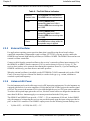
OEM6 family cards contains a DC-to-DC converter that is tolerant to input noise and ripple. A tightly
regulated input supply is not required, as long as it falls within the given input range. The power
supply used for any OEM6 family card should be capable of providing the specified power
requirements in Table 3.
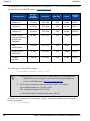
Table 3: Voltage Input Requirement for OEM6 Family Cards
OEM6 Product Line
Power Input Requirement
OEM628
+3.3V DC ±5% with less than 100 mV ripple
OEM615
+3.3V DC ±5% with less than 100 mV ripple
The OEM628 is designed to prevent internal damage when subjected to reverse polarity power
connection. The OEM615 does not feature reversed polarity protection.
The OEM6 family cards also provide protection for a short duration during over-voltage events. It is
recommended that appropriate fuses or current limiting be incorporated as a safety precaution on all
power lines used. Use a sufficient gauge of wire to ensure that the voltage at the connector is within
the OEM6 family card’s requirements. See Appendix C, OEM615 Technical Specifications starting on
page 125 or Appendix B, OEM628 Technical Specifications starting on page 97 for current and
voltage requirements.
2.4
Installation Overview
When you have selected the appropriate equipment, complete the following steps to set up and begin
using your NovAtel GNSS receiver.
1.
Install the OEM6 family card in an enclosure with a wiring harness, as described in Section 2.4.1
on page 32.
2.
Mount the GNSS antenna to a secure, stable structure, as described in Section 2.4.2 on page 36.
3.
Connect the GNSS antenna to the receiver using an antenna RF cable, using the information in
Section 2.4.3 on page 36.
4.
Apply power to the receiver, as described in Section 2.4.4 on page 37.
5.
Connect the receiver to a computer or other data communications equipment by following the
OEM6 Family Installation and Operation User Manual Rev 4
31
Chapter 2
Installation and Setup
information in Section 2.4.5 on page 37.
2.4.1
Installing an OEM6 Family Card with Wiring Harness and Enclosure
To install an OEM6 family card:
1.
Ensure that you are protected against ESD, as described in the following section.
2.
Mount the OEM6 family card in a secure enclosure to reduce environmental exposure and RF
interference, as described in Mounting the Printed Circuit Board starting on page 33.
3.
Prepare a wiring harness to interface with the receiver’s data, status, and power signals using the
information in Preparing the Data, Signal & Power Harness starting on page 34.
Electrostatic Discharge (ESD) Precautions
Electrostatic discharge is a leading cause of failure of electronic equipment components and printed
circuit boards containing ESD-sensitive devices and components. You must follow ESD precautions
when handling or installing an OEM6 family card. See Appendix A, Electrostatic Discharge Control
(ESD) Practices starting on page 94 for more information on ESD precautions.
Leave the OEM6 family card in its static-shielding bag or clamshell when not connected in its normal
operating environment. When removing the OEM6 family card from the ESD protection, follow
accepted standard anti-static practices. Failure to do so may cause damage to the OEM6 family card.
When you remove the OEM6 family card from the original packing box, keep the box and ESD
protection for future storage or shipment.
•
•
•
•
•
32
Always wear a properly grounded anti-static wrist strap when handling an
OEM6 family card.
Always hold the OEM6 family card by its corners or the RF shield and avoid
direct contact with any of the components.
Do not let the OEM6 family card come in contact with clothing at any time. The
ground strap cannot dissipate static charges from fabrics.
Failure to follow accepted ESD handling practices could cause damage to the
OEM6 family card.
The warranty may be void if equipment is damaged by ESD.
OEM6 Family Installation and Operation User Manual Rev 4
Installation and Setup
Chapter 2
Mounting the Printed Circuit Board
The OEM6 family cards are OEM products and the printed circuit board is provided without a
housing structure. This allows flexibility in creating a mounting environment to suit particular product
and marketing requirements. The mounting and enclosure should provide for the following:
•
Mounting of external connectors
•
Protection from hostile physical environments (rain, snow, sand, salt, water,
extreme temperatures, etc)
•
Electromagnetic shielding to protect from hostile RF environments (e.g:, nearby
transmitters)
•
Electromagnetic shielding so that the final product conforms to RF emissions
specifications
•
The card may not pass emissions testing by itself - it may need to be installed in an
enclosure. For more information on emissions testing, refer to the regulatory body in
your geographic area. In the United States, contact the Federal Communications
Commission (FCC) and in Europe, contact the Conformité Européenne (CE).
Protection from ESD (see Appendix A, Electrostatic Discharge Control (ESD)
Practices starting on page 94)
For proper grounding and mechanical integrity, the OEM628 is mounted with six screws and the
OEM615 with four screws when used in a custom assembly. See Appendix B, OEM628 Technical
Specifications starting on page 97 and Appendix C, OEM615 Technical Specifications starting on page
125 for mechanical drawings of each card.
OEM6 Family Installation and Operation User Manual Rev 4
33
Chapter 2
Installation and Setup
Preparing the Data, Signal & Power Harness
The wiring harness provides connections to some or all of the following:
•
Communication ports, including COM, Ethernet, USB and CAN (a CAN
transceiver is required)
•
Antenna/LNA
•
Input and output timing strobes
•
Power input
•
Optional LNA power supply
•
Optional external frequency reference
If you are using the OEM628’s Ethernet connectivity, the distance between the RJ45
connector and the magnetics must be no more than 10 inches (25.4 cm) and the
distance between the device and the magnetics must be no more than 1.5 inches (3.8
cm). The OEM628 uses the Micrel KSZ8851SNLI device. Follow Micrel’s
recommendations for transformer selection.
For all OEM6 family cards, the power, status and data inputs and outputs are accessed from one or
more connectors. Therefore, the harness must be designed to mate with this connector(s).
As shown in Figure 6, the OEM628 card uses 24-pin and a 16-pin headers for the data, power and
status signals. The RF input is an MMCX female connector. An external oscillator input is available,
also through an MMCX female connector.
The pin-outs for all connectors are specified in Appendix B, OEM628 Technical Specifications starting
on page 97 for the OEM628 and manufacturers’ part numbers are defined in Section D.3 on page 138.
The OEM615 in Figure 7 on page 36 uses a single 20-pin header and a MCX RF input. OEM615 pinout information is in Appendix C, OEM615 Technical Specifications starting on page 125.
34
OEM6 Family Installation and Operation User Manual Rev 4
Installation and Setup
Chapter 2
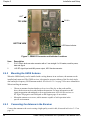
J1014
P15022
J1003
TOP VIEW
P15001
BOTTOM VIEW
LED Status Indicator
Figure 6: OEM628 Connector and Indicator Locations
Item
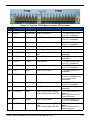
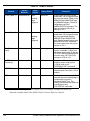
Description
1
P1500 24-pin dual-row male connector with a 2 mm straight 2 x 12 header, used for power,
data and signal
P1502 16-pin dual-row male connector with a 2 mm straight 2 x 8 header
J100 RF signal input and LNA power output, MMCX female connector
J101 external clock input, MMCX female connector
2
3
4
OEM6 Family Installation and Operation User Manual Rev 4
35
Chapter 2
Installation and Setup
J1002
P11011
TOP VIEW
BOTTOM VIEW
LED Status Indicator
Figure 7: OEM615 Connector and Indicator Locations
Item
Description
1
P1101 20-pin dual-row male connector with a 2 mm straight 2 x 10 header, used for power,
data and signal
J100 RF signal input and LNA power output, MCX female connector
2
2.4.2
Mounting the GNSS Antenna
When the OEM6 family card is installed with a wiring harness in an enclosure, the antenna can be
installed and connected. The GNSS receiver is designed to operate with any of the NovAtel single,
dual and triple-frequency GNSS antenna models. See Section 2.3.1 on page 28 for more information.
When installing the antenna:
2.4.3
•
Choose an antenna location that has a clear view of the sky so that each satellite
above the horizon can be tracked without obstruction. For more information on RF
signal propagation and multipath, refer to application note APN-008 Discussions on
RF Signal Propagation and Multipath on the Support page of our website.
•
Mount the antenna on a secure, stable structure capable of safe operation in the
specific environment.
Connecting the Antenna to the Receiver
Connect the antenna to the receiver using a high-quality coaxial cable, discussed in Section 2.3.2 on
page 30.
36
OEM6 Family Installation and Operation User Manual Rev 4
Installation and Setup
Chapter 2
For OEM628, an interconnect adapter cable is required to convert the end of the coaxial cable to the
card’s MMCX female RF input connector. The RF connector location for the OEM628 is shown in
Appendix B, OEM628 Technical Specifications starting on page 97.
The OEM615 uses an MCX connector, which also requires an RF adapter. See Appendix C, OEM615
Technical Specifications starting on page 125 for OEM615 connector location information. A usersupplied LNA_PWR supply is internally regulated to 5 V DC and sent to the centre pin of the MCX
RF connector to power an external antenna (the return is the outer conductor of the coax).
This port is capable of providing up to 100mA to a connected antenna (based on a 5V input supply.
Higher input voltages should follow the derating curve shown in OM-20000128, OEM6 Family
Installation and Operation User Manual for more information). The typical current draw for a
NovAtel antenna is less than 40mA.
2.4.4
Applying Power to the Receiver
Set the power supply to the voltage in Table 3, Voltage Input Requirement for OEM6 Family Cards on
page 31, then connect the power supply to the wiring harness.
2.4.5
Connecting Data Communications Equipment
To send commands and obtain logs, connect the receiver to a data communications device. The default
configuration for OEM6 receivers is shown in Table 4.
On some receivers, the serial ports can be factory-configured for RS-232, RS-422 or LVTTL
operation. Contact NovAtel Customer Support for more details. See Appendix B, OEM628 Technical
Specifications starting on page 97 and Appendix C, OEM615 Technical Specifications starting on page
125 for data connection details.
Table 4: Default Serial Port Configurations
Model
COM1
COM2
COM3
OEM615
User configurable as
LVTTL with no flow
control
User configurable as
LVTTL with no flow control
User configurable as
LVTTL with no flow
control
OEM628
User configurable as RS232 with flow control or
RS-422 without flow
control. See UserSelectable Port
Configuration on page 38.
User configurable as
LVTTL with no flow control
User configurable as
LVTTL with no flow
control
FlexPak6
RS-232
RS-232/ RS-422. See
User-Selectable Port
Configuration on page 38
Not available
OEM6 Family Installation and Operation User Manual Rev 4
37
Chapter 2
Installation and Setup
Each port may support some, or all, of the following signals:
•
Request To Send (RTS) [COM1 and COM2]
•
Clear To Send (CTS) [COM1 and COM2]
•
Received Data (RX)
•
Transmitted Data (TX)
Port settings (bit rate and parity, for example) are software-configurable. See Chapter 3, Operation on
page 46. Also see Appendix B, OEM628 Technical Specifications starting on page 97 and Appendix C,
OEM615 Technical Specifications starting on page 125 for further information on data
communications specifications and pin assignments.
The FlexPak6 enclosures are Data Terminal Equipment (DTE) so that TXD, RTS and DTR are
outputs while RXD, CTS and DCD are inputs. A null modem cable, supplied with the receiver, is
required to connect to another DTE like a terminal or a PC, while a straight cable is used to connect to
another receiver.
User-Selectable Port Configuration
OEM6 family cards and enclosures offer user configuration of the communication ports.
OEM615 Receiver
COM1, COM2 and COM3 are CMOS-level I/O pins only. These ports require the addition of an
RS232/RS422 transceiver to provide appropriate signal levels. Most RS232 or RS422 transceivers
provide adequate ESD protection.
You should use a combination of a series ferrite bead and a small-value shunt capacitor on any RS232/
RS422 lines that leave the enclosure (similar to the arrangement used on the I/O ports and CAN
interfaces). The TVS recommended for CMOS-level I/O is unsuitable for RS232-level I/O. Use an
additional low-capacitance TVS device with a clamping voltage between 18V and 25V for RS232
lines requiring protection above what is the transceiver provides.
The OEM615 receiver has three LVTTL COM ports:
•
•
•
•
•
•
COM1 RX is at pin 12 of the main header
COM1 TX is at pin 11 of the main header
COM2 RX is at pin 15 of the main header
COM2 TX is at pin 14 of the main header
COM3 TX is at pin 9 of the main header
COM3 RX is at pin 4 of the main header
COM3 is multiplexed with USB and EVENT1. USB and EVENT1 are enabled by default.
38
OEM6 Family Installation and Operation User Manual Rev 4
Installation and Setup
OEM6 Family Installation and Operation User Manual Rev 4
Chapter 2
39
Chapter 2
Installation and Setup
Figure 8: COM3 and USB multiplexed
To enable COM3, issue the following commands:
1. INTERFACEMODE USB1 NONE NONE
2. INTERFACEMODE USB2 NONE NONE
3. INTERFACEMODE USB3 NONE NONE
4. MARKCONTROL MARK1 DISABLE
5. INTERFACEMODE COM3 NOVATEL NOVATEL
6. SAVECONFIG (optional)
To enable USB, issue the following commands:
1. INTERFACEMODE COM3 NONE NONE
2. INTERFACEMODE USB1 NOVATEL NOVATEL
3. INTERFACEMODE USB2 NOVATEL NOVATEL
4. INTERFACEMODE USB3 NOVATEL NOVATEL
5. SAVECONFIG (optional)
To enable EVENT1, issue the following commands:
1. INTERFACEMODE COM3 NONE NONE
2. MARKCONTROL MARK1 ENABLE
3. SAVECONFIG (optional)
OEM628 Receiver
In the case of the OEM628 card, COM1 can be configured as either RS-232 (with hardware flow
control, if the cable you are using supports it) or RS-422 (with no hardware flow control), by setting
main connector pin 2 LOW or HIGH respectively.
By default, RS-232 is selected since the pin 2 input, if open, is pulled LOW by an
internal pull-down resistor.
To select RS-422, apply 3.3 VDC to pin 2 during start-up. See Figure 30 on page 105 for pin-out
details for COM1 RS-232 and RS-422 configurations.
A third serial port, COM3, is also available on pin 7 (RXD) and pin 19 (TXD). By default, COM3 is
enabled. COM3 is multiplexed with both EVENT2 and USER0.
To enable COM3:
40
1.
If a user application is running, make sure it does not initialize GPIO_USER0.
2.
Issue the following command: MARKCONTROL MARK2 DISABLE.
OEM6 Family Installation and Operation User Manual Rev 4
Installation and Setup
3.
Chapter 2
Issue the following command: INTERFACEMODE COM3 NOVATEL NOVATEL ON. You can
use any interface mode except NONE.
Refer to the OEM6 Family Firmware Reference Manual for command information.
FlexPak6
The FlexPak6 is RS-232/RS-422-selectable through pin 9 of the I/O port, see Section B.2.1 on page
117.
2.5
Additional Features and Information
This section contains information on additional features of the OEM6 family receivers.
2.5.1
Strobes
OEM6 family receivers have inputs and outputs, referred to as strobes, that provide status and
synchronization signals. Not all strobes are provided on all receivers.
Detailed information about OEM6 family strobes can be found in Table 13 on page 102 and Table 14
on page 104. Detailed information about FlexPak6 strobes can be found in Table 19 on page 117 and
Table 20 on page 117.
2.5.2
Universal Serial Bus (USB)
OEM6 family receivers come with NovAtel USB drivers for Microsoft Windows 2000, Windows XP,
Windows Vista and Windows 7 to provide three virtual serial ports over a single USB 2.0 full-speed
connection using USB D(+) and USB D(-) signals, as shown in Table 5. The USB drivers are digitally
signed and officially supported on Microsoft Windows XP, Windows Vista and Windows 7. They can
also be installed on Microsoft Windows 2000 and Windows Server 2003, but are not WHQL signed in
those applications.
Table 5: Available USB Signals on Receivers
OEM615
Pin 3 D(-) and Pin 4 D(+) on P1101 (main
header)s. Pin 4 is multiplexed with COM3.
See User-Selectable Port Configuration
starting on page 38
OEM628
Pin 21 D(-) and Pin 22 D(+) of P1500
FlexPak6
USB mini connector
The three virtual serial ports are available to existing Windows applications which use COM ports to
communicate (for example, HyperTerminal and CDU). The NovAtel USB drivers assign COM port
numbers sequentially following any existing ports on the computer. For example, if a computer has
COM1 and COM2 ports, the NovAtel USB drivers assign COM3 to USB1, COM4 to USB2, and
COM5 to USB3.
The NovAtel USB Configuration Utility that is installed with the NovAtel USB drivers allows you to
OEM6 Family Installation and Operation User Manual Rev 4
41
Chapter 2
42
Installation and Setup
A modern computer has several USB ports. The assignment of COM port numbers is
tied to a USB port on the computer. This allows you to switch receivers without
Microsoft Windows assigning new COM ports. However, if you connect the receiver
to a different physical USB port, Windows detects the receiver's presence and
assigns three new COM port numbers.
OEM6 Family Installation and Operation User Manual Rev 4
Installation and Setup
Chapter 2
change the COM port numbers assigned to the virtual serial ports. The USB drivers and installation
instructions are available on the OEM6 Family CD by selecting USB Support from the main menu.
You can also check for updates to the drivers or release notes at www.novatel.com.
2.5.3
The USB ports are particularly sensitive to damage from Electrostatic Discharge
(ESD). We recommend that conductors attached to the USB D+ and D- signal pins
are terminated.
CAN Bus
OEM6 cards incorporate a CAN Bus controller that supports physical-layer signals and low-level
messages specified in the appropriate sections of the J1939 and ISO11783 standards. Manufacturers
can also create messages specific to their application without violating these standards. To facilitate
manufacturer messages, NovAtel provides an Application Program Interface (API). To obtain
information about this API, contact NovAtel Customer Support.
The OEM615 has two CAN ports, CAN1 and CAN2, that supports up to 1 Mbps. CAN2 is
multiplexed with user VARF and EVENT2, so you must issue the following commands to enable
CAN 2:
•
FREQUENCYOUT DISABLE
•
MARKCONTROL MARK2 DISABLE
The OEM628 card has two CAN ports, CAN1 and CAN2, both of which are brought out to the
expansion connector, P1502. CAN1 and CAN2 both support applications up to 1 Mbps. Both the
OEM628 and the OEM615 require CAN transceivers.
CAN interfaces can be accessed using NovAtel’s API, but shared signals must be disabled to avoid
conflicts. Refer to the OEM6 Family Firmware Reference Manual and see Section B.1.1, Physical
Description starting on page 98 for pin-out information.
There are no CAN transceivers on the OEM6 family boards. The cards require
external CAN transceivers and proper bus terminations.
CAN Bus functionality is controlled through NovAtel’s optional API software. The
API header file includes documentation on using the CAN bus.
The FlexPak6 has a CAN port that support applications up to 1 Mbps, see Section B.2 on page 115.
2.5.4
Status Indicator
OEM6 family receiver cards have a LED indicator that provides receiver status. See Figure 7 on
page 36 for the OEM615 indicator location and Figure 6 on page 35 for the OEM628 indicator
location. The LED blinks green on and off approximately once per second to indicate normal
operation. If the indicator is red, then the receiver is not working properly. The indicator’s operation is
described in Section 5.6 on page 86.
OEM6 Family Installation and Operation User Manual Rev 4
43
Chapter 2
Installation and Setup
The FlexPak6 status indicators are shown in the following table:
Table 6: FlexPak6 Status Indicators
2.5.5
Antenna/
Position Valid
Solid GREEN with valid position /
Solid RED indicates a board error
COM1
Flashing GREEN when
transmitting data from COM1 /
Flashing RED when receiving data
on COM1
COM2
Flashing GREEN when
transmitting data from COM2 /
Flashing RED when receiving data
on COM2
Power
Solid RED when voltage within the
acceptable range is applied
External Oscillator
For applications requiring greater precision than what is possible using the on-board voltagecontrolled, temperature-compensated crystal oscillator (VCTCXO), you may need to connect the
OEM628 to an external, high-stability oscillator, at 5 MHz or 10 MHz. The OEM615 does not have an
external oscillator connection.
Connect a cable from the external oscillator to the receiver’s external oscillator input connector. For
the OEM628, an MMCX female connector (J101) is used as shown in Figure 6 on page 35. The
receiver does not have to be powered down during this operation. However, if you are handling an
OEM628 card directly, you must observe anti-static practices.
When the external oscillator is installed, use the EXTERNALCLOCK command (refer to the OEM6
Family Firmware Reference Manual for details) to set the clock type (e.g.: cesium, rubidium or
ovenized crystal) and frequency.
2.5.6
Antenna LNA Power
NovAtel antennas and coaxial cables meet receiver RF input gain requirements. NovAtel antennas are
equipped with built-in, low-noise amplifiers (LNAs) that provide 26 dB of gain to the satellite signal
received. The power to the antenna LNA is provided through the receiver’s RF port center conductor.
To achieve the required input gain to the receiver, NovAtel coaxial cables are designed to introduce no
more than 10 dB loss. Antenna supply over-current protection limits the LNA power.
The OEM615 and OEM628 can provide +5 VDC +/- 5% at a maximum of 100 mA. In the OEM615
only, the amount of voltage that the receiver can provide depends upon the input voltage provided to
pin 1 on the P1101 connector. The OEM615 output power uses the following current derating curve:
•
44
V(LNA OUT) < 0.1W/I(LNA OUT) + 5 V
OEM6 Family Installation and Operation User Manual Rev 4
Installation and Setup
2.5.7
Chapter 2
Ethernet
OEM628 receivers are equipped with a 10/100baseT Ethernet port that supports IPv4 Internet layer,
TCP/IP transport and telnet. Users can conduct remote debugging, accept MRTCA (modified RTCA)
data and download firmware. OEM6 family receivers are also equipped with NTRIP Version 2.0
(Networked Transport of RTCM via Internet Protocol) client and server capability.
There are no Ethernet magnetics or RJ45 connector on the OEM6 family receiver. If
you are using the OEM6 Ethernet connectivity, the distance between the RJ45
connector and the magnetics must be no more than 10 inches (25.4 cm), and the
distance between the device and the magnetics must be no more than 1.5 inches (3.8
cm).
Refer to application note APN-057 at www.novatel.com | Support | Knowledge and Learning for
instructions on configuring Ethernet and NTRIP.
OEM6 Family Installation and Operation User Manual Rev 4
45
Chapter 3
Operation
Before operating the receiver for the first time, read the installation instructions in Chapter 2,
Installation and Setup starting on page 27. The following instructions are based on a configuration
similar to Figure 9.
Computer or
Base Station
GNSS
Antenna
COM1
RF Cable
External DC
Power Source
Data
Network
Power
Input
OEM6
Family
Card
COM3
Usersupplied
Base Radio
USB
COM2
Ethernet
Link
(OEM628)
User-supplied
Enclosure
Computer with
NovAtel USB
drivers
installed
External
Oscillator Signal
(OEM628)
Data Logger or Rover
External
Oscillator
Figure 9: Basic OEM6 Family Card Connection Interfaces (example)
46
•
See also Figure 10 on page 50 for a base/rover example
•
Figure 9 does not show all necessary hardware
OEM6 Family Installation and Operation User Manual Rev 4
Operation
3.1
Chapter 3
Communications with the Receiver
You can communicate with the receiver through a data terminal or computer that is connected through
one of the receiver’s serial port using a null-modem cable, USB or Ethernet.
When connected to the receiver, you can enter commands directly from the terminal or through
terminal emulation software (such as HyperTerminal) on your computer.
To maximize the application of the receiver’s capabilities, you should become familiar with the
commands and logs described in the OEM6 Family Firmware Reference Manual.
3.1.1
Serial Port Default Settings
The receiver communicates with your computer or terminal through a serial port. For communication
to occur, both the receiver and the operator interface must be configured properly. The receiver’s
COM1, COM2 and COM3 default port settings are as follows:
•
9600 bps, no parity, 8 data bits, 1 stop bit, no handshaking, echo off
Use the SERIALCONFIG command to change these settings, as necessary.
The data transfer rate you choose determines how fast information is transmitted. For a log with a
message byte count of 96, the default port settings allows 10 bits/byte (8 data bits + 1 stop bit + 1
framing bit). It therefore takes 960 bits per message. 10 messages per second require 9600 bps. Even
at a bit rate of 9600, the actual data transfer rate is lower and depends on the number of satellites being
tracked, data filters in use and idle time. As a result, you should leave yourself a margin when
choosing a data rate (230400 bps is recommended for most applications).
3.1.2
Although the receiver can operate at data transfer rates as low as 300 bps, this is not
desirable. For example, if several data logs are active (meaning that a significant
amount of information is being transmitted every second), but the bit rate is set too
low, data will overflow the serial port buffers and cause an error condition in the
receiver status that results in lost data. Refer to the RXSTATUS log in the OEM6
Firmware Reference Manual.
Communicating with a Remote Terminal
One method of communicating with the receiver is through a remote terminal. The receiver has been
pre-wired to allow RS-232 interface with your data terminal. To communicate with the terminal, the
receiver only requires the RX, TX, and GND lines to be used. Handshaking is not required, although it
can be used optionally. Ensure that the terminal’s communications set-up matches the receiver’s RS232 settings.
OEM6 Family Installation and Operation User Manual Rev 4
47
Chapter 3
3.1.3
Operation
Communicating with a Computer
A computer can emulate a remote terminal as well as provide the added flexibility of supporting
multiple-command batch files and data logging storage files. You can use any standard
communications software package that emulates a terminal to establish bidirectional communications
with the receiver. Examples include HyperTerminal or CDU, NovAtel’s graphic user interface (GUI)
program. All data is sent as raw 8-bit binary or ASCII characters.
3.2
Getting Started
NovAtel CDU and Convert4 programs are included with your receiver. CDU is a Microsoft Windowsbased GUI that you can use to access the receiver's features without special communications protocols
or software. The Convert4 utility is a Microsoft Windows-based utility that allows you to convert
between data formats and strip unwanted records during data-file compilation. See Chapter 4, PC
Software and Firmware starting on page 62 for more information on these programs and their
installation.
3.2.1
Starting the Receiver
The receiver’s software resides in flash memory. When first powered, it undergoes a complete selftest. If an error condition is detected during the self-test, the status word changes. This self-test status
word can be viewed in the header of any data output log. Refer to the chapter on Messages in the
OEM6 Family Firmware Reference Manual for header information. If a persistent error occurs,
contact your local NovAtel dealer. If the dealer cannot resolve the problem, contact NovAtel
Customer Support directly using one of the methods listed in Customer Support on page 20.
3.2.2
Communicating with the Receiver Using CDU
Open the CDU program and select Device | Open from the main menu. The Open Configuration
window appears. The following example shows an Open Configuration window with two possible
configurations already available .
Refer to CDU’s Help file by selecting the Help | Contents menu. See also Chapter 4, PC Software and
Firmware starting on page 62 for descriptions of the CDU windows available from the View menu.
Ensure that you can see the Console and ASCII Messages windows by selecting them from the View
menu.
When the receiver is first turned on, no data is transmitted from the COM ports except for the port
prompt. The Console window displays a port name:
48
OEM6 Family Installation and Operation User Manual Rev 4
Operation
Chapter 3
[COM1]
if connected to COM1 port
[COM2]
if connected to COM2 port
or
[COM3]
if connected to COM3 port
Any of the COM port prompts indicate that the receiver is ready and waiting for command input. The
screen may display other port names for other port types (e.g., USB1, USB2, USB3 or AUX).
1.
You may have to wait for output from receiver self tests. On start-up, the OEM6
family receiver is set to log the RXSTATUSEVENTA log ONNEW on all ports.
See Section 5.4, RXSTATUSEVENT Log on page 78 for more details.
2.
If CDU is unable to locate the OEM6 family receiver, you may have used the
SAVECONFIG command. Try using a different COM port to communicate with
the receiver. When communication has been established, issue a FRESET
STANDARD command. The original communications port should be ready for
use.
3.
XCOM1, XCOM2 and XCOM3 virtual ports can be generated by the receiver.
However, they are unlikely to appear as a port prompt as you cannot connect to
these types of ports using CDU. Also, the XCOM ports are not available with
the COM command but may be used with other commands, such as
INTERFACEMODE and LOG. Refer to the OEM6 Family Firmware Reference
Manual (OM-20000129) for details on the virtual ports.
An example of a response to an input command is the FIX POSITION command:
[COM2] fix position 51.11635 -114.0383 1048.2 [carriage return]
<OK
In this example, [COM2] is the port prompt.
This example illustrates command input to the base receiver’s COM2 port that sets the position of the
base station receiver for differential operation. Confirmation that the command was actually accepted
is the appearance of <OK.
If a command is entered incorrectly, the receiver responds with:
<Invalid Message ID
3.3
(or a more detailed message)
Ensure that the computer does not sleep or hibernate during a logging session or data
will be lost.
Transmitting and Receiving Corrections
Corrections can be transmitted from a base station to a rover station to improve position accuracy. The
OEM6 Family Installation and Operation User Manual Rev 4
49
Chapter 3
Operation
base station is the GNSS receiver that acts as the stationary reference. The stationary reference has a
known position and transmits correction messages to the rover station. The rover station is the GNSS
receiver that does not know its exact position and requires correction messages from a base station to
calculate differential GNSS positions. An example of a differential setup is shown in Figure 10.
2
2
44.1
Rover
1
Base
7
3
3
12V
12V
4
4
5
Figure 10: Basic Differential Setup
Reference
1
2
3
4
5
6
7
Description
OEM6 family enclosure for the rover station
NovAtel GNSS antenna
User-supplied power supply
User-supplied radio device connected to COM2
User-supplied data storage device connected to COM1
User-supplied computer, for set-up and monitoring, connected to the
computer COM port
OEM6 family enclosure for the base station
Errors can be introduced by system biases. For more information on these system errors and the
application of corrections for them, refer to application note APN-051 Positioning Modes of
Operation, available at www.novatel.com | Support | Knowledge and Learning | Application Notes. To
receive corrections with a base/rover setup, you must provide a data link between the base station and
the rover station. The base and rover stations can both be NovAtel receivers, however NovAtel
receivers will work with some other brands. Contact Customer Support for further details.
The data link should support a rate of at least 19200 bits per second, but a rate of 115200 bits per
second with less than 4.0 s latency, is recommended. Unlike the base/rover concept, SBAS and Lband corrections can be applied directly to a single receiver.
When your base and rover are set up, configure them as shown in the configuration examples in
50
OEM6 Family Installation and Operation User Manual Rev 4
Operation
Chapter 3
Sections 3.3.1 and 3.3.2.
3.3.1
Base Station Configuration
At the base station, enter the following commands:
interfacemode port rx_type tx_type [responses]
fix position latitude longitude height
(enter your own lat, lon, and hgt values)
log port message [trigger [period]]
(optional)
savconfig
For example:
RTK Automated Correction Generation
fix position lat lon hgt
(enter your own lat, lon, hgt)
generatertkcorrections rtca com2
RTCA
interfacemode com2 none rtca off
fix position lat lon hgt
log com2 rtcaobs2 ontime 1
(enter your own lat, lon, hgt)
(works with both GPS and GPS+GLONASS models)
log com2 rtcaref ontime 10
log com2 rtca1 ontime 5
log com2 rtcaephem ontime 10 1
savconfig
RTCM V2.3
(optional, enable code-dgps coverage)
(optional)
(optional)
interfacemode com2 none rtcm off
fix position lat lon hgt
log com2 rtcm3 ontime 10
log com2 rtcm22 ontime 10 1
log com2 rtcm1819 ontime 1
log com2 rtcm1 ontime 5
savconfig
(enter your own lat, lon, hgt)
(optional)
(optional)
RTCM V2.3 with GLONASS
interfacemode com2 none rtcm off
fix position lat lon hgt
log com2 rtcm1 ontime 5
log com2 rtcm3 ontime 10
log com2 rtcm22 ontime 10,1
log com2 rtcm31 ontime 5,1
log com2 rtcm32 ontime 10,2
log com2 rtcm1819 ontime 1
savconfig
OEM6 Family Installation and Operation User Manual Rev 4
(enter your own lat, lon, hgt)
(optional, gps psrdiff)
(optional, glonass psrdiff)
(optional)
51
Chapter 3
RTCM V3
Operation
interfacemode com2 none rtcmv3 off
fix position lat lon hgt
(enter your own lat, lon, hgt)
log com2 rtcm1002 ontime 1
(for L1 only models)
log com2 rtcm1004 ontime 1
(for L1/L2 models)
log com2 rtcm1006 ontime 10
log com2 rtcm1019 ontime 120
(optional)
savconfig
RTCM V3 with GLONASS
interfacemode com2 none rtcmv3 off
fix position lat lon hgt
(enter your own lat, lon, hgt)
log com2 rtcm1002 ontime 1
(for L1 only models)
log com2 rtcm1004 ontime 1
(for L1/L2 models)
log com2 rtcm1010 ontime 1
(for L1 only models)
log com2 rtcm1012 ontime 1
(for L1/L2 models)
log com2 rtcm1006 ontime 10
log com2 rtcm1033 ontime 10
log com2 rtcm1019 ontime 120
log com2 rtcm1020 ontime 120
(optional)
savconfig
CMRPLUS (CMR+)
interfacemode com2 none cmr off
(enter your own lat, lon, hgt)
fix position lat lon hgt
log com2 cmrobs ontime 1
log com2 cmrgloobs ontime 1
log com2 cmrplus ontime 1
savconfig
CMR
(important to use ontime 1 with cmrplus)
(optional)
interfacemode com2 none cmr off
fix position lat lon hgt
(enter your own lat, lon, hgt)
log com2 cmrobs ontime 1
log com2 cmrgloobs ontime 1
log com2 cmrref ontime 10
log com2 cmrdesc ontime 10 1
savconfig
52
(optional)
(optional)
OEM6 Family Installation and Operation User Manual Rev 4
Operation
3.3.2
Chapter 3
Rover Station Configuration
At the rover station, enter:
interfacemode port rx_type tx_type [responses]
For example:
RTK Automated Correction Detection
interfacemode com2 auto none off
RTCA
interfacemode com2 rtca none off
RTCAOBS2
interfacemode com2 rtca none off
RTCM V2.3
interfacemode com2 rtcm none off
RTCM V3
interfacemode com2 rtcmv3 none off
RTCM V3 with GLONASS
interfacemode com2 rtcmv3 none off
CMR+
interfacemode com2 cmr none off
CMR
interfacemode com2 cmr none off
3.3.3
(same as CMR+)
ALIGN® Heading Master and Remote Configurations
This section provides instructions for setting up a master station with an ALIGN-capable remote
receiver for applications that require heading output. Refer to APN-048 ALIGN Overview and Setup,
at www.novatel.com | Support | Knowledge and Learning | Application Notes.
Master:
interfacemode com2 none rtca off
fix position lat lon hgt
(enter your own lat, lon, and hgt values)
or movingbasestation enable
log com2 rtcaobs2 ontime 1
log com2 rtcaref ontime 1
Rover:
interfacemode com2 rtca none off
log headinga onchanged
(heading, baseline length, pitch and other data)
log gphdt ontime 1
(NMEA heading formatted log)
hdtoutthreshold 1.0
(optional, controls the GPHDT log output)
OEM6 Family Installation and Operation User Manual Rev 4
53
Chapter 3
3.3.4
Operation
PDP and GL1DE® Configurations
PDP and GL1DE position filters can be used for single-frequency single-point, WAAS, DGPS or VBS
positioning.
To reset the PDP or GL1DE filter:
pdpfilter reset
To enable the PDP filter:
pdpfilter enable
Ensure that you issue the PDPFILTER command before the PDPMODE command. Set the PDP type
and kinematic type according to the application. For most kinematic applications:
pdpmode relative dynamic or pdpmode relative auto
The rest of the setup is position type and log-dependant according to your application. For example,
details of the RTKSOURCE, PSRDIFFSOURCE, INTERFACEMODE, COM and other
configuration commands are outlined in the OEM6 Family Firmware Reference Manual available at
www.novatel.com | Support | Firmware/Software and Manuals.
3.3.5
Configuration Notes
For compatibility with other GNSS receivers, and to minimize message size, you should use the
standard form of RTCA, RTCM, RTCMV3, CMR+ or CMR corrections shown in the base and rover
examples above. This requires using the INTERFACEMODE command to dedicate one direction of a
serial port to one message type only. When the INTERFACEMODE command is used to change the
mode from the NOVATEL default, you can no longer use NovAtel format messages.
If you want to mix NovAtel format messages and RTCA, RTCM, RTCMV3 or CMR messages on the
same port, you can leave the INTERFACEMODE set to NOVATEL and log out variants of the
standard correction messages with a NovAtel header. ASCII or binary variants can be requested by
appending an A or B to the standard message name. For example, on the base station:
interfacemode com2 novatel novatel
fix position 51.11358042 -114.04358013 1059.4105
log com2 rtcaobs2b ontime 2
54
1.
Interface mode must be set to NovAtel for the receiver to issue logs with an A or
B suffix.
2.
Using the receiver in this mode consumes more CPU bandwidth than using the
native differential messages as shown in Section 3.3.1, Base Station
Configuration on Page 51.
3.
To find information on how to send multiple commands and log requests using
DOS or Windows, search our knowledge database at www.novatel.com |
Support | Help Desk & Solutions.
OEM6 Family Installation and Operation User Manual Rev 4
Operation
Chapter 3
At the rover, you can leave the INTERFACEMODE default settings (interfacemode com2
novatel novatel). The rover recognizes the default and uses the corrections it receives with a
NovAtel header.
The PSRDIFFSOURCE and RTKSOURCE commands set the station ID values that identify the base
stations to accept pseudorange or RTK corrections from. They are useful commands when the rover
station is receiving corrections from multiple base stations.
At the base station, you can log the contents of the standard corrections in a form that is easier to read.
These larger variants have the correction fields broken out into standard types in the log, rather than
compressed into bit fields. This can be useful if you want to modify the format of the corrections for a
non-standard application, or if you want to look at the corrections for system debugging purposes.
These variants have DATA in their names (e.g., RTCADATA1, RTCMDATA1, CMRDATAOBS).
Refer to the OEM6 Family Firmware Reference Manual for more information.
3.4
Enabling SBAS Positioning
OEM6 family receivers are capable of SBAS positioning. This positioning mode is enabled using the
SBASCONTROL command:
sbascontrol enable auto
When the command is entered, the OEM6 family card automatically tracks the SBAS that is operating
in the region (e.g., WAAS or EGNOS) and applies the corrections from the service. On a simulator,
you may want to leave the testmode parameter off or specify NONE explicitly. For more on SBAS,
refer to application note APN-051 Positioning Modes of Operation at www.novatel.com | Support |
Knowledge and Learning | Application Notes.
3.5
Enabling L-band
The OEM628 is an L-band equipped receiver that can achieve sub-metre accuracy. To use the L-band
mode, you need an L-band-capable antenna (see Table 2 on page 28 for NovAtel L-band-capable
antennas) and you must enable L-band tracking to the OmniSTAR signal. A subscription is required to
use the OmniSTAR service. For more information on L-band positioning, refer to application note
APN-051 Positioning Modes of Operation at www.novatel.com | Support | Knowledge and Learning |
Application Notes.
To obtain an OmniSTAR subscription, contact OmniSTAR at 1-888-883-8476 or 713-785-5850. You
mujst provide the receiver’s OmniSTAR serial number (which is different from the NovAtel serial
number). To obtain the OmniSTAR serial number, enter the following command:
log lbandinfo
The log displays the L-band serial number in the fifth field following the log header. It is a seven digit
number in the range 1000000 to 9999999. The log also provides the status of your subscription. Refer
to the LBANDINFO log in the OEM6 Family Firmware Reference Manual for more information.
To activate an OmniSTAR subscription, the receiver must be powered and tracking an L-band
satellite. When advised by OmniSTAR of the appropriate satellite frequency and data link rate for
your location, use the ASSIGNLBAND command to configure your receiver.
OEM6 Family Installation and Operation User Manual Rev 4
55
Chapter 3
Operation
The following are the OmniSTAR frequencies as of September 17, 2010. The latest frequencies can be
obtained from the OmniSTAR website at www.omnistar.com.
Satellite
Location
(Longitude)
Frequency
Data Ratea
L-band
Satellite
Name
Eastern U.S.
101 West
1557.8450
1200
L-band
MSV-E
Central U.S.
101 West
1557.8350
1200
L-band
MSV-C
Western U.S.
101 West
1557.8550
1200
L-band
MSV-W
North, Central,
and South America,
including the
Caribbean
98 West
1535.1375
1200
L-band
AM-SAT
Asia,
Pacific Islands
109 East
1535.1375
1200
L-band
AP-SAT
Europe, Africa,
Middle East
25 East
1537.440
1200
L-band
EUSAT
Australia,
Far East
160 East
1535.185
1200
L-band
OCSAT
Coverage Area
a. A data (baud) rate of 1200 equals a symbol rate of 2438
The following is an OmniSTAR example:
assignlband omnistar 1557855 1200
1.
In addition to a NovAtel receiver with L-band capability, a subscription to the
OmniSTAR service is required. Contact NovAtel Customer Support for
details. OmniSTAR website: http://www.omnistar.com/
2.
The frequency assignment can be made in Hz or kHz. For example:
Hz: assignlband omnistar 1536782000 1200
kHz: assignlband omnistar 1536782 1200
A value entered in Hz is rounded to the nearest 500 Hz.
To confirm you are tracking an L-band signal, log the L-band status information by entering the
following command:
log lbandstat
56
OEM6 Family Installation and Operation User Manual Rev 4
Operation
Chapter 3
If you are receiving OmniSTAR HP, the fifth field of the LBANDSTAT log should be 00c2, as shown
in the following example:
LBANDSTAT COM1 0 81.0 FINESTEERING 1596 235136.000 00000000 d1c2 5968
<1557854678 48.98 1098.9 0.00 00c2 0000 153860 545 0 0000 0201 154019
68000000 00000000
Refer to the LBANDSTAT log in the OEM6 Family Firmware Reference Manual. For more
information about L-band positioning, refer to application note APN-051 Positioning Modes of
Operation at www.novatel.com | Support | Knowledge and Learning | Application Notes.
3.6
Pass-Through Logging
The pass-through logging feature enables the GNSS receiver to redirect any ASCII or binary data that
is input at a specified COM port or USB port, to any specified receiver COM or USB port. This
capability, in conjunction with the SEND command, allows the receiver to perform bidirectional
communications with other devices such as a modem, terminal or another receiver.
There are several pass-through logs. PASSCOM1, PASSCOM2, PASSCOM3, PASSXCOM1,
PASSXCOM2, PASSXCOM3, PASSUSB1, PASSUSB2, PASSUSB3, PASSICOMX, PASSNCOM
and PASSAUX are available on OEM6 family receivers for logging through serial ports. Refer to the
PASSCOMx log for details.
3.7
Transferring Time Between Receivers
The ADJUST1PPS command is used as part of the procedure to transfer time between receivers. The
number of pulses per second (PPS) is always set to one with this command. It is typically used when
the receiver is not adjusting its own clock and is using an external reference frequency.
The TIMESYNC log is also used to synchronize time between receivers. It contains a time status field
that may show COARSE or FINE, among others. For a complete list of the time status values and
definitions, refer to the GPS Time Status section in Chapter 1 of the OEM6 Family Firmware
Reference Manual.
Section 3.7.3 starting on page 59 provides details on the time transfer procedure. Terms used in the
procedure are defined in Section 3.7.2 starting on page 58. Refer also to the ADJUST1PPS command
and the TIMESYNC log descriptions in the OEM6 Family Firmware Reference Manual.
OEM6 Family Installation and Operation User Manual Rev 4
57
Chapter 3
3.7.1
Operation
GPS to Receiver Time Synchronization
Receiver time synchronization with GPS time does not occur until the receiver locks onto the first
satellite. The GPS L1 signal has two main streams of data modulated on the carrier. These data
streams are the C/A code (1.023 MHz rate) and the P(Y) code (10.23 MHz rate). Additionally, a
navigation message (at a 50 Hz rate) contains GPS satellite data including the ephemeris, clock
corrections and constellation status. This navigation message is encoded on both the C/A and P(Y)
codes. The navigation message is transmitted via individual subframes and each subframe is 300 bits
in length. With the 50 Hz data bit rate there is a new subframe transmitted every six seconds.
3.7.2
Time Definitions
The following are related definitions:
Coarse Time
Fine Time
Fine Clock
Cold Clock
Warm Clock
58
Each subframe contains the transmit time of the next subframe in seconds of GPS
time of week. After the first subframe is collected and decoded by the receiver,
an approximate calculation of the receiver clock offset can be made. The receiver
clock offset is the difference between GPS time and internal receiver time. The
calculation is based on subframe transmit time and the approximate propagation
time from the satellite signal to the receiver. The position of the satellite and
receiver clock offset are used to re-initialize the seconds counter on the receiver,
resulting in receiver/GPS time synchronization. The accuracy of the receiver
time is expected to be within 30 milliseconds (ms) of GPS time. This initial
synchronization is referred to as coarse time and is indicated by COARSE in the
time status field of the TIMESYNC log.
When at least four satellites are acquired to calculate the antenna position, a more
accurate estimate of the receiver clock offset is calculated. The new receiver
clock offset is used to synchronize the receiver clock even closer to GPS time.
This is referred to as fine time and appears as FINE or FINESTEERING in the
time status field of the TIMESYNC log. Fine time accuracy is a function of the
GPS constellation status. For the Standard Position Service (SPS) the time
accuracy is specified as 300 ns (1 sigma), assuming that clock steering is
enabled.
An OEM6 family receiver that is tracking satellites, and has a FINE or
FINESTEERING receiver clock state.
An OEM6 family receiver that needs to have its clock synchronized with the Fine
receiver. It may have any clock state that includes UNKNOWN.
An OEM6 family receiver that has its clock adjusted to greater than 500 ms.
Refer to the TIME log to view the clock offset.
OEM6 Family Installation and Operation User Manual Rev 4
Operation
3.7.3
Chapter 3
Procedures to Transfer Time
These procedures are used to transfer time between a fine clock and a cold or warm clock GPS
receiver.
Transfer COARSE time (<10 ms) from a fine clock to a cold clock GPS receiver
1.
Connect a COM, USB, or Ethernet port from the fine clock receiver to the cold clock
receiver (for example, COM2 on the fine clock receiver to COM3 on the cold clock
receiver) as shown in Figure 11. Configure both ports to the same baud rate and
handshaking configurations.
OCXO
Receiver 2
COM
COM
TIMESYNC
7
Figure 11: Transfer COARSE time from fine clock to cold clock receiver
2.
Issue the following command to the fine clock receiver:
log com2 timesyncb ontime 1
3.
Issue the following command to the cold clock receiver:
adjust1pps time
When the cold clock receiver receives the TIMESYNC log, it sets its clock with a 100 ms transfer
delay allowance.
OEM6 Family Installation and Operation User Manual Rev 4
59
Chapter 3
Operation
Transfer FINE time (<50 ns) from a fine clock to a cold clock GPS receiver
1.
Connect a COM, USB, or Ethernet port from the fine clock receiver to the cold clock
receiver (for example, COM2 on the fine clock receiver to COM3 on the cold clock
receiver), as shown in Figure 12. Configure both ports to the same baud rate and
handshaking configurations.
Figure 12: Transfer FINE time from fine clock to cold clock receiver
2.
Issue the following command to the fine clock receiver:
log com2 timesyncb ontime 1
3.
Connect the 1PPS signal of the fine clock receiver to the Mark 1 input (Event1) of the
cold clock receiver.
4.
Issue the following command to the cold clock receiver:
adjust1pps markwithtime
When the cold clock receiver receives the 1PPS event from the fine clock receiver, it checks to see if a
valid TIMESYNC log has arrived within 200 ms of the last 1PPS event. If so, it sets the cold clock
receiver clock to the time of the fine clock receiver. See Figure 14 on page 61.
60
OEM6 Family Installation and Operation User Manual Rev 4
Operation
Chapter 3
Transfer FINE time from a fine clock to a warm clock GPS receiver
1.
Connect the 1PPS signal of the fine clock receiver to the Mark 1 input (Event1) of the
warm clock receiver as shown in Figure 13.
Figure 13: Transfer FINE Time from Fine Clock to Warm Clock Receiver
2.
Issue the following command to the warm clock receiver:
adjust1pps mark
The phase of the warm clock receiver clock is adjusted by the fractional measurement of the fine
clock receiver’s 1PPS mark input event. In other words, it synchronizes the warm clock receiver’s
1PPS to the incoming 1PPS of the fine clock receiver. It does not adjust the one second time of week
(TOW) counter or the receiver’s week number. This procedure is used to make small corrections to the
warm clock receiver’s clock.
TIMESYNC log,
transmit time
dependant
on baud rate
Fine Clock
Receiver
RS232
Connected to
COM Input
On Warm
Clock Receiver
1PPS on
Fine Clock
Receiver
Connected
to MK1I on
Warm Clock
Receiver
The next
TIMESYNC
log is
triggered
by the
next PPS
TTL
10 ms
1PPS IN
(1 ms)
Figure 14: 1PPS Alignment
The examples shown in Figure 11, Figure 12 and Figure 13 are for the transfer of time. If you
need a position, your receiver must be tracking satellites and must have a valid almanac.
OEM6 Family Installation and Operation User Manual Rev 4
61
Chapter 4
PC Software and Firmware
You can download the most recent versions of the PC software and receiver firmware from the
NovAtel website at www.novatel.com | Support | Firmware/Software and Manuals.
4.1
CDU
CDU is a 32-bit Microsoft Windows application. The application provides you with a graphical user
interface (GUI) to set-up and monitor the operation of the NovAtel receiver. A help file is included
with CDU and can be accessed through Contents from the Help menu.
See also Section 3.2.2, Communicating with the Receiver Using CDU starting on page 48.
Most windows have a right-click popup menu. The popup menus provide a way to customize the
62
OEM6 Family Installation and Operation User Manual Rev 4
PC Software and Firmware
Chapter 4
window by changing the font or to print the window contents. Some windows have access to the
Options dialog that contains more settings.
•
Constellation Window: The Constellation window displays each satellite being tracked by the
receiver. When you select a satellite, the window shows details of its PRN, signal-to-noise ratio
(SNR), azimuth and elevation. Concentric circles from 0° to 90° represent elevations from the
horizon to directly overhead, respectively. The azimuth is mapped on a compass relative to true
north. The colored rings indicate the lowest elevation cut-off angles at which satellites are tracked
and can be changed or viewed with the
button.
Each satellite being tracked is represented with an icon according to its satellite system, as follows:
• Circular for GPS
• Square for GLONASS
• Hexagon for SBAS
There are also information icons and values at the bottom of the window:
• The number of GPS/GLONASS satellites used in the solution verses the number
being tracked. For example, 0/5 next to the Russian flag shows that the receiver is
tracking 5 GLONASS satellites but using none in the position solution
• The satellite PRN number, azimuth and elevation
• The signal-to-noise ratio (SNR) value and indicator
The PRN of the satellite is displayed on the icon and colours show the status of the satellite or the
tracking channel. Click a satellite to display its information.
When a valid position is achieved, dilution of precision (DOP) values can be viewed in the DOP
window.
To open the window, select Constellation Window from the View menu or by click the toolbar button.
•
Tracking Status Window: The Tracking Status window displays key information about each of
the receiver’s processing channels, including the PRN of the satellite being tracked on the
channel, the signal-to-noise ratio, pseudorange measurements, Doppler values, residuals
measurements and lock time from the satellite.
The TRACKSTAT log provides the data for many of the fields listed in this window. The number
of channels displayed depends on your model of receiver and the bars are color-keyed to show the
channel’s frequency type.
To open these windows, select Tracking Status Window GPS/GLONASS from
the View menu or click the American and Russian flag toolbar buttons.
•
Position Window: The Position window displays:
OEM6 Family Installation and Operation User Manual Rev 4
63
Chapter 4
PC Software and Firmware
• Receiver’s latitude, longitude and height
• Solution type, also known as position type
• Solution or differential age (number of seconds the current solution has been
valid). Normally, this represents the latency in the correction data
• The number of satellites used in the solution
• The solution status
• The receiver’s date and time (GMT and local)
To open the window, select Position Window from the View menu or click the toolbar
button.
Right-click the Position window to set the computer’s clock to the receiver's time, change the font
used to display the position data or set the units through the Options dialog box.
•
Velocity Window: The Velocity window displays vertical and horizontal speed and direction. The
numeric displays within the dial and the velocity values below the dial show the vector velocity
and the vertical, north and east velocity components. If necessary, the scale in the dial increases
so that you have room to accelerate.
To open the window, select Velocity Window from the View menu or click the troolbar
button.
•
Compass Window: The direction dial is a compass that displays the receiver’s direction of
motion over ground and its elevation (both in degrees). The white arrow shows the elevation
value on the vertical scale down the centre of the dial. The black arrow on the outer dial’s rim
shows the track over ground value. Both the track over ground and elevation angles also appear at
the bottom of the Compass window.
To open the window, select Compass Window from the View menu or click the toolbar
button.
•
INS Window: If applicable, refer to your SPAN™ User Manual for more information about INS.
Information in the INS Position, Velocity, Attitude window is only available if you have an INScapable receiver model.
The dial is a graphical display of the roll, pitch and azimuth values, shown by an arrow on each
axis.
To open the window, select INS Window from the View menu or click the toolbar button.
•
64
Plan Window: The Plan window provides real-time graphic plotting of the current position of
OEM6 Family Installation and Operation User Manual Rev 4
PC Software and Firmware
Chapter 4
each connected device. The latitude and longitude at the bottom of the window indicate the
receiver’s reference position, which is used as the center of the grid system. The receiver’s
subsequent positions, shown with a yellow + marker, are given relative to this initial starting
point. The current position is shown with a red + marker.
The buttons at the top of the window provide options for controlling the plan display:
• Zoom in or out of the Plan window
• View all configurations or center in on the active configuration
• Select a grid or circular display
• Show/hide history
• Delete all history (no undo)
To open the window, select Plan Window from the View menu or click the toolbar
button.
DOP Window: A value representing the position solution uncertainty based on the
•
current satellite geometry. The lower the value, the greater the confidence in the solution.
In the DOP window, DOP is displayed in the following forms:
•
• GDOP
Geometric DOP: Uncertainty of all parameters (latitude,
longitude, height, clock offset)
• PDOP
Position DOP: Uncertainty of the three-dimensional
parameters (latitude, longitude, height)
• HDOP
Horizontal DOP: Uncertainty of the two-dimensional
parameters (latitude, longitude)
• VDOP
Vertical DOP: Uncertainty of the height
• TDOP
Time DOP: Uncertainty of the clock offset
Console Window: This window allows the user to communicate directly with the receiver
through the serial port. It is essentially a terminal emulator with added receiver functionality.
Commands can be issued to the receiver via the command editor (at the bottom of the window).
The command editor has recall functionality that is similar to DosKey, where pressing the up
arrow on the keyboard moves backward through recent commands and pressing the down arrow
moves forward through recent commands.
Feedback from the receiver is displayed in the ASCII Messages or Console window depending on
the format of the message (ASCII or Abbreviated ASCII).
Ensure that all other CDU windows are closed when you issue the SAVECONFIG
command.
OEM6 Family Installation and Operation User Manual Rev 4
65
Chapter 4
PC Software and Firmware
This window automatically opens when CDU is connected to a receiver. To bring the
window to the front, select Console Window from the View menu or click the toolbar button.
•
Logging Control Window: The Logging Control window provides a graphical interface for:
• Initiating data logging to a file
• Initiating logging to the receiver’s serial ports
• Specifying a time window for data logging
• Stopping logging
• Editing log settings
To open the window, select Logging Control Window from the Tools menu or click the
toolbar button.
•
Ensure that the computer does not sleep or hibernate during a logging session or data
will be lost.
ASCII Messages Window: This window displays ASCII formatted NovAtel logs.
To open the window, select ASCII Messages Window from the View menu or click the
toolbar button.
•
Wizards: Several wizards are available to assist with various receiver operations. These are
available through the Tools menu or through buttons in the toolbar.
The Position Mode wizard guides you through the steps needed to set up your RTK system. You
must have an RTK-capable receiver model or the wizard will not continue past its opening page.
The SPAN wizards take you through the steps needed to set up your Synchronized Position,
Attitude and Navigation (SPAN) system. You must have a SPAN-capable receiver model, or the
wizard will not continue past its opening page. The SPAN wizards help with the alignment or
calibration of a SPAN system.
The ALIGN wizard allows you to set up your remote and master so that your remote can receive
heading information, if you have an ALIGN-capable receiver.
The Troubleshooting wizard enables specific logs for 10 minutes.
The COM Port wizard retrieves configuration information from your receiver and guides you
through COM port and interface mode configurations.
66
OEM6 Family Installation and Operation User Manual Rev 4
PC Software and Firmware
4.2
Chapter 4
Convert4
Convert4 is a 32-bit Microsoft Windows application that allows users to select, filter and convert logs
from large data files, in either ASCII or binary formats. Convert4 accepts GPS file formats and
converts them to ASCII, binary or RINEX format.
Figure 15: Convert4 Screen Examples
4.2.1
RINEX Format
The Receiver-Independent Exchange (RINEX1) format is a broadly-accepted, receiver-independent
format for storing GPS data. It features a non-proprietary ASCII file format that can be used to
combine or process data generated by receivers made by different manufacturers.
The Convert4 utility can be used to produce RINEX files from NovAtel receiver data files.
1.
For further information on RINEX Version 2.10 file descriptions, visit the U.S. National
Geodetic Survey website at http://www.ngs.noaa.gov/CORS/Rinex2.html
OEM6 Family Installation and Operation User Manual Rev 4
67
Chapter 4
PC Software and Firmware
Although RINEX is intended to be a receiver-independent format, there are many
optional records and fields. Keep this in mind when combining NovAtel and nonNovAtel RINEX data.
When converting to RINEX, two files are produced: a RINEX observation file and a RINEX
navigation file. A third GLONASS file is produced if the data contains GLONASS observations. The
default names of these files conform to the RINEX Version 2.10 recommended naming convention of
ssssdddf.yyt, where:
ssss
4 character station name. Convert4 uses the first four characters of the <infile>
parameter as the station ID
ddd
day of year
f
file sequence number within the day. Convert4 sets this to zero
t
file type: o for the observation and n for the navigation file
Selecting the RINEX field in the Convert To area causes the:
1.
Destination File: field to be replaced by the Observation File: and Ephemeris File: fields. Observation File refers to the RINEX OBS file while Ephemeris File refers to the RINEX NAV file.
2.
RINEX Headers buttons to appear for additional information that appears in the header records of
the RINEX output files (e.g., Company Name, Marker Name and Marker Number).
For best results, the NovAtel receiver input data file should contain the logs as in Table 7, NovAtel
Logs for RINEX Conversion on page 69.
68
OEM6 Family Installation and Operation User Manual Rev 4
PC Software and Firmware
Chapter 4
Table 7: NovAtel Logs for RINEX Conversion
NovAtel OEM6 Family Log
Recommended Trigger
RANGEA/B, or
RANGECMPA/B
ontime 15
BESTPOSA/B, or
PSRPOSA/B, or
RTKPOSA/B, or
MARKPOSA/B
once
IONUTCA/B
onchanged
RAWEPHEMA/B
onchanged
GLORAWEPHEMA/B
onchanged
VERSIONA/B a
once
a. Information from this log overrides data entered in the Receiver
Number, Type and Version fields using the OBS file button of the
RINEX Headers section. See Figure 15 on page 67.
4.2.2
Convert4 Command Line Switches
Convert4 supports several command-line switches to facilitate batch processing. To access its
Command Line Arguments window, open a command prompt window and browse to the directory
where Convert4 is stored. Then, type convert4 -h.
The Convert4 Command Line Arguments window appears as shown in Figure 16.
Figure 16: Convert4 Command Line Arguments
The name of the output file is the same as the input file when converting to ASCII or binary formats.
The file extension, however, is altered to show the data format:
*.asc
for ASCII
*.bin
for binary
When converting to RINEX, the output files are named according to the RINEX Version 2.10 naming
OEM6 Family Installation and Operation User Manual Rev 4
69
Chapter 4
PC Software and Firmware
convention, as shown in Section 4.2.1, RINEX Format on page 67.
The -batch arguments suppress the window display and convert the specified file automatically.
4.3
When converting to RINEX in batch mode, the navigation and observation file
header information from the most recent interactive Convert4 session is used.
USB Drivers Installation
The NovAtel USB PC Driver Kit contains the following:
ngpsser.sys
Provides a virtual serial port for each USB port of the receiver.
ngpsusb.sys
Connects the virtual serial ports to the USB stack.
novatelusb.exe
This utility allows you to control the Windows COM ports that are assigned
to each USB port of the receiver. This utility can also be used to uninstall
the drivers when a newer version is available. During installation, a shortcut
appears in the Start menu under All Programs | NovAtel USB Drivers. The
latest USB driver can be found at www.novatel.com | Support | Firmware/
Software and Manuals | Product Updates | PC Utilities.
4.3.1
These drivers are certified by Microsoft’s Windows Hardware Quality Lab
(WHQL). Depending on your computer’s Driver Signing Policy, Windows may
refuse to install this driver or may display a warning. See Section 4.3.1, Windows
Driver Signing for details.
Windows Driver Signing
The NovAtel USB drivers are digitally signed and officially supported on Windows XP, Windows
Vista and Windows 7. They can also be installed on Windows 2000 and Windows Server 2003, but are
not WHQL certified in that application. Depending on how your computer is configured, Windows
may ignore device drivers that are not digitally signed, display a warning when it detects device
drivers that are not digitally signed (the default) or prevent you from installing device drivers without
digital signatures.
To install NovAtel USB drivers, the computer's policy must be either Ignore or Warn.
To change the Driver Signing Policy on your computer:
70
1.
Open System in the Control Panel.
2.
Select the Hardware tab.
3.
Click Driver Signing.
4.
Select either Ignore or Warn in the File signature verification box.
5.
Click OK to accept the new policy.
6.
Click OK again to close the System Properties dialog.
7.
Unplug the NovAtel receiver USB cable, plug it back in and follow the installation instructions
described in either the Windows XP Installation section or the Windows 2000 Installation section
OEM6 Family Installation and Operation User Manual Rev 4
PC Software and Firmware
Chapter 4
starting on page 73.
4.3.2
Windows XP Installation
If you are upgrading drivers, uninstall older versions with the NovAtel USB Configuration tool
located in the Start Menu under All Programs | NovAtel USB Drivers. If you have not installed
NovAtel USB drivers before, the NovAtel USB Utility tool will not be there until you install them.
After connecting the NovAtel GNSS receiver to a USB port on the PC, the Found New Hardware
Wizard appears.
1.
Click No, not this time then click Next.
•
•
The screens displayed in this section are from Windows XP and may vary from
what you see depending on your operating system.
During the driver installation you may see a Windows Logo testing warning if
you skipped the steps in Section 4.3.1, Windows Driver Signing on page 70. Our
USB drivers are compatible with Microsoft Windows operating systems. Click
Continue Anyway if the following warning appears:
OEM6 Family Installation and Operation User Manual Rev 4
71
Chapter 4
PC Software and Firmware
2.
Select Install from a list or specific location (Advanced) then click Next.
3.
Clear Search removable media, select Include this location in the search:, browse to the USB
driver install directory on the supplied OEM6 family CD, then click Next.
4.
Click Finish to complete the driver installation.
After installing the NovAtel USB driver, Windows detects the OEM6 family receiver’s new virtual
COM ports and begins to initialize them. As each port is detected, the Found New Hardware wizard
appears.
Complete the following steps for each port:
72
OEM6 Family Installation and Operation User Manual Rev 4
PC Software and Firmware
1.
Select Install the software automatically (recommended) then click Next.
2.
Click Finish.
Chapter 4
The installation is complete when no more dialogs appear. The new COM ports corresponding to the
receiver’s USB1, USB2, and USB3 ports are numbered sequentially following the existing ports in the
PC, and are ready to use with any existing application that communicates with the receiver’s COM
ports.
4.3.3
COM port number assignment is based on the computer’s USB port. This allows you
to switch receivers without Windows assigning new COM ports. If you connect the
receiver to a different USB port, Windows detects the receiver’s presence and
assigns three new COM port numbers.
Windows 2000 Installation
If you are upgrading drivers, uninstall older version using NovAtel USB Configuration tool located in
the Start Menu under Program Files | OEM6 Family PC Software.
After you connect the NovAtel GNSS receiver to a USB port on the PC, the Found New Hardware
wizard appears. Click Next. (see the example screens and notes in Section 4.3.2, Windows XP
Installation starting on Page 71).
1.
Select Search for a suitable driver for my device field then click Next.
2.
Select Specify a location then click Next.
3.
Navigate to USB Drivers\Install on the supplied OEM6 family CD
4.
Click OK.
5.
Click Next.
6.
Click Finish to complete the driver installation.
After installing the drivers, Windows detects the NovAtel receiver’s new virtual COM ports and
begins to initialize them. Installation is complete when no more dialogs appear. New COM ports,
corresponding to the receiver’s USB1, USB2, and USB3 ports, are numbered sequentially following
the existing PC ports, and are ready to use with any existing application that communicates with the
receiver’s COM ports.
OEM6 Family Installation and Operation User Manual Rev 4
73
Chapter 4
74
PC Software and Firmware
COM port number assignment is based on the computer’s USB port. This allows you
to switch receivers without Windows assigning new COM ports. If you connect the
receiver to a different USB port, Windows detects the receiver’s presence and
assigns three new COM port numbers.
OEM6 Family Installation and Operation User Manual Rev 4
PC Software and Firmware
4.4
Chapter 4
Firmware Updates and Model Upgrades
Firmware updates are firmware releases that include fixes and enhancements to the receiver
functionality. Firmware updates are released occasionally on the NovAtel website as they become
available. New firmware must be loaded into the receiver through one of the COM ports. After this is
done, the receiver will reboot and start operating with the new firmware.
Model upgrades enable purchased receiver features. The receiver stores its firmware in non-volatile
memory, which allows you to perform model upgrades without having to return the receiver to the
dealer.
First, contact your local NovAtel dealer. Your dealer will assist you in selecting the upgrade option
that best suits your GNSS needs. If your needs cannot be resolved with your dealer, contact NovAtel
Customer Support directly.
When you call, be sure to have your receiver model number, serial number and firmware version. This
information can be determined with the LOG VERSION command.
After determining the model and firmware version that would best suit your needs, you are issued an
authorization code (auth-code). The auth-code is required to unlock the features on your new model
type.
To upgrade to a new model with the same firmware version, you can use the AUTH command with
the issued auth-code (if required), as outlined in 4.4.1, Updating or Upgrading Using the WinLoad
Utility.
To upgrade to a new model with a higher firmware version, you will need to load the new firmware
into the OEM6 receiver using the WinLoad utility program. WinLoad and the update file are generally
provided in a compressed file format, so you may also be given a decompression password. WinLoad
and the update files can be found at www.novatel.com | Support | Firmware/Software and Manuals |
Product Updates | PC Utilities.
Your local NovAtel dealer can provide you with all the information that you need to upgrade or update
your receiver.
4.4.1
Performing updates without direct access to the serial COM ports of the OEM6 card
or a way of multiplexing the COM port is an unreliable method and is not
recommended.
Updating or Upgrading Using the WinLoad Utility
WinLoad is the simplest and most common way to update or upgrade your OEM6 card. You can
upgrade to a new model and a new firmware in the same WinLoad session if you have the required
auth-code.
When WinLoad is installed and running, you can select a host PC serial port, bit rate, directory path
and file name for the new firmware to be transferred to the OEM6 family receiver via its COM1,
COM2 or COM3 port. The port chosen must have an RS-232 interface to the computer.
Transferring Firmware Files
OEM6 Family Installation and Operation User Manual Rev 4
75
Chapter 4
PC Software and Firmware
To proceed with the update, you must obtain the latest version of firmware from the NovAtel website
at www.novatel.com | Support | Firmware/Software and Manuals.
The firmware update file will be one of two types:
•
Update (UPDT) version - The update version includes the authorization codes for
all OEM6 receivers and receiver model upgrades purchased before the cut-off date.
The update version will be named UPDTXXXX.EXE, where XXXX is the
firmware version. If you purchased your receiver or model upgrade after the cut-off
date1, the authorization code will not appear in the UPDT file and you must use the
OEM version instead.
•
OEM version - Use the OEM version if you purchased your receiver or model
upgrade after the cut-off date. When you use the OEM version, NovAtel Customer
Service can generate and provide you with the required authorization code.
Authorization codes are also available through the NovAtel website at
www.novatel.com | Support | Helpdesk & Solutions | Online Services.
The OEM version will be named OEMXXXX.EXE, where XXXX is the firmware
version.
Update files are available from NovAtel’s website at www.novatel.com | Support | Firmware/Software
and Manuals, or via e-mail at [email protected].
For convenience, you may wish to copy the update file to a GNSS sub-directory (for example,
C:\GNSS\LOADER).
1.
76
For further information and the exact cut-off date, refer to the NovAtel website at
www.novatel.com | Support | Firmware/Software and Manuals | Product Updates then
the page appropriate for the OEM6.
OEM6 Family Installation and Operation User Manual Rev 4
PC Software and Firmware
Chapter 4
If the firmware update file is password protected, Customer Support will provide you with the
required password. After copying the file to your computer, perform the following steps to extract the
files:
Syntax:
[filename] [password]
where filename is the name of the compressed file (but not including the .EXE extension) and
password is the password required to allow extraction.
Example:
OEM060000RN0000.hex
In the above example, a dialog box prompts you to enter the password.
The self-extracting archive produces the following files:
winload.exe
WinLoad utility program
howto.txt
Instructions on how to use the WinLoad utility
whatsnew.rtf
Information on the changes made in the firmware since the last revision
x..x.hex
Firmware version upgrade file, where x..x defines the product name and release
(e.g., OEM060000RN0000.hex)
The files are extracted to unzip/program files/NovAtel Inc/x.xxx Full Update Disk, where x.xxx is the
firmware version.
NovAtel has an online video tutorial that explains firmware uploading at
www.novatel.com | Support | Knowledge and Learning.
OEM6 Family Installation and Operation User Manual Rev 4
77
Chapter 4
PC Software and Firmware
Using the WinLoad Utility
If you are opening WinLoad for the first time, you must ensure that the file and communications
settings are correct.
Open a File to Download
Select File |Open. Navigate to the file that you want to open, as shown in Figure 17.
Figure 17: WinLoad’s Open Dialog
When you have selected selected a file, the filename appears in the main WinLoad display area and in
the title bar, as shown in Figure 18.
Figure 18: Open File in WinLoad
Communications Settings
To set the communications port and baud rate, select Settings | COM Settings. Choose the computer
port to use from the Com Port drop-down list and the baud rate from the Download Baudrate dropdown list. The baud rate should be as high as possible (the default of 115200 is preferred).
Figure 19: COM Port Setup
78
OEM6 Family Installation and Operation User Manual Rev 4
PC Software and Firmware
Chapter 4
Downloading firmware
To download firmware:
1.
Select the file to download according to Open a File to Download on page 78.
2.
Ensure that the file path and name are displayed in main display area (see Figure 18 on page 78).
3.
Click Write Flash to download the firmware.
4.
When Searching for card appears in the main display, power cycle the receiver.
Figure 20: Searching for Card
5.
When the Authorization Code dialog opens, enter the auth-code and click OK. See Section 4.4.3,
Upgrading Using the AUTH Command on page 81 for further information about the Authorization Code.
Figure 21: Authorization Code Dialog
6.
The receiver finishes the download and then resets. The process is complete when Done appears
in the main display area.
Figure 22: Upgrade Process Complete
7.
Close WinLoad.
OEM6 Family Installation and Operation User Manual Rev 4
79
Chapter 4
4.4.2
PC Software and Firmware
Updating using SoftLoad Commands
You can also use SoftLoad to update an OEM6 family receiver. SoftLoad should be used if automated
loading is required or the platform used to communicate with the receiver is not supported by
WinLoad.
1.
Open a connection to any port on the receiver (COM, USB, Ethernet or Virtual COM port with
the User API).
2.
Request the SOFTLOADSTATUSA log using the following command: LOG SOFTLOADSTATUSA ONCHANGED.
3.
Initialize SoftLoad with a SOFTLOADRESET command. This command stops all tracking on
the receiver to ensure that sufficient memory is available for the loading process. A
RXSTATUSEVENTA log reports a SoftLoad In Progress status.
4.
Open the *.HEX firmware file.
5.
Send each line of the *.HEX file to the receiver in a SOFTLOADSREC command. The SRecords must be enclosed by quotation marks: SOFTLOADSREC "<S-RECORD>"
You can download files faster if SOFTLOADSETUP and SOFTLOADDATA binary
commands are used to send the *.HEX file data rather than SOFTLOADSREC.
6.
Send the SOFTLOADCOMMIT command.
7.
During the loading process, SOFTLOADSTATUSA logs report the load status. You must wait for
the SOFTLOADSTATUSA to indicate that loading is COMPLETE.
8.
Send then new auth-code for the receiver with the following special case of the AUTH command:
AUTH ADD_DOWNLOAD <auth-code>
9.
Reset the receiver by RESET, FRESET or power cycling.
10. When the receiver has reset, the new version of firmware is active.
80
The SoftLoad process can be cancelled safely at any time during the process using
the RESET command.
OEM6 Family Installation and Operation User Manual Rev 4
PC Software and Firmware
4.4.3
Chapter 4
Upgrading Using the AUTH Command
The AUTH command authorizes the enabling (unlocking) of model features. Use this command when
upgrading to a new OEM6 family model that is available with the same firmware version as your
current model. This command only functions in conjunction with a valid auth-code assigned by
Customer Support.
The upgrade can be performed directly through the CDU command line, or from any other
communications program. The procedure is as follows:
1) Power-up the OEM6 family receiver and establish communications (see Chapter 4, Operation on
page 55)
2) Issue the LOG VERSION command to verify the current model, firmware version and serial
number.
3) Issue the AUTH command, followed by the auth-code and model type. The syntax is as follows:
auth auth-code
where auth is a command that enables model upgrades and auth-code is the upgrade authorization
code, expressed as follows:
XXXXXX,XXXXXX,XXXXXX,XXXXXX,XXXXXX,MODEL,EXPDATE
where:
1.
Each X character is a case-insensitive ASCII character.
2.
The MODEL string is a maximum of 15 characters long and represents the model enabled by the
Auth Code.
3.
The EXPDATE string is the Auth Code’s expiry date, in YYMMDD format .
Example:
auth cndpj,zhxg4f,w3r67c,n8jjzh,xgzhxg,example
When the AUTH command is executed, the OEM6 family receiver reboots. Issuing the LOG
VERSION command s confirm the new upgrade model type and firmware version number.
If communicating using CDU, the communication path must be closed and re-opened using the
Device menu.
OEM6 Family Installation and Operation User Manual Rev 4
81
Chapter 5
5.1
Built-In Status Tests
Overview
The built-in test monitors system performance and status to ensure the receiver is operating within its
specifications. The test detects an exceptional condition and informs the the user through one or more
indicators. The receiver status system is used to configure and monitor the indicators:
1.
Receiver status word (included in the header of every message)
2.
ERROR strobe signal (see Section 2.5.1, Strobes on page 41)
3.
RXSTATUSEVENT log
4.
RXSTATUS log
5.
Status LED
In normal operation, the error strobe is driven low and the status LED on the receiver flashes green
once every second. When an unusual and non-fatal event occurs (for example, there is no valid
position solution), a bit is set in the receiver status word. Receiver operation continues normally, the
error strobe remains off and the LED continues to flash green. When the event ends (for example,
when there is a valid position solution), the bit in the receiver status word is cleared.
When a fatal event occurs (for example, a receiver hardware failure), a bit is set in the receiver error
word, part of the RXSTATUS log, to indicate the cause of the problem. Bit 0 is set in the receiver
status word to show that an error occurred, the error strobe is driven high and the status LED flashes
red and yellow showing an error code. An RXSTATUSEVENT log is generated on all ports to show
the cause of the error. Receiver tracking is disabled but command and log processing continues to
allow allow error diagnosis. Even if the source of the error is corrected, the receiver must be reset to
resume normal operation.
These two scenarios describe factory default behavior. You can customize these behaviors to better
suit an individual application. RXSTATUSEVENT logs can be disabled completely with the UNLOG
command. RXSTATUSEVENT logs can be generated when a receiver status bit is set or cleared with
the STATUSCONFIG SET and STATUSCONFIG CLEAR commands. Bits in the receiver status
word can also be promoted to act like error bits with the STATUSCONFIG PRIORITY command.
5.2
Receiver Status Word
The receiver status word indicates the current status of the receiver. This word is found in the header
of all logs and in the RXSTATUS log. In addition, the receiver status word is configurable.
You can determine the importance of the status bits with priority masks. For receiver status, setting a
bit in the priority mask will cause the condition to trigger an error. The error causes the receiver to idle
all channels, turn off the antenna and disable the RF hardware, just like it would if a bit in the receiver
error word is set. Setting a bit in an Auxiliary Status priority mask causes the condition to set the bit in
the receiver status that corresponds to the auxiliary status.a
82
OEM6 Family Installation and Operation User Manual Rev 4
Built-In Status Tests
Chapter 5
You can use the STATUSCONFIG command configure the various status mask fields in the
RXSTATUSEVENT log. You can use the masks to specify whether various status fields generate
errors or event messages when they are set or cleared.
Refer to the RXSTATUS log, RXSTATUSEVENT log and STATUSCONFIG command in the OEM6
Family Firmware Reference Manual for more detailed descriptions of these messages.
5.3
Error Strobe Signal
The error strobe signal is one of the I/O strobes. The strobe signal driven low when the receiver is
operating normally. When the receiver is in the error state and tracking is disabled, the error strobe is
driven high. This can be caused by a fatal error or by an unusual receiver status indication that the user
has promoted to be treated like a fatal error. Once on, the error status will remain high until the cause
of the error is corrected and the receiver is reset. See also Section 2.5.1, Strobes on page 41.
5.4
RXSTATUSEVENT Log
The RXSTATUSEVENT log is used to output event messages, as indicated in the RXSTATUS log.
On start-up, the OEM6 family receiver is set to log the RXSTATUSEVENTA log ONNEW on all
ports. You can remove this message with the UNLOG command.
Refer to the RXSTATUSEVENT log in the OEM6 Family Firmware Reference Manual for a more
detailed description of this log.
5.5
RXSTATUS Log
5.5.1
Overview
The Receiver Status log (RXSTATUS) provides system status and configuration information in a
series of hexadecimal words.
The status word is the third field after the header, as shown in the example in Figure 23.
<RXSTATUS COM1 0 92.0 UNKNOWN 0 154.604 005c0020 643c 1899
<
00000000 4
<
005c0020 00000000 00000000 00000000
<
00000087 00000008 00000000 00000000
<
00000000 00000000 00000000 00000000
<
00000000 00000000 00000000 00000000
Receiver
Status
Word
Figure 23: Location of Receiver Status Word
OEM6 Family Installation and Operation User Manual Rev 4
83
Chapter 5
Built-In Status Tests
Each bit in the status word indicates the status of a specific receiver condition or function. If the status
word is 00000000, the receiver is operating normally. The numbering of the bits is shown in Figure
24.
0 0 0 4 0 0 2 8
0000 0000 0000 0100 0000 0000 0010 1000
Bit 31
Bit 0
Figure 24: Reading the Bits in the Receiver Status Word
If the receiver status word indicates a problem, also see Section 6.1, Examining the RXSTATUS Log on
page 90.
5.5.2
Error Word
The error field contains a 32-bit word. Each bit in the word is used to indicate an error condition. Error
conditions may result in damage to the hardware or erroneous data, so the receiver is put into an error
state. If any bit in the error word is set, the receiver sets the error strobe line, flashes the error code on
the status LED, broadcasts the RXSTATUSEVENT log on all ports (unless the user has unlogged it),
idles all channels, turns the antenna off and disables the RF hardware. The only way to get out of the
error state is to reset the receiver.
You can also configure the receiver to generate event messages that are triggered by status conditions.
Receiver Error words automatically generate event messages. These event messages are output in
RXSTATUSEVENT logs (see also Section 5.5.6, Set and Clear Mask for all Status Code Arrays on
page 86).
The error word is the first field after the log header in the RXSTATUS log, as shown in the example in
Figure 25.
<RXSTATUS COM1 0 92.0 UNKNOWN 0 154.604 005c0020 643c 1899
<
00000000 4
<
005c0020 00000000 00000000 00000000
<
00000087 00000008 00000000 00000000
<
00000000 00000000 00000000 00000000
Receiver
<
00000000 00000000 00000000 00000000
Error
Word
Figure 25: Location of Receiver Error Word
84
OEM6 Family Installation and Operation User Manual Rev 4
Built-In Status Tests
Chapter 5
Figure 26 shows an example of a receiver error word.
0 0 0 0 0 0 2 2
0000 0000 0000 0000 0000 0000 0010 0010
Bit 15
Bit 0
Figure 26: Reading the Bits in the Receiver Error Word
Refer to the RXSTATUS and the RXSTATUSEVENT logs in the OEM6 Family Firmware Reference
Manual for more detailed descriptions of these logs. If the receiver error word indicates an error, See
Section 6.1, Table 9, Resolving a Receiver Error Word on page 90.
5.5.3
Status Code Arrays
There are currently 4 status code arrays – the receiver status word, the auxiliary 1 status, the
auxiliary 2 status and the auxiliary 3 status. Each status code array consists of four 32-bit words (the
status word, a priority mask, a set mask and a clear mask). The status word is similar to the error word,
with each of the 32 bits indicating a condition. The mask words are used to modify the behavior
caused by a change in one of the bits in the associated status words. Each bit in any of the masks
operates on the bit in the same position in the status word. For example, setting bit 3 in the priority
mask changes the priority of bit 3 in the status word.
5.5.4
Receiver Status Code
The receiver status word is included in the header of all logs. It has 32 bits that indicate certain
receiver conditions. If any of these conditions occur, a bit in the status word is set. Unlike the error
word bits the receiver continues to operate, unless the priority mask for the bit has been set. The
priority mask bit changes the receiver status word into an error bit. Anything that results from an error
bit becoming active also occurs if a receiver status and its associated priority mask bits are set.
5.5.5
Auxiliary Status Codes
The auxiliary status codes are only in the RXSTATUS log. The three arrays that represent the
auxiliary status codes give indication about the receiver state for information only. The events
represented by these bits typically do not cause receiver performance degradation. The priority mask
for the auxiliary codes does not put the receiver into an error state. Setting a bit in the auxiliary
priority mask results in the corresponding bit in the receiver status code to be set if any masked
auxiliary bit is set. Bit 31 of the receiver status word indicates the condition of all masked bits in the
auxiliary 1 status word. Likewise, bit 30 of the receiver status word corresponds to the auxiliary 2
status word, and bit 29 to the auxiliary 3 status word.
Refer also to the RXSTATUS log in the OEM6 Family Firmware Reference Manual for a more
detailed description of this log.
OEM6 Family Installation and Operation User Manual Rev 4
85
Chapter 5
5.5.6
Built-In Status Tests
Set and Clear Mask for all Status Code Arrays
The other two mask words in the status code arrays operate on the associated status word in the same
way. These mask words are used to configure the bits in the status word result in a
RXSTATUSEVENT log broadcast. The set mask is used to turn logging on temporarily while the bit
changes from the 0 to 1 state. The clear mask is used to turn logging on temporarily while the bit
changes from a 1 to a 0 state. Note the error word does not have any associated mask words. Any bit
set in the error word results in a RXSTATUSEVENT log broadcast (unless unlogged).
Refer also to the RXSTATUSEVENT log in the OEM6 Family Firmware Reference Manual for a
more detailed description.
5.6
Status LED
The diagnostic LED provided on the OEM6 family cards blinks green on and off approximately once
per second to indicate normal operation.
Error bits and status bits that have been priority masked as errors cause the LED to flash a code in a
binary sequence. The binary sequence is a six flash (0.5 second on and 0.25 second off per flash)
sequence followed by a one second delay. The sequence repeats indefinitely. If there are more than
one error or status present, the lowest number appears as the flash code output. The codes are ordered
to have the highest priority condition output first.
The first flash in the six flash sequence indicates if the code that follows is an error bit or a status bit.
Error bits will flash red and status bits flash yellow. The next five flashes are the binary number of the
code (most significant bit first). A red flash indicates a one and a yellow flash indicates a zero. For
example, for an error bit six, the binary number is 00110 so the output sequence is:
0
0.5 0.75 1.25 1.50
Red
Yellow
2.0 2.25
2.75 3.0 3.5 3.75
Yellow
Red
4.25
Red
5.25
Yellow
followed by a one second delay. The sequence repeats indefinitely until the receiver is reset.
In the example on page 86, the first flash in the sequence is red, meaning that a bit is set in the receiver
error word. The next five flashes give a binary value of 00111. Converting this value to decimal
results in a value of seven. Therefore, bit seven of the receiver error word is set, indicating that there is
a problem with the supply voltage of the receiver’s power circuitry.
...
1
1
7
5
4
3
1
8
2
9
2
1
6
1
1
1
10
...
11
Figure 27: Status LED Flash Sequence Example
Reference
86
Description
OEM6 Family Installation and Operation User Manual Rev 4
Built-In Status Tests
Chapter 5
1
Red
2
Yellow
3
1 Second Pause
4
Word Identifier Flash
5
Bit Identifier Flashes
6
End of Sequence
7
End of Previous Sequence
8
Beginning of Sequence
9
Most Significant Bit of Binary Value
10
Least Significant Bit of Binary Value
11
Start of Next Sequence
Refer to the RXSTATUS log and associated tables in OEM6 Family Firmware Reference Manual for
more information about this log and receiver error status.
OEM6 Family Installation and Operation User Manual Rev 4
87
Chapter 6
Troubleshooting
When your receiver appears not to be working properly, there are often simple ways to diagnose and
resolve the problem. In many cases, the issue can be resolved within a few minutes, avoiding the
inconvenience and loss of productivity that results from having to return your receiver for repair. This
chapter is designed to assist you in troubleshooting problems and includes cross-references to sections
of the manual that may provide resolution information.
If you are unsure of the symptoms or if the symptoms do not match any of those listed, use the
RXSTATUS log to check the receiver status and error words. See Section 6.1, Examining the
RXSTATUS Log, page 90.
Try to resolve the problem using the troubleshooting guide in Table 8, then try our Knowledge Base at
www.novatel.com | Support | Helpdesk & Solutions | Search Known Solutions. If you are still not able
to resolve the problem, contact NovAtel Customer Support, as shown on page 20.
Table 8: Troubleshooting Based on Symptoms
Symptom
Related Section
The receiver is not properly
powered
Check and replace a faulty power cable.
See Section 2.3.3, Power Supply Requirements, page
31,
The receiver cannot establish
communication
Check and replace faulty serial cables and ports.
See Section 2.5.3, CAN Bus, page 43 and
Section 5.6, Status LED, page 86. Refer also to the
COMCONFIG log in the OEM6 Family Firmware
Reference Manual.
The receiver is not tracking
satellites
Ensure that you have an unobstructed view of the sky
from horizon to horizon.
Check the RXSTATUS error states. See Section 6.1,
Examining the RXSTATUS Log, page 90. If the
receiver is in error mode, it will not track anything.
Check for and replace a faulty antenna cable. See
Section 2.3.1, Selecting a GNSS Antenna, page 28,
Section 2.3.2, Choosing a Coaxial Cable, page 30,
Section 2.4.3, Connecting the Antenna to the Receiver,
page 36, Section 2.5.6, Antenna LNA Power, page 44
and refer to the Time to First Fix and Satellite
Acquisition descriptions in the Glossary of Terms on
our website at www.novatel.com through Support |
Knowledge and Learning.
Continued on the following page
Symptom
88
Related Section
OEM6 Family Installation and Operation User Manual Rev 4
Troubleshooting
Chapter 6
No data is being logged
See Section 2.5.3, CAN Bus, page 43, and Section 3.1,
Communications with the Receiver, page 47.
Random data is being output by the
receiver, or binary data is streaming
Check the baud rate on the receiver and in the
communication software. Refer to the SERIALCONFIG
log and FRESET command in the OEM6 Family
Firmware Manual. See also Section 2.5.3, CAN Bus,
page 43.
A command is not accepted by the
receiver
Check for correct spelling and command syntax.
See Section 3.1, Communications with the Receiver,
page 47 and refer to the FRESET command in the OEM6
Family Firmware Reference Manual.
Differential mode is not working
properly
See Section 3.3, Transmitting and Receiving
Corrections, page 49 and refer to the COMCONFIG log
in the OEM6 Family Firmware Reference Manual.
There appears to be a problem with
the receiver’s memory
Refer to the NVMRESTORE command in the OEM6
Family Firmware Reference Manual.
An environmental or memory
failure. The receiver temperature is
out of acceptable range or the
internal thermometer is not working
See the ENVIRONMENTAL sections in the tables of
Appendix B, Technical Specifications starting on
page 97. Move the receiver to within an acceptable
temperature range or increase the baud rate.
Overload and overrun problems.
Either the CPU or port buffers are
overloaded
Reduce the amount of logging or reduce the baud rate.
See also Section 3.1.1, Serial Port Default Settings,
page 47.
The receiver is indicating that an
invalid authorization code has been
used
Refer to the Version log, VALIDMODELS log and the
MODEL command in the OEM6 Family Firmware
Reference Manual.
The receiver is being affected by
jamming
Move the receiver away from any possible jamming
sources.
The receiver’s automatic gain
control (AGC) is not working
properly
See Section 2.3.2, Choosing a Coaxial Cable, page 30
and the jamming symptom in this table.
OEM6 Family Installation and Operation User Manual Rev 4
89
Chapter 6
6.1
Troubleshooting
Examining the RXSTATUS Log
The RXSTATUS log provides detailed status information about your receiver and can be used to
diagnose problems. Refer to the OEM6 Firmware Reference Manual for details on this log and on
how to read the receiver error word and status word. Tables 9 and 10 on pages 90 to 92 give you
actions to take when your receiver has an error flag in either of these words. If you are not able to
resolve the condition, contact NovAtel Customer Support as described on page 20.
Table 9: Resolving a Receiver Error Word
Bit Set
0-2
Issue a FRESET command
4
Contact Customer Support as described on page 20
5
Check the VERSION log. The VERSION log will indicate "Invalid authcode".
Update the auth-code as described in Section 4.4.3, Upgrading Using the
AUTH Command, page 81.
6
Issue a FRESET command
7
See Section 2.3.3, Power Supply Requirements, page 31
8
This is the thermometer error bit, indicating a possible hardware or
environmental condition. If you cannot resolve, contact Customer Support.
9
Check temperature ranges in the ENVIRONMENTAL table sections of
Appendix B, OEM628 Technical Specifications, starting on page 97
10-14
90
Action to Resolve
Possible hardware or environmental condition. If you cannot resolve the
problem, contact Customer Support as described on page 20.
15
Issue a FRESET command and power cycle the unit. If the bit is still present,
contact Customer Support.
16
Monitor CPU idle time. Reduce number of logs or the rate of data logging.
17
Ensure that the version log is consistent with the hardware.
20
SoftLoad is in progress. See Section 4.4.2, Updating using SoftLoad
Commands, page 80.
21
You may be exceeding the receiver’s velocity limit. If so, reduce velocity.
This error can only be cleared by resetting the receiver.
22
Reload firmware using WinLoad or the SoftLoad commands.
31
Possible hardware failure. Contact Customer Support.
OEM6 Family Installation and Operation User Manual Rev 4
Troubleshooting
Chapter 6
Table 10: Resolving an Error in the Receiver Status Word
Bit Set
Action to Resolve
0
Check the Error Word in the RXSTATUS log. See also Table 9, Resolving a
Receiver Error Word on page 90.
1
Check temperature ranges in the ENVIRONMENTAL table sections of
Appendix A, Technical Specifications starting on page 105.
2
See Section 3.1.3, Power Supply Requirements, page 38.
3
See Section 2.3.1, Selecting a GNSS Antenna, page 28, Section 2.3.2,
Choosing a Coaxial Cable, page 30, Section 2.4.3, Connecting the Antenna to
the Receiver, page 36, Section 2.5.6, Antenna LNA Power, page 44, and refer
4
5
6
to the Time to First Fix and Satellite Acquisition descriptions in the Glossary
of Terms on our website at www.novatel.com through Support | Knowledge
and Learning.
7
Check the CPU idle time. Check for unnecessary logging. Check for
simultaneous use of functionality, for example, API and RTK.
8
See Section 3.1.1, Serial Port Default Settings, page 47.
9
10
11
15
See Section 2.3.2, Choosing a Coaxial Cable, page 30 and move the receiver
away from any possible jamming sources. If still a problem contact Customer
Support.
17
See Section 2.3.2, Choosing a Coaxial Cable, page 30 and move the receiver
away from any possible jamming sources.
18
When the receiver has tracked GNSS satellites long enough for a valid almanac
to be received, this bit will be set to 0. Also, refer to the Time to First Fix and
Satellite Acquisition descriptions n the Glossary of Terms at
www.novatel.com | Support | Knowledge and Learning.
19
None. This bit only indicates if the receiver has calculated a position. Refer to
the Time to First Fix and Satellite Acquisition descriptions n the Glossary of
Terms at www.novatel.com | Support | Knowledge and Learning.
20
None. This bit is a status bit indicating if the receiver’s position has been
manually fixed and does not represent a problem. Refer also to the FIX
command in the OEM6 Family Firmware Reference Manual.
Continued on the following page
OEM6 Family Installation and Operation User Manual Rev 4
91
Chapter 6
92
Troubleshooting
Bit Set
Action to Resolve
21
None. This bit indicates if clock steering has been manually disabled. Refer also
to the FRESET command in the OEM6 Family Firmware Reference Manual.
22
None. This bit only indicates if the clock model is valid. Refer also to the
FRESET command in the OEM6 Family Firmware Reference Manual.
23
None. This bit indicates if the phase-lock-loop is locked when using an external
oscillator. Refer also to the FRESET command in the OEM6 Family Firmware
Reference Manual.
24
Check the CPU idle time. Check for unnecessary logging. Check for
simultaneous use of functionality, for example, API and RTK.
29
None. This bit indicates if any bits in the auxiliary 3 status word are set. The
auxiliary 3 word provides status information and does not contain any new
information on problems. Refer also to the FRESET command in the OEM6
Family Firmware Reference Manual.
30
None. This bit indicates if any bits in the auxiliary 2 status word are set. The
auxiliary 2 word provides status information and does not contain any new
information on problems. Refer also to the FRESET command in the OEM6
Family Firmware Reference Manual.
31
None. This bit indicates if any bits in the auxiliary 1 status word are set. The
auxiliary 1 word provides status information and does not contain any new
information on problems. Refer also to the FRESET command in the OEM6
Family Firmware Reference Manual.
OEM6 Family Installation and Operation User Manual Rev 4
Troubleshooting
6.2
Chapter 6
Examining the AUX1 Status Word
Table 11 provides actions to take when your receiver has an error flag in the AUX1 status word. If you
are not able to resolve the condition, contact NovAtel Customer Support as described on page 20.
Table 11: Resolving an Error in the AUX1 Status Word
Bit Set
0-2
3
4-6
7
Action to Resolve
(Reserved bits)
None. This bit indicates that Position Averaging is ON.
(Reserved bits)
Connect the receiver via USB.
8-10
Reduce the amount of logging on the USB ports.
11-13
(Reserved bits)
14-17
AGC error on RF1 through RF4 respectively. To resolve, ensure antenna
cable is connected and signal input level is within specification.
18
Connect the receiver via Ethernet. See Section 2.5.7 Ethernet on page 45.
19-21
Reduce the amount of logging on the Ethernet ports.
22-24
Reduce the amount of logging on the NTRIP ports.
25-27
Reduce the amount of logging on the Virtual COM ports.
28-31
(Reserved bits)
OEM6 Family Installation and Operation User Manual Rev 4
93
Appendix A Electrostatic Discharge Control
(ESD) Practices
A.1
Overview
Static electricity is electrical charge stored in an electromagnetic field or on an insulating body. This
charge can flow as soon as a low-impedance path to ground is established. Static-sensitive units can be
permanently damaged by static discharge potentials of as little as 40 volts. Charges carried by the
human body, which can be thousands of times higher than this 40 V threshold, can accumulate
through as simple a mechanism as walking across non-conducting floor coverings such as carpet or
tile. These charges may be stored on clothing, especially when the ambient air is dry, through friction
between the body and/or various clothing layers. Synthetic materials accumulate higher charges than
natural fibers. Electrostatic voltage levels on insulators may be very high, in the order of thousands of
volts.
Various electrical and electronic components are vulnerable to electrostatic discharge (ESD). These
include discrete components, hybrid devices, integrated circuits (ICs), and printed circuit boards
(PCBs) assembled with these devices.
A.2
Handling ESD-Sensitive Devices
ESD-sensitive devices must only be handled in static-controlled locations. Some recommendations
for such handling practices follow:
•
Handling areas must be equipped with a grounded table, floor mats, and wrist strap.
•
A relative humidity level must be maintained between 20% and 80% non-condensing.
•
No ESD-sensitive board or component should be removed from its protective package,
except in a static-controlled location.
•
A static-controlled environment and correct static-control procedures are required at both
repair stations and maintenance areas.
•
ESD-sensitive devices must be handled only after personnel have grounded themselves
via wrist straps and mats.
•
Boards or components should never come in contact with clothing, because normal
grounding cannot dissipate static charges on fabrics.
•
A circuit board must be placed into a static shielding bag or clamshell before being
removed from the work location and must remain in the clamshell until it arrives at a
static-controlled repair/test center.
•
Circuit boards must not be changed or moved needlessly. Handles may be provided on
circuit boards for use in their removal and replacement; care should be taken to avoid
contact with the connectors and components.
•
On-site repair of ESD-sensitive equipment should not be undertaken except to restore
service in an emergency where spare boards are not available. Under these circumstances
repair station techniques must be observed. Under normal circumstances a faulty or
suspect circuit board must be sent to a repair center having complete facilities, or to the
manufacturer for exchange or repair.
OEM6 Family Installation and Operation User Manual Rev 4
94
A.3
•
Where protective measures have not been installed, a suitable alternative would be the use
of a Portable Field Service Grounding Kit (for example, 3M Kit #8501 or #8507). This
consists of a portable mat and wrist strap which must be attached to a suitable ground.
•
A circuit board in a static-shielding bag or clamshell may be shipped or stored in a
cardboard carton, but the carton must not enter a static-controlled area such as a grounded
or dissipative bench top or repair zone. Do not place anything else inside the bag (for
example, repair tags).
•
Treat all PCBs and components as ESD sensitive. Assume that you will damage the PCB
or component if you are not ESD conscious.
•
Do not use torn or punctured static-shielding bags. A wire tag protruding through the bag
could act as a "lightning rod", funneling the entire charge into the components inside the
bag.
•
Do not allow chargeable plastics, such as binders, within 0.6 m of unshielded PCBs.
•
Do not allow a PCB to come within 0.3 m of a computer monitor.
Prime Static Accumulators
Table 12 provides some background information on static-accumulating materials.
Table 12: Static-Accumulating Materials
Work Surfaces
•
•
•
•
formica (waxed or highly resistive)
finished wood
synthetic mats
writing materials, note pads, and so on
Floors
•
•
wax-finished
vinyl
Clothes
•
•
•
common cleanroom smocks
personal garments (all textiles)
non-conductive shoes
Chairs
•
•
•
finished wood
vinyl
fiberglass
Packing and
handling
•
•
•
common polyethylene bags, wraps, envelopes, and bubble pack
pack foam
common plastic trays and tote boxes
Assembly,
cleaning, and
repair areas
•
•
•
•
•
spray cleaners
common solder sucker
common soldering irons
common solvent brushes (synthetic bristles)
cleaning, drying and temperature chambers
OEM6 Family Installation and Operation User Manual Rev 4
95
A.4
Handling Printed Circuit Boards
ESD damage to unprotected sensitive devices may occur at any time. ESD events can occur far below
the threshold of human sensitivity. Follow this sequence when it becomes necessary to install or
remove a circuit board:
96
1.
After you are connected to the grounded wrist strap, remove the circuit board from the frame and
place it on a static-controlled surface (grounded floor or table mat).
2.
Remove the replacement circuit board from the static-shielding bag or clamshell and insert it into
the equipment.
3.
Place the original board into the shielding bag or clamshell and seal it with a label.
4.
Do not put repair tags inside the shielding bag or clamshell.
5.
Disconnect the wrist strap.
OEM6 Family Installation and Operation User Manual Rev 4
Appendix B OEM628 Technical Specifications
B.1
OEM628 Receiver
PERFORMANCE (Subject To GPS System Characteristics)
Position Accuracy a
Standalone:
L1 only
L1/L2
b
SBAS
DGPS
OmniSTAR:
VBS
XP
HP
RT-20®
RT-2™
0.6 m RMS
0.15 m RMS
0.1 m RMS
0.2 m RMS
1 cm + 1 ppm RMS
Hot: 35 s (Almanac and recent ephemeris saved and approximate position
and time entered)
Cold: Less than 50 s (No almanac or ephemeris and no approximate
position or time)
Time To First Fix
Reacquisition
0.5 s L1 (typical)
1.0 s L2 (typical)
Data Rates
Measurements:
Position:
Time Accuracy a c
20 ns RMS
Velocity Accuracy
1.5 m RMS
1.2 m RMS
0.6 m RMS
0.4 m RMS
a
100 Hz
100 Hz
0.03 m/s RMS
GPS
GLO
Code
Carrier Code
Carrier
Measurement Precision
L1 C/A
L2 P(Y) (see note 1)
L2 C (see note 2)
L5
4 cm
8 cm
8 mm
3 cm
0.5
1.0
0.5
0.5
mm 8 cm
mm 8 cm
mm 8 cm
mm -
1.0 mm
1.0 mm
1.0 mm
-
Notes:
1. L2 P for GLONASS
2. L2 C/A for GLONASS
Dynamics
a.
b.
c.
d.
97
Velocity
499 m/s
d
Typical values. All position and velocity RMS values are based on Ho ri zontal position accuracy. Performance specifications are
subject to GPS system characteristics, U.S. DOD operational degradation, ionospheric and tropospheric conditions, satellite
geometry, baseline length and multipath effects.
GPS-only
Time accuracy does not include biases due to RF or antenna delay.
In accordance with export licensing.
OEM6 Family Installation and Operation User Manual Rev 4
B.1.1
Physical Description
PHYSICAL
Size
60 mm x 100 mm x 9.11 mm
Weight
37 grams
NOVATEL PART NUMBER
Generic Assembly OEM628
01018410
MECHANICAL DRAWINGS
NOTES:
1. DIMENSIONS ARE IN mm [inches]
2. CONNECTORS:
3. HEIGHT TOLERANCE FOR 9.11 mm IS
+0.300 mm (DUE TO CONNECTOR)
Figure 28: OEM628 Board Dimensions
98
OEM6 Family Installation and Operation User Manual Rev 4
Figure 29: OEM628 Keep-Out Zone
ENVIRONMENTAL
Operating Temperature
-40C to +85C
Storage Temperature
-40C to +85C
Humidity
95% noncondensing
Random Vibe
MIL-STD 810G (category 24, 7.7 g RMS)
Sine Vibe
IEC60068-2-6
Bump
ISO 9022-31-06 (25g)
OEM6 Family Installation and Operation User Manual Rev 4
99
Shock
MIL-STD-810G (40g)
The OEM628 undergoes additional NovAtel non-operate shock
testing to 1000g/1ms
Continued on the following page
POWER REQUIREMENTS
Voltage
+3.3 v DC ±5%
Allowable Input Voltage Ripple
100 mV p-p maximum
Power Consumption
1.3 W typical, GPS L1/L2
1.5 W typical, GPS/GLONASS L1/L2
1.81 W typical, GPS L1/L2/L5, GLONASS L1/L2, (without L-band)
1.84 W typical, GPS L1/L2, GLONASS L1/L2 (with L-band)
1.9 W typical, all on (without L-band)
These power consumption values assume that Ethernet is
disabled. Ethernet draws approximately 220 mw. If you require
a reduced power consumption, turn off the Ethernet port as
outlined in application note APN-057, available at
www.novatel.com | Support | Knowledge and Learning, and
commands described in the OEM6 Family Firmware Reference
Guide.
The above values can change with the number of satellites in
view and the firmware version. Use them as a guide for what
you might expect but not as absolute values.
In-Rush Power Consumption
6.6 A for less than 60 s (typical)
RF INPUT / LNA POWER OUTPUT
Antenna Connector
MMCX female, 50 nominal impedance (See Figure 28 on page 98)
Acceptable RF Input Level
L1: -122 to -87 (signal) dBm, -161 to -141 (noise) dBm/Hz
L2: -126 to -93 (signal) dBm, -161 to -141 (noise) dBm/Hz
L-band: -125 to -102 (signal) dBm, -161 to -151 (noise) dBm/Hz
L5/E5: -119 to -84 (signal) dBm, -161 to -141 (noise) dBm/Hz
RF Input Frequencies
GPS L1:
GPS L2:
GPS L5:
GLONASS L1:
GLONASS L2:
Galileo E1
Galileo E5a
Galileo E5b
Galileo E5
OmniSTAR:
LNA Power
+5 v DC ±5%, 0-100 mA (supplied by card through centre conductor
of RF connector)
100
1575.42 MHz
1227.60 MHz
1176.45 MHz
1593-1610 MHz
1237-1253 MHz
1575.42 MHz
1176.45 MHz
1207.14 MHz
1191.795 MHz
1525 to 1560 MHz
OEM6 Family Installation and Operation User Manual Rev 4
Continued on the following page.
INPUT/OUTPUT DATA INTERFACE
COM1
Electrical format
Bit
ratesa
RS232/RS422
2400, 4800, 9600 (default), 19200, 38400, 57600, 115200, 230400,
460800 or 921600 bps. See Section 3.1.1 on page 47.
Signals supported
COM1_Tx, COM1_Rx, RTS and CTS
Electrostatic discharge protection
Yes
COM2
Electrical format
Bit
ratesa
LVTTL
2400, 4800, 9600 (default), 19200, 38400, 57600, 115200, 230400,
460800 or 921600 bps. See Section 3.1.1 on page 47.
Signals supported
COM2_Tx, COM2_Rx, RTS and CTS
Electrostatic discharge protection
No
COM3
Electrical format
LVTTL b c
Bit ratesa
2400, 4800, 9600 (default), 19200, 38400, 57600, 115200, 230400,
460800 or 921600 bps. See Section 3.1.1 on page 47.
Signals supported
COM3_Tx and COM3_Rx
Electrostatic discharge protection
No
CAN Busd
Electrical format
LVTTL (requires external CAN transceiver)
Bit rates
1 Mbps maximum. CAN Bus throughput is determined by slowest
device on the bus.
Signals supported
CAN1 and CAN2
USB
Electrical format
Conforms to USB 2.0
Bit rates
Low (1.5 Mbps) and Full-speed (12 Mbps) USB
Signals supported
USB D (+), USB D (-)
ETHERNET
Physical Layer
10/100BASE-T
OEM6 Family Installation and Operation User Manual Rev 4
101
a. Baud rates higher than 115,200 bps are not supported by standard PC hardware. Special PC
hardware may be required for higher rates, including 230400 bps, 460800 bps, and 921600 bps.
See User-Selectable Port Configuration on page 38 for details
b. Upon power-up, COM3 is enabled by default. COM3 is multiplexed with Event 2 and GPIOH(0)
c. To enable EVENT2, issue the following commands:
interfacemode com3 none none
markcontrol mark2 enable
d. CAN Bus behavior must be asserted through the NovAtel API software. See Section 2.5.3, CAN
Bus on page 43 for further details. See also Figure 30 on page 105
Table 13: OEM628 Strobes
Strobes
Event1
Default
Behavior
Dedicated pin
Input/
Output
Input
Factory Default
Active low
An input mark for which a pulse
greater than 150 ns triggers certain
logs to be generated. (Refer to the
MARKPOS and MARKTIME logs
and ONMARK trigger.) Polarity is
configurable using the
MARKCONTROL command. The
mark inputs have 10K pull-up
resistors to 3.3 V
Active low
An input mark for which a pulse
greater than 150 ns triggers certain
logs to be generated. (Refer to the
MARK2POS and MARK2TIME
logs.) Polarity is configurable using
the MARKCONTROL command.
The mark inputs have 10K pull-up
resistors to 3.3 V.
Leading
edge
triggered
Event2 (Mark 2)
Multiplexed pin
Input
Comment a
Leading
edge
triggered
PV (Position
Valid)
Dedicated pin
Output
Active high
Indicates a valid GNSS position
solution is available. A high level
indicates a valid solution or that the
FIX POSITION command has been
set (refer to the FIX POSITION
command). VDD is 3.3V.
VARF (Variable
Frequency)
Dedicated pin
Output
Active low
A programmable variable
frequency output ranging from
0 – 5 MHz (refer to the
FREQUENCYOUT command).
RESETIN
Dedicated pin
Input
Active low
Reset LVTTL signal input from
external system; active low, > 20 µs
duration
PPS
Dedicated pin
Output
Active low
A time synchronization output. This
is a pulse where the leading edge is
synchronized to receivercalculated GNSS Time. The
polarity, period and pulse width can
be configured using
PPSCONTROL command.
102
OEM6 Family Installation and Operation User Manual Rev 4
a. The commands and logs shown in capital letters (for example, MARKCONTROL) are
discussed in further detail in the OEM6 Family Firmware Reference Manual.
OEM6 Family Installation and Operation User Manual Rev 4
103
Table 14: OEM628 Strobe Electrical Specifications
Strobe
Event1 (Mark 1)
Event2 (Mark2)
PPS
PV
VARF
RESETIN
Sym
VIL
VIH
VOH
Typ
(V)
Max
(V)
Current
(mA)
0.8
VCC = 2.7 V; 85C
0.4
3.0
0.8
VIL
2.3
Conditions
VCC = 2.7 V; 85C
2.0
VOL
VIH
104
Min
(V)
24
VCC = 2.7 V; 85C
24
VCC = 2.7V; 85C
VCC = 2.7 V; 85C
VCC = 2.7 V; 85C
OEM6 Family Installation and Operation User Manual Rev 4
Figure 30: Top-view, P1500 Main Connector 24-Pin Header
Pin
Signal
Type
Description
Comments
1
GND
GND
Ground Reference
–
2
USER1a
Input/Output
General Purpose I/O
2.7 V CMOS levels, 4 mA
drive (3.3 V compatible)
3
VARF
Output
Variable Frequency
2.7 V CMOS levels, 4 mA
drive (3.3 V compatible)
4
PPS
Output
Time Mark Output
2.7 V CMOS levels, 4 mA
drive (3.3 V compatible)
5
VCC
PWR
+3.3 V Supply Voltage
+/- 5%
6
VCC
PWR
+3.3 V Supply Voltage
+/- 5%
7
RXD3/EVENT2b
Input
External Event 2/COM3 Receive
Data
2.7 V CMOS levels (3.3 v
compatible)
8
EVENT1
Input
External Event 1
2.7 V CMOS levels (3.3 v
compatible)
9
ERROR
Output
Error Detected
2.7 V CMOS levels, 4 mA
drive (3.3 V compatible)
10
PVALID
Output
Position Valid
2.7 V CMOS levels, 4 mA
drive (3.3 V compatible)
11
CTS2
Input
COM2 Clear to Send
2.7 V CMOS levels (3.3 V
compatible)
12
RESETIN
Input
Hardware Reset
Internally pulled up. Active
low reset – hold below 0.8 V
for a minimum of 50
milliseconds
13
RTS2
Output
COM2 Request to Send
2.7 V CMOS levels, 4 mA
drive (3.3 V compatible)
14
RXD2
Input
COM2 Receive Data
2.7 V CMOS levels (3.3 V
compatible)
15
CTS1/RXD1-
Input
COM1 Clear to Send (RS-232)/
COM1 Receive Data- (RS-422)
CTS1: RS232 levels (+/-25 V
tolerant)
RXD1-: RS422 levels (2 V
differential typical)
16
TXD2
Output
COM2 Transmit Data
2.7 V CMOS levels, 4 mA
drive (3.3 V compatible)
17
RTS1/TXD1-
Output
COM1 Request to Send (RS232)/
COM1 Transmit Data- (RS-422)
RTS1: RS232 levels (+/- 5.4 V
typical)
TXD1-: RS422 levels (2 V
differential typical)
OEM6 Family Installation and Operation User Manual Rev 4
105
18
RXD1/RXD1+
Input
COM1 Receive Data (RS-232)/
COM1 Receive Data+ (RS-422)
RXD1: RS232 levels (+/- 25 V
tolerant)
RXD1+: RS422 levels (2 V
differential typical)
19
TXD3/USER2
Input/Output
General Purpose I/O/COM3
Transmit Data
2.7 V CMOS levels, 4 mA
drive (3.3 V compatible)
20
TXD1/TXD1+
Output
COM1 Transmit Data (RS-232)/
COM1 Transmit Data+ (RS-422)
TXD1: RS232 levels (+/- 25 V
tolerant)
TXD1+: RS422 levels (2 V
differential typical)
21
D-
Input/Output
USB D-
22
D+
Input/Output
USB D+
90Ω differential pair, 5 V
tolerant
23
GND
GND
Ground Reference
–
24
GND
GND
Ground Reference
–
a. On power up, if pin 2 is set LOW or not connected, COM1 will be configured as RS-232. If pin 2 is set
high then COM1 will be configured as RS-422, as described in User-Selectable Port Configuration on
page 38.
b. Through firmware, COM3 RS-232 can be configured on pins 7 and 19. See table footnote "c" on page 102
and the appropriate section of the OEM6 Family Firmware Reference Manual.
106
OEM6 Family Installation and Operation User Manual Rev 4
Pin 2
Pin 1
Pin 16
Pin 15
Figure 31: Top-view, P1502 Expansion 16-Pin Header
Pin
Signal
Type
Description
1
ETH_RD-
Input
Ethernet Rx-
2
ETH_RD+
Input
Ethernet Rx+
3
3V3 (for Ethernet
magnetics centre
tap)
Output
Rx centre tap power for Ethernet
magnetics
4
ETH_TD+
Output
Ethernet Tx+
5
ETH_TD-
Output
Ethernet Tx-
6
3V3 (for Ethernet
magnetics centre
tap)
Output
Tx centre tap power for Ethernet
magnetics
7
LED_A
Output
Ethernet Status (activity)
8
LED_B
Output
Ethernet Status (link)
9
GND
REF
GND
10
CAN1+
Input/Output
CAN1+
11
CAN1-
Input/Output
CAN1-
12
CAN2+
Input/Output
CAN2+
13
CAN2-
Input/Output
CAN2-
14
Reserved
15
Reserved
16
GND
REF
GND
OEM6 Family Installation and Operation User Manual Rev 4
107
B.1.2
CMOS Level I/O
The OEM628 provides a number of 2.7V (3.3V-compatible) CMOS-level I/O pins for status
indication and timing. These I/O include:
•
PPS: Pulse-Per-Second (software configurable to other rates)
•
VARF: Variable Frequency (a software-configurable clock output)
•
ERROR: Error indication
•
PV: Position Valid (used to indicate when the receiver has calculated a valid position)
•
EVENT1 and EVENT2: Event inputs (active high by default with configurable polarity)
•
USERIO1 and USERIO2: User GPIO (available through NovAtel’s UserApp API)
These I/O require additional ESD protection if they are routed to connectors. Some users may require
additional drive strength on the PPS signal. The figure below shows a suitable buffer that may be
used. R103 in the schematic may be used to limit the drive strength of the PPS output if required. This
buffer has a propagation delay of approximately 5 – 6 nanoseconds.
The same ESD protection circuit shown below should be used on any OEM628 CMOS-level signal
that will be routed to an enclosure connector. The ferrite bead and small-value capacitor provide some
immunity to electrostatic discharge events, but also serve to reduce radiated and conducted emissions
from the enclosure.
Figure 32: ESD protection for EVENT and PPS strobes
Table 15: Bill of Materials (critical components)
Designator
108
Manufacturer
Manufacturer part number
FFB100, FB101
TDK
MMZ1005B800C
U100
Texas Instruments
SN74LVC1G86DCK
U101
Semtech
Bourns
OnSemi
LC03-6.TBT
CDNBS08-PLC03-6
LC03-6R2G
C101, C102
various
(22 pF 5% 50V COG 0603)
OEM6 Family Installation and Operation User Manual Rev 4
The ERROR and PV signals are generally used on enclosure products to control a status LED. These
signals have low drive strengths and require a buffer to drive an LED. A simple buffer circuit is
shown below:
Figure 33: LED drive buffer for ERROR and PV signals
B.1.3
CAN Interface
The OEM628 provides two 2.7V (3.3V-compatible) CMOS-level CAN controller ports. An external
transceiver is required. The following figure shows a typical CAN transceiver implementation.
The combination of ferrite beads and small-value capacitors are not necessarily required but may
provide improved EMI performance. A low-capacitance TVS device provides ESD protection.
Figure 34: CAN Transceiver Implementation
Only use a 120Ω termination resistor when the CAN device is used at one end of the CAN bus.
Multiple terminations along the length of the CAN bus will degrade performance for all CAN devices
on that bus.
The slew rate adjustment resistor (R101) value in Figure 34 on page 109 sets the slew rate for
applications for SAE J1939 agricultural applications. Other applications may require a different slew
rate. Refer to the transceiver datasheet for more information.
OEM6 Family Installation and Operation User Manual Rev 4
109
Table 16: Bill of Materials (critical components)
Designator
B.1.4
Manufacturer
Manufacturer part number
FB100, FB101
TDK
MMZ1005B800C
U100
Texas Instruments
SN74LVC1G86DCK
U101
Semtech
Bourns
OnSemi
LC03-6.TBT
CDNBS08-PLC03-6
LC03-6R2G
C101, C102
various
(22 pF 5% 50V COG 0603)
USB Interface
The OEM628 includes one USB 2.0 Full Speed (12Mbps) / Low Speed (1.5Mbps) interface.
For signal integrity and EMI reasons, route differential data traces as a 90Ω differential pair. A smallvalue common-mode choke (as shown in the figure below) may improve the radiated emissions
performance. Small ferrite beads are shown on VBUS and UID lines as a contingency against radiated
emissions.
The OEM628_VBUS trace should be capable of handling at least 100mA. The traces for VBUS and
UID should be routed away from any high-current switching nets and high-frequency signals. The
common-mode choke, ferrite beads and bypass capacitor should be placed as close as possible to the
USB connector.
If the USB interface is only used as a device, the connections to OEM628 pins VUSB (pin 15) and
UID (pin 14) may be omitted and a standard USB Type-B connector may be used.
Table 17: Bill of Materials (critical components)
Designator
L100
110
Manufacturer
Steward / Laird
Manufacturer part number
CM0805C221R-10
OEM6 Family Installation and Operation User Manual Rev 4
Figure 35: USB Implementation
ESD protection for the differential pair is provided by a low-capacitance TVS device located on the
OEM628 card. External ESD protection for the UID and VBUS pins is required if the pins are used.
B.1.5
Ethernet Port
The OEM628 provides a 10/100 Ethernet port with auto-negotiation. The Ethernet interface is
disabled by default and must be configured. See the OEM6 Family Firmware Reference Manual for
instructions on Ethernet device configuration. The PHY layer is based on the Micrel KSZ8851
Ethernet controller.
PHY terminations are provided on the OEM628 card and a 3.3 V output is presented to bias the
Ethernet magnetics. The 3.3 V power supplied by the OEM628 card is not to be used for any purposes
other than biasing the Ethernet magnetics.
OEM6 Family Installation and Operation User Manual Rev 4
111
A reference schematic is shown below. The ferrite beads are included as an EMI de-risk contingency
and may not be necessary.
Figure 36: Ethernet reference schematic
You must provide 100Ω +/- 10% differential pairs over unbroken reference (ground) planes up to the
pins on the Ethernet magnetics. Beneath and beyond the magnetics, there must be no ground plane (no
copper on layers other than the traces shown here). Ensure that the Ethernet differential pairs in the
voided area are also 100Ω +/- 10% (the widths/spacing are different).
The transient suppression components must be placed as close to the RJ45 jack as possible. U101 and
U102 protect the OEM628 against differential-mode transients. The Ethernet magnetics provide highvoltage isolation and low-capacitance TVS devices on the OEM628 card itself protect against
common-mode transients.
The spacing between receive and transmit pairs should be at least three times the width of each
differential pair (both traces plus the separation distance) to minimize crosstalk. Avoid more than two
layer changes (single-layer routing is best) and ensure that reference planes do not change when
changing layers. If in doubt, contact your PCB vendor for appropriate dimensions for the differential
pairs.
Alternately, you can use modular jacks with built-in Ethernet magnetics. In that case, you must run
100Ω differential pairs over unbroken reference planes directly to the jack. Ensure that the integrated
magnetics in the jack meet the specifications in the table below. Ensure that the jack is no more than
15cm (6 inches) from the OEM6 connector. Shorter runs are better.
Keep vias on the lines to a minimum (ideally, no vias). If a layer change is required, ensure that the
reference plane does not change to prevent increased radiated or conducted emissions
112
OEM6 Family Installation and Operation User Manual Rev 4
Ethernet cable type (Cat5/Cat5e/Cat6) does not affect the OEM628 emissions profile with a properly
laid-out PCB. The following table gives recommended Ethernet transformer characteristics:
Parameter
Value
Test Condition
Turns ratio
1 CT : 1 CT
Open-CCT inductance
(minimum)
350 uH
100 mV, 100 kHz, 8 mA
Leakage inductance
(maximum)
0.4 uH
1 MHz (minimum)
Inter-winding capacitance
(minimum)
12 pF
DC resistance
(maximum)
0.9 Ω
Insertion loss
(maximum)
1.0 dB
HIPOT
(minimum)
1500 Vrms
0 MHz – 65 MHz
Table 18: Bill of Materials (critical components)
Designator
Manufacturer
Manufacturer part number
FFB100, FB101, FB102 TDK
MMZ1005B800C
U100
Halo
TG110-E050N5RL
U101, U102
Semtech
Bourns
OnSemi
LC03-6.TBT
CDNBS08-PLC03-6
LC03-6R2G
C105, C106, C107
AVX
1206GC102KAT1A
OEM6 Family Installation and Operation User Manual Rev 4
113
You must buffer the OEM628 Ethernet LED control lines. The buffer structure in the figure below
shows a sample LED drive circuit. Do not use the Ethernet bias 3.3V (P1502, pins 3 and 6) to drive
the LEDs. The Ethernet bias should only be routed to the Ethernet magnetics.
114
OEM6 Family Installation and Operation User Manual Rev 4
B.2
FlexPak6
INPUT/OUTPUT CONNECTORS
ANT
TNC female jack, 50 nominal impedance
+5 VDC (+5%/-5%), 100 mA max (output from FlexPak6 to antenna/
LNA)
PWR
4-pin LEMO
+6 to +36 V DC
In-rush power consumption: FlexPak6: 13 A for less than 80 s
COM1
9-pin DB9
COM2
9-pin DB9 a
USB
mini-AB
Ethernet, CAN, I/O
DB-HD15
PHYSICAL
Size
45 x 147 x 123 mm
Weight
337 g maximum
Mounting System
Integral flange with two 7 mm (9/32 inch) diameter mounting holes 133
mm (5.25 inches) apart
ENVIRONMENTAL
Operating Temperature
-40C to +75C
Storage Temperature
-40C to +85C
Humidity
Not to exceed 95% non-condensing
Immersion
IEC60529 IPX7
a. COM2 can be can be dynamically changed to RS-422 by grounding I/O pin 9. You can connect pin 5 (ground) to pin 9 to switch COM2 to RS-422 mode.
OEM6 Family Installation and Operation User Manual Rev 4
115
DIMENSIONS
Note: All dimensions are in millimetres.
133.35
7.15
108.42
COM1
COM2
I/O
Figure 37: FlexPak6 Dimensions
116
OEM6 Family Installation and Operation User Manual Rev 4
B.2.1
Port Pin-Outs
The pin numbering for each of the ports, is described in the tables that follow.
Table 19: FlexPak6 Port Pin-Out Descriptions
COM1
Connector
Pin No.
COM2
RS-232
RS-232
RS-422
1
N/C
N/C
N/C
2
Rx
Rx
Rx+
3
Tx
Tx
Tx+
4
N/C
POUT a
POUTa
5
GND
GND
GND
6
N/C
N/C
N/C
7
RTS
RTS
Tx-
8
CTS
CTS
Rx-
9
N/C
N/C
N/C
a. Current is limited to 1 A.
The FlexPak provides an output voltage on pin 4 of COM2 (POUT) that matches the
voltage used to power the Flexpak.
The Flexpak can accept voltages up to 36 V DC, which is greater than the RS-232
specified maximum 25 V DC. As a result, you can damage equipment that is
connected to COM2 by sending voltages higher than the RS-232 specification
allows.
Table 20: FlexPak6 I/O Port Pin-Out Descriptions
Connector Pin No.
Signal Name
1
ETH_TD+
2
ETH_RD+
3
CAN1+
4
No connect
5
GND
Signal Descriptions
Digital ground
OEM6 Family Installation and Operation User Manual Rev 4
117
6
ETH_TD-
7
ETH_RD-
8
CAN1-
9
MODE
When grounded (e.g., connected to pin 5), enables RS-422
mode. RS-232 is the unconnected default
10
EVENT2
Mark 2 input
11
EVENT1
Mark 1 input
12
VARF
Variable frequency out
13
ERROR
Indicates a fatal error when high. The antenna port LED also
turns red during a fatal error
14
PV
Valid position avalable. The antenna port LED also turns
green for a valid position
15
PPS
Pulse per second
118
Also see Section 2.5.1, Strobes on page 41.
OEM6 Family Installation and Operation User Manual Rev 4
B.2.2
Cables
B.2.2.1
I/O Breakout Cable (NovAtel part number 01018649)
The Ethernet and CAN on the FlexPak6 can be accessed by inserting the I/O breakout cable’s female
DB-HD15 connector into the I/O port. This provides a standard receptacle for Ethernet connectivity
and a DB9 connector for CAN. Access to the I/O line signals (see Table 21) are available on the DBHD15 male connector and the DB9 access I/O strobe port cable (see Section B.2.2.2 on page 121).
The breakout cable is approximately 40 cm in length (see Figure 38) and is RoHS compliant.
1
5
DB9 Male
6
9
J4
DB-HD15 Male
5
1
6
10
1
DB-HD15 Female
11
15
5
Ethernet
10
6
11
15
Figure 38: I/O Breakout Cable
Table 21: I/O Breakout Cable Wiring
Signal
DB-HD15 Female
DB-HD15
Male
DB9 Male
Ethernet
Signal ground
5
3, 5
5
-
CAN1-
8
2
-
-
CAN1+
3
7
-
-
ETH_TD+
1
-
-
1
ETH_RD+
2
-
-
3
ETH_TD-
6
-
-
2
ETH_RD-
7
-
-
6
No connect
4
-
-
-
MODE
9
-
9
-
EVENT2
10
-
10
-
EVENT1
11
-
11
-
VARF
12
-
12
-
ERROR
13
-
13
-
OEM6 Family Installation and Operation User Manual Rev 4
119
Signal
120
DB-HD15 Female
DB-HD15
Male
DB9 Male
Ethernet
PV
14
-
14
-
PPS
15
-
15
-
OEM6 Family Installation and Operation User Manual Rev 4
B.2.2.2
I/O DB-HD15 Strobe Port Cable (NovAtel part number 01018651)
The strobe lines on the FlexPak6 can be accessed by inserting the female DB-HD15 connector of the
I/O strobe port cable into the I/O port. The other end of this cable is provided without a connector to
provide flexibility. The jacket insulation is cut away slightly from the end but the insulation on each
wire is intact. The cable is approximately 2 m in length. See Figure 39. This cable is RoHS compliant.
DB-HD15 I/O Female Connector
5
1
10
6
11
15
Not connected
5
9
10
11
12
13
14
15
9-conductor Cable
Figure 39: I/O DB-HD15 Strobe Port Cable
Table 22: I/O Strobe Port Cable Wiring
I/O Port Pin
I/O Port Signal
Not connected
I/O Port Cable Wire Colour
Blue
5
Ground
White/Grey
9
MODE
Red
10
EVENT2
Green
11
EVENT1
Orange
12
VARF
Black
13
ERROR
Violet
14
PV
Yellow
15
PPS
Brown
All unlisted pins on the cable are not connected.
OEM6 Family Installation and Operation User Manual Rev 4
121
B.2.2.3
Straight Through Serial Cable (NovAtel part number 01018520)
This cable can be used to connect the FlexPak6 to a modem or radio transmitter to propagate
differential corrections. The cable is equipped with a female DB9 connector at the receiver end. The
male DB9 connector at the other end is provided to plug into your user-supplied equipment (please
refer to your modem or radio transmitter user guide for more information on its connectors). The cable
is approximately 2 m in length. See Figure 40.
This cable is RoHS compliant.
5
1
9
6
1
5
6
9
11
1
2
3
4
5
6
7
8
9
1
2
3
4
5
6
7
8
9
Reference
Description
10
DB9P (male) connector
11
DB9S (female) connector
12
9-conductor cable
Figure 40: FlexPak6 Straight Through Serial Cable
122
OEM6 Family Installation and Operation User Manual Rev 4
B.2.2.4
Null Modem Cable (NovAtel part number 01017658)
This cable supplied with the FlexPak6, see Figure 41, provides an easy means of communications
with a PC. The cable is equipped with a 9-pin connector at the receiver end which can be plugged into
the COM or COM2 port. At the PC end, a 9-pin connector is provided to accommodate a PC serial
(RS-232) communication port. This cable is RoHS compliant.
1
5
9
1
5
6
9
6
11
Table 23: Null Modem Cable Wiring
Connector
Pin Number
To DB9S (10)
2
3
8
7
4
5
1&6
To DB9S (11)
3
2
7
8
1&6
5
4
Figure 41: FlexPak6 Null Modem Cable
OEM6 Family Installation and Operation User Manual Rev 4
123
B.2.2.5
12V Power Accessory Cable (NovAtel part number 01017663)
The power accessory cable supplied with the FlexPak6, see Figure 42, provides a convenient means
for supplying +12 V DC. While the receiver is capable of operating over a wider input voltage range,
the accessory plug should not be used above +12 V. The accessory plug includes a fuse. If the
accessory plug is not used, the alternative wiring must also include a fuse.
Input is provided through the standard 12V power outlet. The output from the power adapter utilizes a
4-pin LEMO connector (LEMO part number FGG.0B.304.CLAD52Z) and plugs directly into the
PWR input located on the front of the FlexPak6.
This cable is RoHS compliant.
For alternate power sources please see Section 3.1.3 on page 38.
5
7
6
8
10
9
Reference
1
2
3
4
5
Description
Reference
- (black)
+ (red)
+ (orange or green)
- (brown or white)
Connector Key Marking
6
7
8
9
10
Description
Accessory Plug
Ground (side tab)
Spring
6 A slow-blow fuse
+ Tip
Figure 42: Power Accessory Cable
124
OEM6 Family Installation and Operation User Manual Rev 4
Appendix C OEM615 Technical Specifications
C.1
OEM615 Receiver
PERFORMANCE (Subject To GPS System Characteristics)
Position Accuracy a
Standalone:
L1 only
L1/L2
b
SBAS
DGPS
OmniSTAR:
VBS
XP
HP
RT-20®
RT-2™
Reacquisition
0.5 s L1 (typical)
1.0 s L2 (typical)
Data Rates
Measurements:
Position:
ac
Velocity Accuracy
0.6 m RMS
0.15 m RMS
0.1 m RMS
0.2 m RMS
1 cm + 1 ppm RMS
Hot: 35 s (Almanac and recent ephemeris saved and approximate position
and time entered)
Cold: 60 s (No almanac or ephemeris and no approximate position or time)
Time To First Fix
Time Accuracy
1.5 m RMS
1.2 m RMS
0.6 m RMS
0.4 m RMS
Up to 20 Hz
Up to 20 Hz
20 ns RMS
a
0.03 m/s RMS
GPS
GLO
Code
Carrier Code
Carrier
Measurement Precision
L1 C/A
L2 P(Y) (see note 1)
L2 C (see note 2)
4 cm
8 cm
8 mm
0.5 mm 8 cm
1.0 mm 8 cm
0.5 mm 8 cm
1.0 mm
1.0 mm
1.0 mm
Notes:
1. L2 P for GLONASS
2. L2 C/A for GLONASS
Dynamics
a.
b.
c.
d.
125
Velocity
499 m/s
d
Typical values. All position and velocity RMS values are based on Ho ri zontal position accuracy. Performance specifications are
subject to GPS system characteristics, U.S. DOD operational degradation, ionospheric and tropospheric conditions, satellite
geometry, baseline length and multipath effects.
GPS-only
Time accuracy does not include biases due to RF or antenna delay.
In accordance with export licensing.
OEM6 Family Installation and Operation User Manual Rev 4
C.1.1
Physical Description
PHYSICAL
Size
46 mm x 71 mm x 13 mm
Weight
23 grams
NOVATEL PART NUMBER
Generic assembly OEM615
01018784
MECHANICAL DRAWINGS
Figure 43: OEM615 Board Dimensions
126
OEM6 Family Installation and Operation User Manual Rev 4
Figure 44: OEM615 Keep-Out Zone
ENVIRONMENTAL
Operating Temperature
-40C to +85C
Storage Temperature
-55C to +95C
Humidity
95% noncondensing
Random Vibe
MIL-STD 810F (category 24, 7.7g RMS)
Sine Vibe
SAEJ1211 (4 g)
Bump / Repetative shock
IEC68-2-27 (30 g)
Shock
MIL-STD-810G (40g)
Additional non-operate testing was conducted at 75g
Continued on the following page
OEM6 Family Installation and Operation User Manual Rev 4
127
POWER REQUIREMENTS
Voltage
+3.3 V DC ±5%
Allowable Input Voltage Ripple
100 mV p-p maximum
Power Consumption
1.3 W typical, GPS L1/L2
1.5 W typical, GPS/GLONASS L1/L2
1.81 W typical, GPS L1/L2, GLONASS L1/L2
1.9 W typical, all on
These values can change with the number of satellites in view
and the firmware version. Use them as a guide for what you
might expect but not as absolute values.
6.0 A for less than 60 s (typical)
In-Rush Power Consumption
RF INPUT / LNA POWER OUTPUT
Antenna Connector
MCX female, 50 nominal impedance (See Figure 43 on page 126)
Acceptable RF Input Level
L1: -122 to -87 (signal) dBm, -161 to -141 (noise) dBm/Hz
L2: -126 to -93 (signal) dBm, -161 to -141 (noise) dBm/Hz
RF Input Frequencies
GPS L1:
GPS L2:
GLONASS L1:
GLONASS L2:
Galileo E1
LNA Power
+5 V DC ±5%, 0-100 mA (supplied by card through centre conductor
of RF connector).
1575.42 MHz
1227.60 MHz
1593-1610 MHz
1237-1253 MHz
1575.42 MHz
The amount of voltage that the receiver can provide depends upon
the input voltage in the following current derating curve:
•
V(LNA OUT) < 0.1W/I(LNA OUT) + 5 V
INPUT/OUTPUT DATA INTERFACE
COM1
Electrical format
Bit
ratesa
LVTTL
2400, 4800, 9600 (default), 19200, 38400, 57600, 115200, 230400,
460800 or 921600 bps. See Section 3.1.1 on page 47.
Signals supported
COM1_Tx, COM1_Rx
Electrostatic discharge protection
Yes
COM2
Electrical format
LVTTL
Bit ratesa
2400, 4800, 9600 (default), 19200, 38400, 57600, 115200, 230400,
460800 or 921600 bps. See Section 3.1.1 on page 47.
Signals supported
COM2_Tx, COM2_Rx
Electrostatic discharge protection
No
COM3
Electrical format
128
LVTTL
bc
OEM6 Family Installation and Operation User Manual Rev 4
Bit ratesa
2400, 4800, 9600 (default), 19200, 38400, 57600, 115200, 230400,
460800 or 921600 bps. See Section 3.1.1 on page 47.
Signals supported
COM3_Tx and COM3_Rx
Electrostatic discharge protection
No
CAN BUSD
Electrical format
LVTTL (requires external CAN transceiver)
Bit rates
1 Mbps maximum. CAN Bus throughput is determined by slowest
device on the bus.
Signals supported
CAN1 and CAN2
USB
Electrical format
Conforms to USB 2.0
Bit rates
Full-speed USB
Signals supported
USB D (+), USB D (-)
ETHERNET
Physical Layer
None
a. Baud rates higher than 115,200 bps are not supported by standard PC hardware. Special
computer hardware may be required for higher rates, including 230400 bps, 460800 bps, and
921600 bps.
b. COM3 is disabled by default. See Section User-Selectable Port Configuration on page 38
c. Event2 is enabled by default, but is multiplexed with CAN1. CAN functionality must be disabled
for Event2 to work properly. See User-Selectable Port Configuration on page 38 for details
d. CAN Bus behavior must be asserted through the NovAtel API software. See Section 2.5.3 CAN
Bus on page 43 for further details. See also Figure 45 on page 132
OEM6 Family Installation and Operation User Manual Rev 4
129
Table 24: OEM615 Strobes
Strobes
Event1 (Mark 1)
Default
Behavior
Multiplexed pin
Input/
Output
Input
Factory Default
Active low
An input mark for which a pulse
greater than 150 ns triggers certain
logs to be generated. (Refer to the
MARKPOS and MARKTIME logs
and ONMARK trigger.) Polarity is
configurable using the
MARKCONTROL command. The
mark inputs have 10K pull-up
resistors to 3.3 V
Active low
An input mark for which a pulse
greater than 150 ns triggers certain
logs to be generated (see the
MARK2POS and MARK2TIME
logs). Polarity is configurable using
the MARKCONTROL command.
The mark inputs have 10K pull-up
resistors to 3.3 V.
Leading
edge
triggered
Event2 (Mark 2)
Multiplexed pin
Input
Comment a
Leading
edge
triggered
PV (Position
Valid)
Dedicated pin
Output
Active high
Indicates a valid GNSS position
solution is available. A high level
indicates a valid solution or that the
FIX POSITION command has been
set (refer to the FIX POSITION
command). VDD is 3.3V.
VARF (Variable
Frequency)
Multiplexed pin
Output
Active low
A programmable variable
frequency output ranging from
0 -5 MHz (refer to the
FREQUENCYOUT command).
RESETIN
Dedicated pin
Input
Active low
Reset LVTTL signal input from
external system; active low, > 20 µs
duration
PPS
Dedicated pin
Output
Active low
A time synchronization output. This
is a pulse where the leading edge is
synchronized to receivercalculated GNSS Time. The
polarity, period and pulse width can
be configured using
PPSCONTROL command.
a. The commands and logs shown in capital letters (for example, MARKCONTROL) are
discussed in further detail in the OEM6 Family Firmware Reference Manual.
130
OEM6 Family Installation and Operation User Manual Rev 4
Table 25: OEM615 Strobe Electrical Specifications
Strobe
Event1 (Mark 1)
Event2 (Mark2)
PPS
PV
VARF
RESETIN
Sym
Min
(V)
Typ
(V)
Max
(V)
VIL
VIH
0.8
VIH
VCC = 3.3 V; 85C
0.4
3.0
0.8
VIL
2.3
OEM6 Family Installation and Operation User Manual Rev 4
Conditions
VCC = 3.3 V; 85C
2.0
VOL
VOH
Current
(mA)
24
VCC = 3.3 V; 85C
24
VCC = 3.3 V; 85C
VCC = 3.3 V; 85C
VCC = 3.3 V; 85C
131
Figure 45: Top-view, P1101 Main Connector 20-Pin Header
Pin
Signal
Type
Description
Comments
1
LNA_PWR
PWR
Antenna power input
An LDO regulates the output
voltage to around 5 V DC.
The input voltage can be up to
12 V DC.
2
3V3
PWR
Supply voltage input
3.3 V +/- 5%
3
USB_D-
IO
USB data (-)
One-half of a differential pair
(pins 3 and 4). Match lengths
and route as a 90Ω differential
pair if USB is required
4
USB_D+ /
RXD3a
IO
USB data (+) / COM3 receive
data
One-half of a differential pair
(pins 3 and 4). Match lengths
and route as a 90Ω differential
pair if USB is required
This pin is internally
multiplexed (see Section
2.4.5 Connecting Data
Communications Equipment
on page 37)
5
/RESETIN
I
Reset input
Active low reset
6
USERVARF /
CAN1RX
IO
Variable frequency output / CAN1
receive data
7
EVENT2 /
CAN1TX
IO
Event 2 Input / CAN1 transmit
data
These pins are internally
multiplexed (see Section
2.4.5 Connecting Data
Communications Equipment
on page 37)
8
CAN2RX
I
CAN2 receive data
9
EVENT1 /
TXD3a
IO
Event1 input / COM3 transmit
data
10
GND
PWR
Signal and power ground
11
TXD1
O
COM1 transmit data
12
RXD1
I
COM1 receive data
13
GND
PWR
Signal and power ground
14
TXD2
O
COM2 transmit data
15
RXD2
I
COM2 receive data
16
GND
PWR
Signal and power ground
17
PV
O
Position valid indicator
132
This pin is internally
multiplexed (see Section
2.4.5 Connecting Data
Communications Equipment
on page 37)
Active high output
OEM6 Family Installation and Operation User Manual Rev 4
18
GND
PWR
Signal and power ground
19
TIMEMARK
O
Timemark output
20
CAN2TX
O
CAN2 transmit data
This pin has an internal 50
ohm line driver. Route as a
50Ω single-ended trace
a. The COM3 UART can be configured with firmware on pins 4 and 9. See OM-20000128,
OEM6 Family Installation and Operation User Manual for more information.
C.1.2
CMOS Level I/O
The OEM615 provides a number of CMOS-level I/O pins for status indication and timing. These I/O
include:
•
COM1, COM2 and COM3: CMOS-level UART ports (no flow control) (3.3V I/O)
•
CAN1 and CAN2: CMOS-level CAN ports (require external CAN transceivers) (2.7V I/O,
3.3V compatible levels)
•
TIMEMARK: Output pulse providing time reference signal (software configurable output
rate) (3.3V I/O)
•
VARF: Variable Frequency output (a software-configurable clock output) (3.3V I/O)
•
PV: Position Valid (Goes high when the receiver has calculated a valid position) (3.3V I/O)
•
EVENT1 and EVENT2: Event inputs (Configurable polarity) (2.7V I/O, 3.3V compatible
levels)
These I/O require additional ESD protection if they are routed to connectors. The same ESD
protection circuit shown below should be used on any OEM615 CMOS-level signal that attaches to an
enclosure connector. The ferrite bead and small-value capacitor provide some immunity to
electrostatic discharge events, but also reduce radiated and conducted emissions from the enclosure.
C.1.2.1
EVENT, TIMEMARK and PV Signal Protection
Use the following circuit to create adequate protection for the EVENTx and TIMEMARK outputs in
most situations.
Figure 46: ESD protection for EVENT and PPS strobes
OEM6 Family Installation and Operation User Manual Rev 4
133
You can use the PV signal to drive an LED with the buffer circuit below. This circuit indicates that the
receiver card has computed a valid position:
Figure 47: PV LED drive buffer
Table 26: Bill of Materials (critical components)
Designator
C.1.3
Manufacturer
Manufacturer part number
FB100, FB101
TDK
MMZ1005B800C
U101
Semtech
Bourns
OnSemi
LC03-6.TBT
CDNBS08-PLC03-6
LC03-6R2G
C101, C102
various
(22 pF 5% 50 V COG 0603)
CAN Interface
The OEM615 provides two 2.7V (3.3V-compatible) CMOS-level CAN controller ports. An external
transceiver is required. The following figure shows a typical CAN transceiver implementation.
The combination of ferrite beads and small-value capacitors are not necessarily required but may
provide improved EMI performance. A low-capacitance TVS device provides ESD protection.
Figure 48: CAN Transceiver Implementation
Only use a 120Ω termination resistor when the CAN device is used at one end of the CAN bus.
Multiple terminations along the length of the CAN bus will degrade performance for all CAN devices
on the bus.
134
OEM6 Family Installation and Operation User Manual Rev 4
The slew rate adjustment resistor (R101) value in Figure 48 on page 134 sets the slew rate for
applications for SAE J1939 agricultural applications. Other applications may require a different slew
rate. Refer to the transceiver datasheet for more information.
Table 27: Bill of Materials (critical components)
Designator
C.1.4
Manufacturer
Manufacturer part number
FB100, FB101
TDK
MMZ1005B800C
U100
Texas Instruments
SN65HVD231
U101
Semtech
Bourns
OnSemi
LC03-6.TBT
CDNBS08-PLC03-6
LC03-6R2G
C100, C101
various
(22pF 5% 50V COG 0603)
USB Interface
The OEM615 includes one USB 2.0 Full-Speed (12Mbps) interface.
For signal integrity and EMI reasons, route differential data traces as a 90Ω differential pair. A smallvalue common-mode choke (as shown in the figure below) may improve the radiated emissions
performance.
The common-mode choke and ESD protection should be placed as close as possible to the USB
connector.
Figure 49: USB Implementation
OEM6 Family Installation and Operation User Manual Rev 4
135
Table 28: Bill of Materials
Designator
136
Manufacturer
Manufacturer part number
L100
Steward / Laird
CM805-C221R-10
U100
Semtech
SRV05-4
OEM6 Family Installation and Operation User Manual Rev 4
Appendix D Accessories and Replacement Parts
The following tables list the replacement parts available for your NovAtel OEM6 receiver.For
assistance or to order additional components, contact your local NovAtel dealer or Customer Support.
D.1
FlexPak6
Part Description
I/O breakout cable (Figure 38 on page 119)
I/O DB-HD15 strobe cable (Figure 39 on page 121)
Straight through serial data cable (Figure 40 on page 122)
Null modem serial data cable (Figure 41 on page 123)
Power cable: LEMO 4-pin socket to 12V power outlet plug (Figure 42 on page 124)
USB A to mini B Cable
D.2
Accessories
Part Description
OEM6 Family Compact Disc with PC utilities
OEM6 Family Installation and Operation User Manual
OEM6 Family Firmware Reference Manual
Optional NovAtel Antennas:
Model 702 (L1/L2)
Model 701 (L1-only)
Model 702L (L1/L2/L-band)
Model 702GG (L1/L2/GLONASS)
Model 701GG (L1/GLONASS)
Model 703GGG (L1/L2/L5/GLONASS/Galileo)
Model 702GGL (L1/L2/GLONASS/L-band)
Model 701GGL (L1/GLONASS/L-band)
Model 35C50P1GLA (L1/GLONASS/L-band)
Model 26C1GA (L1)
Model 35C1GA (L1)
Model A72GLA4 (L1/L2/L-band)
Model C2GA (L1/L2)
Model A72GA (L1/L2)
Optional RF Antenna Cable:
5 meters
15 meters
30 meters
22 cm interconnect adapter cable
137
NovAtel Part
01018649
01018651
01018520
01017658
01017663
60323078
NovAtel Part
01018616
OM-20000128
OM-20000129
GPS-702
GPS-701
GPS-702L
GPS-702-GG
GPS-701-GG
GPS-703-GGG
GPS-702-GGL
GPS-701-GGL
ANT-35C50P1GLA-TW-N
ANT-26C1GA-TBW-N
ANT-35C1GA-TW-N
ANT-A72GLA4-TW-N
ANT-C2GA-TW-N
ANT-A72GA-TW-N
GPS-C006
GPS-C016
GPS-C032
GPS-C002
OEM6 Family Installation and Operation User Manual Rev 4
D.3
Manufacturers’ Part Numbers
The following original manufacturer’s part numbers are provided for information only and are not
available from NovAtel as separate parts.
Product
OEM628 card
(Figure 28 on page 98)
Part Description
J100& J101, MMCX jack receptacle
P1500, 2x12 header, 2 mm pitch
P1502, 2x8 header, 2 mm pitch
OEM615 card
J101, MCX jack receptacle
(Figure 43 on page 126) P1101, 2 x 10 header, 2 mm pitch
138
Company
Johnson
Samtec
Samtec
Samtec
Samtec
Samtec
Part Number
135-3701-201
RSP-149374-01
TMM-112-03-G-D
TMM-108-03-G-D
MCX-J-P-H-ST-SM1
TMM-110-03-G-D
OEM6 Family Installation and Operation User Manual Rev 4
Index
Index
A
accuracy
positioning, 97, 125
RT-2 and RT-20, 97, 125
ALIGN, 53
configuration, 53
antenna
active, 24, 28
cables, 30, 137
card status, 82, 84
considerations, 36
dual-frequency, 28
input, 115
LNA power, 44
models, 28, 137
power, 25
selecting, 28
single-frequency, 28, 36
anti-static, 94–96
ascii, 57, 67
AUTH command, 81
authorization, 81
auxiliary status, 85
B
base station, 55
baseline, 49
baud rate, 47
bidirectional communication, 48
binary, 57, 86
buffer, 47
C
cables
antenna, 137
coaxial, 24, 28, 30
extended cable lengths, 30
warranty, 18
CAN bus, 43
CDU software, 27, 62, 137
channels, 82, 84
circuit board, 96
coaxial, 24, 28, 30
cold start, 97, 125
commands
default port settings, 47
in CDU, 65, 75
input, 49
positioning, 102, 130
pre-configuring, 51
communication
bidirectional, 48
cable, 123
configuration
additional equipment, 28
port, 47
status, 82–83
typical hardware, 46
connector, 35–36
antenna, 100, 115, 128
input/output, 115
power, 100, 124, 128
Convert4
command line switches, 69
software, 67
copyright, 2
corrections
transmitting and receiving, 49
customer service, 75
D
DC
antenna, 115
path, 24
dealer, 75
default
bit rates, 101, 128–129
port settings, 47
digital, 24
directional communication, 48
OEM6 Family Installation and Operation User Manual Rev 4
139
Index
E
electrostatic discharge (ESD), 32, 94–96
e-mail, 20
emissions notice, 10
error strobe signal, 83
errors
card status, 83–85
trigger, 82
ESD, see electrostatic discharge
Ethernet, 45
magnetics, 34
pin-outs, 107
event messages, 83–84
extended cable lengths, 30
external oscillator, 44
F
features, 19, 48, 75, 81
firmware reference marker, 83
firmware updates, 21, 75, 81
FlexPak6
connectors, 115
dimentions, 116
pin-outs, 117
power, 115
specifications, 115
input
antenna, 115
commands, 49
event, 102, 118, 130
installation, 27
installing, 27
K
keep-out zone
OEM628, 99, 127
L
L-band, 28, 55
enabling, 55
LED, 43, 82, 84, 86
status, 86
LNA, see low noise amplifier
logs
CMR, 54
in CDU, 66
RTCA, 54
RTCM, 54
status, 82, 85
low noise amplifier (LNA), 100, 128
LVTTL, 101, 128
M
G
GL1DE, 54
configuration, 54
GLONASS, 22, 28, 68
GNSS antenna
selecting, 28
GPS Antenna, 137
graphical user interface, 62
mark input (MKI), 102, 130
messages, event, 83
MKI, see mark input
model upgrades, 21, 75
modem, 57
mounting, 33
multipath, 28
N
H
handshaking, 47
header, 85
hexadecimal, 83
I
I/O, 115, 117
idle time, 47
impedance, 100, 115, 128
140
Notices, 11
NovAtel Inc., 2
O
OEM6 family
overview, 22
receiver overview, 23
receiver performance, 97, 125
OEM628
OEM6 Family Installation and Operation User Manual Rev 4
Index
keep-out zone, 99, 127
technical specifications, 98, 126
OmniSTAR
enabling, 55
operation, 46
oscillators, 44
output
connector, 115
P
parity, 38, 47
pass-through logging, 57
pass-through logs, 57
PC utilities, 27
PDP
configuration, 54
polarity, 31
ports
COM, 48
communication, 54
RXSTATUSEVENT log, 83
serial, 47
position
base station, 49
power
connector, 100, 124, 128
requirements, 100, 128
supply, 28
printed circuit board
mounting, 33
priority mask, 82, 85
R
radio frequency (RF), 82, 84
GPS Antenna, 25
OEM6 card section, 24
receiver
overview, 23
receiver status, 82, 85
redirect data, 57
replacement parts, 137
reset, 84, 86
revision
firmware, 75
manual, 2, 143
RF, see radio frequency
RINEX, 67
RoHS notice, 10
rover station, 55
RTCM1819, 51
RTCMV3, 52
RXSTATUS log, 83
RXSTATUSEVENT log, 83
S
satellite
antenna location, 36
records, number of, 47
transmit, 25
SBAS positioning
enabling, 55
self-test, 48
serial
number, 75
port, 54
serial port
default settings, 47
static, 94–96
status indicator, 43
status LED, 86
status mask fields, 83
strobe signals, 34
strobes, 41
support, 18, 20
T
technical specifications, 97, 125
OEM628, 98, 126
tests (built-in), 82–83, 85
time
definitions, 58
strobes, 34
synchronization, 58
transferring, 59
transferring between receivers, 57
trigger, 82
troubleshooting, 88
U
update firmware, 75, 81
upgrade firmware, 75
upgrade models, 75
USB, 41
OEM6 Family Installation and Operation User Manual Rev 4
141
Index
drivers, 70–71, 73
pass-through logging, 57
port, 49
V
version, 81
voltage, 100, 128
W
warnings, 25
warranty, 18, 32
Web site, 20
WEEE notice, 10
windows in CDU, 63–66
WinLoad, 75
142
OEM6 Family Installation and Operation User Manual Rev 4
OM-20000128
Rev 3A
2011/28/03