1
Using MTReport 4.0
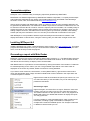
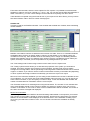
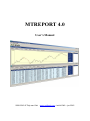
Double-click the MTReport icon on your desktop. Choose File -> Open report from the menu, or click
the left button in the toolbar, and select the report you have generated. A window will open, displaying
the report as generated by MetaTrader.
The window also contains two listboxes, and a number of tabs. Both the listboxes and tabs will be
discussed here one by one.
Symbols list
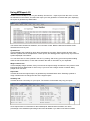
This list displays the symbols for which there are trades in the report. Some reports will have many
different symbols, like the sample above. Other reports, like StrategyTester reports may only have one
symbol displayed in the listbox.
You can select one or more symbols in the list. Try clicking, and moving your mouse pointer holding
down the left mouse button, or click and hold down the shift or ctrl button on your keyboard.
Magic numbers list
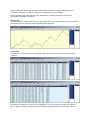
This list displays magic numbers, if they are used in the reports. Magic numbers are only used in some
Expert Advisors for MetaTrader 4. Don’t worry if you never see a magic number in this list. Many
people never use them,
Report tab
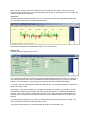
This tab will show the original report, as generated by the MetaTrader client. Selecting symbols or
magic numbers will not change the view of the original report.
Summary tab
This tab will show a summary for your report. The amount of information may vary per report.
Some reports have no information for the initial deposit. Without that information, the return
percentage or the drawdown percentage cannot be calculated. If you want to see these numbers