1
SUNACom User Manual - Running
SUNACom
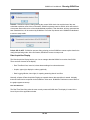
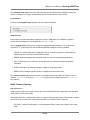
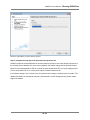
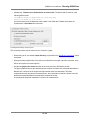
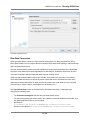
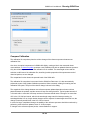
Periodic - SUNACom opens a dialog showing the current SUNA clock time and the time of the next
scheduled acquisition event. After confirmation, SUNACom passes control to SUNA, which will remain in
a low power state until the time of the scheduled data acquisition. That data burst, and any generated at a
later scheduled time, will be received by SUNACom. Press the Stop button on the SUNACom dashboard
to return to setup mode.
Polled, SDI-12, APF - SUNACom opens a dialog, alerting you that SUNACom cannot acquire data for the
configured operating mode. After confirmation, SUNACom returns to setup mode.
Data Acquisition Display
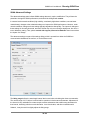
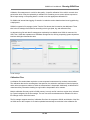
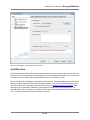
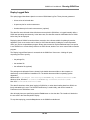
The Data Acquisition Display lets the you view or manage data that SUNACom receives from SUNA.
There are thee elements of the display:
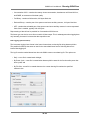
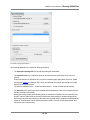
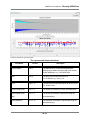
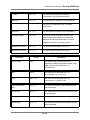
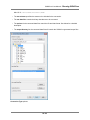
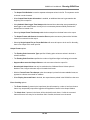
• Real Time Data View, lower left, shows latest readings from selected sensors
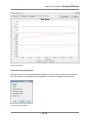
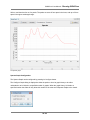
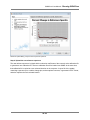
• Graphs, upper right, display the values graphically
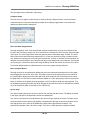
• Data Logging Window, lower right, for captuing streaming data in local files
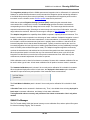
Normally, all parts of Data Acquisition Display are opened when a data acquisition is started. A display
that was closed can be reopened via the SUNACom View menu. SUNACom Preferences control which of
the graphs appear at start-up.
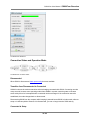
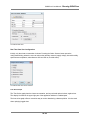
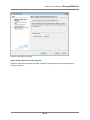
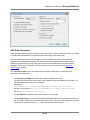
Real Time Data View
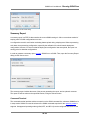
The Real Time Data View prints the most recently measured SUNA data. The display is located in the
lower left part of the application window.
25 / 82