1
Cytoscape 2.3.2 User Manual
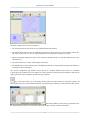
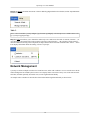
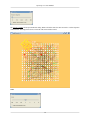
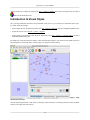
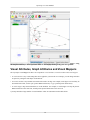
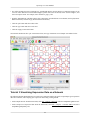
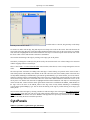
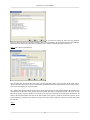
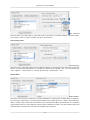
The network manager (top-right tree view in CytoPanel [/cgi-bin/moin.cgi/CytoPanel] 1) shows the networks that are
loaded. Clicking on a network here will make that view active in the main window, if the view exists (green highlighted
networks only). Each network has a name and size (number of nodes and edges), which are shown in the network
manager. If a network is loaded from a file, the network name is the name of the file.
Some networks are very large (thousands of nodes and edges) and can take a long time to display. For this reason, a
network in Cytoscape may not contain a ‘view’. Networks that have a view are highlighted in green and networks that
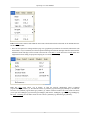
don’t have a view are highlighted in red. You can create or destroy a view for a network by right-clicking the network
name in the network manager or by choosing the appropriate option in the edit menu. You can also destroy previously
loaded networks this way. In the picture above, seven networks are loaded, six green ones with views and one red one
without a view.
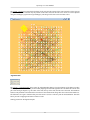
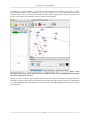
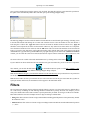
Certain operations in Cytoscape will create new networks. If a new network is created from an old network, for example
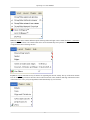
by selecting a set of nodes in one network and copying these nodes to a new network (via the File → New → Network
option), it will be shown as a child of the network that it was derived from. In this way, the relationships between networks that are loaded in Cytoscape can be seen at a glance. Networks in the top part of the tree in the figure above
were generated in this manner.
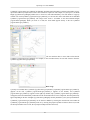
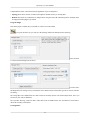
The available network views are also arranged as multiple, overlapping windows in the network view window. You
can maximize, minimize, and destroy network views by using the normal window controls for your operating system.
The Network Overview Window
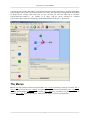
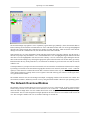
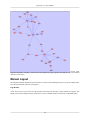
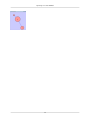
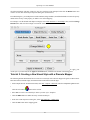
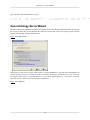
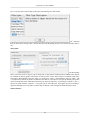
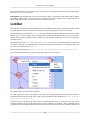
The network overview window shows an overview (or ‘bird’s eye view’) of the network. It can be used to navigate
around a large network view. This feature can be turned on or off via the View → Show/Hide Network Overview
menu. The blue rectangle in the overview window shown below can be dragged with the mouse to navigate to a part
of the network. The size of the navigation rectangle depends on the size of the active view and the zoom level of the
view. The rectangle is smaller if the view is zoomed in and larger if zoomed out.
11