1
Deleting a Row from an Existing Table
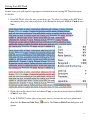
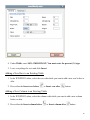
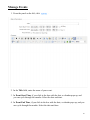
1. In the WYSIWYG editor, select the row you wish to delete.
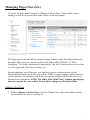
2. Press the Delete row
button.
Deleting a Column from an Existing Table
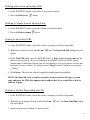
1. In the WYSIWYG editor, select the column you wish to delete.
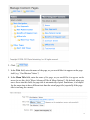
2. Press the Delete column
button.
Linking to an External URL
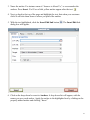
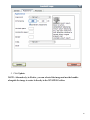
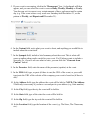
1. In the WYSIWYG editor, select the word(s) or image you wish to hyperlink.
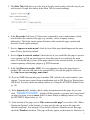
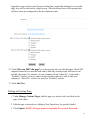
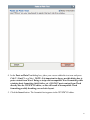
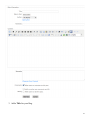
2. With the text selected, click on the Link
appear.
tool. The Insert/edit link dialog box will
3. In the Link URL field, enter the full URL path (e.g. http://www.xyzcorp.com) for the
link you wish to link to. If you are linking to an external website (a website whose
domain name is different from the site you are editing), it is a good practice to have that
link open in a new window. To do this, next to Target, choose “Open in new window
(_blank).”
4. Click Insert. The text you selected originally should appear hyperlinked.
NOTE: In almost all cases, if you have another browser window/tab open, you can
copy and paste the URL that appears in the address bar if you would like to link to
that site or page.
Linking to Another Page within your Site
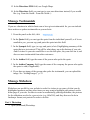
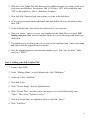
1. In the WYSIWYG editor, select the word(s) or image you wish to hyperlink.
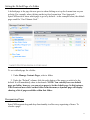
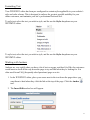
2. With the text or image selected, click on the Link
box will appear.
tool. The Insert/edit link dialog
3. Open a new browser window (or browser tab).
21