1
creotec.com
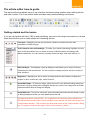
To make a button or image Click-able to another article or website - To make a button or image
click-able to another article or website, you can use a combination of the last three explanations.
First insert the image or button into your article where you want it. Then click the image to highlight it.
Then click the "Insert/edit link" button in the toolbar and enter the URL of the link and update your
article. This will make the image or button click-able to the other article or website
Unlink - To remove a link, highlight the linked text and press this button.
Insert Embedded Media - To insert embedded media such as flash files, youTube videos etc. place
the cursor at the desired location and press this button. A pop-up box will appear prompting you to
enter the Type, File or URL, and the dimensions of the embedded media.
Are you a new user?
If you want to learn more about the basics of html, css and website publishing, you should visit
www.w3schools.com
How-to edit the html directly
There are two way that you can directly edit the html for your article if you know what you are doing!
Note; This function can also be used to quickly copy an article. You can view the html and copy it for
use in a second article that is very similar. This will save a lot of time if you have spent a large
amount of time formatting a particular article.
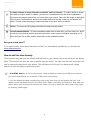
1. Edit HTML Source - If you click this button, a pop-up displays showing the HTML source code for
your article and allowing you to edit the HTML source code directly.
2. You can disable the editor completely by going to the User menu for the website and click "Your
details". In the drop-down menu for the editor, select "Editor - No editor" and click save. Now when you
edit an article, you will just see the html for the article. You can re-enable the editor again at any stage
by changing it back again.
11