1
VirtualDJ DJC MP3 e2
iii)
Going to the Cue point
Beat matching consists of adjusting the playback speed of music track B until
the moment the beats (often marked by drums or bass) of this track B play at
the same time as the beats of track A, to keep the same beat during 3 steps:
1. when playing track A,
2. then mixing track B together with track A,
3. and then when you stop playback of track A to keep only track B playing, to
spare the dancers a change in the dancing rhythm.
If the BPM rates of 2 music tracks are very far one from the other, you may
synchronize them by setting the BPM rate of the second music track at half or
twice the beat rate of the first music track, so that the beat of the second music
track is played at the same time as 1 beat out of 2 of the first music track or vice
versa. Typically, you can synchronize a 75 BPM music track with another track
set at 75 BPM, or with a track set at 150 BPM.
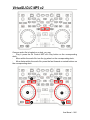
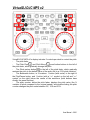
Hercules DJ Control MP3 e2 has 5 controls for beat matching:
1. Pitch fader,
2. Pitch Bend buttons (Pitch Bend -/+),
3. Sync button,
4. Jog wheels,
5. Master Tempo button.
User Manual – 21/41
FRANÇAIS
DEUTSCH
The DJ’s task is to provide the audience with the music they need to dance,
which includes:
selecting music tracks well suited to the audience,
maintaining a dancing rhythm with a good ambiance, and avoiding anything
that may interrupt the rhythm, such as gaps in the music or a BPM change that
is too abrupt,
making transitions easy for the dancers by synchronizing the next music
track with the current music track wherever possible: this synchronization is
called beat matching.
NEDERLANDS
6) BEAT MATCHING MUSIC FILES
ITALIANO
Deleting a Cue point
ESPAÑOL
iv)
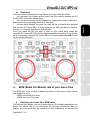
If the music is loaded with a Cue point, going to the start of the music file (with
the Rewind button) and pressing the Cue button once you have reached the
start of the music file deletes the previously set Cue 1 point.
ENGLISH
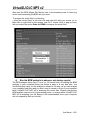
If the Cue point for an audio file has been defined and saved, you can go to this
Cue point by pressing the Play button, and then pressing the Cue button while
the track is playing. Please note that you must make sure that the track is
playing before pressing the Cue button: otherwise, if the track is stopped,
pressing the Cue button will place a new Cue point instead.